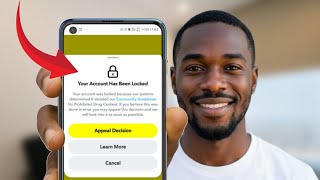

Snapchat Ban Types Explained
53sExplains the four types of bans (account, IP, device, shadow ban) with clear examples, making it highly educational and shareable for users who fear losing their accounts.
▶ Play Clip"Title accurately reflects content; video delivers on explaining bans and providing a solution."
This video explains why Snapchat bans or restricts accounts and provides a step-by-step guide on how to manage multiple Snapchat accounts safely using an anti-detect browser. The creator covers the types of bans, common causes, and mistakes to avoid, then demonstrates how to set up isolated browser profiles with unique proxies to prevent account linking.
Snapchat uses a multi-layered detection system that examines device, IP address, login patterns, session behavior, and browser fingerprints.
Account ban (temporary or permanent for policy violations), IP ban (entire internet connection banned), device ban (device banned), and shadow ban (reduced visibility without warning).
Using third-party or modified apps, sharing device/IP across multiple accounts, rapid logins and fast switching, and cold starting advertising or aggressive actions on new accounts.
Multiple physical devices (expensive), multiple Chrome profiles (shared fingerprints), and third-party cloning apps (explicitly banned).
An anti-detect browser creates isolated profiles with unique fingerprints, cookies, session data, and IPs, preventing Snapchat from linking accounts.
Before logging into Snapchat, verify the profile's fingerprint at iphey.com to ensure it looks clean and consistent. Fix settings if anything is wrong.
Use GoLogin to create profiles. Each profile needs a unique proxy. After creating, run each profile and verify fingerprint and IP before using Snapchat.
Sharing proxies between profiles, using VPN instead of proper proxy, skipping iphey.com check, cold starting business activity, and using similar username patterns.
By using an anti-detect browser like GoLogin with unique proxies and verified fingerprints, you can safely manage multiple Snapchat accounts on one device without triggering bans. Always avoid common mistakes and verify each profile before logging in.
What are the four main types of Snapchat bans?
Account ban, IP ban, device ban, and shadow ban.
02:18
What is the number one cause of Snapchat bans?
Using third-party or modified applications (not the official app).
03:18
Why do multiple Chrome profiles fail as a solution for managing multiple accounts?
Chrome profiles share the same underlying browser fingerprints (canvas signature, WebGL hash, etc.), so Snapchat sees them as identical.
05:47
What is the purpose of an anti-detect browser?
It creates isolated profile containers with unique fingerprints, cookies, session data, and IPs to prevent account linking.
06:59
What should you do before logging into Snapchat on a new profile?
Verify the profile's fingerprint at iphey.com to ensure it looks clean and consistent.
08:12
What is a common mistake when using proxies with multiple profiles?
Sharing a proxy between two profiles.
14:24
Snapchat's Multi-Layered Detection
Explains the complexity of Snapchat's security system, which goes beyond content monitoring.
01:49Four Types of Bans
Provides a clear taxonomy of bans, helping users understand different risks.
02:18Anti-Detect Browser as Solution
Introduces a practical, scalable solution for managing multiple accounts without bans.
06:44Fingerprint Verification Habit
Emphasizes a critical step often skipped, which can prevent many account flags.
08:12[00:03] annoying. It makes you want to throw away your device in frustration. But the good thing is it can be prevented. Most of the times you don't even know that you are the one causing the problem in the first place. In this video I will
[00:15] show you how to avoid getting banned or restricted on Snapchat even when you run managing Snapchat account for your clients or separate Snapchat accounts for your separate businesses. If you make one small mistake, you could lose
[00:29] your account. And if care is not taken, you will end up losing every account you log in on your device. This video will teach you step-by-step how to manage multiple Snapchat accounts on your device. I will also show you how to get
[00:42] two gig of free proxies that you can start with. This means you are starting without any risk and you will also learn why restrictions and bans happen and what you must do in order to avoid getting into banned and restrictions.
[00:56] All you need to do is watch this video carefully to the end. Now, before we start, go to the comment section and tell me the problem you're currently facing with your Snapchat account. I can't wait to hear your thoughts. First
[01:09] of all, you are welcome to JJ Ns. On this channel I basically teach my subscribers how to make money online through various ways and online businesses. I also share tips and tricks that I use every day to make my life
[01:22] easier and more productive. So, if you like tech tutorials, how to make money online, various online businesses, or how to make your life easier and more productive, don't forget to hit subscribe and like this video before we
[01:35] proceed. Thank you for that. Now, let's get into today's business. Let's start with what is actually going on when Snapchat locks or restricts an account because most people jump straight to how do I get unbanned when they should be
[01:49] asking why did this happen in the first place. Snapchat runs a multi-layered detection system. It's not just looking at your content. It's looking at your device, your IP address, your login patterns, your session behavior, and
[02:03] whether it recognizes the fingerprints of whatever browser or app you're using to access it. There are many reasons why social media accounts get banned or restricted. When it comes to Snapchat, there are four main types of bans.
[02:18] there are four main types of bans. Account ban, IP ban, device ban, and shadow ban. Account ban is when you get restricted for going against the terms and policies. This can be temporary or permanently depending on the violation.
[02:32] An IP ban is when your entire internet connection gets banned. This means even if someone connects to your Wi-Fi and access Snapchat, their account could be at risk. A device ban is exactly what it sounds like. It means your entire device
[02:48] has been banned. Even if you create new account on the device, it will still get banned. Shadow ban happens quietly without warning. Your snaps quietly stop appearing on Snap Map. Your engagement drops. Messages don't get delivered to
[03:04] certain users. No warning, you just go invisible. This will reduce your visibility to almost zero without notification. Now that you know the different types of ban and restrictions, let's talk about the things that causes
[03:18] them. The number one cause is using third-party or modified applications. Anything that is not the official Snapchat app from the App Store or Modified versions, app cloners, parallel space apps,
[03:34] Snapchat detects all of these and a first offense usually gets you a 24-hour lock. Repeat offenses will get you permanently removed. The number two is permanently removed. The number two is sharing a device or IP across multiple
[03:48] accounts. If you log into Snapchat with three different accounts on the same device fingerprint or the same IP address, Snapchat security will detect it and connect them. And if one gets flagged, the others will follow. The
[04:02] third cause is rapid logins and fast switch. Logging into four different accounts in 10 minutes, switching between them constantly, logging out and back in repeatedly. All of these looks like automation or bot-like behavior to
[04:17] Snapchat's system. The fourth cause is cold starting advertising or aggressive actions on new account. New accounts that immediately start running ads, mass adding friends, or blasting messages get flagged almost immediately. Snapchat
[04:34] expects new accounts to behave like real people for a while before they do anything that looks like business. Answer this question. Do you normally log into different Snapchat accounts on the same device? If yes, pause. Don't
[04:49] log into any of them until after learning this. Now, when people get their accounts banned, they often do similar things trying to fix the problem. But some of the things they try to do as solutions would only make
[05:02] things worse. You must avoid these solutions because they never work. The number one mistake that people do as solution is multiple physical devices. Yes, this sounds reasonable because each device has its own fingerprint, but
[05:17] think about it. Let's say you manage three Snapchat accounts. That means you have to buy two extra devices. How much would that cost you? It's a solution, but it's too expensive. If you are managing six or more accounts for your
[05:32] clients and businesses, can you have up to six devices in your office? It makes no sense. The second solution most people consider is multiple Chrome profiles. Chrome lets you create separate profiles with different saved
[05:47] passwords and cookies. It sounds reasonable, but Chrome profiles share the same underlying browser fingerprints, the same canvas signature, WebGL hash, screen resolution signature, and hardware identifiers.
[06:02] Snapchat's web detection sees right through this. You are running multiple accounts that all look identical at the fingerprint level. This is not a solution even though it looks like it. The third one is third-party cloning
[06:16] apps. This is the worst one. Apps like Parallel Space, Dual Space, 2 Accounts, these are explicitly banned in the Snapchat terms of service. Using them is not just risky, it's a guaranteed red flag.
[06:31] guaranteed red flag. Snapchat detects cloned environments and using them is one of the fastest ways to get a device banned. So, what exactly is the solution? How do you manage multiple Snapchat accounts
[06:44] safely and conveniently? The best way is to use a powerful or trusted anti-detect browser. Before I show you the specific tool I use, I want to explain this solution a little bit more. When you are doing multiple accounting,
[06:59] managing multiple Snapchat accounts across different identities, brands, or clients, the fundamental problem is you need each account to live in a completely separate digital environment, not just a separate tab, not just a
[07:15] separate Chrome window, a separate environment with its own unique browser fingerprint, its own cookies, its own session data, its own IP. An anti-detect
[07:27] browser solves this by creating isolated profile containers. Each profile has its own unique fingerprint, its own canvas signature, WebGL hash, user agent
[07:39] string, screen resolution, time zone, and language settings. When you open profile A, it looks like a completely different device from profile B. There is no bleed over of cookies, no shared session data, no way for Snapchat
[07:55] to connect them. This is how you reduce the messy signals that trigger false positives. You are not hiding anything. You are just keeping things clean. Here is a universal rule I apply with any anti-detect browser, and I want you to
[08:12] remember this regardless of what tool you end up using. Before you do any real work on an account, verify the profile's fingerprint. Here is how to do it. Visit https
[08:26] iphey.com inside the profile. Before you log into Snapchat, check that the fingerprint looks clean and consistent. What you are looking for is simple. You want everything to read
[08:41] as normal and consistent. Make sure everything looks absolutely okay. If something looks wrong, don't log into Snapchat on that profile. Fix the profile settings first. Regenerate the fingerprint, swap the proxy, or recreate
[08:57] the profile, then check again. This habit alone will save you from a huge percentage of unnecessary account flags. Now, in my own workflow, I use GoLogin for managing multiple accounts, even for my clients. I like how it keeps profiles
[09:13] organized. The fingerprint management is solid. So, I'm going to show everything on GoLogin from here, and I also recommend it. All right, let's start the actual setup. Open your browser and go to gologin.com.
[09:30] GoLogin offers a 7-day free trial when you sign up. No credit card required to start. We'll talk about the discount offer at the end of the video. Register with your email, then log in. You will land on the main dashboard. Right now,
[09:47] it is empty. We are going to build this out together. Click the add profile button in the top right corner. This is where you configure the identity for each account. We are going to create three profiles today. One for each
[10:01] Snapchat. I'm naming my profile one Snapchat, profile two Snapchat, and profile three Snapchat. If you are managing your client's Snapchat, then you can enter their name followed by Snapchat just so you can
[10:16] easily identify each one. Type the profile name. Below that, you can assign it to a folder. I'm creating a folder called Snapchat so all my Snapchat profiles stay grouped. This is one of the reasons I love GoLogin because it
[10:32] makes it easier to manage multiple profiles. And now, the proxy section. This is important, so pay attention. Each profile need its own unique proxy with its own unique IP. I'm going to enter the proxy credentials for profile
[10:48] one now. Once you have entered the proxy details, click check proxy. You need to see a green confirmation before you save the profile. If it returns an error, your proxy credentials are wrong or that
[11:03] proxy endpoint is down. If so, swap to another one. When it appears green, that means good. Now, click create profile at the bottom of the window. Your first profile is live. Now, repeat this process for profile two and profile
[11:19] three, but [clears throat] make sure to create each one with a different proxy. If any of them show the failed proxy, do not proceed with that profile. Recheck the credentials, try a different endpoints, or swap providers.
[11:34] All right, this is the part most people skip and it is the part that matters most for keeping accounts protected. We are going to run each profile and verify it before we even touch Snapchat. Click run on profile one. A new browser
[11:50] window will open. You can see the profile name in the title bar. Now, profile name in the title bar. Now, visit https://iphey.com.
[12:02] checks your browser fingerprint and tells you if anything looks inconsistent Here is what you are looking for. You want to see a consistent fingerprint.
[12:14] The parameters reported should line up with the profile you have built. No real IP leaks. Your actual home IP should not IP leaks. Your actual home IP should not be visible through WebRTC or DNS. The IP
[12:26] shown should match the proxy you assigned. No red warning flags in the fingerprint summary. This profile looks clean. Good. Now, let's do the IP check. Open a new tab inside this same profile.
[12:41] Go to Google and type my IP. You should see an IP address that matches the proxy region you assigned to this profile. This confirms that the proxy is working and this profile is running with a separate identity.
[12:55] Now, close this browser window. Click run on profile two. Repeat the same thing we did on profile one. Now, we are ready to actually use Snapchat. All right, profile one is running and verified. Inside this browser, navigate
[13:11] to web.snapchat.com. This is where you will log in or register the account associated with this profile. If you already have an existing account for this profile, then log in normally. If you are creating a
[13:26] new account for this profile, click sign up and walk through the registration. You will need a unique email address, a unique phone number for verification, and a unique username that doesn't connect back to your other profiles.
[13:40] Complete the registration. This account is now isolated inside profile one's browser environment. Its cookies, session data, and login state live only here. Close this window. Now, go back to
[13:55] GoLogin and run profile two. Navigate to web.snapchat.com again and log into or register the second account. And repeat for profile three. Look at this. Three Snapchat accounts, three separate browser
[14:09] environments, three different IPs running simultaneously on one machine. None of them connected to each other. Now that you are done setting up your unique environments for each account, you can now run separate accounts
[14:24] safely. Let's go through the most common mistakes I see people make in this setup. Mistake number one, sharing a proxy between two profiles, using a VPN instead of proper proxy in GoLogin, skipping the iphey.com check,
[14:41] cold starting business activity, using the same username pattern across the same username pattern across accounts. All these are subtle mistakes. They may seem harmless, but remember what I said earlier.
[14:54] account banned. So, to be sure you are not taking any risk, avoid them completely. Now, let me show you how to get a 40% discount on GoLogin. After the 7-days free trial, you can
[15:10] still get a 40% discount when you activate a plan on GoLogin. There is a special promo code in the description of this video and also in the comment section. Copy it. This is the code that you can use to get a 40%
[15:24] discount. Here is how to use it. While you are logged into your account, on the bottom left of the screen, you will see your plan. Click on the settings icon, then click billing plans.
[15:37] Here, you can enter the coupon code and you will get a 40% discount. After applying the coupon code, on the top left, click here, then click upgrade plan. We finally come to the end of the setup. Do you have any questions? If you
[15:53] do, don't hesitate to comment down below. Make sure you are subscribed to the channel for my future updates. Thanks for watching.




⚡ Saved you 0h 16m reading this? Transcribe any YouTube video for free — no signup needed.