
AI Summary
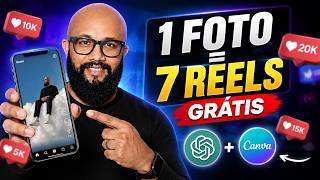
This video demonstrates a method for transforming a single static image into a week's worth of short-form video content for social media, using Canva's image-to-video feature and GPT for ideation and prompt generation. The presenter walks through the entire workflow, from finding inspiration to adding music and text, and provides practical tips for creating engaging, surreal, or motivational videos.
Chapters
A single image can be turned into a week's worth of content using Canva and GPT. The method involves generating ideas, creating prompts, and animating images.
Open Canva, click 'Create', and select 'Vertical Video' for social media (e.g., Instagram). This opens the timeline where all video elements will be assembled.
Use Pinterest to find surreal art or niche-related images. Alternatively, ask GPT for ideas by providing context about your work and desired style.
Upload inspiration images to GPT and request content ideas that can be represented with simple, surreal images. GPT can generate prompts for image creation.
Upload the generated image to Canva, click 'Edit', then select 'Image to Video'. Choose 'Customize' to enter a prompt describing the desired motion (e.g., 'man climbing stairs').
To make the video longer, click on the video, select 'Speed', and reduce the speed to achieve at least 10 seconds of footage.
Add text by clicking 'Show Duration' and typing a message. For music, use GPT to generate a prompt for Suno (AI music tool), then upload the audio to Canva and position it on the timeline.
To create a video with your own face, upload an inspiration image and your photo to GPT, and request that the person in the inspiration image be replaced with you. Then animate the result.
To make a short video loop infinitely, download the animated video as a GIF and re-upload it to Canva. GIFs can be set to loop, making the content appear longer.
This method provides a simple, repeatable workflow for creating engaging short-form content from a single image, leveraging free tools like Canva and GPT. It's ideal for maintaining a consistent posting schedule with minimal effort.
Mentioned in this Video
Tutorial Checklist
Study Flashcards (7)
What is the first step to create a vertical video in Canva?
easy
Click to reveal answer
What is the first step to create a vertical video in Canva?
Open Canva, click 'Create', and select 'Vertical Video' or choose a social media platform like Instagram.
00:31
What tool is recommended for finding inspiration for surreal images?
easy
Click to reveal answer
What tool is recommended for finding inspiration for surreal images?
Pinterest is recommended for finding inspiration, especially for surreal art or niche-related images.
02:31
How can you use GPT to generate content ideas?
medium
Click to reveal answer
How can you use GPT to generate content ideas?
Upload inspiration images to GPT and ask for content ideas that can be represented with simple, surreal images. GPT can also generate prompts for image creation.
03:10
What is the 'big secret' to animating an image in Canva?
medium
Click to reveal answer
What is the 'big secret' to animating an image in Canva?
Click on the image, then 'Edit', and select 'Image to Video'. You can choose 'Customize' to enter a prompt describing the desired motion.
04:21
How do you make a short video longer in Canva?
easy
Click to reveal answer
How do you make a short video longer in Canva?
Click on the video, select 'Speed', and reduce the speed to achieve at least 10 seconds of footage.
05:30
What tool is used to generate music for the video?
medium
Click to reveal answer
What tool is used to generate music for the video?
Suno is used to generate music, with a prompt provided by GPT.
06:47
How can you make a video loop infinitely in Canva?
medium
Click to reveal answer
How can you make a video loop infinitely in Canva?
Download the animated video as a GIF and re-upload it to Canva. GIFs can be set to loop, making the content appear longer.
08:33
💡 Key Takeaways
One Image, One Week of Content
This is the core promise of the video, showing a practical method to maximize content output from a single asset.
00:02Canva's Image-to-Video Feature
This is the key technical feature that enables the transformation, and the video explains how to use it effectively.
04:21Using GPT for Music Prompts
Shows an innovative way to combine AI tools (GPT and Suno) to create custom music, expanding the creative possibilities.
06:47Looping with GIFs
A clever workaround to extend the duration of short videos, which is useful for social media engagement.
08:33Full Transcript
[00:02] an image to be able to turn that into content. I guarantee that by the end of this video you'll leave with several ideas and you'll know how to transform this image, this photo, into content for the entire week using
[00:17] Canva and GPT. I'm sure you haven't seen this method a lot. So watch this video until the end because you'll want to run out of here to put what you're going to learn into practice. Okay, let's get straight to the
[00:31] Canva. If you don't already have Canva, there's a link below where you can create your free account or try Canva for free for 30 days . It's OK? I want to start by showing you this video here.
[00:57] This video was made entirely with artificial intelligence here in Canva and also with GPT. And I'm going to show you how you can do that. This type of video is very popular on social media, especially on Instagram, because you
[01:10] can include a message, a call to action, and a longer description. Many profiles grow this way. Here are a few more examples for you to see. This one here is a slightly more surreal version.
[01:23] a slightly more surreal version. [music] tools I use most. The goal is to grab attention on
[01:37] social media, and this type of video certainly attracts a lot of attention. And then there are the more motivational ones, right? So here's another example. Just look. [music] Freedom begins when fear ends.
[01:51] This little video here says it all, right? The little cage was open, but the bird didn't come out. And how can you do that? Okay, so we can get started, open your Canva app, go here and click on "create" and
[02:05] select the video option. In this case, since we're going to create short videos for social media, you select " vertical video" here, or go to "videos" and select the social media platform you 'll be using. In that case, I'll put my
[02:17] 'll be using. In that case, I'll put my Instagram here. When you open this, you'll already see our Canva timeline. And all the information that we're going to work on our video. Now that you're here, you're going to look
[02:31] for inspiration. And where do I look for inspiration? I go to Pinterest a lot, and I look for inspiration here. I was looking at surreal art, things like that , photographs, anyway, you can get some inspiration related to
[02:44] your niche. If you already communicate with GPT there, you can talk to them and ask for help finding ideas, because that way you can find them. The LGBT person all day and knows your work.
[02:57] You say what you do and you want to do something more surreal, something interesting, something that will grab attention. And that's how I started researching, and I found some images, copied those images, and took them inside GPT.
[03:10] And here you will see the entire line of thought. Here I brought the images and told GPT that I wanted content ideas that could be represented with images like these. But they should be simple and surreal images. And then
[03:26] he started bringing me various ideas of what could be created, some in English, others in Portuguese. And I liked some of them, so I started asking for the prompts here. And what's great is that you can take this same prompt and
[03:40] use it within GPT. Alternatively, you can use another artificial intelligence to generate this for you within Canva itself, or even you within Canva itself, or even using Nano. It's OK? You
[03:52] grab the prompt there and start creating the images. Once the images are image of this guy going up and down the same stairs, right? Being
[04:05] busy doesn't always mean you're being productive in any way. I thought this representation was really cool. So I brought this here into Canva. So inside the videos you just opened, that video document, bring
[04:21] that image here, upload it, click on the image, and it comes the big secret, which is this: you're going to click here. Many of you here on the about it a lot, but if you do n't know it yet, you'll learn about it
[04:35] now. Click here on the image above, then click edit. And here, look, you have the option to select image over video. Here in the image to video, you have two options. You can ask Canva to generate this for you automatically, or
[04:50] you can ask to customize it. In this case, if you ask it to generate automatically, Canva will observe what's happening here and try its best to animate it. Now, I always go there and order in a
[05:03] personalized way. So you can put it here in a very simple way, the man is climbing the stairs or the movement you want to give to that image. After video he's giving you, look how interesting, it's a
[05:18] video that, because it has a certain amount of movement and we want it to be short, what can we do here? Look, [with music]
[05:30] we have a song. I'll show you how we got into music. What are we going to do in this case, as shown in the video? You're going to click there, create the animation, you're going to click on that same video, click on speed, and
[05:44] here you reduce the speed of the video so it can have that get at least 10 seconds of video, which is really cool. And then you post your message so it starts appearing here right after the first, or
[05:58] second, video. So, for that to appear, you click here, on " show duration," and it will appear here. Then you put your message there to make it type your text and enter the message: "Hey Rob, but where do I
[06:11] your brainstorming session, have a chat with GPT, and say, "Look, I want you to help me come up with phrases that represent, you know, these images we just created." Remember,
[06:23] artificial intelligence needs context. So, the more context provide context for what you want to create in order to achieve good results. Ready. Here we have a video that has already been
[06:35] created and we have the music. And how was this song made? Just like we did there, we used GPT to help us with the images; we to help us with the images; we asked GPT to give us a phrase that
[06:47] represents that image. You can also ask GPT itself to give you a prompt to use within Suno. Suno is the tool I use artificial intelligence. You can also use Eleven Labs, and you can even create your designs right
[07:01] here within Canva. All of these tools have free versions for you to create, and you can indeed create and achieve the same results I of this tool, because the main ingredient itself, which is
[07:14] Canva's image-to-video feature, is free for you to use. There's a limit, obviously, because it's free, but it's free too, okay? And for the images, you can use either Nano or GPT itself. Once you have your music, you bring it
[07:26] into Canva and simply place it on your timeline. It's very simple. Click on uploads, select audio, OK? Click where you want the audio will appear below for you. Here you can cut and position it exactly
[07:41] where you want it. And so you already have your song there. You can go there, click, and share this, post it directly to social media if you want, okay? But look, before that, I want to show you this case here. In this case here,
[07:53] how did I do this to arrive at this image? The process is very similar. The difference is that I took an image of myself, so I found an image that was an inspiration I was looking for there. Then you can
[08:05] look for an image that inspires you in some way. Take this image, upload it to GPT, add your image alongside it, and request that the person shown there be replaced with leave a comment here and I can make another video showing
[08:19] exactly how you can take an existing image and make it perfectly match your own image . But just ask GPT and he'll create the image. After that, I brought this image here,
[08:33] animated it, but this one has a little secret. Why? After I made the animation, to make it longer like this , I downloaded it as a GIF. share section, you click on download, and I've selected GIF here, okay? Or gif.
[08:49] And then I uploaded it here again to Canva. And when you have a GIF, you can keep playing it on loop here. So that 5- second video can almost become infinite here, right? But the idea is to convey a
[09:02] quick message and call for action in some way, whether through your caption or through your content. Finally, this is some really cool content to post when you 're a little short on ideas for content, or
[09:17] even to create some, you know, Instagram. There are Instagram accounts out there that are just like that, with motivational content or even content that says something, but it's So here you have a tool that can help you with that, okay?
[09:33] Here's also a link to my free artificial intelligence lab for you you enjoyed the video. See you next time. See you later.