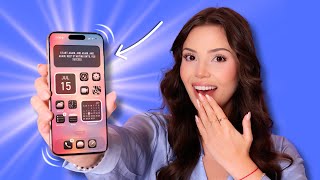

Bulk Select Messages with a Swipe!
40sThis simple gesture saves time and is a common pain point for iPhone users, making it highly shareable.
▶ Play Clip"Delivers on the promise of 21 tips with actionable hacks, though some are common knowledge and the intro is a bit padded."
This video presents 21 hidden iPhone tips and tricks designed to boost productivity, enhance camera functionality, and uncover lesser-known features. The host demonstrates each hack with practical examples, from bulk message selection to custom alarm snooze durations and secret recording methods.
Swipe up or down on the screen to select multiple messages at once in iMessage, Notes, and Voice Memos, instead of tapping each one individually.
Long press the space bar to turn the keyboard into a trackpad, allowing precise cursor movement. Long press and then press with another finger to select text without triple-tapping.
Swipe left with three fingers to undo and swipe right with three fingers to redo, a more efficient alternative to shaking the phone.
Swipe down on the home screen to open Spotlight and type calculations like '345*12' or conversions like '50 USD to euros' for instant results without opening apps.
In the Clock app, tap your alarm, then 'Snooze Duration' to set it between 1 and 15 minutes, replacing the default 9 minutes.
In the Clock app, set a timer, tap 'When Timer Ends', and select 'Stop Playing' to automatically pause music or shows after a set time.
Go to Settings > Accessibility > Touch > Back Tap to assign actions like opening the camera or turning on the flash to double or triple taps on the back of the phone.
Enable AssistiveTouch, then press volume up, volume down, and hold the side button until the power off screen appears. Tap the AssistiveTouch button, then Home, then Cancel to clear RAM and reduce lag.
In Settings > Accessibility > Touch > Haptic Touch, set the touch duration to 'Fast' to make long-press actions (like opening images) respond quicker.
In Settings > Camera > Format, enable 'Resolution Control'. Then in the Camera app, tap the 24MP indicator to switch to 48MP for higher-quality photos.
Turn off True Tone (Settings > Display & Brightness), Attention Awareness (Settings > Accessibility > Face ID & Attention), and Auto-Brightness (Settings > Accessibility > Display & Text Size) to prevent the screen from dimming outdoors.
In Settings > Apps, enable RCS messaging to get read receipts, typing bubbles, and high-quality photo sharing with Android users, using Wi-Fi or data instead of SMS.
In the Notes app, tap the camera icon and choose 'Scan Text' to insert printed text directly into a note without typing.
In Settings > Sounds & Haptics > Ringtone > Haptics, create custom vibration patterns for different contacts to identify callers without looking at the phone.
In Settings > Apps > Phone, enable 'Silence Spam Callers' to prevent spam calls from appearing on your phone.
In the Shortcuts app, create an automation triggered when the charger is connected, and use 'Speak Text' to have your phone say a custom phrase when plugged in.
Enable VoiceOver in Accessibility Shortcut, then in the Camera app, triple-press the side button to activate VoiceOver, press a volume button to start recording, and triple-tap with three fingers to hide the controls.
Long press on the home screen, tap the page dots, and uncheck pages to hide them. Apps are moved to the App Library, not deleted.
In Safari, tap the icon and select 'Hide Distracting Content', then tap on ads to hide them, making articles cleaner.
Plug your iPhone into the receiving device with a USB-C to USB-C cable and use AirDrop as usual to avoid failures and transfer content twice as fast.
In Settings > Bluetooth, pair a controller (like Xbox or PS5) to play games like Fortnite or Call of Duty on your iPhone, making it a portable gaming device.
The video concludes that the iPhone is packed with hidden features that can significantly enhance user experience, from productivity to entertainment. It encourages viewers to explore these tips and share them with others who might benefit.
How can you bulk select messages in iMessage?
Swipe up or down on the screen to select multiple messages at once.
00:15
What is the default snooze duration on iPhone alarms?
9 minutes.
02:31
How do you turn the keyboard into a trackpad?
Long press the space bar.
00:44
What is the three-finger swipe gesture for undo?
Swipe left with three fingers to undo.
01:24
How can you calculate or convert units without opening an app?
Swipe down on the home screen to open Spotlight and type the calculation or conversion.
01:50
What is the range for custom snooze duration on iPhone?
1 to 15 minutes.
02:31
How do you set a timer to stop playing music?
In Clock app, set a timer, tap 'When Timer Ends', and select 'Stop Playing'.
03:14
What is the Back Tap feature?
It allows you to assign actions to double or triple taps on the back of the phone.
03:42
How do you clear RAM on an iPhone?
Enable AssistiveTouch, press volume up, volume down, hold side button, then tap AssistiveTouch, Home, and Cancel.
04:21
How can you enable 48MP photos on iPhone?
In Settings > Camera > Format, enable 'Resolution Control', then tap the 24MP indicator in the camera app.
05:42
What settings should you turn off to prevent screen dimming outdoors?
True Tone, Attention Awareness, and Auto-Brightness.
06:34
What is RCS messaging?
It enables read receipts, typing bubbles, and high-quality photos with Android users, using Wi-Fi or data.
07:02
How can you scan text into Notes?
In Notes, tap the camera icon and choose 'Scan Text'.
07:44
How can you identify callers without looking at the phone?
Create custom vibration patterns for different contacts.
08:13
How do you make your phone say a phrase when charging?
Create an automation in the Shortcuts app triggered by charger connection, using 'Speak Text'.
09:09
Bulk Selection
Saves significant time by allowing multiple message selection with a simple swipe.
00:15Spotlight as a Calculator
Eliminates the need to open separate apps for quick calculations and conversions.
01:50Custom Snooze
Gives users control over a previously fixed setting, improving alarm usability.
02:31RAM Clearing
Provides a practical solution to lag, a common issue for many iPhone users.
04:21RCS Messaging
Improves cross-platform communication with Android users, a major pain point.
07:02[00:01] but I'm about to prove you wrong. I've got 21 hacks that will level up your productivity, boost your camera, hide things you don't want seen, and even charge it. >> Wow, thank you so much, Roina.
[00:15] >> Yeah, you're very welcome. Most of us still tap on each message one by one trying to delete them. It's not productive at all. So, here's what you fingers on the screen and swipe up or swipe down and boom, everything selects
[00:29] in bulk. You can do this in iMessage, Notes app, and even voice memos. That we're just warming up. Have you ever tried editing a typo in the middle of the word and ended up tapping the wrong letter seven times? Yeah, I know that's
[00:44] that. When you spot the typo, all you have to do is long press the space bar and your keyboard turns into a trackpad. Now you can slide your finger across the keyboard to move the line anywhere that you want with 100% accuracy. And I mean
[00:59] it, it's 100% accurate. By the way, another cool trick is if you long press the space bar, then press with your finger on the keyboard, you can now select whatever you want without triple tapping or double tapping. Speaking of
[01:11] typos and mistakes, what if you could erase them all without looking like know, when you want to undo something, you just shake your phone. But just trying to undo something and then you start shaking your phone like a crazy
[01:24] start shaking your phone like a crazy person. Yeah. No, I've got a way better hack for that. So, if you accidentally deleted something, all you have to do is swipe left with three fingers to undo. But then if you decide to redo that
[01:36] again, all you have to do is swipe right with three fingers. If you knew that one you definitely don't know. If you're still the type of person that goes into the calculator app to add, subtract, multiply, divide, or goes into Google to
[01:50] convert 50 USD into euros, well, after I easiest way to calculate or convert something is swipe down on your home screen to open Spotlight. Type the calculation, for example, 345 * 12, and
[02:05] you get the answer right away without you needing to open any apps. And in the same spot, you can say 50 USD to euros, and it's going to convert it for you right away. Now that you're learning some time-saving tips, how about I show
[02:17] you how to be in control of your nap time? You know how you wake up every morning to your iPhone alarm, then you hit snooze just to get that little extra sleep? Well, for the longest time, Apple was in control of how long that snooze
[02:31] time was, and that was 9 minutes. Why 9? Nobody knows. But now you can change it to 3 minutes, 5 minutes, 13 minutes, even 15 minutes. However many minutes you want to nap for after your alarm wakes you up. To do that, open the clock
[02:45] app, tap your alarm, tap snooze duration, then pick anytime between 1 and 15 minutes. And now, if you want your phone to wake you up again after 5 your phone to wake you up again after 5 minutes and not 9, you can. Since we're
[02:59] go to sleep with music or watching a show? I actually go to sleep by watching a show and it's very relaxing for me. But then waking up to it at 3:00 in the morning, yeah, not so much. I figured out a way how to make my show pause in
[03:14] waking up. We're going to go back to the clock app, hit timer, then tap on when timer ends. Scroll to the bottom and tap on stop playing. And that's it. You can now set up a timer for minutes or hours.
[03:28] And once that timer ends, your music or your show is going to stop hidden feature, but let's talk about the next one. Your phone has a hidden button that you don't know about or maybe you forgot about it, and that's the back
[03:42] tap. Imagine tapping on the back of your phone to open up the camera app or turn on the flash or anything else. Actually, most people don't even know this exists. So, here's how you can turn it on. Go to settings, accessibility, touch. Scroll
[03:56] all the way down and then press on back tap. You can either set double or triple tap. If you press on double tap, you will see all of the features that you can use it for. Speaking of secret buttons on your iPhone, there is another
[04:09] secret button that will stop your phone from lagging. Well, I think we've all had that before where our phones just start lagging out of nowhere and it's so annoying. All you'll have to do here is clear your RAM. Go to settings,
[04:21] accessibility, go to touch, and then press on assist of touch. Now turn on appear on your screen. That's the secret button that I was telling you about. From here, listen very carefully. You'll have to press the volume up button, then
[04:35] press volume down button and hold the lock and the volume button together until you see this screen. Do not turn off your phone from here. Press on the assisted touch button instead. Then press on home and then click cancel.
[04:48] This clears up your RAM and makes your phone go back to normal. To get rid of to do is go back to settings and then just turn off assist of touch. Now, if you want your iPhone to become even faster after that, make sure to like
[05:01] first because you'll thank me after I show you this tip. Go to settings, accessibility, and go to touch. Click on haptic touch. Here, your touch duration will be set on default, but you will want to set it on fast. But just to
[05:16] demonstrate, if you go back to default and test the speed, this is how long it takes to open up the image. And now, if you switch to fast and then test the image, it's so much faster. Just look at this difference side by side. We've
[05:29] talked about a lot of hidden features on your iPhone. How about I show you something hidden on your camera? Did you know that your iPhone shoots in 24 megapixels by default, and it can actually do twice more? If you have a
[05:42] new iPhone and you take pictures and then you realize that your pictures for people's pictures, yeah, then that's get that 48 megapixel quality, you just have to enable it. Go to settings, go to
[05:56] camera, press on format, and then turn on resolution control. Now, open the camera app, tap on the 24 megapixels at the top left corner, and from here you'll be able to switch to 48 megapixels. Crystal clear photos are
[06:10] great, but how about a screen that doesn't dim on you automatically? Especially when you're outside. The most annoying thing is when you go outside, it's a beautiful sunny day and you have your brightness all the way up on your
[06:22] phone and you literally cannot see anything on your screen. And you know it's not because of the sun. And that's because Apple has these true tone out of brightness features that just dims the phone screen when you most need it. So,
[06:34] let's turn off those features. Go to settings. Go to display and brightness and then turn off true tone. Then go back to the main settings page. Go to accessibility. Then go to face ID and attention. Turn off attention awareness.
[06:49] Then just go back one page and then go to display and text size and then turn off auto brightness. If you still haven't subscribed or liked this video after that hack, what are you doing? It's only going to get better now.
[07:02] Texting people that have Android phones probably feels very weird, but I'm going feel a lot more pleasant. All we have to do is enable RCS messaging. With RCS messaging, you can get red receipts,
[07:14] typing bubbles, and even send high quality photos, all for free. Yes, I said for free. Your SIM card carrier does not think of RCS messaging as text messages. RCS messaging basically uses your Wi-Fi or your internet data. Here's
[07:29] how to turn on this feature. Go to settings, scroll down, and go to apps. Scroll down a little bit until you see that your Android friend also has that feature on. Now, the next hack may seem
[07:44] very obvious, but it's not to most of you. Why type out what's already written down? Instead, open the notes app, tap on camera icon, choose scan text, then aim the camera at the printed text, and then tap insert. That's very easy and
[07:59] left your phone face down and you're a few steps away from it and someone your phone to see who's calling you. What if I told you you would be able to know exactly who's calling you by listening to the vibration of your
[08:13] vibration pattern so you know if it's your mom, your brother, your boss, or even spam calling you. Go to settings and then go to sounds and haptics. Press on ringtone. From here, tap haptics and then create new vibration. And now you
[08:28] can create your own little pattern for each person that's important to you and know exactly who's calling you without even lifting your phone up. And yes, you can even set up a pattern for spam callers. Speaking of spam callers, why
[08:41] do we even need to waste time creating different vibration patterns for them when instead we can just silence them completely. To do that, go to settings, scroll down all the way, and then hit on apps. Find phone app, click on it, and
[08:54] then scroll down until you find silence spam callers. And that's it. Now, every time you get a spam call, it's not going to even show up on your phone. Now, your did you know that it can thank you or say whatever else when you put it on
[09:09] the beginning of this video. To do it yourself, go to the Shortcuts app, tap on automation, then create a new automation. From here, choose charger, then select is connected, and then also select run immediately. Then press on
[09:24] next, and then select speak text. Here you can type whatever phrase that you want. You can make it thank you or you can make it tell you a joke. Honestly, the possibility of what you want it to say is limitless. Once your phrase is
[09:36] time you put your phone on charge, it will say that phrase. But what if your iPhone could record a video with a locked screen? Yes, it's possible. And I'm going to show you how. For this, go to settings,
[09:51] go to accessibility, and then go to accessibility shortcut. Scroll down and then press on voice over. Make sure that it's check marked. Then go to the camera going to have to triple press the side button and that will turn on the voice
[10:04] you're going to have to press on one of the volume buttons. And to hide that triple tap the screen with three fingers. And if you want to stop the secret recording, all you have to do is just repeat all the steps but backwards.
[10:18] Pretty cool, right? You can now be a spy or just a creepy person. Please don't be a creepy person. What if I told you that you can actually hide even more on your iPhone? You can now hide an entire page on your home screen without doing it one
[10:32] by one for each app. All you have to do is long press on the home screen, tap on the page dots, and then uncheck the pages you want to hide. Don't worry, those apps are not going to get deleted. They're just moved to the app library.
[10:45] how about I help you clean out your browser? You know how you're reading an article on Safari and you get so many ads in that article, but you can make them disappear like this. In Safari, tap on this icon, then tap on hide
[10:59] distracting content. Then whatever ad that you're seeing, you can tap on the ad and then hide. It's literally like magic and it works every single time. Now ads might not seem like a big problem to you. So you may not even use
[11:12] you will start using this airdrop feature. You know, AirDrop is great feature. You know, AirDrop is great until it's not. Sometimes AirDrop fails or it's way too slow. To avoid fails and transfer content faster, all you have to
[11:27] do is plug your iPhone into the receiving device with a USBC to USBC cable and then just use AirDrop as usual. That will make sure that your AirDrop does not fail you and it will transfer your content twice faster.
[11:40] Isn't that amazing? Finally, this is my absolute favorite hack ever. You can literally play Fortnite or Call of Duty with a controller on your phone and you don't need an Xbox or a PS5. When I play Fortnite, I literally do it from my
[11:55] thing. And the best part of it is that it's portable. All you need to bring with you is your iPhone and a controller. To get the setup, all you have to do is go to settings, press on Bluetooth, then press on the pairing
[12:07] button on your controller, and start the pairing mode. Your controller is going to appear on your phone. So, press to connect. And now when you successfully favorite games with a controller on your phone. Who knew that this little thing
[12:20] would be able to do so much? So yeah, now you know a lot more about your iPhone. If you even learned one thing in this video, hit the like button. And if that subscribe button. And if your phone just said a phrase when you started
[12:32] charging it, let me know in the comments what it said. Oh yeah, also share this video with a friend who still shakes their phone to undo because they need
⚡ Saved you 0h 12m reading this? Transcribe any YouTube video for free — no signup needed.