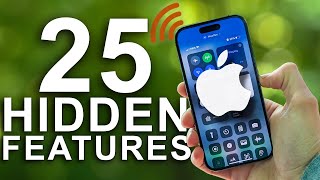

Secret Locked Photo Folder (No One Knows!)
52sThe promise of a hidden, locked photo folder taps into privacy concerns and curiosity, making it highly shareable.
▶ Play Clip"Delivers a solid list of genuinely useful hidden features, though some are well-known to seasoned users."
This video presents 25 hidden iPhone features and tricks, covering everything from locking photos in Notes to using the Dynamic Island, scanning documents, and creating text shortcuts. The host, Michael O'Brien, demonstrates each feature on an iPhone 14 Pro, noting that most work on all iPhones. The video aims to help users unlock the full potential of their devices with practical, often overlooked tips.
Use the Notes app to save photos in a locked folder, protected by Face ID, as there's no native locked folder in the Photos app.
Swipe left, right, up, or down on the Dynamic Island to change how multiple activities (like timer and music) are displayed.
Pinch with three fingers to copy and pinch out to paste, a gesture also available on iPads.
Go to Settings > Accessibility > Control Nearby Devices to control your iPhone from your Apple Watch on the same Wi-Fi network.
Use the camera in Apple Notes to scan documents, which become searchable text, eliminating the need for third-party scanning apps.
Point the camera at text, tap the icon that appears, and interact with the text as if it were a paragraph—copy, paste, or search it.
Customize Focus modes by location (home vs. work) to automatically change home screen and notifications, creating a 'two phones in one' experience.
Set up Back Tap in Accessibility settings to double-tap the back of the iPhone to trigger actions like opening the camera.
Tap and hold icons in Control Center (e.g., flashlight, timer, volume) to access additional settings like flashlight brightness or quick timer.
Use Settings > General > Keyboard > Text Replacement to create shortcuts for frequently used phrases, or for pranks by replacing common words.
Tap and hold the space bar to move the cursor like a joystick, making text editing easier.
Take a screenshot, tap the thumbnail, select 'Full Page' to capture an entire webpage or PDF, and share it as a PDF.
Choose 'Copy and Delete' after a screenshot to save it to the clipboard without cluttering your camera roll.
Use the plus icon in screenshot editing to add text, signatures, or a magnifier to highlight specific areas.
Set a timer in the Clock app and choose 'Stop Playing' to automatically pause music or videos after a set time.
Set a Screen Time passcode and keep it somewhere inconvenient to prevent overriding app limits easily.
Swipe down on the bottom edge to bring the top of the screen within thumb reach, useful for larger iPhones.
Long-press the back button in Settings or other apps to see a menu of previous screens and jump directly to one.
Enable Guided Access in Accessibility to lock your iPhone to a single app, ideal for handing to children or friends.
Tap and hold one app, then tap others to collect them into a group and drag them all to a new page at once.
Enable LED flash alerts in Settings > Accessibility > Audio/Visual to get visual notifications.
Shake your iPhone to undo typing or other actions, and shake again to redo.
Tap and hold the send button in iMessage to add animations like confetti or slam to your messages.
Share audio during FaceTime calls to watch movies or listen to music together in sync.
Download the Shortcuts app to create automations and custom actions on your iPhone.
Add a bookmark to chat.openai.com on your home screen for quick access to ChatGPT.
The video wraps up by encouraging viewers to try these hidden features and share their own tips. It emphasizes that these tricks can significantly enhance iPhone usability, from productivity to entertainment.
How can you store photos in a locked folder on iPhone?
Use the Notes app to add photos to a note and lock the note with Face ID.
00:29
What gesture can you use to copy and paste text on iPhone?
Pinch with three fingers to copy and pinch out to paste.
01:45
How do you control your iPhone from your Apple Watch?
Go to Settings > Accessibility > Control Nearby Devices.
02:13
What is the benefit of scanning documents in Apple Notes?
The scanned text becomes searchable, allowing you to find and copy text easily.
02:42
How can you use the camera to interact with text?
Point the camera at text, tap the icon that appears, and you can copy, paste, or search the text.
03:34
How do you set up location-based Focus modes?
Go to Settings > Focus, select a mode, tap 'Add Schedule', and choose 'Location'.
04:13
What is Back Tap and how do you enable it?
Back Tap lets you trigger actions by tapping the back of the phone; enable it in Settings > Accessibility > Touch > Back Tap.
05:19
How can you create text shortcuts for autocorrect?
Go to Settings > General > Keyboard > Text Replacement and add a phrase with a shortcut.
06:28
How do you take a full-page screenshot?
Take a screenshot, tap the thumbnail, select 'Full Page', and share as PDF.
07:47
How can you set a timer to stop playing media?
In the Clock app, set a timer, tap 'When Timer Ends', and choose 'Stop Playing'.
09:30
What is Guided Access and how do you enable it?
Guided Access locks your iPhone to a single app; enable it in Settings > Accessibility > Guided Access.
11:17
How can you move multiple apps at once?
Tap and hold one app, then tap others to collect them, and drag the group to a new page.
12:11
How do you add effects to iMessage messages?
Tap and hold the send button and select an effect like confetti or slam.
12:50
How can you add ChatGPT to your home screen?
Open Safari, go to chat.openai.com, tap Share, and select 'Add to Home Screen'.
13:44
Locked Photo Storage
Provides a simple, native solution for hiding sensitive photos without third-party apps.
00:29Document Scanning in Notes
Eliminates the need for separate scanning apps and makes scanned text searchable.
02:42Location-Based Focus Modes
Transforms the iPhone into two distinct devices based on location, enhancing work-life balance.
04:13Full-Page Screenshots
Solves the common problem of capturing long webpages or PDFs in one step.
07:47Screen Time Passcode Strategy
Offers a practical way to enforce self-control by making it inconvenient to bypass limits.
10:12[00:01] potential. I'm always amazed by how many people have iPhones and use them every unaware of some of these amazing features. Like, they're really complete game-changers. So, in this video, I'm going to show you 25 of my favorite
[00:16] hidden features and tricks on the iPhone. Right here, I have the iPhone 14 Pro, but most of these should be working on essentially all iPhones out there. So, let's just jump right into the first one. There's a really sneaky way to save
[00:29] photos on your iPhone that are locked and hidden from other people. So, progress pictures, anything embarrassing, stuff like that. If you want to save it in a locked folder, there's no native locked folder in the
[00:41] Photos app. So, what you actually want to do is use the Notes app. You see, the Notes app has the ability to add photos and save photos within a note or within a folder, and then you can lock that folder. Now, it is locked with Face ID,
[00:53] so you're able to get into it easily, but other people, if you just hand somebody your phone, won't be able to access that. Otherwise, the only other your photos, but even then, somebody could technically access that without
[01:06] ever needing your password. Moving along to number two, this year Apple came out little bit mixed on. Some people liked it. I personally liked it, but some people really didn't like it. But, you're actually able to change how you
[01:18] interact with Dynamic Island based on just swiping in different directions. Dynamic Island altogether, or if you have, say, a timer and music or multiple things going on, you can swipe left up right down. Like, there's different
[01:31] things are going to be shown there, and maybe one at a time, or if you want them shown in different orientations. Number three, there's actually an easier way to copying a paragraph or a quote or whatever, you don't have to go in there
[01:45] get the little copy thing above there. Instead, you can pinch with three fingers to copy and expand with three fingers, but essentially pinch out with I've been doing on iPads for a long time. You can also do that on your
[01:59] nice convenient gesture control. Moving along to number four, did you know you can actually control your iPhone with like going to Do Not Disturb mode, I mean actually control your iPhone using
[02:13] connected to a TV or otherwise presenting or you know, if you're just able to control it, but you're in the same area on the same Wi-Fi network, you all the way down to accessibility, and then go to control nearby devices. And
[02:29] this will, like I said, allow you to actually control your iPhone directly from your watch. This one, I'm sure use cases will vary a lot. If you have any definitely leave a comment below. Getting back to Apple Notes, this next
[02:42] might be my favorite feature on an iPhone. So, did you know on Apple Notes, you can actually use the camera to scan documents? You don't need to go and get a scanning app, Adobe Scan, anything like that. You can simply open Apple
[02:55] Notes, open the camera, and scan documents. But even better than just scanning them, this will be searchable text. So, you're saving it in Notes, you and holding and copy and paste it. Or, you can just search your notes and it'll
[03:08] show up based on what was in this the text that you scanned. By the way, as understand some of these may seem very obvious to some of you. Hopefully, you find some very helpful. If you do find any of these helpful, please do me a
[03:21] favor and like and subscribe for more videos just like this one. Going along with what the camera can do in kind of a similar note to what we saw with Apple Notes, uh no pun intended there, maybe I should have intended that, the camera
[03:34] than just take photos. In fact, if you just pointed at some text, you'll see an icon appears in the bottom right. You can tap on that icon, it'll scan the entire page, and without having to save this, you can simply tap and highlight
[03:47] and interact with this as if it were a paragraph. So, you can copy and paste a quote from your favorite book into a text message and send it to a friend or into a maybe Google document if you're writing an essay, something like that
[03:59] camera app. You don't have to get any extra apps. Moving on to the next one, my iPhone actually helps me focus despite being the most distracting thing actually able to customize your focus
[04:13] mode. So we all know about focus modes which can choose like what contacts come notifications are silenced, stuff like that. But you can actually customize this based on your location and you can have completely different things for
[04:26] home versus work. So for what I do, I like to mute certain notifications when like to have those notifications on but maybe I'll mute work notifications so I can separate and have a better work-life balance. So the way to do this is
[04:40] focus mode and you can customize what your home screen is first of all. So you screen that's completely different depending on where you are. So you can can also choose what notifications are allowed, what apps are allowed, what
[04:55] notifications are blocked and you can do all of that for the work focus mode and for the home focus mode. Then within your focus mode, if you tap on add schedule, you can choose based on location and you can say when you arrive
[05:07] home, turn on home focus mode. When you arrive at work, turn on work focus mode. Super easy to do but it's an absolute game-changer. It's like having two different phones depending on where you are and it really helps me focus a lot.
[05:19] a lot of people but if you don't know about it, it really could be a big benefit. So Androids have always had the benefit of being able to double tap the something that I like to do because if something comes up and you want to take
[05:32] a photo really quickly, it's just one less obstacle between me and using my camera. With the iPhone, there's also the back tap. So you can actually go to accessibility settings is really where you want to go but you can search
[05:45] for it just by looking up back tap and then what you can do is if I just double the back of my phone, you can open certain things. So, if I double tap, I just a really quick and easy way to be able to take photos and videos if
[05:59] something crazy is happening, as it always seems to. Next up, there are iPhone Control Center. I don't know if you knew about this, but not only can tapping and holding on these actually gives you more features as well. So, for
[06:15] flashlight option, you can control the brightness of your flashlight. If you tap and hold on the timer, you can set a quick timer. If you tap and hold on your speaker or your volume, you can choose like more AirPods settings and stuff
[06:28] this next one can be used for good or for bad. So, if you go into your settings and you go to text replacement, you just search for text replacement in there, you can use autocorrect to make shortcuts. So, if I just type in an
[06:41] and I can choose sentences that I say a lot. I've seen other people use this for like their credit card number, you can just type in maybe like CC and that automatically suggest that and put that in, or if you're messing with somebody
[06:55] else's phone, as I admittedly have done before, it's a really funny prank, you can go and change some of their common words to some really hilarious other they'll type it in, they might not even notice that suddenly switches out their
[07:08] word for whatever word you chose to put there, and when they hit send, it'll go with somebody else, when they say hi, it'll replace it with the word aliens in all caps, which makes for a really funny text conversation. If you do a lot of
[07:21] typing with your iPhone, this could be a real game changer. The ability to choose you want to like if you type a big paragraph and you want to change like one letter cuz you spelled something wrong, rather than tapping a million
[07:33] right, you can actually just tap and hold your space bar and then navigate around. It allows you to control really in an easy like joystick style way. Now, screenshots. There's a couple things I have here for you with screenshots. The
[07:47] first one is actually just extending your screenshot. So, instead of taking I know we've all done this at some point. You have a long PDF. Maybe it's like Any kind of long PDF and you take a bunch of screenshots and then you send
[08:00] somebody every single screenshot. Like it's a really annoying way to do things. But, what you can actually do is on a webpage or PDF or anything that's as you normally would, then tap on the screenshot which pops up on the bottom
[08:13] left, and you can simply where it says screen, tap on full page, and then tap on the little share on the top right, and you can send it to somebody as a PDF. You can also rename this. And so, suddenly you have this entire webpage
[08:25] simply saved as a PDF. Some other options, however, are the ability to copy and delete. So, if we tap on done, this will by default save a photo or a PDF and it it fills up your camera roll pretty quickly. I know I've wasted a lot
[08:38] old screenshots. But, you can actually just say copy and delete which will clipboard and you can go over to iMessage or whatever email, and then tap another really cool feature with screenshots, if we go back to just take
[08:53] another screenshot and tap on it, we can tap on the plus on the bottom right, and We can add a description, we can add some text on there, we can add a signature. So, if you have to sign a little PDF, that might be an easy way to
[09:05] do that. Or, what I wanted to show you here is actually the magnifier. So, if screen, maybe you're trying to give maybe your grandparents a little tutorial on how to do something on their iPhone, you can take a screenshot, you
[09:17] certain thing, and that will make it obviously easier for them to see. And you can change the size of it as well, uh and how zoomed in it actually is to make it a little bit more focused on that specific item. If you are like me
[09:30] and you like to fall asleep when you're listening to music or watching videos or your phone, you can actually have a timer to turn that off after a certain on Spotify and every single app to hopefully have a timer, you can use your
[09:45] own timer simply by going to the clock app and once the media is playing, when timer for 1 hour, you can choose what way to the bottom, instead of an alarm sound, you can choose stop playing and
[09:58] video, and essentially any anything that's making audio on your phone, it'll pause that. Moving right along, Screen Time is such a powerful tool on the who does this, a lot of people do this. When you have a Screen Time and it says,
[10:12] Instagram." you just hit ignore and you want like another 15 minutes on there and that could be something that maybe you don't want to actually allow. So, if you go into your Screen Time settings, you can enable a passcode, you can make
[10:25] do, and then I I write it down somewhere, I don't memorize it, and I keep it somewhere else, maybe on my desk, so that if I actually get that Screen Time popping up, in order for me to override that, I have to go and find
[10:38] situations, I'm not going to do that. You can swipe down on the bottom for one-handed mode. This is a cool feature if you if you have smaller hands or if you have an iPhone like 14 Plus or 14 Pro Max
[10:50] maybe from a centimeter above the bottom in the middle, swipe down, it'll bring the entire iPhone down and you can use the upper half of the iPhone simply with your thumb on the bottom. This iPhone feature has been a big time-saver for
[11:03] settings or anywhere else that has a little back button on the top left, you back a bunch of times to go through every single screen, you can long press it, it'll drop down a menu of everywhere you've been and you can just go to
[11:17] instead of tapping back a bunch of times. If you've ever wished that you allow them to use any app other than feature for that. It's called Guided Access. This could be great for giving
[11:31] your phone to a child or a friend or anybody else. So, in order to use this, accessibility, and choose Guided Access. accessibility shortcut. So, when you go to any app, say Maps, you can triple
[11:45] press the power button. That'll lock it onto Maps, and they can swipe up, they swipe, they will not access anything press the power button again, and then
[11:57] sign back in using your PIN. Moving around apps on your phone can be really way of doing this. If you tap and hold with one hand, and then you can go and other apps as you want, and it'll start collecting a little pile of them with a
[12:11] apps right here, three apps, whatever, and you can drag it around to whatever page you want, and then simply let go, and all of the apps that you had in that little group got moved all together. So, it saves you a lot of time. This next
[12:23] actually LED flash alert, so you can go into settings and enable this within notification, your flash on the back of your phone will blink. Now, you might you don't, you can actually shake your iPhone to undo. If So, if you're typing,
[12:38] couple things, you can shake it, it'll undo, and you can shake it again and undo again. If you're using iMessage, as most people in the United States do, when you go to send a message, you can actually tap and hold on this, and you
[12:50] can send it. They give it fun little animations or different things. Just Then, of course, we have audio sharing in FaceTime. you go to playback, you can tap on the icon in the bottom right and choose share audio. And so, if you're
[13:05] maybe watch a movie at the same time. It's great for long-distance know, you want to watch a movie with your friend, but you're not at the same place at the same time, the Facebook audio or FaceTime audio sharing it is
[13:18] really a cool feature. And of course, we can't forget the shortcuts app. So, if I recommend downloading the shortcuts app, and with this, you can really do almost anything creating all these different automations on your phone and
[13:31] video on using the shortcuts app. If you guys want to know some of my favorite shortcuts, leave a comment down below. But that brings us into the very last one on this list which is actually getting a chat GPT app. Now this one is
[13:44] not so much an iPhone hack but it is really cool. So I like to I mean there are apps that do access chat GPT but the way I like to do it is go on Safari and way I like to do it is go on Safari and go to chat GPT go to uh chat.openai.com
[13:57] obviously. It's just a really powerful tool that's free to use and easy to use on an iPhone. And so then you can go and save this and bookmark it and save it on your home screen. So now you have quick access to using chat GPT whenever you
[14:11] want to simply from your home screen. So those are my top hidden features and tips with the iPhone. If you have any of your own, please do leave a comment down below. I'm always excited to learn about and try new features on the iPhone. You
[14:24] down there. So if you enjoyed the video, consider liking and subscribing. I'm Michael O'Brien. Thanks for watching and I'll see you in the next one.

⚡ Saved you 0h 14m reading this? Transcribe any YouTube video for free — no signup needed.