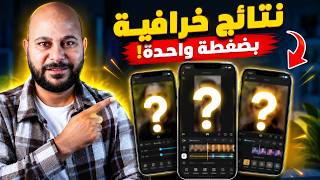

The Secret to Pro Photos & Reels
44sTaps into the universal desire for professional-looking content and reveals the secret isn't the phone, creating curiosity.
▶ Play Clip"Delivers on the promise of showcasing three apps, but the 'secret' is just app recommendations, not a hidden trick."
The video presents three AI-powered mobile apps for designing photos and videos for social media: PhotoGrid, CapCut, and Canva. The creator demonstrates each app's features, including templates, AI tools, and editing capabilities, aiming to help viewers achieve professional and cinematic results.
The creator claims that the secret to high-quality social media designs is not the phone or camera but the apps used, which are powered by AI.
PhotoGrid is described as a complete studio in your pocket, combining editing, grid creation, and AI tools. It offers free and paid features, with the creator using the Pro version.
The app allows editing images with ready-made templates, borders, resizing, and retouching tools like face smoothing, jawline adjustment, and wrinkle removal.
PhotoGrid can improve image quality and resolution, making photos look like they were taken with a professional camera, with multiple levels of enhancement.
The app includes AI removal, AI editor, and ratio adjustment for different platforms like Instagram, story, and YouTube, automatically finding appropriate dimensions.
PhotoGrid also supports video editing, adding text, and creating templates. The Grid feature allows creating albums with custom layouts.
The app has shortcuts like 'AI Removal' to remove objects from images and 'Separate' to cut out characters from backgrounds, allowing repositioning.
PhotoGrid offers AI video creation, including converting images to videos, with options for prompts, dimensions, quality (480p/720p), rotation, and duration.
The app provides a system of ready-made templates for images and videos, allowing users to add their own media and customize text, useful for creating ads.
Templates are categorized for various occasions like birthdays, weddings, children's anniversaries, high school events, and family gatherings, plus YouTube thumbnails.
PhotoGrid includes a 'Hearts Store' for purchasing stickers and templates, and can create stickers, ads, business cards, and discount announcements.
CapCut is a powerful video editing app with free and paid features, suitable for editing any video length. The creator notes many features are paid.
CapCut allows splitting, deleting, merging clips, editing audio, adding text, stickers, drawings, and adjusting aspect ratio for different platforms.
Users can add overlays (images/videos) and effects/transitions between clips, with some free and some paid options.
CapCut includes retouching, image tools, automatic enhancement, and auto captions, but most are paid. It also has ready-made templates for quick creation.
Canva is a popular app for creating YouTube thumbnails, cover art, social media designs, videos, and whiteboards, with a vast template library.
Users can search for templates like 'YouTube channel cover', customize text and images, and download the final design easily.
Canva offers both free and paid templates, covering thumbnails, book covers, and more. Links are provided in the description and pinned comment.
The video provides a comprehensive overview of three AI-powered apps—PhotoGrid, CapCut, and Canva—that can significantly enhance social media design quality. The creator encourages viewers to try them and share their opinions in the comments.
What is the main claim about the secret to high-quality social media designs?
The secret is not the phone or camera but the apps used, which are powered by AI.
00:02
What are the three apps showcased in the video?
PhotoGrid, CapCut, and Canva.
00:26
What does PhotoGrid's 'AI Removal' tool do?
It removes unwanted objects or people from images.
05:05
What is the 'Separate' tool in PhotoGrid used for?
It separates a character or image from the background so it can be moved anywhere.
05:17
What video quality options are available when creating AI videos in PhotoGrid?
480p or 720p.
06:36
What is the primary purpose of CapCut?
It is a powerful video editing app for editing any video length.
09:49
How can you add a logo or another video in CapCut?
By using the 'Overlay' feature and then 'Add Overlay'.
11:18
What can you create with Canva?
YouTube thumbnails, cover art, social media designs, videos, and whiteboards.
13:46
The Secret is Apps, Not Hardware
Challenges common belief that expensive equipment is needed for quality designs.
00:02AI Image Enhancement
Demonstrates how AI can dramatically improve image quality and resolution.
02:56AI Removal Tool
Shows a practical AI feature for removing unwanted elements from photos.
05:05AI Video Creation
Highlights the capability to convert images into videos using AI.
05:47CapCut's Power
Emphasizes CapCut as a robust video editor with many features.
09:49Canva's Versatility
Shows Canva's wide range of design options for various needs.
13:18[00:02] designs for photos, reels, and stories on social media and you've been asking yourself how these people were able to achieve this quality and beauty with a regular mobile phone? I want to tell you that the secret isn't in the phone
[00:14] or the camera at all. The secret is in the apps they use. That's why in this video, I'm bringing you the summary: the three best apps for designing photos and videos for social
[00:26] for designing photos and videos for social media. These apps are all powered by media. These apps are all powered by artificial intelligence, meaning you'll produce very high-quality work and completely transform your photo, video, reels, and story design skills. You'll achieve
[00:42] professional and cinematic results, whether you're a content creator, a business owner, or even just want to use this for your personal photos to make them look stylish and professional. To save you time, I'll leave all the links in
[00:55] the description and the pinned comment. The first app we'll have, and this is what I consider the secret weapon for anyone who wants to get things done—anyone who wants to get photos, designs, stories, and reels done—should use
[01:09] PhotoGrid. This isn't just an ordinary app; it's a complete studio in your pocket, combining all the features into complete studio in your pocket, combining all the features into one app. So, here's what the app looks like. I
[01:21] 'll leave its link in the description and the pinned comment. Let's start by opening the app. There are some things... You'll find some free features here, and some paid features. I'm using the Pro version so I can explain everything to you. First, you'll find "Edit" and something called "Grid."
[01:37] We'll click on "Edit" and see what we can do. It's divided at the top into sections: Videos, do. It's divided at the top into sections: Videos, Images, and All. Let's try editing an image. Let's choose this image, for example. Here's the image, as you can see. You can use all these tools
[01:53] image, as you can see. You can use all these tools easily. For example, if you want this image with a specific design, here are all the designs. You can choose the design you want from the ready-made templates you see. There are dozens of ready-made templates;
[02:12] dozens of ready-made templates; you can choose the one that suits you best. After choosing a template, you put a checkmark. There are other things, like the border. Here's the border. If you want to resize the image, for example, or create an oval shape, there are many more options. There's also
[02:27] something called "Retouch," which you can use to... You can change the appearance of the face, smooth it out, change the jawline, change the shape of the eyes, remove wrinkles—
[02:41] change the jawline, change the shape of the eyes, remove wrinkles— all of that is available and right here with you. But we won't change those things. Here, there's something called image quality. It starts by improving the image quality. So, if your phone's camera is weak, it will improve the
[02:56] camera is weak, it will improve the image quality. See this before and after? The result is clear. And this is one where, if we do this, you'll find the image resolution is higher.
[03:08] image resolution is higher. See, it's like you took a photo with a professional camera. Of course, you can see the difference for yourself. If we choose the third level, it will go to a completely different level. There's something here called AI removal, the
[03:21] AI editor, the ratio. So, if you want this image for Instagram, for a you want this image for Instagram, for a story, for YouTube, each of these has dimensions, so it starts to find the appropriate dimensions for you according to the platform. If you want to customize
[03:37] according to the platform. If you want to customize the image, it starts to find Here's the specialization icon, so the image, it starts to find Here's the specialization icon, so many tools available, including changing the background, blurring, adding text, inserting
[03:55] another image or sticker, applying a filter, using AI replacement, and adjusting filter, using AI replacement, and adjusting focus. All these tools are easy to use. focus. All these tools are easy to use. Then you save. That's
[04:09] our first option, which is editing. Here, there's something called Videos. If I choose a called Videos. If I choose a video like this one, you can edit it video like this one, you can edit it without any problems, add text, and create
[04:23] templates. All these features are available. But let's move faster because the video is full of surprises. On the side, you'll find something called Grid. You can create an
[04:35] album here. For example, if I choose these images, it will create an album with the layouts you want, and you can edit them without any
[04:49] problems. A little further down, you'll find some shortcuts. The amazing thing is, let's click on " More" to add more tools. These are all shortcuts, guys. For example, there's a shortcut called "AI Removal." Let's say I have an image like this, and I want to remove the image of
[05:05] this woman. I'll select it and click "Remove." Just wait a minute, and you'll see the magic for yourself. See? The image of the woman is gone, perfect! It even gives you
[05:17] AI-powered processing. There's another tool called "Separate." If I click on it and take an image like this, it can separate your character or image from the background so you
[05:30] can move it anywhere, as you can see. Here, my image is separated from the background. Here, my image is separated from the background. If I want to make it a little smaller, great. If I want to make it a little bigger, all of this is available. And as I told you, this application is very advanced, and it has
[05:47] AI tools for creating videos too. There's something called "AI Video." If you go to it and click "Try Now," you can create videos. With artificial intelligence, like the videos you're seeing, there's also the option to animate or convert images into video. So, you
[06:05] animate or convert images into video. So, you can convert your image into a video can convert your image into a video using AI. Here, you'll find the image conversion option. You'll find "Convert Image to Video," " Seeds," "Killing," and "Image"—all the
[06:21] AI tools are there. You select the image you want ( there. You select the image you want ( click here), then click "Next." Here, you enter the prompt, then choose the video dimensions, and here, you specify the
[06:36] video dimensions, and here, you specify the video quality (480p or 720p). Here, you set the rotation or video duration. Then, you click "Process." Of course, you'll need to add credit to use these tools. You can explore the rest of the tools yourself. Here, you'll
[06:52] find a system of ready-made templates that you can use, whether they're image-only templates or image and video templates. For example, a template like this one, and another like this one, both images and video. So, I can add
[07:04] images and video. So, I can add this image, and add this image, and add this image, and this image, and add this image, and add this image, and so on. And I can add a video. Here, I'll add this video, so on. And I can add a video. Here, I'll add this video, and then I'll click "Next." It will start compiling
[07:16] all this text into the template. As you can see, it's a video and images. I can remove the watermark. This is called a collage or merge. You can merge them if
[07:29] you want to create an ad and post it on social media. Of course, you can change the existing text. For example, I can remove the word " Jan Date" and write "Ayman." It's perfectly fine for
[07:42] Jan Date" and write "Ayman." It's perfectly fine for your design. Okay, you want to click " your design. Okay, you want to click " Next." Then you choose the quality and save, and the Next." Then you choose the quality and save, and the design will be saved. This is one of the
[07:54] amazing features and what distinguishes the application most. You can choose from the ready-made templates you see here. If you click on ready-made templates you see here. If you click on this image, it will show you dozens of templates.
[08:07] Here, it will show you their categories. Here are all the categories. You can choose from them. As soon as you choose a template, it will tell you to add the images and videos, and the design will be
[08:20] ready in seconds. Of course, here you can combine your images with Players Players can use AI to create social media posts or stories for birthdays, weddings, children's anniversaries, high school events, and family gatherings. All
[08:36] these templates are available. You can also create YouTube thumbnails. If you scroll down, create YouTube thumbnails. If you scroll down, you'll find all these you'll find all these amazing templates. If you choose YouTube, it gives you the
[08:51] thumbnail dimensions. You select the image you want and follow the instructions, and it will place it on the existing design. You
[09:04] can edit it without any problems; everything is available and customizable. You can also create stickers customizable. You can also create stickers if you want to make ads, if you want to make ads, business cards, or discount announcements. This is one of the best
[09:18] business cards, or discount announcements. This is one of the best apps available. There's also a "Hearts Store" where you can open the camera directly to take photos. This store allows you to buy many things like stickers, templates, and more.
[09:35] many things like stickers, templates, and more. The app is fantastic; I'll leave the link The app is fantastic; I'll leave the link in the description in the comments. Now let's move on to our second app, CapCat. CapCat has both free and
[09:49] paid features, but they've made a lot of things paid. However, it things paid. However, it remains one of the most powerful apps available. You can edit any video, whether long or short. First,
[10:06] click on "New Video," then select the video you want to work on. For example, I want to work on this video. Then, you start adding elements, and the
[10:18] this video. Then, you start adding elements, and the editing page opens. It has all the tools you need for professional-quality editing. If you want to split a part of the video, simply select the desired section and choose "
[10:35] Split." It will then split the video for you. For example, if I want to delete split the video for you. For example, if I want to delete this section, I click here, select " this section, I click here, select " Split," then choose "Delete."
[10:49] It deletes the selected section and merges it with the other section, as you can merges it with the other section, as you can see. You can also edit the audio and add see. You can also edit the audio and add text. You can add stickers or drawings to the video, and
[11:04] you can also change the aspect ratio if you want the video for YouTube, Facebook, or TikTok, or leave the video in its original format if you want to add
[11:18] your logo, another video, or an image. You just click on "Overlay" and then "Add Overlay," and then you add the image or video you want. I'm explaining this quickly because the
[11:32] want. I'm explaining this quickly because the CapCat app requires a full tutorial. You add the image, and then you can resize it. For example, you can place it on the side if we're considering it a For example, you can place it on the side if we're considering it a logo. Here, you can start controlling it from below.
[11:46] If you want to add effects between clips, you click on "Effects." Here, as you can see, you'll find all these effects, some free and some paid. For
[11:58] effects, some free and some paid. For example, let's take this effect. See what happens? example, let's take this effect. See what happens? The video is playing. This is an effect or transition between scenes. Of course, I was using the CapCat app. I explained it before, and I'll leave the
[12:13] link in the description and the pinned comment. The great thing is that they added a lot of tools. great thing is that they added a lot of tools. There are retouching tools, image tools, and automatic enhancement. You can add automatic captions, and the
[12:26] text that appears on the screen will appear automatically. However, most of these tools are paid. There are also ready- made templates in the CupCat application. These are all ready-made templates, and you'll find them
[12:38] in both paid and free versions. You can use these templates. For example, if I want to use a template like this, I go to the template, click here on "Use Template," choose the image, and then
[12:50] on "Use Template," choose the image, and then click "Next." Here, the template starts working, click "Next." Here, the template starts working, as you can see. It's really amazing. If you want to add sound, you add the sound and then click on " Export." But for the sound, be careful about
[13:04] copyright; we'll ignore it. So, these are the templates available in CupCat. But CupCat remains primarily an editing program, and they have also added a feature that allows you to
[13:18] create videos using artificial intelligence, but of course, this is a fully paid feature. The next app is the one everyone loves, the one content creators love, which is the Canva app. Let's take a
[13:30] everyone loves, the one content creators love, which is the Canva app. Let's take a look at the Canva app. This is the Canva app. I used the Canva app for a very long time for thumbnails, of course before AI and artificial intelligence. With the Canva app, you can create
[13:46] YouTube thumbnails, cover art, social media designs, videos, and whiteboards. You can design all of these things using Canva. For example, if you want to make a poster or a
[13:59] example, if you want to make a poster or a YouTube channel cover, you can simply type " YouTube channel cover, you can simply type " YouTube channel cover" here, search, and it will give you ready-made templates. You can then choose a template, and it's very simple: you change the
[14:14] and it's very simple: you change the own. For example, if you want to change this word and write "Ayman" (or you can write in Arabic), you can delete the image and add your own. Click "
[14:30] image and add your own. Click " Replace" and allow it, then add Replace" and allow it, then add your image. Here's an example: Here's the image. We're just doing a quick example. Once you've created your cover, click here, then click "
[14:45] Download," and the cover will download. There are also paid templates and ready-made templates (the ones with the tag). You'll find it's paid. So, all the templates and forms that
[14:57] are here, whether you want to make a thumbnail, make a book cover, you'll find all of this available make a book cover, you'll find all of this available through Canva. I'll also leave through Canva. I'll also leave all the links in the description and in the pinned comment
[15:12] at the end. I hope the video is useful to you, and I want you to write in the comments what is the best application in your opinion. Hello .




⚡ Saved you 0h 15m reading this? Transcribe any YouTube video for free — no signup needed.