
Stop Getting Banned!
44sDirectly addresses a common pain point for affiliate marketers, promising a solution to account bans.
▶ Play Clip"The title promises a practical guide and the video delivers a step-by-step walkthrough, though it is essentially a product demo with some promotional padding."
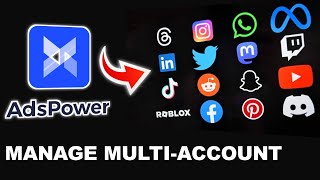
Adspower is an antidetect browser designed to help affiliate marketers and other professionals manage multiple accounts without getting banned or blocked by platforms like Google, TikTok, LinkedIn, Facebook, and Amazon. It offers over 20 customizable fingerprint parameters to keep each account undetectable and centralizes account management in one interface. Beyond affiliate marketing, it can be used for e-commerce, crypto, social media marketing, digital agencies, and web scraping.
Affiliate marketers frequently face account bans and suspensions, which hurt revenue. Websites have become sophisticated at detecting multiple accounts from the same device.
Adspower is presented as the most secure antidetect browser for managing multiple accounts safely, with over 20 customizable parameters to keep accounts undetectable.
Adspower supports safe account management on Google, TikTok, LinkedIn, Facebook, Amazon, and other platforms.
Beyond affiliate marketing, Adspower can be used for e-commerce, crypto, social media marketing, digital agencies, and web scraping.
Users download the browser from the Adspower website, select the version for their device, sign up with basic information, and log in after installation.
In the interface, users click 'New Profile', name it, choose a browser engine (Sun on Chrome or Flower on Firefox), and select an OS.
Users can import cookies, use a local IP, or choose a built-in proxy provider. Custom proxies (e.g., NodeMining) can be entered with HTTP protocol and location settings.
Fingerprint settings can be left as default or tweaked; the advanced section allows adding extensions.
Clicking 'Open Browser' launches a unique session with the configured IP and location, allowing account creation (e.g., Google Ads in the US). Profiles can be edited, duplicated, or deleted.
Adspower offers a free plan with 5 profiles, a trial plan at $14 for 15 profiles and 2 users, and scalable upgrades for more profiles and team members.
Users can choose 30, 90, 180, or 360 days of validity, with up to 50% off for 360 days. Payment options include card, PayPal, and crypto.
In Settings > Members, users can create groups and assign permissions to team members, such as managers who can edit profiles.
Adspower is positioned as a must-have tool for affiliate marketers who want to scale their earnings without interruptions, offering a user-friendly interface, robust fingerprint customization, and flexible pricing plans.
What is the main problem Adspower solves for affiliate marketers?
It prevents account bans and suspensions when managing multiple accounts on platforms like Google, TikTok, and Facebook.
00:02
How many customizable parameters does Adspower offer?
Over 20 customizable parameters to keep accounts undetectable.
00:31
What are the two browser engines available in Adspower?
Sun (Chrome engine) and Flower (Firefox engine).
03:55
What is the price of the trial plan and what does it include?
The trial plan costs $14 and includes 15 profiles and 2 users.
10:08
What discount is offered for a 360-day subscription?
50% off the price.
11:23
What payment methods does Adspower accept?
Card, PayPal, and various crypto or other payment options.
11:36
What does the 'Cookie Robot' feature require?
An upgrade to use it.
09:07
Adspower's core value proposition
Clearly states the product's main benefit: secure multi-account management without detection.
00:31Browser engine choice
Explains the technical difference between Sun (Chrome) and Flower (Firefox) engines, which matters for fingerprint consistency.
03:55Proxy integration
Shows how to configure proxies, a critical step for avoiding account bans.
05:24Discount structure
Reveals the pricing model and the 50% discount for long-term subscriptions.
11:07[00:02] face today as an affiliate marketer is constant account bands and suspensions which can take a huge toll on your affiliate business and because of this affiliate business and because of this you lose out on a lot of money you see
[00:16] many website today have become so sophisticated and can easily detect when you running multiple accounts on their platform and for this reason they ban your accounts instantly and that is where an anti- detect browser comes in
[00:31] ads power is by far the most secure anti-ed browser for managing multiple accounts safely without your accounts getting banned or blogged by any website
[00:43] as they have over 20 plus customizable parameters making sure your account is undetectable and let you manage all your accounts easily in one place and also
[00:55] with ad power you can safely run and manage multiple accounts without getting banned on website like Google as you can see right here Tik Tok Google as you can see right here Tik Tok LinkedIn Facebook Amazon and other
[01:09] website okay and just like I mentioned earlier it's a must have tool for affiliate marketing which ensures all your accounts are safely managed in one place as you can see you can use ads power browser for other purposes as well
[01:25] power browser for other purposes as well like e-commerce to run multiple stores without getting Det ected you can use it for crypto as well for social media marketing digital agencies and web scraping so you want to make sure to
[01:37] click on the first link in the description of this video and it's going to bring you to the ads power website so once you come over to the website all you want to do from here is to click on the get started button so once you do
[01:51] that it's going to bring you to this page where you can then download the ad power browser to your device okay as you can see here you want to make sure to download the version for your respective device since I'm on a Windows device I'm
[02:06] going to download the version for Windows so while the browser is downloading to your device the next thing you want to do from here is to then click on the sign up button so once you do that it's then going to bring you
[02:19] to the sign up page so once you enter your basic information like this all you just need to do from here is to click on the sign up button so once your account is created you don't want to open up the browser you downloaded and it's going to
[02:33] bring you to this page and you want to click on agree and you want to click on installed so once the browser has successfully installed to your device it's going to bring you to this page and all you need to do from here is to then
[02:46] click on finish it's then going to automatically launch the browser which is then going to prompt you to enter your login details from the account you details all you then need to do is to click click on login so once you're
[03:01] logged into your account this is what the interface looks like and as you can the interface looks like and as you can see here it's user friendly basically everything is all laid out and I'm going to work you through how to use ad power
[03:13] browser to manage and run multiple accounts without getting detected so as you can see for yourself I've been using their browser to manage multiple profiles right here as you can see for Tik Tok for YouTube for Reddit so the
[03:28] very first thing you want to do is to come over to where it says new profile so once you click on that this is where you want to give your profile a name and you can use any name that helps you remember this profile okay so I'm going
[03:43] to type in something like Google ads okay so once you type in Google ads as the name of the profile you then want to select the browser you wish to use be it
[03:55] sun browser or flower browser so basically the sun browser run on Chrome basically the sun browser run on Chrome engine however the home browser ensures your data is not leaked and you stay on detected the same applies for the flower
[04:10] detected the same applies for the flower browser as well which runs on Firefox engine okay so I'm going to select some browser for this profile and here you want to then select the OS you wish to use for this browser as you can see they
[04:24] use for this browser as you can see they have various option from Windows to Mac to Linux and as you can see see we have for Android right here and also for iOS so basically this is really up to you if you check all these boxes is going to
[04:38] then select a random user agent for you if you basically want to go for a specific OS you can just uncheck the others and you can select any of the OS of your toys and you can even narrow down to specific versions of the OS you
[04:54] want okay so once you do that you can then create a group and this helps you to keep keep yourself organized okay so you can create a group of profiles you use for Google ads only so you can then type in whatever name you want right
[05:09] here like I said as long as it helps you remember those profiles so once you select that we want to then create a tag if you want to do that as well you can get the tag whatever name you want as well all right so I'm going to select
[05:24] Google ads again and now here you can import cookies from other browsers if you want to do that however you can skip this part and you can scroll down here to where it says proxy and this is where you can then select a proxy of your
[05:39] choice you can use your local IP address if you want to do that with this option however you can come over to the proxy provider section and this is where you're going to find various inbuilt proxy providers on arts Power you can
[05:56] basically go over to the website of any of this proxy provider of your choice so if you click on this visit the website it's going to bring you to this page where you can directly create an account on this proxy website and you can
[06:11] integrate this proxies to your ads power account efficiently okay okay since I don't have access to any of these proxy options I'm going to come over to the custom section so for this section you want to change this from no proxy and
[06:27] want to change this from no proxy and you want to select HT TTP okay so once you do this you want to then go over to your proxy provider and in my own case I'm going to be using node Ming proxy so once you come over to your proxy account
[06:41] all you need to do is to come over to location and I'm going to take United States as an example and as you can see here on node moving proxy you can select any region in the US you can even select cities and internet service provider as
[06:57] well so here I'm just going to generate one proxy see as an example then you want to scroll down here and we are going to be copying our proxy details so once you enter the details like this all you just need to do from here is to come
[07:10] over to platform here you want to then select your target platform which you will be managing on this profile so since we are using Google ads as you can see it's not available on this list and that is not a problem at all you can
[07:24] come over to these orders and you can type in at. google.com or whatever website your working with okay and here you can then enter your login details to your account so you can skip this part if you don't want to do this right now
[07:39] all right and now you want to come over to the fingerprint section and this is where you can then tweak these fingerprint to make your profile as unique as possible so for me I like to leave everything as default okay you can
[07:54] click on this show more options and you can see other options you can edit here looks good you can come over to the advanced section and this is where you can add extensions if you want to use
[08:08] can add extensions if you want to use extensions along with your browser so once everything looks good all you just simply need to do is to click on okay so as you can see here we've successfully created this profile so once everything
[08:22] looks good the next thing you don't want to do here is to click on open browser so once you do that in a couple of seconds the browser opens up and it's going to show you your IP address your location and all the details okay and as
[08:37] you can see is then going to take us to ads. google.com as you can see we can then create a Google ads account in United States and we can start running ads in the US so this is how you can create multiple accounts and manage them
[08:53] easily on ads power all right and also if you want to make any changes to any profile you can click on this button here as you can see you can edit this profile by clicking on the edit button so as you can see here you can duplicate
[09:07] a profile if you want to do that by clicking on the copy button you can delete a profile you can also use the cookie robot feature however you have to upgrade to use this feature and also if you want to make book changes or edit
[09:23] you want to click on this section and you want to come over to these three dots here and you can basically make make whatever changes you want whenever you see this icon this means you have to upgrade and I'm going to show you how to
[09:36] do that in a moment so you want to basically scroll down to the section that says billing so once you come over to billing you can click on the try for free and this is going to give you five profiles you can use on ads power for
[09:52] absolutely free and also you can see they have a tri plan right here which is going to give you 15 profiles and two users which means you can add a manager to your account which is going to help you manage your profiles without you
[10:08] having to do all the work yourself and as you can see this cost just $14 and as you can see you can start a 3 days trial if you want to do that all right however if you need more than 15 profiles all you need to do is to come
[10:23] over to the upgrade section you can drag this slider and as you can see you can upgrade to as many profiles as you want so let's say we want 50 profiles and here you can then come over and select the number of team members you want so
[10:40] basically this is going to allow you add two people to your account to help you manage your profiles effectively and efficiently so once you've selected the number of profiles and the number of team members you want all you just need
[10:53] team members you want all you just need to do from here is to click on subscribe so once you click on that this is where you want to then select how long you want to use these profiles as you can see you can use this profile for 30 days
[11:07] see you can use this profile for 30 days 90 days 180 days or 360 days and as you can see for each of the validity period you're going to get a discount as well as you can see if you select the 360 days you're going to get 50% off the
[11:23] price and all you need to do is to scroll down here and as you can see they have various payment options you can choose from right here you can see you can make payments with your card you can pay with PayPal or you can pay with
[11:36] various crypto or other payment option right here so this is really up to you you want to select your payment method and here you then want to click on pay now so once you do that you are going to
[11:49] have access to more profiles and more team members to help you make sure you scale your affiliate earnings easily without getting your account back banned and block by social media platforms and to assign roles to team members all you
[12:05] need to do is to come over to settings so once you come over to settings you want to click on members click on create a group and this is where you want to then give your group a name so for me I'm going to type enter manager right
[12:19] here and this is where you want to then select the permissions you want your manager or whatever team member you are adding to have on your account okay so for me I I want them to have access to my profiles and I want them to be able
[12:34] to make all these various changes to my profile so whichever one you don't like you can basically click on this button to remove those permissions so once you select all the permissions you wish to grant that team member all you just need
[12:49] to do is to click on okay so this is one of the best anti-ed browser to I highly recommend for anyone who is looking to scale their affiliate and scale their affiliate and easily without any interruptions

⚡ Saved you 0h 13m reading this? Transcribe any YouTube video for free — no signup needed.