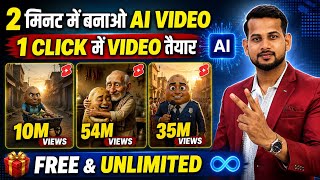

Viral Vegetable Channels with Millions of Views
41sShows real proof of viral success, inspiring viewers to replicate the strategy.
▶ Play Clip"Delivers a functional tutorial but is padded with self-promotion and calls to subscribe; the title is accurate enough."
This video provides a step-by-step guide on creating AI-generated animated story videos using free tools like ChatGPT, Gemini, and the Wit Create app. The presenter demonstrates how to generate story ideas, produce images, and convert them into narrated videos, all from a mobile phone. The tutorial emphasizes that such channels can be monetized easily, as evidenced by the Super Thanks feature on existing similar channels.
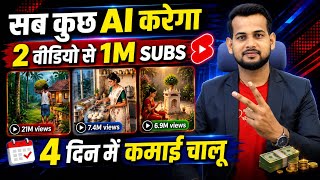
The presenter shows examples of channels with only a few videos but millions of views, all based on vegetable characters (e.g., potato, tomato) with moral stories. These channels are monetized as indicated by the availability of Super Thanks.
The presenter provides a custom prompt (shared via WhatsApp) to generate 10 story ideas. Users can choose an idea and then request a full script with scene descriptions and image prompts.
Copy the image prompt from ChatGPT for each scene and paste it into Google Gemini. Specify the aspect ratio (e.g., 9:16 for shorts, 6:9 for landscape) to generate realistic character images. Save each image.
In the Wit Create app, upload the image for a scene, paste the dialogue text, and add a universal 'prompt' (provided on WhatsApp) to generate a narrated video clip. Repeat for all scenes, then combine and export.
After combining all clips, users can export in desired resolution. The presenter promotes another video on monetizing AI video channels and asks for subscription.
By following this process, anyone can create AI-animated story videos using free tools and potentially monetize their YouTube channel. The key is to leverage ChatGPT for scripts, Gemini for images, and Wit Create for video generation.
What tools are used in this tutorial to create AI animated videos?
ChatGPT, Gemini, and Wit Create.
02:03
What aspect ratio should be used for YouTube Shorts?
9:16
05:37
What is the purpose of the 'prompt' that is pasted into Wit Create?
It likely provides the voice style or system instructions for generating the narration.
10:50
How does the presenter prove that the showcased channels are monetized?
By showing that the Super Thanks option is available on their videos.
01:12
What is the first step after copying the image prompt from ChatGPT?
Paste it into Gemini and specify the aspect ratio to generate the image.
04:54
Viral vegetable story channels
Demonstrates that simple, AI-generated content can achieve millions of views and monetization.
00:02ChatGPT prompt for story ideas
Provides a specific method to generate creative ideas consistently using AI.
02:03Using Gemini for consistent character images
Shows how to generate realistic, scene-specific images from text prompts with proper aspect ratios.
04:54Wit Create for video generation
Illustrates a free app that converts image and text into a narrated video clip automatically.
08:52[00:02] You should watch their channel. He has uploaded only three videos and all his videos are going viral. You should watch their video first. When the first video was uploaded, it had 261,000 views. Look at the next video, it has 6.2 million views.
[00:15] Now brother, look after that, it was posted two days ago. Look at this, it has 380 views. And brother, his channel has more than 16,000 subscribers till now. And let me show you one more channel. Look here, look at this Baggu Baba TV,
[00:28] he has uploaded only 51 videos till now and he is also going to have more than 300 subscribers on his channel, which and check the views of his video once, see, he uploaded it 8 hours ago, it has 56000 views, he uploaded it 4 days ago, look, it has more than 1.5 million views.
[00:43] Now look at the one from 8 days ago, it has almost 4 lakh views. Then see, all the videos are getting good views. And brother, this type of channel is also getting monetized easily. I will show you the proof. I tap on a video and I come to their comment section.
[00:56] Ok? Look at these comments, you will know. Now look carefully down here. The Ok? Look, I can super thank this guy from here. And brother, you must be aware that the option of Super Thanks is available only to those whose channel
[01:12] is monetized. Meaning, one thing is clear that by making such a video and uploading it on the channel and monetizing the channel, we can also earn money from this channel. So today I will So today I will
[01:25] brinjal, etc. Ok? How to make it? Today I am going to tell you in detail absolutely free of cost from a mobile phone. But friend, before that I request you to like the video right now and if you are new to the channel then
[01:37] please subscribe. Let's start the video. Now brother, see one thing, all the videos of these people are based on vegetables here. Meaning, sometimes the vegetables are potatoes, tomatoes , brinjals etc. Ok? So now
[01:49] how to make such a video? So let me tell you that I have created a plan for you people so that you do not have to work hard. What to do? go to search here and install Chat GPT here in a simple way.
[02:03] Ok? That's all you have to do. Look at this chat GBT, install it. Now after installing, I have a prompt which I will give you on my WhatsApp channel. You will get the receipt from there. So here I have already
[02:16] written it in the notes. You can see this is that print. So you have to copy this format in a simple way. You will get the that print. So you have to copy this format in a simple way. You will get the in the description of this video. So if you click on the link, you will go directly
[02:29] to the channel. What to do now? You have to come to your chat GBT in a simple way. Let me show you from here. Then what to do? You have to paste this format here You will get the same message on my WhatsApp channel. Okay, right?
[02:42] what will it do? This will automatically give you some give different ideas. Ok? Look here like what has he done to me? I have given 10 ideas. It is written here that poor potato saved the entire village's farm. But my friends
[02:55] This is the first one. Look at the second one, the tomato farmer's son became the hero of the village but his own uncle stole it. This way it will give you many ideas. So whatever idea you want to make, copy it in a simple way. And yes, if you don't like this then
[03:09] So this will give more ideas. Ok? Or you can get the idea written as per your choice. So as I want, this poor potato saved the entire village. I copy it here like this. Now after copying, I will simply
[03:24] paste it here and send it. What will he do now? According to this, it will tell me how long do you want to make it? How many calculations means according to your own calculations. Ok? So look here it is saying for example you want to make it for 2 minutes, 3 minutes, 5
[03:36] minutes, 8 minutes, 10 minutes, so suppose that I want to make it for 2 minutes. I click on it. If you want to make it longer, you can also spend 10 minutes here. So let me simply paste it here and send it.
[03:49] Ok? Now let me show you how to make shorts. In the same way, you can also make long videos or short videos. Both have the same process. Ok? Now look, as I gave it, it's 2 minutes here. So what has he done?
[04:01] Look, the entire story i.e. the script has arrived. It is written here that poor potato saved the entire village's farm but did not betray his friend. Now look, the story given here is of 2 minutes. In a small Indian village, poor Aloo lived with his old mother. Friends
[04:14] farm day and night. It has come like this. I mean total things. What do you have to do now? Simply look here and you will find the print of the character below. You will get the print of the scene. Ok? Look, the image print has arrived. Look at the first scene, there is a
[04:28] poor farmer in scene one, look at it, the image has been captured. Now look at the false friendship in scene two. Look, the image print has come. And what all will he say, he has also come. In this way, whatever total scenes are used in your video, all the scenes will be
[04:40] given in detail here. What do you have to do now? First of all you have to go to scene number one. scene one. Ok? Look at this. What will we do now ? First we will make a photo. Then our video will be made from the photo and it will also speak automatically. Ok? You do
[04:54] n't need to create audio separately. What will we do now? Look at the image that is obtained in scene one, Look, I have copied it. Now friends, after copying, what should we do next ? You have to move to Gemini in a simple way. Everyone must have J in their phone.
[05:08] not, download it from Play Store. Now let me open the zemi here. Ok? Now friends, after opening it, what will I do here? Look, click on it and look, here you will find the image, okay, you have to click on the image,
[05:23] as soon as you click, now what will happen is that our image will be generated, so what will we do here, now we will paste whatever my product is in a simple way, want, you can write the ratio here, let me do the ratio, if you
[05:37] want to make the ratio of shorts here, then you can make it 916, if you want to make longs, then you can make it 69, as per make shorts only and show you, you can make longs also in the same way, it is the same process. Okay, right? Now look here, I do it in a simple way. 16 9
[05:51] ok? Look at this sorry I do 9 16. Okay, I've done 9 16. Now from here I click on send. Now as soon as I send it, Now you have to wait a little. 10-1 seconds does not take much time. And from here
[06:06] your unlimited image will be generated. Like look, I am showing it live in front of you. Look, Aloo and his mother have arrived. Look brother, how well the realistic character has come out. What will we do now? Simply click on it and
[06:18] click on save here. Look, this image of mine will be saved in a simple way. It has been saved. What will we do now? We will cut it here. Now again we will go here to Pay Chat DBT. The first scene was about a poor farmer.
[06:31] This one is done for us. Now we will come to the second scene. Look at this second scene where the topic of what will you do? We will copy its image format. Now look, we will copy the image print of the second scene. Now again you have to go through the same process in Gemini.
[06:45] ? You have to paste it here. Ok? So what do I do here ? Now I paste this print and send it. Now as soon as I send it, n't take much time either. Look, I have
[06:58] Ok? Just watch the video properly and learn and understand. In this way you can easily make many other types of dishes. Okay, right? Now look, this photo of our second scene has also started getting generated and
[07:12] Now look, I did not say anything about this ratio, so what has he done? Look, the short long ratio has been given. You can see it yourself live, the long ratio is given here. download it. Suppose you want to make it in shorts then what should you do brother? Simply
[07:26] paste it here and write the ratio here. Simply type 96 here like this. Ok? What will happen if you do this? Yours will look, he will give me the long ratio and the short ratio. Ok?
[07:40] Look, it is being created in front of you. I am showing everything live here. There So that you can see and learn well. And yes, if you are still liking the video then like the video right now. Those who are new to the rest of the channel, please subscribe.
[07:54] showing it live. Ok? The same thing was given earlier in the long ratio. Now it is making shorts and showing them. So I click on it. I click on save. The rest can be made as you wish. This too has become ours. The second
[08:07] scene is done. what shall we do now? Will come again to Chat GBT. Now we will go to the third scene. Look where the storm night is lit. Ok? Now its image will also come in print and we will copy it here in a simple way. Ok?
[08:21] After copying, friends, now we will paste it here in a simple way. And here I enter the ratio so that my ratio will be ratio 9 16. Look, I have done it. I will What will happen if I enter the ratio? It will come in the same ratio in a proper manner. Now this storm scene,
[08:36] started here. So in this way, one by one, whatever number of scenes there are in your total story, be it 10 scenes, 12 scenes, 15 scenes, 20 scenes, you should first convert all the scenes into images. Now I will tell you how to convert from image to video.
[08:52] So I tap on it and download it. Ok? are done. Do you understand this far? Now what to do after this? Like you have to After that I will tell you the further process of making the video.
[09:06] Look, let me copy the fourth one in a simple way and paste it here also. After pasting, I will enter the ratio here. Ok? 91 16 I send it like this. Now we will wait for a little, 10-15 seconds. You can see it has already been
[09:21] fourth scene has arrived. So you will download it by clicking on it. Ok? So I have just explained it. Now convert the entire scene into images in the same manner. It has been found out. Now how to convert this image into video ? Let me tell you. Now
[09:34] look, this is a very easy way to make a video. A video can be easily made from photos. How will it be made? Please understand what I am saying carefully. What do you have to do now? Whatever video you want to make, like if you want to make scene one, then simply
[09:46] If you have to make scene two, then you have to simply copy the Hindi description of scene two that is visible. Like look, I will make the second scene. I copy it. Ok? Now what do you do after copying
[10:00] ? Go to Play Store and download this Wit Create app from there. This is also a YouTube app. It is a completely free app. It will be easily available on Play Store. You can download it by going to the App Store. Now after downloading, login with any Gmail ID.
[10:12] Okay, right? Now what to do after logging in? Look here, you will find the option of generate video on the third number. You have to click on it. Now after clicking, first of all click on it. Now after clicking, first of all
[10:25] taken the second one. So what should I do? I will click on the second image. I will do it. Ok ? Look, whatever dialogue you take, you have to take the same photo. Ok? Just like I took the second dialogue, I take the second photo only. Now after that,
[10:38] ? Look, I have pasted it. Now you have to enter another print below here. It will speak automatically in the same manner. Now what is that prop? You will get that prop also on my WhatsApp channel, both together.
[10:50] Ok? So from there, when you go to my WhatsApp channel, the link is I will show you the simple way. Look, this is perfect. I will copy this script from here. Ok? Now after copying it,
[11:03] pasted this here. I have pasted the print here below it. Now there is nothing to do. You have to directly click on generate. As soon as you generate it, brother, what will happen? The percentage will start appearing in front of you. Now you have to wait a little.
[11:16] Here it may take maximum of 1 minute of your time. Sometimes the load is even done in 10-20 seconds. So let's wait a little. I will show you the result. So you can see it has been made like this. It is speaking automatically. Now brother, see, one thing
[11:28] which I had got printed, the size ratio in that print was 69, the long ratio, that is why see, here the format like long has been given. So anyway, you do it, it will happen as per your wish. Now what to do after that? Click on Use Video.
[11:41] Ok? Look at this. The photo that I had uploaded just now, the photo that I uploaded later was of mine in shorts ratio. But the prot that I added later was my long ratio. That's why both of them have come here. So what should I do?
[11:53] I will make it long only. What should I do? Look at it in a simple way. Now look here, you will find the Expect Ratio at the bottom, tap on it here and from here make it 69. Ok? Now save it like this. Now look, this
[12:06] Ok? In this way. Okay, right ? Look, this scene has happened. Now what to do after that? To convert the next scene into a video, look here and tap on the plus icon. Ok? Now
[12:19] scene of mine is coming after this, this one, so what will I do, I will not add it from here, I will directly click on generate video here, okay, now after clicking, I and from here, see, I will add this photo of the storm, now
[12:33] after adding, see what is its dialogue, so let me come in a simple way here in chat GPT and brother, look at its dialogue, this one about the night of the storm, so I will copy it in a simple way, from here till here, see, I will copy it, now
[12:46] after copying, I will paste it here. Now after pasting, the print has to be put everywhere. Ok? Let and copy this print. Now after copying, look here, I will
[12:59] put the prompt below. You have to put this print everywhere. Ok? When you make a video, you have to put this print. Now look, the ratio here is 16:9. Ok? If you want in shorts format then you can do 9 16 here.
[13:13] Do it as per your wish. Will give it in the same manner. So now look, he will give it to me in long forward only. So what should I do? I will click on generate. Now I just have to wait a little bit here. So this is how you have to add each scene. It has been found out that
[13:26] this one has already happened. Look, this scene has been added. The scene after that has been added. added. The scene after that has been added. look here, you have to click on plus. And above you will find the generated video.
[13:39] You have to tap on it again and upload the photo below here. Like the next one I had was this one. Look at the one who is saving the drowning man. Ok? Now we will add it with water. add its dialogue here. So what will you do? Let's do it simply, first
[13:53] I will paste the prompt here. Ok? Look down here, I have put the print. This same product will be put everywhere. Ok? This prompt will be added to all the photos. What should Now the one that was in the fourth scene. Ok? Look at this, he was
[14:06] ? I copy the entire thing. Ok? Now after copying, I will paste this format here in a simple way. Now after pasting, I will click on generate. Now you have to
[14:21] add, click on plus again. Again the photo has to be converted into video. By doing ready. Now look, I am generating this and showing it to you. Now look, this scene has also been generated. So what will you do? Again we will click on Use Video.
[14:36] Now look, this is how I have shown it to you here. First I did this one, Now in the same way, when your next scene comes, then again click on the plus here. Now after clicking on plus, again the same process, click on generate video.
[14:50] add the dialogue of that photo and you have to put the prompt here below. Ok ? After that click on generate. Then you have to wait a little. Then that clip will also become yours. By doing this,
[15:05] Now after converting, when your account is ready, you can make transactions etc. in that manner. Do the editing etc. as per your requirement. Now after doing this much, you will get the export in a simple way here above. Ok? By clicking on it, you can
[15:18] select the resolution as per your choice and export it from here. Then it will be created and saved in your gallery. So this was some process. So friends, this is the method of making a video on vegetables. But if you want to earn money by making different types of AI videos
[15:30] , monetize your channel, grow your channel, then watch this video for that. On this I have taught how to make different types of AI videos. So click quickly. Watch the video. Don't forget to subscribe my friend. Subscribe immediately.
[15:42] forget to subscribe my friend. Subscribe immediately.
⚡ Saved you 0h 15m reading this? Transcribe any YouTube video for free — no signup needed.