
Wife's USA Channel Made $8K in a Month?
45sThe promise of a viral USA channel with only 8,000 subscribers and incredible earnings creates curiosity and FOMO, driving clicks.
▶ Play Clip"The title promises viral success, but the content is a basic AI video tutorial with anecdotal claims and heavy padding."
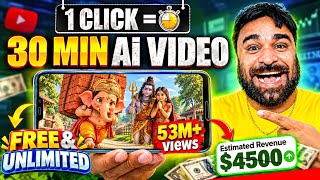
The video presents a method for creating a USA-targeted YouTube channel using AI-generated Ghibli-style storytelling videos. The creator claims his wife's channel gained 8,000 subscribers and was monetized within 15 days using this approach. The tutorial walks through using ChatGPT for story generation, Google Flow for character and scene creation, and VN for video editing, with a focus on targeting US audiences.
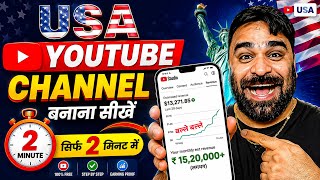
The creator claims his wife's USA channel has 8,000 subscribers and achieved significant views within 48 hours, leading to monetization within 15 days.
The idea was suggested to his wife 45 days ago as a way to earn income while she was on the phone all day. The first video posted received tremendous views.
The content is based on USA-targeted Ghibli-style storytelling videos, which the creator claims will be trending in the US for the next two years.
Use ChatGPT to write a 2-minute English story with only dialogues, tailored to the current US season (e.g., summer). This targets the US audience.
Use ChatGPT to generate Ghibli-style photos of all characters in the story. The example story has seven characters.
Generate detailed video prompts for all scenes needed to visualize the story. The example has nine scenes.
Create individual images of each character using Google Flow app with the 'Nano Banana Pro' model, selecting 16:9 aspect ratio.
Copy each scene's prompt into Google Flow, select the relevant characters from the library, and generate 10-second videos using the 'Omni Flash' model.
Edit the generated videos in the VN app. Apply color grading by adjusting exposure, saturation, and HSL settings to achieve high HD quality.
Use ChatGPT to generate a thumbnail in 16:9 format, then enhance it using the Pixel Lab app by removing text, resizing, and color grading.
Export the final video in 4K at 60fps for high quality. The complete video is 15-20 minutes long, requiring 50-70 generated clips.
The video provides a complete, step-by-step guide to creating AI-generated Ghibli-style storytelling videos for a USA-targeted YouTube channel, from story generation to final export. The creator emphasizes the potential for rapid channel growth and monetization, though the claims are anecdotal.
What is the recommended story length and language for the USA channel videos?
A 2-minute story in English with only dialogues, tailored to the current US season.
03:25
Which AI model is used in Google Flow to create character images?
Nano Banana Pro.
07:45
What aspect ratio and video length are recommended for the generated clips?
16:9 aspect ratio and 10-second videos.
10:09
What is the recommended export quality for the final video?
4K at 60fps.
18:16
How many characters were in the example story?
Seven characters.
05:11
Rapid Channel Growth
Claims of 8,000 subscribers and monetization within 15 days demonstrate the potential of this content strategy.
00:02AI-Powered Story Generation
Using ChatGPT to create seasonally relevant stories is a key technique for targeting US audiences.
03:25Automated Video Creation
Google Flow's ability to generate videos from scene prompts streamlines the production process.
09:01Color Grading for Quality
Adjusting exposure, saturation, and HSL in VN enhances video quality, which is crucial for viewer retention.
15:00Thumbnail Optimization
Creating and color grading a 16:9 thumbnail in Pixel Lab is essential for click-through rates.
19:18[00:02] seeing this. Brother, this is the power of USA channel. Brother USA channel is what you people dream of. Brother, this channel does not belong to anyone else. This is my wife's channel. I swear brother, my mind has gone crazy. Brother, this channel has only 8000 subscribers. And brother,
[00:18] look what a wonderful feat the system has done. Video pe views brother, you will see that within an hour, amazing feats are happening. See views within 48 hours.
[00:34] I immediately decided that no brother, now this content will be available on entire YouTube and everyone should know what this content is? Brother, if you want to print the system from YouTube by creating a USA channel, then watch the video carefully. My
[00:49] wife told me not to share this channel idea. I said brother, look, I have a lot of sources of income. But my audience is here to make money. In today's video, I am going to share with you a channel idea which
[01:03] I recommended to my wife 45 days ago because brother, she used to talk on the phone the whole day. Sometimes she is using her mobile here and there. So I said brother, do one thing and create a channel. Start making this type of video. Brother,
[01:17] he posted the first video. At first she was not agreeing. But when I persuaded him a lot, then brother he uploaded the first video and brother you should see the first video itself, brother it had tremendous views and brother I saw when I said brother it is possible that one or two videos go viral,
[01:32] what will happen by that, literally brother the channel got monetized within 15 days, I said okay it got monetized, what will happen by that, but brother you see the system shown by brother this month, brother I got confused,
[01:45] you see the system shown by brother this month, brother I got confused, n't believe it was a USA channel. But when I went to analytics and
[01:59] looked at the audience of YT Studio, I saw that brother, the audience here is mostly from USA. Friends, if you miss today's video, then you will miss a huge opportunity because today I am going to teach you a new YouTube channel
[02:14] idea which is based on USA content and this content is going to create havoc in USA for the next two years. That's why I am saying brother, watch the video till the end. If you also want to print the system by making USHL then this video
[02:30] is the perfect video for you. I started making this video after fighting with my wife. He told me not to share this content because if we share it on YouTube, thousands of people will start making this type of video. Then our channel will be down.
[02:43] But I have always worked for my subscribers. Then brother, I will keep sharing this content. In today's video, I am going to tell you everything about this USA channel, what type of video to make, how to edit it. But brother, don't be
[02:58] hasty because this video is a video of a lot of hard work along with the result. Ok? So brother, before I tell you how to make the video. If you have not liked the video then immediately like the video and subscribe to the channel.
[03:11] Now let us tell you how to create this type of content. Brother, now understand things very carefully. Ok? My goal is to teach you. Don't be hasty. Ok? If you hurry, things will go wrong. Whether it takes 1 hour, half an hour, or however many minutes the
[03:25] video is, my target is to teach you. Ok? First of all brother, what do you have to do here ? You have to open your chat GPT. Ok? After this, here where you have got the option to type, you have to paste what I have written here.
[03:37] What have I written here? You should write a good story in English of 2 minutes in the month of summer which should have only dialogues. Ok? Now one thing has to be kept in mind. I have minutes, 15 minutes or 20 minutes
[03:52] I wrote 2 minutes here. Ok? And keep this in mind that you must write in English because you have to target the US audience. Ok? So we have written this here. Now you have to press the blue one. Correct? Now a very
[04:05] good story will be presented before you here. Every time you enter this keyword, the keyword shown above, Every time you enter this keyword, the keyword shown above, Ok? One thing to keep in mind is that whenever you are going to make this type of video,
[04:18] you should check what type of season is going on in the US at this time. Like right now there is a very hot. So you guys have to make this video accordingly. Ok ? That's why I have written summer here. Ok? Now look here, with this dialogue, a
[04:32] number one story has emerged. Correct? Now what do you have to do after this ? Please understand it very carefully. Now you have to type something else in this type option that you are seeing. Now you have to type here. I will paste it. You
[04:45] guys please read it. You have to type here. Now style. Ok? What will happen here? All the characters used in the story
[04:58] , their Ghibli style photos will be provided here. Ok? Here we press the blue one. Correct? Now look, friends, here it is. Here, all the characters being used in our story, are all their
[05:11] body parts in all four directions, right? Print has been provided to us for taking photographs. Look here how many characters are being used in this story? There are seven characters. Ok ? Now what do you have to do after this? One more thing to type here. What to type
[05:26] ? Look carefully. Now brother, let us paste it here. Take this brother. What have we written here? Now
[05:40] write a detailed video print of all the scenes that are going to be required to give visuals to this story. Ok? You have to take a screenshot of this.
[05:52] things. Ok? You just have to make a video of 15 to 20 minutes. Correct? So here in the blue one we pressed. Ok ? Now look here, all our videos scene wise, the preparation for all of them is available here. Ok? You
[06:08] can see what scenes are being used in all the videos ? You can see. The whole thing has come here. Ok? See all nine scenes here. What do you do now? Understand it completely. Now you have to go a little higher and
[06:23] you have to go a little higher and asked for the character, look at these ones, what you have to do here is first of all you have to make an individual image of each character. Ok? So what do I do first
[06:38] ? What is the name of this character that you see at number one ? Emma. Ok ? Who is a 10 year old girl. So, this script that is visible here, I copy it. And first I get an image made. Ok? So I
[06:51] copied it here. Now what do you have to do after this ? Please understand it very carefully. You have to download the Google Flow app here. Ok? After this, what I have here is the pro version. How do you get the Pro version? I will tell you in detail at the
[07:04] end of the video. Ok? So here's my pro version. You have to take the pro version here also. Ok? I will tell you further how you can get it easily. Ok ? So here you are seeing this new option,
[07:18] click. Ok? It will load after clicking. As soon as you press, an interface like this will appear. Ok? Now friends, here you have to click on this image which is written here, this image which is written here.
[07:32] first setting you have to do is. Just below this image, it is written here that you are going to make a long video. Ok ? So, you have to select 16:9. Ok ? And here we have to keep only One X. And where it is written Nano Banana To, you have to
[07:45] click here. And here we have to write nano banana pro. Ok? Nano Banana Pro you have to buy Pro only. A very good image will be ready in Pro. Ok? you want to make? Here, to create the image of the first character, you have to paste
[08:02] whatever print you have copied here. Ok? We pasted it. Pressed the arrow. What will happen now? First you will see the visual of the character from all sides in the form of a proto-photo. Ok? Now look, for our first
[08:16] character, you can see that the image is ready here. Ok? Understand that the first one has already been created here. Now understand the matter. Now you have to go to Chat GPT again and go to Chat GPT and
[08:34] after copying, paste it there. I paste it. So let's go brother. In your Google Flow. Now let's paste it here again. Ok? Paste it and press the arrow. Now our second image is ready to be created here.
[08:47] What do you have to do in this way? You have to create images of all your characters. Now friends, see, all our characters have been created. Now it's time to make the video. Ok? So what do you have to do now ? You have to go to your same chat
[09:01] on GPT. Ok? Now see, you have already got the scene wise scene prompt provided here for making the video. scene wise scene prompt provided here for making the video. after the first scene, there is the second scene, there is the third scene, see the prompts of all of them are given here.
[09:14] Ok? What do you do now? The print of each scene has to be copied. Ok? Look here, what do you have to do to the print in this way? You have to copy till here. I copied it. Well, after copying, there is one more thing you have to
[09:28] see. what's first? It's Emma. What is the second one? It's Ben. What is the third one? It's Lily. Ok? These three
[09:41] characters, three characters have been given here, right? You have to keep in mind these three characters, which characters are there in the photo you have made. It turned out that some other character was written here. You will have to select the character there.
[09:55] I will tell you how to do it later. Ok? Now that you have copied the script, you have to go here. Now, where the image is written, where the image is written, what do you have to do at this place? Have to select. Ok ? What settings do I need to do now?
[10:09] ? What settings do I need to do now? Look carefully. Here first of all you have to click on the video. Ok? And this 16 ratio should be left as it is. You have to do it on the video here. You have to pay 1x here. And here you have to pay for 10 seconds.
[10:23] Ok? And remember, here it is written Omni Flash, you have to select only Omni Flash. Ok? Okay, now it's done here. Everything got selected. Ok? Now what do you have to do here? Do you want to make? What is written here, what do
[10:37] ? Have to click. Ok? Now whatever you copied from there, you have to paste it here. And now you have to select the character here. How to select ? You have to click on this plus icon that you see. Ok? Let's
[10:51] click away. After clicking, you will see the library option here. Select the library. Now there were three characters there. All three characters have to be selected. I saw this one got selected. After that we select the second one. Let's go back to the
[11:05] plus side. Let's go to the library. The second character is this girl. Ok? And the third character is this boy. Ok? These are three characters. You have to get your name as well as photo identification. What is the name of which character? Ok?
[11:20] I already recognized it so I selected it here. Ok? Now here you have to press on the arrow. Now you can watch the video here. The video is being generated here. Ok? Your video will be generated in a few seconds. So
[11:32] now see friends, our amazing video of the first scene is ready. Let me play it for you once. Ok ? Look brother, let me make it a little ? Look brother, let me make it a little louder. Ok?
[11:49] We have to do something, let's go this way, ready and you can see that the audio is in English, you will not understand it, I will also not understand it, but the US audience will
[12:04] understand it very well, friends, this is a long video, a giveaway video, which is trending very strongly in the US right now, okay, now brother, what will we do, the What do we have to do with this? Here you have to press the three dots and download it.
[12:18] Ok? We have downloaded it. Now watch, our video has been downloaded and saved. Correct? Let's do OK here. Have to back up. Now you have to create a video for the second scene. Ok? So again we have to go to our chat JPT. The second
[12:31] scene is where did it go brother? These are characters. Yes, this is scene number two. And here you have to copy the video copy of the first scene that you have. And here we have to see which characters have been used. Grandpa Emma are the only two
[12:46] characters used here. So you can check above once to see which number Grandpa was on. He was at number four and Emma Emma was at number one. Ok? Meaning that the first character is Emma's and your fourth character is
[13:00] Grandpa's. Ok? So now you have to go here to your Google Flow. Ok? And again now you have to paste your video print here. Ok? Now we have to go to the plus here. Have to go to the library. Now first you have to select Emma.
[13:16] Who is Emma? You know. This is the girl in blue. Ok? Then you have to go to plus. Grandpa, this old man is Grandpa. Ok? So here we have to select Grandpa. Ok? After this, you have to press the same system arrow. Ok
[13:29] ? Now the video for the second scene will be ready here. Let this happen. video is also ready here. Let me play this for you once. me play this for you once. Ok? See.
[13:52] videos of our scenes of both the numbers have been made and are ready. What do I do now? There were nine scenes there. So I make videos of all the nine scenes. I will here I have made five videos. Ok? Here you can see that
[14:06] I have made these five videos. Ok? You might see four here. There are two videos in this video. One is this video and the other is this video. Ok? So here I made a total of five videos. Just to teach you, you have to generate
[14:19] Ok? You have to download the videos here one by one. How to do it? You have to click on each video. You have to go to the three dots above and go to the download option here and download it. Ok? Your
[14:32] video will be processed here and the video will be downloaded here. So finally friends I have downloaded all the videos. Ok? If you want, there are three dots on the video, there is a download option here. If you want, you can also do it at 720p. If you
[14:44] want, you can do it in 1080p also. It depends on you how much you want to spend. Ok? So here I have done it in 720p only. Ok? Now brother, all your videos have been downloaded.
[15:00] What do you do now? You have to go to any application in which you edit videos. Brother, I do it on VN. So I will go to VN and select each video one by one and edit it and now I will show you how to edit the video. How to
[15:13] do color grading so that the video looks very high HD quality. Ok? So what do we do now? Let us open our VN application here. Ok ? Here, as soon as our VN application opens, what do we have to do now? Here you can
[15:27] see the plus icon, click here to create a new video. Now whatever videos we have made, we have made five videos, we select all five videos here. Ok? One by one. And keep in mind that you have to
[15:39] select the video sequence wise. Ok? So here friends, I have Now here you have to click on the Next option. Ok? Now let me play the entire video for you. Ok? Let me turn up the volume a little.
[15:53] It's dry we have to do something. show you the full video. Ok? Now look, the colors here are looking a little less good. So what do we have to do? Like there is red colour, there is green colour. All these colors have to be made
[16:08] What do you have to do here? You have to go to the Flutter option and here you have to go to the Adjust option. Now we have to increase the exposure a little bit here. Ok? And do not tamper with the contrast and increase the saturation a little bit as you see it. Don't go
[16:25] too far beyond lightening as people in the US don't like too much color grading either. Ok? After that, the main important part here is HSL. You have to click here. You have to highlight the red a little bit.
[16:38] Ok? Highlighted it. After that, I also added a little bit of sky blue as a highlight. Highlight the green color a little more. Ok? So that more color grading video is required. Looks good. The blue color also needs to be increased a little. The
[16:52] pink color also needs to be increased a little. Please adjust it as per your requirement. Do it in such a way that the video does not look bad. Ok? They also make it yellow in colour. Adjust a little. Ok? Did it. Let's do a little bit of this too. Correct? After this you have to
[17:06] Correct? After this you have to Your video will become smoother. Ok? This has to be moved a little forward. After doing this, friends, what do you have to do here where it is written 'All Apply'? Have to
[17:19] click. Now the color grading you have done has been applied to all the videos. Ok? What should I do now brother? After doing this, whatever disadvantageous part is there, that is, the part which you do not like or is stuck and people will
[17:34] not like, you have to crop that disadvantageous part. How to crop? Like let's say n't like the part from here. Ok? So you have to click on this part. The scissors which are made below have to be pressed here. After that this is the part which you have to remove.
[17:49] Look above, the delete option will appear. Please delete it. That part of yours will be deleted. Ok? So I don't want to delete it. So I am just teaching you. Ok ? After doing this, there is no need to tamper with it much because as much as is important, yes,
[18:01] in the end you have already seen this entire video. Ok? So as many as you So here it is a 40 second video. You have to make it for 15-20 minutes. So maybe not just five of yours but maybe 50 to 60, 70 videos can be done here.
[18:16] Ok? So what do you have to do after color grading all those videos properly ? Here you have to press the blue option visible here and make the video in 4K. It has to be done at 60fps and this too has to be done in very high quality.
[18:29] Ok? Now we have to export it here. Your video will be saved. Ok? So this entire high quality video is saved. Now let me show you the video. Watch the video once. It's so dry. We have to do something.
[18:46] It's so dry. We have to do something. Let's go this way.
[19:04] And That's How the Sleepy Bear Finally Found Their Way Home Through the Dent Forest Wow hey Their Way Home Through the Dent Forest Wow hey a clever bear
[19:18] do next? Is everything done, sir ? Not now brother, the video is ready and also needs to be good. How will things work if the thumbnail is not good? Now you have to go to Chat GPT again. Ok? And you have to go at the very end. Now here in this
[19:34] type option, you have to write something here. What to write? So what to do here? You have to type this thing that I have written. What have I written? Now I need to create a thumbnail for this video. Ok ? If you want to make it, make it. Ok? And here
[19:49] you have to press the arrow. Now for your video because it is a long video. There is a long video from the US which is in Ghibli style. Ok? So for this video, ready here. But should I
[20:02] Look carefully. Things will get messed up otherwise. Ok? What is the plan? I will tell you carefully. Here you can see that the thumbnail of number one has been created. You can see this. But there's a problem with this thumbnail. What's the problem?
[20:15] We want this thumbnail in 169, so we have to write here and we have to write here and make it in 169. Ok? Now after this the
[20:27] thumbnail that we will get will be in 16:9 format. Ok? So let me become brother. ? This is what we have written, now make me a thumbnail for this video. After this it should have been written in 16:9. So it would have created the thumbnail in 16:9 at the exact same time.
[20:44] Ok? Let's get it done. So finally friends, you can see that our thumbnail is ready here. Let's open it once. Look brother, what a wonderful thumbnail is ready in full HD quality. Ok? What do you have to do after this?
[20:58] Here, you have to download your thumbnail from the download option visible above. Only one thing is left. Look carefully because the thumbnail that you have got here has to be made in high HD quality. This also needs to be color graded. Ok? So
[21:12] what do we have to do here? Open your Pixel Lab app. Ok? It has to be cancelled here. And this text which is written , this text has to be removed. You have to go to these Go to image size. Click on Customize. Click on the thumb YouTube thumbnail
[21:26] and click OK here. Ok ? Now this symbol that you see below, this one, you have to click here. Ok ? After clicking, this import option is visible, import here, so what do you have to do here? Click on import.
[21:38] Your gallery will open. The thumbnail that you have made has to be selected here. You have to do it below and tick here. After ticking, you have to slide it down a little. Ok? Look at this. Ok? After sliding it, you
[21:52] As much as you feel is right. Like this feels right to me. Ok? After doing this, now you have to do one thing. It has to be colour graded a bit. Ok? So you have to click on the thumbnail. The thumbnail you took. After clicking on that, I will
[22:05] rotate it a little forward. So see here, an option is coming, color filter is coming. what are you supposed to do here? Click on the color filter. Now here you have to adjust the color as per your requirement. Like let me adjust the color of this a little bit. Ok
[22:19] ? This looks fine to me. like it. Ok? So after adjusting the color here as per my requirement,
[22:34] I will do this a little more. This is okay? So here I have adjusted the color as per my requirement. After that you have to tick here. After ticking, you have to Click on Customize. Click on Ultra and save it to
[22:49] gallery here. Finally our high quality video and high quality thumbnail are ready. Now you all can use this video comfortably. Create your own new USA channel. If you don't know then see, a video will be coming here. Watch this video
[23:03] and brother, create a new YouTube channel for USA. And start uploading these types of videos and publish amazing systems like my wife is doing. Ok? If you have any doubt then please comment. I will reply to him. If you
[23:18] liked the rest of the video then like the video and subscribe to the channel. But it took a full 2 hours to shoot it. That means I have shot this video for full 2 hours. So please like and
[23:31] See you in its next video. Till then, Jai Hind. Victory to video. Till then, Jai Hind. Victory to India.
⚡ Saved you 0h 23m reading this? Transcribe any YouTube video for free — no signup needed.