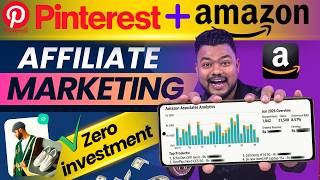

Earn Commission with Pinterest & Amazon
43sImmediately hooks viewers with a clear money-making method using just a phone.
▶ Play Clip"Title accurately promises a method to earn via Amazon affiliate marketing on Pinterest using only a phone, and the video delivers a step-by-step tutorial."
This tutorial explains how to earn money through Amazon affiliate marketing using Pinterest, entirely from a phone and without spending money. It covers setting up a Pinterest business account, creating optimized pins with affiliate links, and strategies to drive traffic to Amazon for commissions.
The creator pins a t-shirt image on Pinterest; when users click the visit site link, they go to Amazon. If they order, the creator earns a commission.
Working just 10 minutes daily on Pinterest can yield significant monthly earnings through an Amazon affiliate account.
Install Pinterest app, sign up with Google/email, then convert to a business account via Account Management > Convert to a business account.
Choose a descriptive business name (e.g., 'Sujan Men's Fashion and Lifestyle'). Enter a website link or select 'No Website'. Describe your business as 'Creator' if you plan to pin products.
Edit profile: set username, pronouns (Him/Her), write an 'About' bio describing what your account offers.
Boards are like playlists. Create a board by clicking 'Create' > 'Board', name it, and create.
Open Amazon app, search for product (e.g., 'best t-shirt for men'). Use Chrome desktop site to download high-quality images instead of screenshots.
Use the 'Friends CV' app, search for 'Pinterest pin' template, replace with product image, add price and discount text (e.g., ₹298, 73% off). Export the image.
Click 'Create' > 'Pin', select the designed image. Enter title (copy from Amazon product page), description (copy from Amazon 'About this item'), and paste the affiliate link.
Add 7-8 relevant tags (e.g., men's fashion, t-shirt). Enable 'This is an affiliate link and sponsored product' to avoid account blocking. Set to publish now.
Enable comments. Write ALT text describing the pin visually. Do not enable paid partnership. Click 'Create' to publish.
When users click 'Visit site' on the pin, they go directly to the Amazon product via your affiliate link. Consistent pinning increases chances of a pin going viral.
By consistently pinning Amazon products with affiliate links on Pinterest, you can earn commissions without upfront investment. Success depends on creating quality pins and persistence.
What is the first step to start Amazon affiliate marketing on Pinterest?
Install the Pinterest app and sign up with a Google account or email.
01:36
How do you convert a personal Pinterest account to a business account?
Go to Settings > Account Management > Convert to a business account.
02:00
What business description should you select if you plan to pin Amazon products?
Select 'Creator' because you are creating pins to sell products.
03:10
Why should you use Chrome desktop site to download product images instead of screenshots?
Screenshots reduce quality; desktop site provides high-quality images.
06:32
What app is recommended for designing Pinterest pins?
Friends CV app.
07:37
What information should you include in the pin title?
Copy the product title from the Amazon product page.
09:51
Where do you paste the affiliate link when creating a pin?
In the 'Add your link here' field.
10:42
How many tags should you add to a pin?
Seven to eight tags.
12:33
What setting must be enabled to inform Pinterest that you are using affiliate links?
Enable 'This is an affiliate link and sponsored product'.
12:59
What is the purpose of ALT text in advanced settings?
It describes the pin's visual details and is shown to users when the pin appears.
13:36
Earning Model
Explains the core concept: pinning a product with an affiliate link leads to commissions on orders.
00:02Business Account Necessity
A business account is required for affiliate marketing on Pinterest.
01:21Image Quality Trick
Using Chrome desktop site to download images ensures high quality, improving pin appeal.
06:32Affiliate Link Disclosure
Enabling 'affiliate link' setting prevents account blocking by Pinterest.
12:59Viral Potential
Consistent pinning increases chances of a pin going viral, leading to high commissions.
14:28[00:02] made a pin of a t-shirt inside Pinterest. So as soon as someone opens this pin and clicks on visit site, he will directly reach inside Amazon. After that, as soon as any user orders this T-shirt, I will get commission on every order. But
[00:16] Results [Music] Mary and I do not guarantee any specific earnings. not guarantee any specific earnings. Friends, how can we do Amazon affiliate marketing through Pinterest? That too through your phone without spending your money.
[00:30] Friends, if you want, then by working just 10 minutes daily in PR, you can earn a lot of money every month through Amazon Affiliate account. But how? So
[00:42] guys, for this you must have an Amazon affiliate account. So I have made a video on how you affiliate account. So I have made a video on how you So I will put the link of that video below this video in the description
[00:55] box and at the end screen i.e. at the end of this video. So watch that video and open an Amazon affiliate account through your phone. But before that, watch this video to see how you can earn money through your Amazon affiliate account by pinning any Amazon
[01:09] product correctly in Pints. video I will show you all how you
[01:21] can open a business account in Pinterest from your phone. What is the correct way to pin after that? Meaning how you can pin any Amazon product correctly. So for this, brothers, stay tuned to the video and if you like the video, then give it a like from your heart
[01:36] not subscribed to the channel yet, then do subscribe. So let's get started. So friends, first of all you all have to install the Pinter app in your phone.
[01:48] After that it has to be opened. After that, click on Google Account below and sign up in this app with your email ID. So after signing up, you all have to convert your account into a business account. So for this, you guys
[02:00] click on the save option below and click on this icon here. After that, an option is given here that is Account Management. So please click on this. Then there is an option given below that says convert to a business account, so
[02:12] please press on it. After that click on Convert Account below. Then you all will be asked to enter your business name. So friends, the business name of your account should be such that the users can know
[02:27] what can be found inside your account just by looking at it. Like brothers, I have given a name here that is Sujan Men's Fashion and Lifest. After that click on Next below. After that you all will be asked to enter the link of a website. So if you have a website then
[02:42] Apart from this, if you want, you can click on No Website In below here. so I have put the link of my YouTube channel here. click on Next down here. After that it is mentioned here that describe your
[02:57] business. So brothers, many options are given in it. So friends, if you are a creator, that means if you run a YouTube channel or you have a Facebook ID or you do not have anything. You just want to sell Amazon products.
[03:10] Meaning, you want to make money by pinning Amazon products on Pinterest. This means you are also a creator. Because you also want to create a pin inside the Pt options given below are Creator, Influencer, Public Figure and
[03:25] Celebrity. So you guys please tick this option here. After that click on Next below. Then here's how would you ever be interested in running aids on pints? This means that if you want, you can also boost whatever pin you make
[03:38] here in Pinter. Meaning you can also promote it. But for this you all will have to pay money. But friends, you want to make money by pinning without spending your money. So in this case, you guys please
[03:52] tick on I am not sure it below here. After that click on Next below. Then your account will be converted into a business account. So you guys click on this logo icon here and
[04:07] apply some settings inside your business account so that your account looks professional or official. So for this you guys please click on the three dots here. After that open the settings below. After that, an option is given in the first itself
[04:20] that is Edit Profile. So please click on this. So guys the username is shown below. So first of all you guys should change this username. So for this, you guys click on this and enter a username as per your choice. After that,
[04:33] an option is given below that says Pronounce, so click on it. So friends, if you are a male person, that is, if you are a boy, then in this case you should choose Him here only. girl, then in this case friends, you should choose She Here.
[04:48] After that an option is given below that is about. So please click on this. After that, write a bio about your account and what all you will not find inside your account. You guys please write a little about it here. As
[05:01] So if you want, you can copy and paste this here after editing it a little. After that click on Done here. So in this situation you can see that my account has been created here. So friends, in this way you can
[05:14] So friends, in this way you can you can pin any product of Amazon. So how can you guys pin it? So for this, friends, as I click on Create here, then before pinning,
[05:27] an option is given here that is Board. So guys, the board works like a playlist. Meaning you can create different boards here. To you can create different boards here. To
[05:40] will click on Board here and enter a name for the board. After that Simply all you have to do is click on Create Board here. So my board has been created here. So let me show you all how to pin right now.
[05:53] So brothers, before pinning, you all have to prepare a photo of your pin. This means that whatever Amazon product you want to pin, you all have to prepare a photo of that product. So how can you do that ? So for this, friends,
[06:07] I will simply open my Amazon app in my phone. So guys, I will type here in the search bar that best t-shirt for men. So guys what I would like to do to show you all is t-shirt for men. So guys what I would like to do to show you all is
[06:20] T-shirts have been shown in front of me. So out of these I would like to pin this one on the t-shirt. Meaning I would like to earn commission by selling it. So for that I will simply click on this T-shirt. So friends, first of all what you all have to do is
[06:32] what you all have to do is can also take screenshots here. But what happens in screenshots is that the quality gets reduced. So what you will do in this case is to
[06:46] type Amazon in the search bar. After that click on search. Then you will see amazon.in app first. Long press here and press on open in new tab. And here, by clicking on this icon,
[06:58] press on the new tab that you have opened. So Amazon has opened here. So all you have to do is turn on the desktop site inside Chrome. What this will do is that you will be this will do is that you will be
[07:11] type in the search bar here that best t-shirt for men. So brothers, you can see below that that T-shirt is shown here. So I will long press on this and click on open a new tab here and
[07:23] by clicking on this icon I will open my new page here. So brothers, is shown. So I will long press on this here. So the click on download here. So the images have been downloaded here. So
[07:37] I have downloaded all the photos of this T-shirt. So what you all have to do now is to prepare a photo to create a pin. So for this, friends, you will install another app in your phone whose name is Friends CV. After that open this app
[07:50] and type Pinterest pin in the search bar. After that click on search. After that, many templates of Pinter pins will be shown to you all. So you can choose any template from these. So I will
[08:03] and I will edit it here. That means I will change this photo and add that T-shirt photo here. So for this I will simply click on this photo here. After that I will click on Replace below and I will select the first photo of the T-shirt
[08:16] here. Let's click on this photo here. So brothers, an option is given below that is Adjust. Let's click on this and add a little bit of color inside here. So friends, I have posted three photos here. Let's
[08:29] Let's click on this text and enter the price of this T-shirt inside it. see its price. Let's So guys, the price of this T-shirt is ₹298. And brothers,
[08:45] 73% discount is also shown here. Then what I will do here is that I will put only ₹298 here. After that, what I will do again is that I will click on the text here and inside the new text I will write 73% off and after clicking on this text
[08:57] I will put red color inside it and below the price I will put it here. So what will happen with this is that users will instantly know that the T-shirt will be available for only ₹298 and at present 73% off is shown. So friends, similarly you
[09:11] is shown. So friends, similarly you you guys click on this icon here. So whatever photo you have pinned will be saved in your gallery. So after getting the photo ready, let us now
[09:24] show you all how you can create a pin in the right way. So friends, to click on Create here and press the PIN option here. After that, choose whatever photo you want to create and click on Next here.
[09:38] After that you all have to enter the title of your pin. Meaning you have to enter the name. So friends, if you want, you can give the name of any product you want to pin yourself. Or friends, what you will do is that after minimizing it,
[09:51] you will open your Amazon app and the title of the product which you want to pin will be visible to you here. So I will long press it here and select it like this and by clicking on the copy option here
[10:04] I will copy this title from here. After that, I will minimize that page and open it and click on paste. So the names have come here. the description is given below. So brothers, if you want, you can write the description yourself here.
[10:17] Meaning you can tell about your product. Or if you want, you can simply open the Amazon app again and go below this product. So below there is an option about this item. So you guys please click on See More here.
[10:29] So inside this you all will get to see the description of your product. So I will select all here. After that, I will copy it by clicking on the copy option and here I will minimize it and open the prints
[10:42] long press inside the description and click on paste. After that, an option is given below that says link where it is said that add your link here. So friends, this is the option which will make you money. This means you will have to enter the
[10:58] affiliate link of your Amazon account inside it. So for this, what I will do here is that I will simply open my Amazon app here and click on the share icon to share this product. So after clicking on share,
[11:10] my associate account is shown here. My store ID is also shown here and copy associates link as mentioned below. So brothers, I would like to tell you all that
[11:25] So friends, when you click on share, your store ID will be visible here. So from here friends will be and after minimizing it, I will open the interface here and
[11:39] paste it by long pressing inside the add link here. So my affiliate link is here. After that, PK Board is mentioned below. Let's click on this. So guys, I will choose the bottom board here. After that, an option is
[11:52] given below that tag topics. So brothers, you all will have to tag in this. So what happens after adding a tag is that if any user searches on Google or inside PRS, then if you put the name by which he searched inside the Ad Office here,
[12:06] then your PIN will be shown in front of him. So to add the tag, After that, you can add tags here by clicking on search topics. So guys, I will type men's fashion in the search bar here. So
[12:19] these I will choose Men's Hipstar Style here. After that again I will put a T-shirt here this time. So guys some tags are shown below. So out of these I will choose the first tag here. So friends, you all have to
[12:33] search the tag here and choose the tag here. So you guys please put seven to eight tags here and click on done here. After that, an option is given below that tag products. Let's click on this. So brother, if you want, you
[12:45] So for this you can search the product here. Or friends, you can search the product here. Or friends, you Like here an option is given that this is affiliate link and sponsored
[12:59] product. So friends, please keep this option enabled here. What this will do is let the Pinterest team know that you have used affiliate links. What happens with this is that your account remains saved. Does not block. So
[13:12] whatever your product is, you all will get to see it here. So you guys please choose it here and click on the done button here. After that, an option is given below that is Schedule in which the option of Publish Now is already given.
[13:24] So you guys please let it remain published in it. What will happen with this is that whatever PIN you have will become an instant PIN. After that, another option is given below that is Advanced Settings. So please click on this. So friends, here the first option is
[13:36] given that there are comments only. So you guys please keep it enabled here. After that, below is the ALT text which says Describe Your Pins Visual Details. So friends, whatever you put inside this, what will happen is that
[13:49] if your pin is shown to any user, then whatever you describe here will be shown to him in the visual effect on your pin. Like I have listed here the best budget friendly outfit ideas from Amazon for
[14:02] a stylish look. So whatever you want to show visually on your pin, you can write it here. After that, an option is given below that add paid partnership level. So you guys please let it remain closed here. Do not enable it. After that please
[14:15] check everything here once. After that click on Create below. After clicking on Create, friends, your PIN will be ready and published. As my pins have been published here. As soon as I
[14:28] finally my first pin has been posted here which is shown in front of me. Let's open this pin here. So whenever a user opens your pin and clicks on visit site below, then what will happen is that he will directly reach
[14:42] As if Amazon has opened in front of me and that T-shirt has been shown in front of me. So friends, whenever someone opens your pin and clicks on visit site, he will directly reach Amazon through your affiliate link
[14:57] and that product will be shown in front of him and he will be able to order that product by coming down here and clicking on buy now, what will happen is that friends, you can pin any product of Amazon by working here for 10 minutes daily.
[15:13] possible that you may not get many users. But friends, if you work continuously inside PAT and create a lot of pins, then it is possible that any one of those pins may go viral. So friends, when it goes viral, you can get a lot of orders
[15:27] due to which you can earn a lot of money. So friends, you can very easily So friends, you can very easily you can pin any product of Amazon and when your pin goes viral then friends
[15:42] you can get a lot of orders due to which a lot of commission can be generated in your Amazon affiliate account. So if you have not liked this video yet, then please give it a like from your heart and if you have not subscribed to the channel yet, then please
[15:54] subscribe as well. What will happen with this is that So let's go brothers. See you on the next video. Bye-by next video. Bye-by friends.
⚡ Saved you 0h 16m reading this? Transcribe any YouTube video for free — no signup needed.