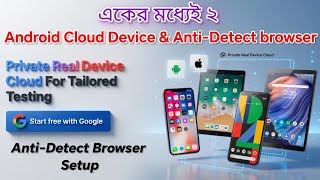

Get 2-in-1: Cloud Phone + Anti-Detect Browser
44sReveals a dual-purpose tool that solves a common pain point for CPA marketers, making it highly shareable.
▶ Play Clip"Delivers a practical setup guide, but the title oversells 'best' and the video is padded with repetitive instructions."
This video demonstrates how to set up an anti-detect browser and a cloud phone service through a single platform, aimed at users in the self-service online sector. The presenter walks through account creation, downloading the software, configuring a proxy, and setting up a cloud device, while also mentioning a discount coupon.
The platform offers both an anti-detect browser and cloud phone services in one, suitable for CPA, self-signing, and service sector work.
The anti-detect browser is available for Windows, Mac, iOS, and Linux, and cloud phone services include various Android versions (11-16).
The presenter mentions that configuring a phone typically takes 2-3 minutes, including setting up Gmail and installing apps.
To get the free browser, users need to sign up on the site, provide Gmail access, set a password, and enter an invitation code (auto-filled).
Users download the software based on their OS (Windows, Mac, Linux). After logging in with Gmail and password, they can create a profile.
In the software, users click 'Advanced Create' to set a profile name and select a device model (e.g., iPhone 12 mini).
Users configure a proxy, selecting SOCKS5, and can purchase residential proxies with various GB plans. A coupon code (SUMANAHMED15) gives a 15% discount.
Users can create IP proxies by selecting a country (e.g., US), specifying city and quantity (up to 1000). The proxy file takes about 10 minutes to activate.
After pasting the proxy details, users click 'Proxy Detection' to verify, then confirm and start the browser.
Users can also configure a cloud device (e.g., Android 16) with pay-per-minute pricing (0.006 cents/min). They set a profile name and configure proxy similarly.
After confirming, the device may show 'under maintenance' initially, but will run shortly. The platform allows using both services from one site.
The video provides a step-by-step guide to setting up an anti-detect browser and cloud phone service, emphasizing the convenience of having both in one platform. It also highlights the use of proxies and a discount coupon for residential proxies.
What two services does the platform offer?
Anti-detect browser and cloud phone services.
00:02
Which operating systems are supported for the anti-detect browser?
Windows, Mac, iOS, and Linux.
00:17
What is the coupon code mentioned for a discount?
SUMANAHMED15, giving a 15% discount.
04:11
How long does it take for an IP proxy to become active?
About 10 minutes.
05:16
What is the cost per minute for the cloud device?
0.006 cents per minute.
07:22
Combined Service
Highlights the unique value proposition of having both anti-detect browser and cloud phone in one platform.
00:02Discount Coupon
Provides a concrete benefit for viewers, a 15% discount on proxies.
04:11Proxy Activation Time
Sets realistic expectations for users, avoiding confusion during setup.
05:16Cloud Device Pricing
Gives a clear cost metric, useful for budgeting.
07:22Maintenance Warning
Informs users about potential delays, improving user experience.
08:57[00:02] browser and cloud phone service are two in one for those of you who are CPA self-signing, working in the service sector, and we need phones in the cloud. In addition to this, it seems that an anti-tech
[00:17] browser is also needed. So, through today's desired site or software, you are getting two services in one. You are getting the Anti-Tech browser, you are getting the Windows operating system , you are getting the Mac operating system.
[00:31] you're getting an iOS one. In addition, you can see the available cloud phone services from here. From here, Android 15, only 15, 15 Android 14,
[00:43] Android 16, Android 13, Android 11 means all Android 12 is available and here again you get two systems. The number one paper minute is what we see paper minute is what we see
[00:56] monthly person. I use random devices like this. The ones that I see get the job done in two to three minutes. I configured a phone. After configuring, I set up Gmail. I installed the apps, my job is done, I have put that out,
[01:10] systems, so now come on, brother, first of all, how can you get the free browser, that is, the anti-tech browser service, on this desired site today, I clicked on the browser and before that, our brother, but I am
[01:23] software, brother, how can you get the software for this purpose, in a fresh browser, I have come here, brother, I am simply pasting the link that you see, you will get this link available in the description of this video, just
[01:37] enter it, you see, this is the best one, that is, the anti-tech browser plus, you are getting the cloud phone services available, here you can see it live, see, now come on, we will simply come to the site,
[01:50] after clicking on the video description link, you will can get these free services from here, click on sign up, after giving it, you will give Gmail access, give a password, give it here Check this,
[02:02] we'll see the invitation code. This code will be automatically entered here. If you click on register, brother. Can you actually create an account? Then come on, ? For this, click on the download button. After you provide it,
[02:16] those running your operating system Windows will download it. Those running the Mac OS operating system should download it. Those who are running the Linux operating system should hope you are clear on this, brother.
[02:28] So come now, brother. We simply minimized the work we would do now. As you can see, we have now moved directly to software. After coming to the software, after logging in with Gmail and password, it will look like this.
[02:42] After clicking on the profile, it will look like this. click on Advanced Create. It will be like this. If you want, you can give a dedicated profile name. Everything is fine. I will take the iOS. I just selected the iOS.
[02:55] After giving it, you can see here that here we have the iPhone 12. This is the mini. There can select them. You can change them if you want. I just kept this.
[03:08] You can change it. It will be like this. If everything is fine, come down here. We will configure the proxy. After coming here, we will use the new proxy. We will use SOCKS 5. We selected Amish 5.
[03:24] Here, the IP address will be like this. Now, let's go, brother. This is what we are using. See, this is currently giving a fairly good performance. You are performance. You are
[03:41] given in the description of our video. If you create an account from our referral link, our coupon code will also be provided in the video description. You Like, I need a residential proxy. I just clicked. How many
[03:56] GB of plan should I take? Let's say I'll simply take 1GB from here. I selected it. higher the price will be. Brother, the more GB you buy, the more discount you will get. We do have a coupon code. Will stay here for a month. Click on the redeem code. This is Suman
[04:11] AH Double MED 15. The coupon will be given in the video description. The discount is 15%. Please click bye or no, brother. After clicking on it, it will look like this. Click here directly. After that, you could pay them directly through these gateways.
[04:23] I hope the matter is clear, brother. Then when you add GB Proxy to your Others are GB proxy but not this one, brother. After a little strong clicking, an you can select the sticker. We currently have
[04:38] 24GB of traffic running out of 32GB available. From here we see that someone is setting up an IP proxy you have to give a nice name. Please select the steak from here. Everything is fine, take an IP proxy from any country. So let's say I take a US IP
[04:51] So let's say I take a US IP proxy. Simply put, I'll use a US IP proxy here. I searched. I selected it. Reasons must be given separately. You have to give the city, how many pieces will you take, you can take a maximum of 1000 pieces, let's say
[05:03] I take 300 pieces, I gave you the format, according to which you will set up the anti-tech browser, you give the format here, then click on create, I will tell you again, now the format that I have or the file that is being created, brother, this is a text file,
[05:16] but it will take 10 minutes to become active, if you go to configure any anti-tech browser after creating it, then if you go to configure any anti-tech browser after creating it, then minutes, in the meantime, when your IP proxy becomes active, this is what you
[05:29] see here, this is what you have given, just click here. If you click here, we'll now it shows fail if I connect 10 minutes ago. Minimum three minutes, no two minutes. Your IP proxies will
[05:42] use the Proxy IP proxy and how the discount coupon works. Now go ahead, since I already have it ready, you can take it. I just took an IP proxy. After taking it, just paste it in this box and it will automatically
[05:55] all the user hostpod passwords. Then you click on Proxy Detection. here is the bandwidth you will take, you can see that my Australian, look below, if everything is OK, Australian,
[06:10] After clicking on Confirm, we see a message saying that the proxy configuration is complete. Just click start here and we'll be up and running. Look, our browser is running. So it's a fairly good
[06:25] anti-detection browser among the free ones. You can try it out if you want or you can use it if you want. use it if we check from here, Dub Eswar. If I write and check from here, you can see it. We'll give it some time,
[06:41] you'll be able to see it here in a while. Then you see this here. And here's one thing, brother, look at these browsers, but look at the version number. And we have our own antique browser.
[06:56] Anyway, I hope this is antidote browser for yourself right now. You also get another cloud phone. Actually, brother, you have to be clear about the browser system, how
[07:09] you will use the browser configuration system. So I threw it out. So now let's click on New Profile again. Now we will configure the cloud device. I put it on the cloud device, brother. After the reservation, I will take it as pay per minute. I left it on pay per
[07:22] minute. Let's say I will take the Android 16 version or if you want you can also take the 12 version, all the prices are the same, but you will see that it will cost you 0.006 cents per minute, so I will take it from here simply, brother, I have
[07:36] I have put one profile here, I say again, brother, these are the works of this online sector at your own risk, brother, I am just reviewing them on YouTube for testing purposes, those of you who like them, those who understand the work, understand the system,
[07:48] brother, will use them, brother, you do not need to use them, brother, since they involve investing, so if you think then brother, you invest and work from these sites, brother, that is
[08:02] your opinion. So there will be one here, you can give your name here if you want. I guess I'll give you the name Suman here. I went downstairs. The profile note will remain like this. The Then I left it in the new profile from here. From here the proxy
[08:15] will be configured on the same system. Everything will stay like this here at Sox Five. Let's go back to using a proxy again. So I took it from here. I just took it from here and cut it. I just pasted it here. Look, he took the car.
[08:29] that too. I've just done a little test by clicking on Network Detection. So since I'm configuring the phone, there's nothing special here. This testing has failed. On this side, see what model of phone I'm getting and what bandwidth I'm getting.
[08:43] RAM, ROM, Bluetooth service, everything, but you can see it is available here. So if everything is fine, we just clicked confirm from here. As soon as we we see that the configuration is complete. Now we will just run the device.
[08:57] see what it says here: Your system is under maintenance. We are currently working on your system. Besides, it would run right now. This means that the system is working, which is maintenance work. My brother said this. So for this purpose, brother, you have to wait a bit. Once
[09:11] the maintenance is over, it will run. So, it's totally new, but the site is new. As a new user, you could have used both services from the same site if you wanted. Cloud Device Plus AntiDetect Browser Service. So in this way,
[09:24] you can configure your phone plus cloud device or antique browser and do all the tasks of the self-service online sector easily and smoothly, as you wish. video. Thank you all. Peace be upon you.



⚡ Saved you 0h 09m reading this? Transcribe any YouTube video for free — no signup needed.