
Convert Lossless to MP3 with One Script
45sSolves a common problem for music enthusiasts who want to save space without losing all quality.
▶ Play ClipThis video tutorial demonstrates how to batch convert lossless audio files (FLAC, M4A) to MP3 format on Windows 10 using a bash shell script within Windows Services for Linux (WSL) and FFmpeg. The creator walks through setting up the environment, installing FFmpeg, creating and using the conversion script, and managing the encoding process.
The video follows a previous one about ripping CDs to lossless audio. This tutorial focuses on converting that lossless audio to MP3 using a shell script, similar to a prior AAC conversion video.
WSL (Windows Services for Linux) must be installed first. Then, from within the WSL terminal, FFmpeg is installed by running: `sudo apt install ffmpeg`.
Change directory (`cd`) to the music folder containing lossless files. Create a separate output directory for MP3s using `mkdir music_mp3` to preserve the original files.
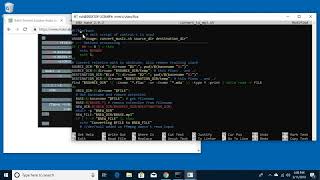
Use `nano convert_to_mp3.sh` to create the script. Paste code from the creator's website. The script uses `#!/bin/bash`, sets `-e` for error handling, cleans up directory paths, finds lossless files with `find`, loops through them, creates new directories, and runs FFmpeg with high-quality settings (libmp3lame codec, quality level `-q:a 2`, variable bitrate).
Run `chmod +x convert_to_mp3.sh` to make it executable. Execute the script with source and destination directories: `./convert_to_mp3.sh music music_mp3`. Encoding starts and recreates the folder structure.
If interrupted (Ctrl+C), the last partially encoded file must be deleted manually because it will be corrupted. Re-running the script resumes where it left off for all previously unprocessed files.
The generated MP3 folder can be copied to USB drives for car stereos, TVs, or MP3 players. Lossless originals can be archived and reused later for other formats (e.g., AAC) or different quality levels.
This tutorial provides a reliable method to batch convert lossless audio to MP3 on Windows 10 using WSL and FFmpeg, preserving file structures and enabling flexible reuse of lossless archives for various playback scenarios.
What command installs FFmpeg in WSL?
`sudo apt install ffmpeg`
0:51
How do you make a shell script executable?
Run `chmod +x script_name.sh`.
4:11
What is the purpose of `#!/bin/bash` at the start of a shell script?
It indicates the script should be run in the Bash shell.
2:20
What does the 'set -e' command do in the conversion script?
It causes the script to exit immediately if any command returns a non-zero status (e.g., Ctrl+C kills the whole script, not just FFmpeg).
2:23
What FFmpeg quality parameter corresponds to 'very good quality' variable bitrate?
`-q:a 2` (lower numbers give better quality; 2 is considered very good).
3:30
The script uses `find` to locate files with which extensions?
`*.flac` and `*.m4a` (lossless audio files).
2:47
Why must the last partially encoded file be deleted if the script is interrupted?
Because it will be corrupted; re-running the script will skip already-existing files but that partial file is invalid.
5:48
What is the purpose of `</dev/null` in the FFmpeg command?
It prevents standard input from interfering with FFmpeg.
3:57
WSL and FFmpeg as Core Tools
Establishes the key prerequisite — combining WSL and FFmpeg — to enable batch audio conversion on Windows, a non-obvious workflow.
0:32High-Quality MP3 Encoding Settings
Specifies `-q:a 2` with libmp3lame, achieving very good quality variable bitrate, balancing file size and fidelity for most users.
3:30Handling Interrupted Conversion
Explains a practical edge case: deleting the partially corrupted file allows the script to resume smoothly, making batch processing robust.
5:48Future Flexibility with Lossless Archives
Emphasizes archiving lossless originals for re-encoding to different formats or quality levels, adding long-term value to the workflow.
6:02[00:00] welcome in a previous video I talked
[00:02] about ripping CDs to lossless audio
[00:05] using Windows Media Player on Windows 10
[00:08] in this video I'm going to be talking
[00:09] about using a shell script to convert
[00:11] lossless audio to mp3 format I did a
[00:15] previous video to do the same thing with
[00:16] AAC and this is going to be very similar
[00:18] to that video so I have the music folder
[00:23] on this computer with two albums in here
[00:25] it has lossless audio on it and I'm
[00:30] going to go and and you need to install
[00:33] Windows services for Linux I have a
[00:35] video on that I'll put that in the
[00:36] description once you have that installed
[00:38] you can execute a typing bash and this
[00:40] will bring a shell up and we'll need the
[00:44] ffmpeg software and I've done some
[00:46] videos on that there's a couple
[00:48] different ways to install it for this
[00:50] video you need to install it from within
[00:51] the windows services for Linux so you
[00:55] would type sudo space app space install
[00:59] space ffmpeg we'll hit enter it'll ask
[01:02] for a password and I already have
[01:07] installed but it would install here next
[01:10] we'll navigate to the music folder or
[01:12] the my home directory so I'll type CD
[01:14] space dot forward slash dot forward
[01:17] slash and that'll take me down to
[01:19] directories then I'll type CD space
[01:22] users with a capital u and then my
[01:24] username which is Rick if I look in here
[01:28] we'll see I have a music directory and
[01:30] that has the lossless audio in it I can
[01:33] type in mkdir space music underscore mp3
[01:39] and this will create an mp3 directory
[01:42] that we can store the mp3s in so what
[01:45] this will do is this will retain the
[01:46] lossless audio and it will create a new
[01:48] folder with just the mp3's in it next we
[01:51] can type in nano space convert to mp3
[01:59] dot Sh and this doesn't have to be exact
[02:02] but I'll do that that'll open up a text
[02:04] editor go over to my website here and
[02:08] I'll select all this code
[02:13] I'll right-click and say copy and then I
[02:17] will right-click in my editor and it
[02:18] will paste that in there well look
[02:20] through this real quick so this bin bash
[02:23] just means it's a shell script the set e
[02:26] is so when you hit ctrl C it will kill
[02:29] the whole script otherwise it will just
[02:31] kill the ffmpeg process that's running
[02:33] and this just talks about usage here
[02:36] these few lines are cleaning up the
[02:39] directories you supply it to make sure
[02:40] that the the trailing slashes are fixed
[02:44] and the full path is used this fine
[02:47] command finds all the slacker
[02:50] m4a so this would be for flak and
[02:52] lossless audio files and it passes those
[02:55] to a loop so this loop will split apart
[03:00] the name and directory and it will
[03:03] create a new directory in the new folder
[03:05] and it will create a new file name and
[03:08] then it will look to see if the file has
[03:09] been created before and if it hasn't it
[03:12] will convert it using this ffmpeg script
[03:15] so you have ffmpeg here high banner will
[03:18] just hide like version information and
[03:20] such - I will be the input so this is
[03:23] the original file - C : a is the audio
[03:27] codec and it will use lib mp3 lame and
[03:30] then - Q : a is the quality so we're
[03:33] going with - so it goes the lower
[03:38] numbers are better quality so if you
[03:39] want to one or zero you could
[03:40] potentially get better quality but this
[03:42] is considered very good quality so it's
[03:44] probably not worth going lower on this
[03:45] and this is variable bitrate - and you
[03:49] can change these up if you want some
[03:51] kind of different that format and then
[03:52] we have the new file name here and this
[03:54] is in quotes in case our spaces and then
[03:57] we have less than slash dev slash null
[04:00] and this keeps a standard input from
[04:02] getting into ffmpeg and causing problems
[04:04] so now I'll type ctrl o to save this out
[04:08] and then ctrl X to exit and then before
[04:11] we can run the script we need to type
[04:12] chmod space plus x space and then
[04:17] convert to mp3 dot Sh so this will make
[04:21] it executable so now I should be able to
[04:23] type dot slash
[04:25] convert to mp3 Sh and you'll see it's
[04:28] asking it's telling us how to use this
[04:32] so to use it I'll type dot slash convert
[04:35] to mp3 Sh I'll type the source directory
[04:38] which was music and then the destination
[04:41] directory which was music underscore mp3
[04:43] and it doesn't matter if you have the
[04:45] trailing slash or not so I'll hit enter
[04:47] here and now it will start encoding this
[04:50] to mp3 so if we click on our File
[04:55] Explorer I'll click on my home directory
[04:59] if we look in music mp3 you'll see we
[05:02] have the taylor swift folder if we click
[05:04] on it you'll see reputation and then in
[05:07] here it's converting the files to mp3 so
[05:09] it will recreate the file structure as
[05:12] it encodes so if you hit ctrl C while
[05:18] this is running it will stop the
[05:24] execution
[05:25] so then you'll want to go into your
[05:28] music and find the last file it was
[05:35] encoding looks like it was called don't
[05:38] blame me and we'll click on this and
[05:42] we'll delete it so this script if we run
[05:47] it again it will start off where it was
[05:50] last time but that when you stop it in
[05:54] the middle of encoding a song it'll
[05:55] screw up that song so we delete that one
[05:57] song we run it and it will pick up where
[05:59] it left off so what you could do with
[06:03] this know is you'll have this music mp3
[06:05] folder you could copy this over to a
[06:08] thumb drive to stick in your car like
[06:11] USB so you can play it off your car
[06:12] stereo you can stick it in an audio
[06:14] receiver the back of the TV you could
[06:17] move it to an mp3 player you can do it
[06:19] with it whatever you want and then you
[06:22] could take your lossless audio if you
[06:24] want and you could move it to a USB
[06:25] Drive a thumb drive a large SD card and
[06:28] take it off your computer and then
[06:30] someday if you want to reload to a
[06:32] different format you could stick it back
[06:33] in and then run a script like this again
[06:35] like if you want to go with a cc or
[06:37] change the quality level or
[06:38] whatever or if you had a small mp3
[06:42] player you want to take jogging with you
[06:44] every day you could encode to a smaller
[06:46] format so maybe the quality isn't as
[06:48] good but you could put more songs on
[06:50] your player by running this script so so
[06:54] that's the basics of using the bash
[06:57] script to convert lossless audio to mp3
[07:00] if you have any questions please leave
[07:02] them in the comments if you like this
[07:03] video please click like if you haven't
[07:05] subscribed my channel or appreciate if
[07:06] you do that and thanks for watching
[07:08] until next time goodbye
⚡ Saved you 0h 07m reading this? Transcribe any YouTube video for free — no signup needed.