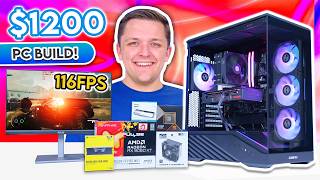

Best $1200 Gaming PC Build in 2026!
45sThe opening hook promises an affordable high-performance build, tapping into the massive audience looking for budget gaming PC guides.
▶ Play Clip"The title accurately promises a $1200 gaming PC build, and the video delivers exactly that with detailed part selection, assembly, and benchmarks."
This video provides a step-by-step guide to building a budget gaming PC for around £1,200 (or dollars) in 2026, focusing on strong 1080p performance, upgrade paths, and future-proofing. The host walks through part selection, assembly, and gaming benchmarks for both 8GB and 16GB GPU variants.
Build a PC for £1,200 that delivers exceptional 1080p gaming performance with good upgrade paths and future-proofing.
AMD's RX 960 XT is the best price-to-performance entry-level GPU. The 8GB version is recommended for 1080p gaming to save money, as performance is identical to the 16GB version when not VRAM-limited.
The AMD Ryzen 5 9600X offers great performance, value, and upgrade paths via the AM5 platform, supporting DDR5 and future CPUs.
32GB DDR5 with CL36 or lower is ideal for future-proofing, but 16GB is a cost-effective option that can be upgraded later.
A 1TB PCIe Gen 4 NVMe drive is the perfect balance of speed and price for this build.
The Lian Li V100 is praised as the best budget case, featuring three reverse-blade fans, good airflow, tool-less design, and an ARGB strip, all for around $70.
A non-modular 650W PSU is sufficient for this power-efficient build, though a modular option like Corsair RM650 costs nearly double.
A cheap 120mm tower air cooler that is more than adequate for the Ryzen 5 CPU.
Chosen for its small price difference over B650, PCIe Gen 5 support, and out-of-the-box Ryzen 9000 compatibility.
Align the golden triangle on the CPU with the socket triangle, then install RAM in slots 2 and 4 (or just slot 2 for single stick).
Remove the M.2 heatsink, insert the drive at an angle, then secure with the heatsink screws.
Install AMD mounting brackets, apply thermal paste (rice grain size), then attach the cooler. Leave the fan off temporarily for easier access.
Adjust standoffs for the MicroATX board in the ATX case, then screw in the motherboard.
Install PSU with fan facing down (or up on carpet), connect motherboard and CPU power cables, then front panel cables (USB, HD audio, F panel).
Remove PCI slot covers, insert the GPU into the top slot, secure with screws, and connect PCIe power cable.
8GB: 105 FPS, 16GB: 114 FPS at 1080p with FSR Quality.
8GB: 142 FPS at 1080p High; with FSR Quality: 162 FPS; with frame gen and ray tracing: 137 FPS.
8GB: 135 FPS, 16GB: 158 FPS at 1080p High.
8GB: 79 FPS, 16GB: 91 FPS at 1080p High; with FSR Quality: 94 FPS; with frame gen and ray tracing: 95 FPS.
8GB and 16GB: ~115-117 FPS at 1080p; with FSR Quality: 158 FPS.
8GB: 114 FPS, 16GB: higher, both well over 100 FPS.
Both cards: ~190 FPS at 1080p High, showing headroom for higher resolutions.
This budget build offers excellent 1080p gaming performance at an affordable price, with the 8GB RX 960 XT being a smart choice to save money without sacrificing performance at this resolution.
What is the recommended GPU for a budget 1080p gaming PC in 2026?
AMD RX 960 XT (8GB or 16GB).
01:30
Why is the 8GB RX 960 XT recommended over the 16GB version for 1080p?
Performance is identical at 1080p when not VRAM-limited, and the 8GB card is cheaper.
02:00
Which CPU is used in this build and why?
AMD Ryzen 5 9600X, for great performance, value, and AM5 upgrade path.
03:00
What is the recommended RAM configuration for future-proofing?
32GB DDR5 with CL36 or lower.
04:00
What is a cost-effective RAM alternative for this build?
16GB (single stick) to save money, upgrade later.
04:30
Which case is recommended and what is its price?
Lian Li V100, around $70.
06:00
What power supply is used and what is its main downside?
MSI A650BN; it is non-modular.
08:30
Which motherboard is chosen and why?
ASRock B850M Pro RS Wi-Fi, for PCIe Gen 5 and out-of-the-box Ryzen 9000 support at a small price premium over B650.
10:00
What is the average FPS for the 8GB RX 960 XT in Call of Duty Black Ops 7 at 1080p High?
142 FPS.
21:30
What is the average FPS for the 16GB RX 960 XT in Arc Raiders at 1080p High?
158 FPS.
22:00
What is the average FPS for both cards in Forza Horizon 6 at 1080p High?
Around 190 FPS.
24:00
Case Price Reveal
The host reveals the Lian Li V100 case costs only $70, which is surprisingly low for its features.
07:30Dropping the Motherboard
The host accidentally drops the motherboard while opening it, adding a moment of humor and relatability.
10:30Final Performance Summary
The build achieves nearly 200 FPS in Forza Horizon 6, demonstrating exceptional value for a budget build.
24:30[00:00] What is up, guys? Welcome back to another Geekowatt video. And in today's video, I'm going to be showing you guys how to build a budget gaming PC build in 2026. A system that's going to clock in at around about £1,200 or dollars to deliver genuinely strong 1080p gaming performance by combining some of the best parts on the market right now, but not only offer up strong frame rates, but give us good upgrade paths and future proofing,
[00:22] too. As always, I'll be walking you guys through all the parts I've selected and why, talking about where perhaps you can change or swap parts out, showing you how to put it together from start to finish, and looking at those allimportant gaming benchmark numbers a little bit later on. Let's do this. Now, the goal of today's video is simple. build a PC that delivers exceptional 1080p gaming performance at a price point that hopefully isn't going to
[00:44] break the bank and doesn't make too many compromises along the way. And I've got to give a big thank you to Overclockers and AMD for sending out all the parts at my request and making this video possible. So, what better place to start than with the CPU and GPU combo that I've gone for in today's build. Now, if you've watched the channel for a while or any PC build videos for that matter, you know that this
[01:06] AMD's RX 960 XT is hands down the best price to performance entry-level GPU on the market. It comes in two derivatives, one with 16 gigs of video memory and one with eight. Now, I'm going for the 8 gig card in today's build for a few key reasons. We're only going to be gaming at 1080p. When you're not limited by video memory, the performance of this is identical to the 960 XT 16 gig. The only thing that's
[01:29] different is the memory. And in the current climate where we're seeing a big memory shortage, you're going to save yourself a lot of money by going for the 8 gig card. Don't worry though, I will be benchmarking both the 8 and 16 gig versions of this card in this exact build later so you can see whether the 16 gig card might be the better bet. This particular model right here comes in from Sapphire and it's their
[01:51] Pulse design. It's simple, offers fantastic value for money, and is going to crush through everything from esports titles to even AAA games at 1080p. really really happy with the GPU choice in this build and frankly I don't think anything else makes more sense. For the CPU I've gone for the AMD Ryzen 5 9600X and it's another case of a component that offers up great performance, fantastic value for money, is easy to build with and keeps upgrade
[02:13] paths open. Now I much prefer to go for the AM5 platform in my builds over the last gen AM4 platform as you're going to get those upgrade paths. We're building with a motherboard that can support higherend CPUs and even chips that haven't been released yet. And for me, that's worth a lot. When it comes to memory as well, we get support for DDR5, not DDR4. And I'll be talking a bit in a moment about what I'd
[02:35] recommend you do with RAM in this build, as of course, it's a bit of a sticking point right now. In fact, let's just dive straight into that, shall we? And talk about memory. Normally, my suggestion would be 32 GB DDR5 with a cast latency of 36 or lower. But honestly speaking, in the current climate and in this kind of build, we can afford to make some sacrifices. If you've got the budget to do so, my suggestion
[02:57] would still be to go for 32 gigs of memory. I personally think it's going to future proof the build a lot better. And in the UK, especially right now, there are some deals to be had, and I'll link overclockers latest memory offers in the description below. If you want to save some cash and get this build going straight away, my advice would be to drop one of the dims and just go for 16 gigs. I did
[03:19] a full video recently testing loads of different GPUs at different price points with 16 versus 32 gigs of memory, and the results might surprise you. In fact, I'd argue from a price to performance point of view, 16 gigs in this build makes sense right now, and you can just upgrade it to 32 later. Two options there that are going to give you a bit of flexibility in the budget. The remainder of the storage in this build
[03:41] is provided by this, the Team Group MP44L. It's a 1 TBTE PCI Gen 4 MVME drive and honestly it's the perfect option for a system like this. I wouldn't go gen 3 as Gen 4 drives are really not that different in pricing and I wouldn't step up to Gen 5 either as frankly we don't need the extra speed. A component in this build that I absolutely love though by the way is this the Lean Lee V100.
[04:04] In my opinion and this is quite a big claim to make in today's video this is the best budget case on the market right now. And let me explain why. So, we've got this tempered glass side panel. It's not too heavily tinted, which I like. And it's even got this non-square shape, which gives it a bit of a bit of a kind of unique aesthetic, I suppose. Inside the case, we get a triple or three 120
[04:26] mm reverse blade fans, and they're all daisy chained together. Love it. We get a 120 mil ARGB standard blade fan at the back. Now, what that means really is we've got good air flow, and we haven't got to buy any extra fans, saving us some cash. At the top of the case, you've got very comfortable support for a 360 mil rad. I'm not going to be using one as I don't think in this build we need
[04:48] it, but you've got it. So again, that's good for future upgrades. Spin around to the rear, there's loads of mesh on the back. This is of course for the intake for our fans. And if you remove this, which is once again toolless. Inside, you'll find all the cables nice and pre- neatly managed. Universal ARGB control for the fans, a little accessory box. So this is going to contain all of the screws and stuff that you'll need
[05:10] for the build. And honestly, design-wise, it's just fantastic. The angled power supply shield is just gorgeous. Little attention to detail pieces like a GPU cable grommet and room for fans above the power supply are fantastic. Reverse connect motherboard support. Happy days. And one more thing. Yes, that's it. The big party piece in my opinion. The ARGB strip along the bottom. And when you look at how much this case costs, in fact, I'm going to give you
[05:32] a live price on this case right now. And I think if you haven't seen it already, you're going to be shocked. Let me load this up. Look at that. $69.95 here in the UK on overclockers. And if you want to get the mini version, it's around £13 cheaper. And that would also work fine for this build while retaining you the three side intake fans. That Yeah, that's not even the sponsored bit of this video. It's just
[05:54] I just think it's fantastic and it makes me really happy. What else should we talk about? Let's talk about the power supply. This is a build that's going to sip power. Our Ryzen CPU and 9060 XT are so power efficient, you could basically run them off a laptop power brick or something closely equivalent. You will need a proper power supply to be completely clear. And if you're going to pick one up, I'd recommend this, the MSI
[06:16] A650BN. It isn't PCI Gen 5.0 or 5.1, but we don't need it. We do not need that in this build. We just need something that's going to supply power to the motherboard, the GPU, and the CPU. The downsides of this particular unit are that it's non-modular, so all your cables and stuff are basically pre-attached whether you like it or not. But honestly, because it's a fairly low power unit, there aren't that many. And this Lean Lee
[06:39] case has got loads of space for cable management anyway. But to be honest with you, I think it's a sacrifice that you can make without losing any sleep. If you wanted to go higherend Corsair RM 650, great shout. That's ATX 3.1 PCI 5.1 fully modular 80 plus gold, but it's going to cost you nearly double, at least in today's pricing. So for me, that's a no-go. cooler. I've gone for the Thermalite Assassin X120. If we're talking
[07:01] about value, Thermal Wright are pretty much top of the list pretty much every day. It's a 120 mil tower air cooler. It's super cheap, super affordable, good for CPU temperatures, and more than adequate for a Ryzen 5 CPU. If you've got a 9800 X3D, you're going to want something higherend, but we haven't. Other board is the last part to talk about. Again, budget in mind here. ASRock B850M Pro RS Wi-Fi. Now, technically speaking, one could argue
[07:23] that, well, James, this is a budget build. Why don't you go last gen B650? For me, the price difference between B6 and B850 is so small, I'd rather get the extra PCI Gen 5 support, more up-to-date connectivity. And B850 is going to support Ryzen 9000 series out of the box. B650 on some boards, depending on how long they've been sat in the warehouse, they may need a manual BIOS update when you receive them. And I just
[07:45] don't want that hassle. I just want to recommend something that's going to be out of the box, latest features, and it's going to cost you basically the same as the B650 counterparts. Anyway, so with that, let's open up. That was bad. That was categorically bad. That wasn't I promise you that was an accident. I think it's fine. I'm going to take a breather, open the motherboard, and then show you how to install other parts and not
[08:07] drop anything else. Let's open up. Installing the CPU in today's build is pretty easy. What you want to do is locate the little golden triangle on the processor. For me, it's just up in this corner here. And then on your CPU socket, we want to line up the corresponding triangle, which is just in this corner here. Then it's a simple case of pushing the arm down and out, lifting the arm up like so, and then the
[08:29] socket cover will release. From here, you're then able to go ahead and drop the processor in. The golden triangle, as a reminder, should be exactly where your triangle on the motherboard is, but that's just here. Give a little bit of a wiggle, put the cover down, arm into place, and we are well good to go. I'm then going to do the memory. If you can see on the memory here, we've got a little notch. Now, that
[08:51] notch is actually very slightly off center. Typically, your logo on your RAM, so our Vengeance logo in this case is going to face outwards or away from the motherboard. I'll be using the second and fourth RAM DIM slots today. If you've just got the one dim, you'll want to use just the second. Line it up and then apply a bit of pressure to both sides. Repeat this for as many RAM dims as you've got. A little
[09:13] something like so. And what you can do if you wish is try and just lift them out on either end. They shouldn't go anywhere. If they do, you've probably done something a little bit wrong. From there, we can then install the M.2 2 SSD. One of the only disadvantages of this Azro board is that the M.2 heat sink, if you can see here, has screws. It's not toolless, unlike what you'll find on higherend designs. Again, I'll
[09:36] just show you the M.2 drive so you guys can see exactly what we're working with here. You've got your slot, which is your contact slot. And then you've got the little notch here for where the screw is going to fasten down. The notch of the contact slot is going to kind of go in there. So, you can see a little bit the way it's going to live. Before that, of course, though, you need to remove the
[09:58] M.2 2 heat sink with the left and right hand screw before then sliding the M.2 drive into place a little something like so and then fastening our heat sink and these screws back on to get everything fastened down. Then it's CPU cooler type. Now what you'll be able to see on the bottom is it's got two screw thread holes and basically they're going to screw down to this pre-installed mounting hardware just here. I'm going to take
[10:20] off the stock AMD brackets, secure the AMD mounting hardware and spacers into place and get it all screwed down nice and easily. Once the brackets are on, I'm then going to add a dab of thermal paste around about the size of a large grain of rice. That is going to be perfect. I didn't probably explain that well earlier. It's basically just two silver brackets, one on each side. And from there, we can then get the actual
[10:42] CPU cooler installed. It just secures onto the two threads that are now present as of the addition of those silver brackets. I feel like I over complicated that. You guys get the gist. I think you can probably see by now what's going on. I'm going to leave the fan off and put the fan on later. Having the fan on now might just get in the way. It's a little bit of a geek top tip for you
[11:04] there. The next step is then moving the motherboard into the case. Before we do that, we need to check where the holes are on the motherboard. These are our standoff locations. So, I've circled them all on your screen. Basically, three at the top in one line, three in the middle in one line, and then two down the bottom, but these are actually slightly offset. This one is very slightly higher than that one. Because this is a
[11:26] MicroATX motherboard, and this is an ATX case, some of the standoffs may be in the wrong location. So, let's have a look. Three at the top. All good. Three along the middle. Great. But the three down the bottom we don't need. And we're missing one here and one here. So inside of the case accessory box, what I'm hoping we're going to find is a standoff removal tool. No. Yes. So that looks a little something like this.
[11:48] Can we get a shot of that? Can you guys see that? There you go. So it's got a little bit of like a hex head on the inside. And we do get extra standoffs. The best thing I think probably to do is just to remove two of the existing ones and move them up. And then we haven't got extras in the case that we actually don't need. Once these standoffs are all corrected, it's then a simple
[12:11] case of sliding the motherboard into place. The center standoff on this Lean Lee case is raised. So that will hold it in. Just push it down, get it lined up. It will stay there for the time being and give you time to actually screw it down. Eight screws in total. Three along the top, three across the middle, and three, no, two down the bottom. That' be nine. Just eight. Three. Three and two. Now, the next step
[12:33] of the build could be to install the GPU. But I actually think taking our power supply, which I definitely didn't drop earlier, and doing that next alongside all the cabling and wiring is the more sensible move to do this. Need to spin the case around to the rear and locate where our power supply is going to be installed. And that's this area just here. I'm going to go with the fan facing down as there's a bit
[12:55] of clearance under the case. So that will promote slightly better temperatures for the power supply. But if you're putting this on carpet, go for a power supply with the fan up. There is mesh so it will be fine. Once that's all lined up, what you're going to then see is four screw hole locations. I'm going to secure all four of those screw hole locations down before then walking you guys through the cabling and wiring. The first
[13:17] of those is the motherboard power cable. Now, that's going to slot into our big power connector just up here. A little something like so. Nice and easy. I'm then going to follow up with the CPU power. And I'm just going to take this top cover off to hopefully make it a bit easier to access through the top of the case. And for this, I'm going to be using the power cables labeled CPU if I can find
[13:39] them. As mentioned before, that is going to slot through the very very top grommet just here. It is a bit of a tight squeeze, but we are pretty much good to go. And then that is going to click into place. A little something like so. Perfect. Front panel cables are next. And as I said earlier, those cables are just down this middle section here. I'm also going to manage our CPU power cable away under these very
[14:01] cleverly designed included CPU cooler cable clips. I'm not sure who at least this case, but I am so impressed. Then I'm going to dislodge our front panel cables. So we've got a few of note which include our USB 3 type A, our USB 3 type C. We should have ourselves a front panel and a yes, a HD audio cable hiding away in here. So this one is labeled HD audio and has the multi filled connectors. The
[14:23] front panel cable is labeled F panel and is all black. I'm going to go ahead and dislodge these as I can always basically reable manage them a little bit later before installing them all one by one. I'm going to start with the USBs. So USB 3 type A followed by USB 3 type-C commonly located on the right hand side of the motherboard and both notched but they'll only go in one way round and then finished with
[14:46] HD audio to the bottom left. It's got a pin missing so again only fits in one way and front panel which goes down to the bottom right. With those all done and dusted, it's pretty much only the GPU to do. First, I am just going to slot on the cooler fan. That's going to go in nice and easily. And I'm going to run the fan cable up to the fan header at the top. I'll get you
[15:08] guys some B-roll of this after the fact as it's quite hard to show in real time. And then I'm going to thread that cable through to neatly tidy it out of the way. From there, it's time to install our Sapphire Pulse 960 XT. And I'm very excited to get this in and wrap this build up. And I would just say, by the way, if you're watching this and this is kind of like potentially your first gaming
[15:30] PC build, what a way to start. I think it looks so so good. And then I'm going to show you guys how to install this, the graphics card. And we're going to hover it over the top slot of the motherboard so we know where it goes. And that's going to tell me that our top two PCI slots are going to need removing. I'll be going through detailed gaming performance benchmarks of the 960 XT in just a
[15:52] moment in the benchmark section of today's video. But what I can tell you straight away is that it's an absolutely epic card for 1080p gaming. It's got so much power for basically all the latest titles, and I think it's an incredibly good value proposition, especially at its both kind of MSRP and current pricing, too. I'm going to make sure the PCI slot is pushed back, which it already is, before then sliding our 9060 XT into place.
[16:14] Bit of a click to well, secure it down. I'm then going to add our other two screws in. The only disadvantage, I guess, of going for a cheaper microATX board, as I have, is that the GPU tends to be about one slot higher. On an ATX board, it probably would be one slot lower. And if we're being really picky, I would say that that would look aesthetically a little bit better. It would leave less dead space
[16:36] in the case. But equally, that dead space is also going to provide good air flow. So, pros and cons. I'm then going to locate our GPU power cable labeled PCI power, and thread it through the slot I was telling you guys about earlier. That is so conveniently placed for, well, the graphics card. You know it's the right connector cuz it says PCI on the side in nice big letters. I'm then going to go ahead and get
[16:58] this clicked into the graphics card. Good stuff. Maybe a little bit of cable management to do there later on. But before that, I want to grab a power cable for this build and see if it's going to turn on and what it looks like when hopefully everything is lit up. That's a good start. We've got our RGB. Amazing. And you can see what I mean about this strip down the side here, too. I'm going to chuck
[17:21] these side panels on this, boot it up, and get ready for some gaming benchmarks. But first, some gorgeous glam footage of just how good this budget build. I remind you, a budget build looks when it's all powered up. So, a good looking build, but what about performance? That's always the biggest and the most important question of all. Now, as mentioned earlier, I've tested this build using both an 8 and a 16 gig variant of the 960
[17:43] XT so you guys can make the right decision for your system. Now, let's start off with the brand new 007 first light to begin with. Here we're testing using FSR on the quality preset. FSR is AMD's upscaling tech, which is going to allow us to get slightly better performance in terms of additional frame rate. Here we see an average frame rate of 105 frames pers from the 8 gig 960 XT and 114 frames pers from the
[18:05] 16 GB variant. Both very solid results that put us at well over that 100 FPS marker. In Call of Duty's Black Ops 7, frame rates were strong, too. Started with the 960 XT 8 gig at 1080p high. We saw an average of 142 frames pers, while the 16 gig card provides little difference with a few extra FPS here and there. Turning on FSR to the quality preset gives us a nice bump to the frame rate up
[18:27] to around 162 FPS. And we can even enable AMD's frame generation and rate tracing to push frame rates even further up to a maximum of 137 FPS in this system. Move on to Arc Raiders next up once again at the 1080p high settings preset. And here we see another set of solid results. 135 FPS is our baseline from the 8 GB 960 XT, but this increases to around 158 frames pers on average from the 1960 XT
[18:49] 16 gig. In Crimson Desert, next up, we see strong results from both configurations. The RX 960 XT8 gig at 1080p high delivers an average of 79 FPS. This pushes to 91 frames pers from the 16 gig variant. And once again, we've got AMD's FSR 4.1 settings available to us to push that frame rate even further. Take for example the 8 gig card with FSR set to the quality preset that delivers 94 frames pers while turning on
[19:11] frame generation and rate tracing improves the visuals significantly and still lands us in at around 95 FPS on average. In Marvel's rivals we also saw great results here. The 8 and 16 gig cards at 1080p provided virtually identical performance around that 115 to 117 FPS marker. But again, we can turn on FSR to the quality preset, and that's going to give us up to 158 frames pers. In Battlefield 6, next up, we see another fantastic set
[19:33] of results with both GPU configs giving well over 100 FPS on average in this build. Specifically, we see around about 114 frames per second from the 8 gig card, while the 16 gig GPU is going to push our mileage even further. 1 and 0.1% lows were also really, really solid, and the gaming experience generally was very good. Finally, in Forza Horizon 6 at 1080p high, we saw another set of really, really strong results. Both cards delivered
[19:56] around about 190 frames per second on average in this system, showing that you've definitely got room to push through to those higher resolutions should you so wish to game at that higher level. This is a build I think that you can assemble for an affordable price point right now. And while price pressures for things like memory and SSDs are certainly still more than present, it's nice to see that you don't have to spend a huge amount
[20:18] of money on a system to still achieve great performance. If you want to check out any of the parts mentioned today, I'll link them down below for Overclockers, where you can check latest UK pricing and availability. A big thanks to Overclockers and AMD for making today's video possible. And as always, we'll see you in the next
⚡ Saved you 0h 20m reading this? Transcribe any YouTube video for free — no signup needed.