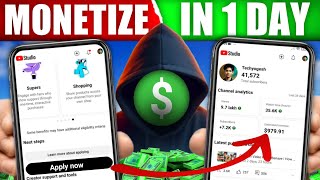

How I Got Monetized on YouTube
45sThe title promises a step-by-step guide, and the opening shows real stats, sparking curiosity and aspiration.
▶ Play Clip"The title promises a monetization guide, and it delivers, but with excessive filler and repetition, making it a typical average tutorial."
This video provides a step-by-step guide on how to monetize a YouTube channel, from accessing the YouTube Studio app to setting up an AdSense account and enabling ads on both long and short videos. The presenter, Techyogesh, walks through each stage of the process, including waiting periods and tips for increasing earnings.
The video begins with a promise to show step-by-step how to monetize a channel, and the presenter asks viewers to like and subscribe.
Open the YouTube Studio app to see channel analytics, including subscriber count (38K in this case).
Click on the 'Earn' option in YouTube Studio to begin the monetization process.
Press 'Apply Now' and then 'OK' to proceed. A new page opens with three steps required for monetization.
The first step is to review and accept the base terms. Click 'Start', read or skip the terms, then tick 'Accept' and click the accept button.
The second step is crucial: setting up an AdSense account. Click 'Start' and choose from three options: if you have an AdSense account, if you need to create one, or if you don't remember.
For a new account, select 'No, I need to create one' and click 'Next'. Choose the email ID associated with your YouTube channel.
Review and accept AdSense terms, then select 'Individual' as account type. Fill in personal details exactly as per government documents: real name, address, city, postal code, and state.
After submitting, AdSense reviews your info. This can take from a single day to two to three weeks, depending on content.
After waiting (10 days in this example), return to the Earn section. Click 'Watch page ads', then 'Turn on', tick 'Place ads during video', and click 'Next'. Then select 'Monetize all' to enable ads on long videos.
To enable ads on Shorts, click 'Short feed ad' and turn it on with the same process.
To increase earnings, enable 'Super Thanks' by clicking 'Agree' and accepting. A dollar sign will appear on videos, indicating monetization is active.
The video concludes by confirming that after following these steps, ads will appear on all videos and earnings will begin. The presenter hopes viewers understood the process and hints at future content about earnings.
What is the first step to monetize a YouTube channel?
Open YouTube Studio and click on the 'Earn' option.
00:31
How many steps are required to monetize a channel after clicking 'Apply Now'?
Three steps.
01:02
What are the three options when setting up AdSense?
If you already have an AdSense account, if you need to create one, or if you don't remember.
02:33
What should you enter in the AdSense personal details?
Your real name, address, city, postal code, and state, exactly as per government documents.
04:27
How long can AdSense review take?
From one day to two to three weeks.
05:08
What is the purpose of enabling 'Super Thanks'?
To increase earnings by allowing viewers to tip creators.
07:04
AdSense Setup is Critical
Emphasizes that the AdSense setup is the most important and dangerous step, requiring careful attention to avoid issues.
01:44Use Government Document Details
Stresses the importance of entering personal details exactly as they appear on government documents to avoid verification problems.
04:27AdSense Review Time Varies
Provides realistic expectations for approval time, which can range from one day to three weeks.
05:08Separate Ads for Shorts
Highlights that Shorts require a separate ad enablement process, which is a common point of confusion.
06:50[00:02] you can see that enable monetization on my channel.
[00:17] In this video, I will show you step by step how to monetize my channel. I am going to like this video right now and subscribe to the channel. So guys, first of all you have to
[00:31] open the Whatu Studio app and guys, you can see the watch studio of my channel. 38K subscribers have been completed on my channel and guys, and guys,
[00:45] you can see it in the analytics of my channel. Then to monetize, you have to click on the earn option from here. As soon as you come to the earn section, you will find written here, you will have to
[01:02] friends, here From there we will press the Apply Now button, after pressing it, press the Apply Now button, after pressing it, say OK, so now a new page will open in front of you, here you will have to go through three steps, as soon as you cross these three steps,
[01:15] your channel will be monetized, so the first step is review base term and yes this is the easiest step, for this you just have to click on the start button and if you want, you can read its term from here, otherwise you can directly
[01:31] tick on accept from here and click on the accept button, that's it, your first step is over, click on the accept button, that's it, your first step is over, now guys you can see that the first step has been successfully done, now we come to the most important and
[01:44] now we come to the most important and most dangerous second step, so guys you just have to complete this step with utmost attention because here we also have to take youtube2 to the bank, here we also have to take youtube2 to the bank,
[02:18] so keep this thing in mind, understand that to create an adsense account, you have to click on the start button from here as soon as Guys, you will click on start and three options will appear in front of you. The first option is
[02:33] if you already have an AdSense account, then you can attach it by clicking on yes from here, but if you have not created an AdSense account yet, then guys, you have to click on no I need to create and there is also a third option below, if you have ever
[02:48] created an AdSense account and you have forgotten, then you can click on I don't know from here. Right now guys, we have to create a new AdSense account, for this we will click on no I need to create one on the second option from here and click on next from here,
[03:02] and click on next from here, email IDs that are logged in your mobile will be visible to you here, so here, with which email ID do you want to create your AdSense account, from which
[03:16] want to create your AdSense account, from which
[03:32] ID you can create an AdSense account because if by chance, for any reason,
[04:02] whatever it is, you can select it from here and after this, the terms and conditions of AdSense will be displayed in front of us. The agreement will appear, so we have to scroll down it, if you want you can also read it, brother, nothing much has happened, I
[04:15] can also read it, brother, nothing much has happened, I mean, nothing. Now guys, after ticking this box, we will mean, nothing. Now guys, after ticking this box, we will click on setup account below. Then
[04:27] select individual in account type and below you have to fill some of your personal details and keep in mind guys, everything from name to address should be correct as it is in your government document. First of all, you have to enter your name here.
[04:40] You should enter your real name here. Do not enter the name of the channel at all. Then you have to enter your address in both of these. After that, you have to enter your town or city here. Then whatever is your post code or pin code, you should enter it here. After that,
[04:54] select your state from here. Okay, so I have entered all my details here and after that, click on submit from here. Now you can see that it is written here 'We are reviewing your info' and now you do not have to do anything here,
[05:08] your info' and now you do not have to do anything here, it will automatically give you but it doesn't happen like that, it happens in two to three days, sometimes it happens
[05:21] in a single day, it depends on your content and it two to three weeks, so you will have to wait, okay and guys, this
[05:37] you will have to wait, okay and guys, this third option that you are seeing, so guys,
[06:07] now you can see that after waiting for full 10 days, you have to
[06:22] come to the earn option from here and here you will find written in big letters, you are a youtube1, now to enable ads, you have to click on watch page ads from here, then from here you have to click on turn on and from here you have to
[06:37] tick on it and click on accept, now here you have to tick place ads during video and click on next, now guys, after selecting it from here, click on monetize all and guys, from here
[06:50] ads will be turned on in your long videos, but to turn on ads in your short videos, you have to click here From there click on short feed ad and turn it on with the same process and now ads will start appearing on all your videos and your earning will start
[07:04] now guys to increase your earning you have to enable super thanks from here also its the same process, accept it by clicking on agree from here and it will also get activated here and guys you can see dollar sign has appeared on all my videos here
[07:18] and ads have also started appearing on all the videos of my channel I hope guys you have understood it well and
[07:31] so guys now if you want to know that after my channel gets monetized my
[08:02] stays alone is the most dangerous
⚡ Saved you 0h 08m reading this? Transcribe any YouTube video for free — no signup needed.