
Why AI answers feel useless (and how to fix it)
45sIt directly addresses a common frustration, promising a solution that viewers are likely seeking.
▶ Play Clip"Solid content that delivers on its promise of a beginner course, but the 20-minute runtime includes a sponsor segment and repetitive explanations."
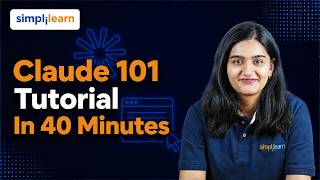
This video is the first module of a beginner-friendly course on Claude, an AI assistant. It aims to transform viewers from complete novices into confident users by teaching practical skills like prompt writing, file uploads, and iterative refinement. The course emphasizes hands-on learning and positions Claude as a 'thinking partner' rather than a search engine.
The video introduces a beginner-friendly course on Claude, promising a practical, hands-on learning journey covering prompt writing, file uploads, and work organization.
A sponsored segment promotes an 'Advanced Executive Program in Applied Generative AI' in collaboration with SimpliLearn, covering generative AI, agentic AI, and multi-agent systems.
The course is built on the idea that the best way to learn Claude is to use it. It combines clear explanations with live demonstrations, structured into three modules.
The lesson covers starting a conversation, writing an effective first prompt, uploading files for context, and using follow-up messages to refine responses.
A key misconception is cleared: Claude is a thinking partner, not a search engine. It reasons through requests and generates responses, unlike a search engine that retrieves existing content.
The video walks through the Claude interface, showing the left sidebar for conversation history, the project section, the chat input area, the file upload button, and model selection options.
A simple framework for effective prompts is introduced: Set the Stage (who you are), Define the Task (what you want), and Specify Rules (format, tone, constraints).
The first message is just the start of a conversation. Iteration through feedback and adjustments is crucial for getting the best results, not crafting a perfect first prompt.
The video demonstrates uploading a CSV file with 100 learners' data and asking Claude to analyze it, find patterns, and answer specific questions, highlighting the importance of critical evaluation of AI output.
Module 2 covers Projects, Artifacts, and Skills to structure work, create standalone outputs, and automate repetitive tasks.
A project is created for Q4 marketing, with instructions and a file uploaded. The project keeps all related conversations and files together, avoiding repetition.
Artifacts are standalone documents or files created iteratively. The video shows creating a project brief template as an artifact, which can be downloaded and edited.
Skills enable Claude to execute specific tasks consistently, like creating an Excel spreadsheet. The video demonstrates enabling code execution and file creation to generate a downloadable Excel file.
Module 3 focuses on connecting Claude to everyday tools like Google Drive, Slack, and Notion, and using Enterprise Search and Research mode for deeper investigations.
Connectors provide a direct link between Claude and other tools, eliminating the need to copy and paste information. Claude can read and sometimes take actions in connected tools.
Enterprise Search connects Claude to an organization's entire knowledge base across multiple tools. Research mode enables multi-step web investigations with citations, taking 5-15 minutes.
The video provides examples of how Claude applies to different roles: product managers, sales, marketing, finance, HR, and legal, and mentions Claude's presence in other tools like Excel, Chrome, and Slack.
The course concludes by encouraging viewers to pick one repetitive task and use Claude to do it, transitioning from learning to doing.
The video is a comprehensive beginner's guide to Claude, covering prompt writing, file uploads, project organization, and tool integrations. It emphasizes practical, hands-on learning and positions Claude as a thinking partner to enhance productivity across various professional roles.
Claude is a Thinking Partner
This reframes how users should interact with AI, emphasizing context and conversation over simple queries.
06:28Three-Part Prompting Framework
Provides a simple, actionable structure for writing effective prompts, a core skill for AI users.
11:34Iteration Over Perfection
Highlights that the best results come from iterative feedback, not perfect first prompts.
13:03Critical Evaluation of AI Output
Emphasizes the importance of checking AI-generated data against raw sources, a key AI literacy skill.
16:12Connectors Eliminate Copy-Paste
Shows a practical way to integrate AI into existing workflows, saving significant time.
28:32[00:00] Have you ever opened an AI tool, typed the question and felt like the answer was useful, but not exactly what you needed? That is where most beginners start. They know AI can help,
[00:14] but they are not always sure how to ask the right question, how to give proper context, or how to turn a simple chatbot into a real productivity partner. In this video, we are starting Clawed 101, a complete beginner-friendly course designed to help you understand Clawed
[00:29] from the ground up and use it confidently for real work. This is not just a theory course where we talk about what cloud can do. This is a practical hands-on learning journey where you will see how cloud works, how to write better prompts, how to upload files and images,
[00:43] how to define responses and how to organize your work using features like projects, artifacts and skills. We will also explore how cloud can connect with tools you already use such as Google Drive, Slack and Motion so you can work with information more efficiently
[00:57] instead of constantly copying and pasting from. By the end of this course, you will not just know what cloud is, you will know how to use cloud to think better, write better, research better, organize information better and get more consistent results from AI.
[01:10] So whether you are a student, working professional, creator, marketer, analyst, developer or business user, this course will help you build a strong foundation and start using cloud in a practical way. So let us begin with cloud 101 and understand
[01:22] how to turn clouds from simple AI system into a powerful everyday companion. Now, before we move on, let me share something exciting with you guys. If you are interested in understanding how generative AI, agentic AI and technologies like multi-agent system are transforming the way we work,
[01:36] there is an opportunity to take your learning to the next level with the advanced executive program in Applied Generative AI in collaboration with SimpliLoad. This program is designed to help you build a strong foundation in generative AI concepts,
[01:48] explore agentic AI workflow, understand large bandwidth model, work with frameworks like NCP and multi-agent system. You will also get exposure to popular AI tools, build real-world applications, and learn how AI system can be designed to solve practical business problems.
[02:02] Whether you are a developer looking to build AI application, a professional planning to transition into AI, or someone who wants to understand how AI can improve everyday workflow, this program helps you gain practical skill and confidence to work with modern AI technology.
[02:16] Learn more about Advanced Executive Program in Applied Generative AI in collaboration with Suntylearn here. So, without any further ado, let's get started. Welcome to Clawed 101 course, a practical, hands-on course designed to take you from complete beginner to confident and capable user of Clawed.
[02:35] Whether you have never opened an AI tool before or you have tried a few things and wanted to understand how it really works and you want to cut the sales results, This is exactly where you need to start from. This course is built around one idea.
[02:48] The best way to learn CLAW is to use CLAW. For every module combines a very clear explanation with live demonstration and every segment based directly on some report.
[03:02] By the end of this course, you will be able to Start and navigate the conversation in CLAW with confidence confidence and write an instructive prompt using simple three-step framework at a stage, task and rule. And then you will be able to upload files, images, datasets to get cloud as real context and use follow up messages to iterate and refine the responses until you get exactly what you want.
[03:24] And then you will also learn how to organize your ongoing project using project and create standalone usable outputs with artifacts and use skills to make cloud execute specific tasks consistently existently.
[03:36] simply every single time. He'll be also learning about connecting the cloud to the tools. He'll also be learning about how to connect the cloud to the tools you're actually using every day like Google Drive, Slack, Notion so it can find and ask on information without copying
[03:51] or pasting. He'll identify source to get unified answers from across the organized racial knowledge and resource mode for true and multi-source investigation with citations. We will be talking about how to identify the cloud applies to your specific role and work
[04:06] through the cloud beyond Cloud AI in Flash, Excel, Chrome and the Cloud Core. To get you more, this course is structured into three modules. Each one is building on the last one. So here is what we are going to cover in the upcoming module.
[04:19] In the module number one, you will be having your first conversation with cloud. You will learn what it is and how to navigate through the interface and as your first effective and understand what to do when things do not go the way you expected.
[04:32] In module 2, you will go one level deeper, organizing your work with projects, creating a standalone output called architect and learning how the skill helps Claude execute his specific tasks or ways every single time.
[04:45] In module 3, you will expand Claude's search, connecting it to the tools you already use, using resource modes to deal with investigation and seeing how Claude shows you a real role in the production, like Excel, Chrome and Slack.
[04:58] By the end of this course, you will not just understand the clause, you will be also knowing how to use it. So let's just start it. Welcome. If you have ever started a blank chat box and thought,
[05:11] I have no idea what to write here, then this lesson is for you. We are going to do something practical. We are going to open clause and then you will be having an actual conversation with it and by the end of this module,
[05:23] you will be having your first effective prompt and see what the strong response looks like. And most importantly, you will know what to do when Claude does not give you what you wanted. Because that is stupid.
[05:35] Because that is not going to happen. And knowing what to do and when it happens is exactly what separates people who get a lot of value out of AI from the people who try it once and feel frustrated and walk away.
[05:47] So here is what we are going to cover today. How to start the conversation with Claude? How to write your first form that actually works? how to put files and give plot the context and how to use follow up messages to refine what you get.
[06:00] We are also going to do something I think is genuinely one of the most useful exercises in my entire course, a simple evaluation exercise where you will compare plot's output to the work you have already done by yourself.
[06:12] A simple evaluation exercise where you will be comparing the plot's output to your own work. Now that exercise alone will tell you more about how to work with AI than almost anything else. Alright, so let's get started. Before we open the interface, I want to clear one biggest
[06:28] misconception. Cloud is not a search engine. Before we open the interface, I want you to be clear with the one biggest misconception and that is the cloud is not a search engine. It is not a database or query. It is not a vending machine where you put your request
[06:43] and it produces output. Cloud is a thinking partner and that distinction matters a lot. When you use the thought syndrome, you type the keyword and you get the link. The engine is retrieving things that already exist.
[06:56] With plot, something very different is happening. Plot is reasoning through your request and self-suggesting the context and generating a response that is specific to exactly what you have asked. That means two things how you use it.
[07:09] First, the more context you will give, the better the response will be. Plot cannot read your mind. If you say, write me an email, that is very different instruction than write me a professional email but long emails to long term client experience 2 weeks of project delay.
[07:26] Cloud needs to have a context to do good work. Now the second one that is cloud is guided by the values. As in Dropit, the company that built cloud, there is a whole approach of making an AI is useful and honest and safe.
[07:40] Cloud is designed to be something you can trust, not tell you what you want to hear. But it gives you generally accurate and useful results. And one more thing about what Plot is actually good at. It is not just good at writing.
[07:52] It will hold you research, data analysis, coding, working through the complex problems step by step. Think of a Plot as a capable of handling a wide range of thinking tasks, not just producing text.
[08:04] The reason I am telling you this before we open the interface because Plot changes the way in how you use it. If your approach is like the search engine, you will write a great query and you will be getting a great response. And if your approach is as thinking partner, you will be having a conversation and that
[08:20] conversation can be genuinely powerful. Now that you understand the clear picture of what Clon is, let us see what it actually looks like and use it. I am going to share my screen and we are looking at clon.ai. Let me walk you through what we are looking at before we use it.
[08:35] Now, in the left side of the screen, you will be having the conversational history. Every time that you have it clawed will be saved here. Alright, so first comes here if you want the first perspective chart and you can go ahead. Now, moving on to, now if you click in the project section here, you will be getting all the projects that you have worked on till now.
[08:54] And if you want to create a new project, you can click on the new project here on this section and you will be creating a new project. Now, what is exactly a project? Project can be anything, whatever you want to create and whatever thing you want to work on.
[09:07] work on. It can be very long, a very lengthy experiment, any very lengthy experiment or anything which has a lot of details in it. So, you can use the project section here. Now, if you are creating a project here, you can mention a project name and you can start
[09:21] the project from here. Now, let's say whatever project you are creating. So, let's say I am creating a project on food habits. Now, you can create like this and you can just
[09:37] things about your project like project, goals, subject and all the other things in more descriptions. So that's what we are going to do here. Now just move ahead and in the new chat section
[09:50] you will be having anything that you want to create this cloud you can write down here. Now it can be code if you want to learn something you can write that Now if you want to have any suggestions from cloud you can write it down here now in this section you will be writing all the things that you actually are asking from the cloud so this is the page now you
[10:08] have also a section of this plus sign which is used for adding files and connectors now here you can upload your pdf images cst files excel files words any type of file you can upload it here after that we also have a selection of models so these are the models it is providing
[10:24] currently. Simple Files is currently not available in India. All the others are available. Opus, Conex, Hyku is available. In all of them, there is also a code. Basically, a code is a token, how much token you can use in a specific one. Now, here we have low, medium, high,
[10:39] extra, max. So, you can choose according to your task whatever you want to use here. Right now, I am using medium which is a default section. If you want to use high, extra, max, you can do that. Now, each one of them as it increases the level, it also increases
[10:52] a token used by it. So keeping that in mind let's move forward. Now let's open the profile section here and in this let's go in the settings and this is our settings here. This is our current profile
[11:07] you can give your full name whatever you want to call cloud as and describe your work what you do instructions for cloud anything you want to give you can get there. Now chat font what you can
[11:19] handle all of the appearances of whatever text that you are getting from the cloud. Now, also you can change speed, everything you can modify from here. Now, responses, solicitations, they can handle all of these are present here. And that's it for the interface.
[11:34] It's very simple, clean and designed to stay out of your way. And now let's do something with it. Before we write our first prompt, I want to give a simple framework that will immediately make your prompt more effective. Now it has three parts. Once you know it, you'll be using it
[11:50] instantly. Part one, set the stage. Tell plot who are you and what is your role and which situation you are in. You do not need to write the biography but something like I'm a program director at a
[12:03] non-profit working organization. Now this will give a plot something real to work with and that context changes how it responds. Now part 2 is define the task. Be specific about what you actually want.
[12:16] Now write something about the program. Write like this. Write a two paragraph summary of our work development program outcome from the annual donor report. The audience is corporate funder who care about the measurable impact. Now part 3 is be specific about rules. This is where you tell the
[12:33] the format, the lips, the tone, things to avoid, everything. Something like this. Use this under 200 words. Use plain words and language. Don't use random words and do not include any statistics we have not provided.
[12:47] And again, skills, tasks and rules. And here is the most important thing I can tell you about prompting. The first message is the start of the conversation, not the one short request. request. If the response is not quite right, as it's completely normal, you give feedback,
[13:04] you ask for adjustment, you iterate and that's how it goes. Now, people who get the best result out of the slot are not the people with the perfect first prompt. They are the people who know what they are having a formulation about. For example, make this shorter, change
[13:19] the tone to warm more and keep the example very specific. Now, add a specific example from the data that you have given and then iterate the process prompt response refine and this is how you get something generally excellent. So let me show you exactly what
[13:33] this looks like. Currently I am using the cloud and I am going to write our first prompt using the framework that we have just covered that is the stage task rule and paste this in. So I am going to paste this here our prompt okay now I can read the prompt I am a program
[13:50] coordinator at a non-profit that runs workforce dependence program write two paragraph summary for our program for our annual donor event now like this you can just give your prompt here everything is covered here the stage the task the rule
[14:05] okay let's move ahead let's click enter and now something get now now watch what happened join because generating a response immediately let us hold out so that you can read everything
[14:17] Okay, so this is covered in 150 words. So, look at what clause proceeds. It picks up on the context, the donor's audience, the professional but the warm tone, the word count limit, everything is given here. It has a structured, easy-to-read two-character response, but it is perfect.
[14:32] Maybe not. It does not know the specific of your program, but it is starting point. And that is generally useful. Now, let's move ahead. Now, let me show you what exactly iteration looks like. I'm going to send you a follow-up without starting over.
[14:45] We're rewriting the whole prompt. Now, let's go. Now, I'm going to paste this. That is, this is good. Now, let it slightly warmer and more personal. Advice and advice about the real human impact behind the numbers.
[14:58] Still under 150 words. Okay? So, this is how you iterate. Now, you don't have to write the entire thing again. You don't have to write the entire font with the very specifics again. You can just iterate with it.
[15:12] Now, you have to notice of what is happening here. I give very specific targeted feedback. there is one more more personal one sentence about human in past and the thought and just in the entire thing again the spot was meaningfully better and in the one shot self that is a follow-up message that loop basically
[15:28] prompt response define is a core skill of working effectively this clause let me show you one more iteration this time I want to change the format entirely so I am writing this that now convert this into a bullet points instead of
[15:43] paragraphs and use three or four maximum bullet points. Now let's see. And there it is. Same content, completely different format. No new research, no
[15:59] starting over, one instruction on a clause and you have searched everything from entirely from top to bottom. Now this type of format control is something most people do not realize they have. Now this is incredibly useful when you are preparing content
[16:12] for different purpose. So we are going to work on this dataset. The dataset contains 100 learners, their skill, ID, name, their last name, age, gender, job, title, department, organization type,
[16:25] an year of experience, prior AI tool usage, comfort with technology, and skill assessment score, Model 1 score, from quality rating, e-mail task submission, and notes.
[16:37] All of this data we have here. Now, we have the CSV file here and let's move on with this. So, I'm going to start a fresh plot chart here.
[16:50] Now, I'm going to upload our data sets from here. So, here we have the option of add files and photos. So, I click on add files and photos and then I will upload the learner data.
[17:03] So, 100 learners data is there. Now, it has the information about the job title and their department desk and their pay experience in AI and pre-acquisement score and module 1's result.
[17:17] To upload the file, we click on this plus sign here and we upload the file here. Now that we have file uploaded here, now we will open our prompt. This is our prompt here. Now, I have uploaded a C5500 learners from the
[17:31] professional development course on cloud. Please analyze the data and tell me. First question is here, second question is here, third question is here. Now, all the questions are very specific here. Now whatever answers we require here will be given by the floor.
[17:45] Now, let's move on. Let's click on enter and that's it. Now floor is reading through entire database and working through these questions. What should generate the analysis?
[17:57] Now here is where this exercise matters. Look at how floor proceeds. It correctly identifies the average pre-applicant score. It found the department with the highest module 1 result and it spotted the meaningful pattern.
[18:10] Learners with pure AI experience scored significantly higher. This is a real insight from the data found in second. Now the question comes, may the cloud make some error here? Definitely it's possible. And that is why your job is not to accept the output, but look at which is looking actually critical to you.
[18:27] Check the number against the raw data. Decide what is actually trustworthy and what needs verification. That kind of evaluation looking at AI output clearly rather than just blindly using them is exactly what a good AI fluency look like in practice.
[18:43] So here is what we have covered in this module. Cloud is your printing partner, it's not a source engine. The more context you will give, the better results you will be getting. The three-part prompting framework. Change, Task and Rule.
[18:56] These two are reliable structures for any prompt you will write. Iteration is a core step. Your first message is a starting conversation. It's not a one-shot request. Uploading files gives Cloud more real context of the work
[19:08] and you can ask it to analyze, summarize and compare the data. When responses are not quite right, effective always more guidance will give you more context. The clear instructions will be the clearer targets will be.
[19:23] So module 2 is about organizing. How to structure your work inside the Cloud so that you can build on what comes before rather than repeating yourself. We will cover three things. Projects, Artifacts and Skills.
[19:36] Now, each will solve a different problem and together they will completely change how you work with Cloud. Now we will go to the Project section here. We will click on Projects and here we are.
[19:49] Now we will make a new project here. So click on New Project here and then we have to write it down here Right now I just write the the name of the new project So let say I am going to write here the new project as Q4 and that is marketing
[20:14] Now we have to write the description here that what our project is all about. so here I'm gonna write managing content for us okay and that's it I'll click on
[20:34] create the book this is our project now here we are inside our project now I'll click on the instruction you can see the plus sign here click here and then you need to write here
[20:51] how our project will look like now this is the instructions I'm going to give here now what exactly is this this is how you are telling how to behave inside the project
[21:05] where you are gonna work now make sure that you are pasting this and moving ahead See instructions and then move ahead. Now you will click on the upload a file and then I'll click here. Now after this we'll move ahead inside the text here and then we'll write the prompt.
[21:24] Now, we will come here inside this box and then we will be writing summarize the uploaded document in five bullet points.
[21:48] then click enter and these are your bullet points okay so the project centers on a creating marketing content for supporting the Q4
[22:00] project launch and all the other points if you want to move ahead you can also give here the prompt that how we can market this on LinkedIn on different platforms to get maximum output now now you can also upload and re-upload
[22:14] multiple different files here. Now that is it and the project is set. The structures are written, the files uploaded, every conversation you start here will be inside the project only. Now let's move ahead. Now we are here again and we click on
[22:29] new chart. Now we are going to write our prompt here. So now this is our prompt. Now create a project brief template that I can re-use in a new client work. Include sections for project overview, goals, success metrics, key stakeholders, timelines,
[22:43] risk and assumptions on the next step. Format a screen for me so that I can fill it in straight away. Now, click enter. Now wait for the cloud, let the cloud generate the answers and there it is.
[22:55] Cloud responded in a chat. On the left side, you can see the exact same thing and done. The articles panel opened on the right. Now this is a fully formatted document. Heading section ready to fill in. No text is buried in messages.
[23:09] Now here you can use it. Now here I can hit download and it will be downloaded in my system. Now this is how the artifact panel looks like. Now let's move forward and let's iterate in this. So for the iteration I will be giving here another prompt and that is add a question called
[23:25] budget and the source between the timeline and risk and then make all of the section heading bold so that it will be easier to scan. Now what is the artifact? It will update. A new section will be added, the headings are bolder and now the call-up message and
[23:41] that is all it looks like. Now prompt, response and define. One small change at a time until it is exactly the right way you want it. And I click on download and open and it will be downloaded and it will open in front of
[23:54] me. And now you can change the client name here, the project title here, the links here, the name here again and the draft, the review and the proof. Now all of these things will be uploaded and if you want to run this in the terminal you can do that and you can move ahead.
[24:09] Now let's start here and now here we are going to enable the scaling and see work in action. Now let's start. So we will go to the settings. So we will go to the profile section here and then we will click on the settings here.
[24:26] and now in the next stage we will be taking on the capabilities now we will click on the capabilities which is here now moving forward we will check for the access tool now this is our tool access mode
[24:41] now we need to make sure that code execution and the file creation is enabled so yes it is so if it is already enabled continue and if it is not enable that that, through a site link, after enabling that, you can just cut the section of the
[24:57] settings and then we'll come on the new site and we'll paste this prompt here. And that is, we need to create a special spreadsheet to track monthly project expenses, including columns for date, project name, category, description, amount, status, add a total row
[25:12] at the bottom and use formatting to make it more easy to read. Now, click enter. Now let's watch it happen because Claude is running the Excel skill in the background
[25:24] and you can exactly see the dimensions in the work. And the output is not just text describing this spreadsheet, it would be looking like this. You need to wait for a second it's creating the file right now. And now the output is not just text, it's describing this spreadsheet and how it would look like.
[25:38] It is a really downloadable Excel file. Now you have to click on download here and you will be able to download this directly Excel or your Google Sheet form. This is a different type of scope, same clause but now instead of getting a description you'll be getting an actual file here.
[25:53] Now let's move forward. Let's see what we have learned in this module. Projects are dedicated work space to keep your files, instructions and conversation history together.
[26:06] So you never have to repeat yourself again. Projects and instructions let you automate workflow, not just set preferences. Tell the what to do whenever a certain type of input arrives. Now, Articles are a standalone output, documents, codes, webpages, diagrams or interactive tools
[26:23] that you build iteratively one change at a time. Now, Flots are expertise packages that teach the Flots how to execute their specific type of task in the fastest, gent and repetitive way, including generating a real file like excel spreadsheet.
[26:36] Now, Project and Skill work together. Project can give the Flots what to know and skills that give the plot how to do it. Now, before you move on, think about the three things. What ongoing work makes you re-explain the same context to the plot?
[26:49] That is the first project. What documentation did you keep re-uploading? Those belongs to your knowledge base. And what tasks do you do repeatedly in every week? That is the candidates for this skill. In module 3, we are going to expand the plot reach even further.
[27:03] Now, selecting it to the tools that you already use every day. Learning how to deep research about it and see how to show up across the different platforms and products. Let us keep going.
[27:17] In module 1, you had the first conversation with Claude and learned how to write the prompts that work. In module 2, you have learned how to organize your work with projects, architects and skills.
[27:29] Now in module 3, we are going to do something that will genuinely change how useful the product becomes in your life. Now you are going to connect the cloud to the tools that you already use every single day. This module has three segments.
[27:42] First, connecting your tools. Second, enterprise search and research modes. And third, cloud in action across different roles. Let's look at other ways to work with cloud beyond the main interface.
[27:54] Let's see what you'll be able to do after completing this module. You'll be able to explain what connectors are and why they matter and how to set up one in few minutes. You'll be able to connect your tools directly inside the cloud conversation without copying,
[28:08] pasting or switching apps. Now you'll be able to understand what Enterprise Search does and when to use it. Now after that you'll be able to use the first news for true and multi-source investigations for complex topics.
[28:20] And after all of this you'll be able to describe how cloud applies to a specific role and find where to go for more role based inspiration. Now let's start with segment number one that is connecting your tools.
[28:32] Let's start with the problem a lot of people will recognize. You are in a floor conversation and you need a meeting note from the notion. So you open the notion and copy the notes and then paste them in the floor.
[28:44] And then you read the task pages from Asana. Then you will open it, find it, copy it and then paste it. And then the emails hit. Open, Gmail, search, copy, paste. Cloud is useful but you are spending half of your time being a bridge between the floor and the other rules.
[29:00] And that's the exact problem connector solves here. A connector is a direct link between the cloud and a tool that you are already using. Now, once it's set up, cloud can reach in the tools on its own.
[29:12] No copying and no pasting. Refile the information, read it and bring it into your conversation. Think of yourself handing a cloud a key to the room where you need to actually live. Google Drive, Slack, Motion, Asana.
[29:25] Cloud walks in and gets what it needed. And then depending on that connector, it's not just shooting, it can take the actions too. Creating tasks, drafting replies, updating reports, right from the conversation.
[29:37] The thing behind this is called as Model Context Protocol or MCT. You don't need to know, repeat, you don't need to know how it works. Think of it like USB-C. One standard plug that connects the cloud to almost any tool.
[29:51] There are 100 and a half types of connectors. WebCon intersects Cloud to Cloud services like Google Drive Gmail Slack Notion Asana and more right inside the Cloth desktop extension are different
[30:04] They run through the Cloth desktop app and give access to find an app in your actual computer, not just Cloth. Find them all at Cloth.ai directory or click on the plus button inside the tab and click connectors.
[30:17] One quick note for security before the demo. Cloth can only access what you already have given access to. not a manager's inbox, just yours. You'll prove exactly what each printer can do and when to set up it.
[30:30] Now you can disconnect anything anytime through cloud settings or tools on its own settings. So let me show you how to set up one of these apps and what it feels like to actually connect it inside the conversation.
[30:42] Here we are and we'll go to the new tab and we'll write here cloud.ai directly and we'll click here, enter. and now this will come in front of me. Now these are the available connectors that we have here
[30:56] that is Google Drive, Email, Slack, Notion, Asana all of these. So no need to open your computer so all of these are present here. Now if you will go to the Google Drive, click on this
[31:08] and the connector details page opens. It's already connected as you can see here. You can just click here and disconnect it. Okay these are the files. Now here we have connectors and here we have plug-ins.
[31:21] We have already connected here but if you have not connected here, you can just click on connect and you can be connected here. You have to sell your details and you will be connected. This will ask for the permission and you have to allow from both the ends and then you will be connected here.
[31:35] Now, moving forward. Now, let's get back to the cloud here in the new cloud section. Now you need to cut the and you will go to the new section here and you have to paste
[31:49] this prompt. Now you will click on enter. Where you are writing I have connected my google drive can you please find more frequent documentation and get three bullet points summary of the key decisions from it.
[32:04] So here it's asking for the allowance. So you will click on always allow. So it will take the allowance from your end from the next time. So I will click here OK, Allow. And currently this is fetching the answers for me.
[32:18] Now, what is actually happening here, the cloud is searching for my Google Drive right now. It will found the documentation and it will read it and it will produce a summary. So no switching tasks, no copywriting.
[32:30] I just asked and the cloud went and got it. And that is how the pen test actually works. So I have clicked on Allow again. And like this it will be giving all of your information here. Now, I hope you have understood all of this and let's move forward.
[32:44] Now, let us look at the two features that take Floss's search ability much deeper. Different from each other, but stay inside. Instead of purpose level answers, both pushes Floss to go further and give something better.
[32:58] First is Enterprise Search, available on Teams and Enterprise Plans. When you connect to tools like Google Drive or Slack, Floss gets the personal files and channels. Useful, but Enterprise Search goes further.
[33:10] It connects Claude to your whole organization's knowledge across multiple tools in one search. Think about where knowledge lives at work. Google Drive, Slack, SharePoint, Jira. Normally you would search each one separately.
[33:23] Enterprise Search changes that. Now ask one question and Claude searches everything at once and pulls the most relevant answers from all of them. With the attention back to the source. The best part of questions that actually takes time forever to answer was the remote work policy.
[33:40] What did the team decide on the roadmap last week? How does your org system work? For about 20 minutes to cross the 5 tools, you ask for one. Now let's talk about the setup. It's a mal-desolved per-team surrender trial, but an owner needs to configure it.
[33:55] After that, everyone sees it in their cup bar and disauthenticate each tool. It respects existing permissions. If it cannot normally access the document, cloud cannot either. Now let's talk about the resource board.
[34:07] A completely different capability. Here is the problem it solves. A normal cloud answers from what it actually knows. Useful but limited. You don't know how current it is. How many sources? Back it up.
[34:19] Now for complex questions that is often not enough. Resource mode changes that. Turn it on and cloud just not answers from the memory. It goes and investigates. Multiple web searches, following leads, cloud search resources and then putting it all into the organized and
[34:35] and putting it all into the organized report which takes care of every claim. Now that's the difference between asking the colleague something off on top of their head versus asking a researcher who goes away and read everything and come back with a proper briefing.
[34:49] Best for three things, cloud investigation across multiple resources, market analysis, competitive research, industry deep dive, time sensitive topics where you need a current information
[35:01] It searches the live web and high-stakes prep where we cannot afford to miss any context. It usually takes 5-15 minutes, longer for more complex topics also. Longer than the normal replies, but it is always doing the real multi-step research, not just generating text.
[35:17] To use it, click the plus button in your start window, save the research. Now web search needs to be on. Same menu. Once you submit, you will see your cloud working in real-time, showing what's actually searching and reading.
[35:30] Now let's have one tip. For internal only resource, no web, just connect two. Turn off the web source and run resource mode against the company data. Resource mode is available on pro, max and team enterprises.
[35:43] Now let's move into the final segment of the module. No matter what you do for work, cloud can help. It just looks different depending on your role. So let me walk you through the few examples. Listen for the one which actually sounds like your world.
[35:55] Three new features apply to almost everyone. almost everyone. Generating product status report. Now, clean, consistent, updated without any formatting them. Analyzing pattern in customer feedback. Suppressing insights instead of reading every response yourself.
[36:09] And packaging brand guidelines into the fraud skills. So your whole team writes consistently and automatically. Insane starts the strong and building battle cards library. Competitive intel your team uses to handle objections and bring a beat.
[36:23] It helps you to prep for the individual conversation. Researching for the prospect, understanding their business ideas and shaping their talking points. And it turns pipeline data into a key report fast. In marketing, Trot's a great at analyzing campaign performance and adapting one piece of the content across platforms.
[36:41] Gmail, social media blogs, short blog posts, without starting from scratch each time. In finance, it builds the financial model, drafts investment memos and makes sense for messy spreadsheets with no documentation.
[36:55] In a car, it builds the on-boarding guide tailored to a specific role. In legal, it tracks timelines and finds the pattern across a large document set. It researches its transcripter review and verifies the strategy tips from every law data.
[37:08] To then drop a use case gallery, Clor.com research use cases has a full collection organized by a role with step-by-step guides. Start there whenever you want to have a specific inspiration for a specific task.
[37:21] Claude lives in few other tools built in for their specific workflow. 4 of them could lead. Claude's code is for developers. Claude's code is for developers. Run in a terminal your IDE and even Slack.
[37:33] It reads your code base, writes and edits and run commands and create commits. Now full dev workflow through natural language. If you want Claude in the coding environment instead of Dragoon tasks, that it is.
[37:45] Claude in Slack brings Claude into the team's cart. Now, draft responses, organize the long threads, press for the meetings by pulling together relevant conversations, write from any channel or thread.
[37:57] Tag Claude in the thread and that's it. And it will pick up your context and help you right there. No sitting tools there. Claude for Excel worked as a sidebar inside the Excel. It reads the spreadsheet, analyzes data and fixes the formula errors and also explains how model works and helps you raise the functionality.
[38:15] without leaving an excel. A real-time failure if you leave in a spreadsheet. Now, Plot for Chrome is a browser extension, a sidebar in Plot. It reads the page you are on, summarizes the article, helps you draft the email and replies, and interacts with the page directly.
[38:31] Note that it is in a resource preview right now. So, Anthropix recommends sticking to the low-risk task, on trusting the site for the moment. Connectors give the cloud direct links to the tools you already use. No more copy-pasting
[38:48] between apps. Using the connector, merge the cloud.ai directory from the points cloud can read and sometimes ask on the information in those tools directly from your conversation. In the case first, let's ask one question and the unified answers draws across your
[39:04] entire organizational knowledge, documentation, charts, tickets and more. Third mode is cloud doing genuine multi-step investigation, multi-web search and across references course and producing a comprehensive report with citations.
[39:18] Now cloud is available across flash, excel, chrome and terminal through cloud pool, bringing the same capability directly into the environment where the work is already happening. Now you made it! And that's genuinely worth pausing on. You've walked in not knowing
[39:36] what style picked up the branch side and now you're walking out knowing how to write the prompts, iterate, organize, connect and research in cloud like a second nature. The same work is yours now. The only thing left is to use them. Pick just one task you keep
[39:50] redoing every week and go ahead and do it with cloud. And that's where this course stop doing encode and start doing how you work.


⚡ Saved you 0h 39m reading this? Transcribe any YouTube video for free — no signup needed.