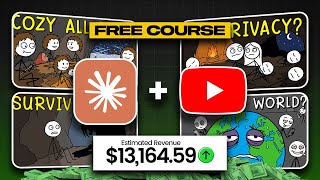

36K Subs, 10 Videos, $13K/Month
32sExtreme results with minimal effort hook viewers seeking easy money-making methods.
▶ Play Clip"The title promises $13,000/month, which is backed by one example, but the method is a generic AI workflow without guaranteed results."
This video reveals a step-by-step method for creating faceless YouTube videos using AI tools, claiming the potential to earn $13,000 per month. The presenter demonstrates how to generate video ideas, scripts, voiceovers, and visuals using Claude AI, Fish Audio, and Google Flow, then edit them in CapCut.
A channel with 36,000 subscribers and only 10 videos uploaded 1 month ago has 2.7 million views and earned over $13,000 this month.
Use a Google Doc prompt to generate 50 video ideas in Claude AI. Each idea gets a viral potential score from 1 to 10.
Paste the chosen topic into a Google Doc prompt, then copy and paste into Claude AI to generate a script that feels like a real scriptwriter.
Use Fish Audio text-to-speech tool (free or paid) to generate voiceover. Paste script, select a voice, and generate.
Use a prompt to generate image prompts in Claude Code, then create images in Google Flow with settings: 16:9 aspect ratio, Nano Banana Pro model. Use reference image for consistency.
Drag voiceover and images into CapCut, align images with voiceover, optionally color grade, then export.
By following this AI-driven workflow, anyone can create faceless YouTube videos quickly and potentially earn significant income, as demonstrated by the example channel.
How many subscribers does the example channel have?
36,000 subscribers.
00:02
How many videos did the example channel upload?
10 videos.
00:02
How much did the example channel earn in a month?
Over $13,000.
00:18
What AI tool is used to generate video ideas?
Claude AI.
01:12
What tool is used for text-to-speech voiceover?
Fish Audio.
02:59
What aspect ratio is recommended for images in Google Flow?
16:9.
04:09
What model is used in Google Flow for image generation?
Nano Banana Pro.
04:21
How do you ensure images look similar throughout the video?
Use the first image as a reference image in Google Flow.
04:48
What video editor is used to assemble the final video?
CapCut.
05:16
Channel Success Metrics
Demonstrates real-world proof of concept with specific numbers.
00:02AI Idea Generation with Viral Score
Introduces a novel method to rank video ideas by viral potential.
01:12Script Generation Prompt
Shows how to craft prompts that produce human-like scripts.
02:05Visual Consistency Using Reference Image
Key technique to maintain style across AI-generated images.
04:48[00:02] currently have 36,000 subscribers and they have uploaded just 10 videos. They posted their first video 1 month ago and that video has 800,000 views. Now, their currently sitting at around 2.7 million views and it was also posted 1 month
[00:18] stack here, you will see that they got over 300,000 views in 7 days and they have been able to earn over 13,000 US dollars this month. So, in this video, I'm going to teach you guys exactly how you can create videos like Axen using
[00:32] show you guys what I was able to edit in >> It's the middle of the night. You wake up to the smell of smoke. Not a little smoke, a lot of smoke. Your hands are shaking. Your heart is slamming against
[00:44] fire and the wind is pushing the flames straight toward yours. [music] Now, ask yourself one question. What do you do in the next 10 seconds? Today, the answer Three numbers. A calm voice on the other end. Help is already moving before
[00:58] strip that phone out of your hand. >> All right. So, grab your cup of coffee tutorial. So, the first [music] thing we need to do now is to come up with video ideas. To save you guys the time, I have done all the hard work for you. So, all
[01:12] you just need to do is open the Google Doc file. The link is going to be in the pinned comment below. So, first click on the 50 video ideas here and what you sure you highlight the whole prompt and copy it. Then, you go back to Claude AI.
[01:26] As you can see here, I am using the free plan. You don't need to pay for it. So, what you just need to do is paste the prompt here and click on generate. Give Claude some time and then it's going to start generating your 50 video ideas.
[01:38] 1 to 10, so you know exactly how strong or the viral potential of that idea stash picked. So, just go through them and pick one of the ideas that has a very good viral potential score and also the topic is very interesting. The next
[01:51] thing we need to do now is to go back to the Google Doc [music] file and then we which is a prompt for you to write your script or generate your script with AI. to bring you to this page. What I want you to do is just scroll down a little
[02:05] here, and just basically paste your topic here. As you can see, I have a topic already pasted here. I'm going to be using that for this video. So, once you paste your topic, the next [music] thing you want to do is copy everything
[02:18] from the Google Doc file here, and then go back to Claude AI and paste it here. Immediately, Claude is [music] going to understand exactly what you want because way that the scripts are going to feel like they were written by a real script
[02:32] writer [music] 100%. The only issue here is that everyone >> will want to use the same prompt. So, to be safe, you need to learn how to create [music] using to generate your script by yourself. So, if you're interested in
[02:45] that, watch the video to the end, and I'll tell you what to do. All right. So, need [music] to do is copy it from Claude AI here, open a Google Doc file, and save your script somewhere. As you can see, I have my script here now. The
[02:59] your voice over, and you can use any AI tool of your choice, free or paid. For because I like the tool. So, what you just need to do is come to Fish Audio, text-to-speech here. I've already selected a voice. What I just need to do
[03:15] is paste it and click on generate. It's very simple. You don't need to stress The next thing we need to do is to generate our visuals, and I've also created a prompt for you, the best prompt. Okay. So, once you come to this
[03:28] to see a place where it's asking you to paste your script. [music] So, just paste it here. So, I'm just using the first paragraph of my script you have your script here, the next thing you need to do is to copy the
[03:41] to Claude code and paste your script here. Then click on generate. Give >> [music] >> As you can see here, the prompt will first tell you the part of the script that it has generated the visuals. And
[03:54] see your image prompt here. So you can now copy this prompt and generate your next. To generate your image, you can use any [music] free AI tool of your best, and we're going [music] to be using Google Flow to generate the
[04:09] images. So click on new project here. First, paste your first prompt. Before you click on generate, you first need to cross-check [music] your settings. Make sure it's on 16:9 for the aspect ratio, and you can generate two images at a
[04:21] time. And then for the module, we are going to be using Nano Banana Pro. Once you're done with that, just click on generate. Very simple. All right, so Just choose the one you like. For me, I'm going to be going with this one. Now
[04:34] thing you need to do [music] is go back to Cloud and scroll down to the second image, then copy it. Now come back to Flow and paste the prompt here. Before need to do so your images and your videos will all look similar, or you're
[04:48] throughout your video. [music] Drag in your first image into the prompt. So it's going to select it as your reference image. reference image. What you just need to do is click on the generate button, and
[05:01] [music] image. Now because we used our first image as the reference, it's what you want to ensure your frames look similar throughout the entire video. All right, so the next step is very simple, [music] which is to edit this video. So
[05:16] voiceover and images into CapCut or your have them here, the first thing you need to do is drag the voiceover into the >> [music] >> So what you need to do now is follow the
[05:29] voiceover and the prompt you generated, and add all the images one by one so they can visually explain what the voiceover is saying. As simple as that. That is how you're going to edit a video like this. So once you're done with
[05:41] to color grade your video a little bit if you want. But if you don't want, it's fine like this. Just click on export and add your video title. I created a detailed tutorial on how to start a channel like this. If you want to get
[05:54] video description. Thank you guys for watching and I'll see [music] you in the watching and I'll see [music] you in the next video. Bye for now.
⚡ Saved you 0h 06m reading this? Transcribe any YouTube video for free — no signup needed.