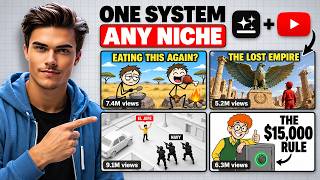

Faceless channel making $20K/month
45sHigh earning potential grabs attention and triggers curiosity about the method.
▶ Play Clip"The title accurately promises a method to build a faceless YouTube channel in the finance niche using AI tools, and the video delivers a detailed step-by-step tutorial, though the $20,000/month figure is an estimate from a single example."
This video reveals how to build a faceless YouTube channel in the finance niche using free AI tools, potentially earning $20,000 per month. The creator demonstrates a step-by-step process using Claude, Flow, Dubdub, Meta AI, and CapCut to generate a complete channel and video from scratch.
A faceless YouTube channel started three months ago is estimated to generate around $20,000 a month, showcasing the potential of the finance niche.
The finance niche has one of the highest RPMs on YouTube, with creators earning five-figure incomes from 1-2 million views.
Download Claude from its official page and install it on your device to begin channel creation.
Copy the 'channel creation master' prompt from the free Telegram channel and paste it into Claude to initiate competitor analysis.
Upload a screenshot of a high-performing finance channel and a list of its top titles. Claude provides niche analysis, branding insights, and a channel identity profile.
Claude generates 15 original channel name ideas with reasons. Choose one and proceed to step three.
Claude provides a full channel description, optimized tags, and username options for the finance niche.
Claude creates a logo prompt and a channel banner prompt with correct dimensions, fully branded for the channel.
Paste the logo prompt into Flow, set 1x1 ratio, and generate four logo samples that fit the finance niche vibe.
Paste the banner prompt into Flow, set 16:9 ratio, and generate four channel banner options.
Create the channel in YouTube Studio using the generated assets, import channel keywords, and verify phone number for feature eligibility.
Copy the 'video creation master' prompt into Claude. Provide title examples from high-performing channels. Claude analyzes title patterns, topics, curiosity triggers, and viewer psychology.
Paste transcripts from 4 top-performing videos into Claude. It analyzes hook structure, writing style, storytelling, retention techniques, and sentence pacing.
Claude provides 5 video ideas based on high-performing concepts. Choose one, select a video length (recommended 8-15 minutes), and Claude generates a full original script with hooks and emotional triggers.
Copy the script into Dubdub's AI voiceover feature, remove gaps, select a voice (e.g., Liam), and generate an MP3 voiceover (up to 30,000 characters).
Claude analyzes visual styles from successful videos and generates 38 text-to-image prompts. Use Flow with reference images to create consistent, niche-styled images for each scene.
Claude provides image-to-video prompts. Use Meta AI to animate each image by importing the image and pasting the prompt, generating free animated clips.
Import all assets into CapCut. Place voiceover, remove large gaps, align scenes with voiceover, add auto captions with stroke and font adjustments, optionally add background music, create a compound clip, and apply fade-out animation.
Upload video to YouTube Studio. Use Claude to generate 5 optimized titles, thumbnail prompts (create in Flow with settings), video description, and tags. Check for copyright issues, set visibility to public, and publish.
The finance niche is performing well now, but opportunities change. Act quickly to avoid missing the current trend.
By following this AI-driven workflow, anyone can create a faceless YouTube channel in the high-RPM finance niche, from branding to publishing, using free tools. The key is to act now while the niche is still performing well.
What is the estimated monthly earnings of the faceless YouTube channel mentioned at the start?
Around $20,000 a month.
0:05
Which niche has one of the highest RPMs on YouTube?
The finance niche.
0:20
What is the first tool you need to download for this process?
Claude from its official page.
1:25
What does Claude provide after analyzing a competitor's screenshot and titles?
A full competitor analysis including niche analysis, branding insights, content analysis, and a locked-in channel identity profile.
2:32
How many channel name ideas does Claude generate?
15 original channel name ideas.
3:09
What aspect ratio should be used for the logo in Flow?
1x1 ratio.
4:40
What aspect ratio should be used for the channel banner in Flow?
16:9 ratio.
5:10
How many video transcripts does the creator recommend importing into Claude for script analysis?
Four transcripts.
7:36
What is the recommended video length for the finance niche?
Between 8 and 15 minutes.
8:59
Which tool is used to create the voiceover, and what is its character limit?
Dubdub, with a limit of 30,000 characters.
10:54
How many image prompts did Claude generate for the example script?
38 prompts.
12:22
Which tool is used to animate the images?
Meta AI.
14:28
What editing tool is used to assemble the final video?
CapCut.
15:49
What should you do to make captions more readable in CapCut?
Enable the stroke feature and choose a readable font.
17:39
What final step does Claude help with before publishing the video?
Generating optimized titles, thumbnail prompts, video description, and tags.
20:19
Faceless Channel Earning Potential
Demonstrates the real-world financial opportunity in the finance niche with a specific example.
High RPM of Finance Niche
Explains why the finance niche is lucrative due to high RPM, making it a strategic choice.
0:20Free AI Tool Workflow
Introduces a complete workflow using free AI tools (Claude, Flow, Dubdub, Meta AI, CapCut) for content creation.
1:25Optimal Video Length Recommendation
Provides a data-backed recommendation for video length (8-15 minutes) to maximize performance in the niche.
8:59Urgency to Act on Trends
Emphasizes the importance of acting quickly to capitalize on current niche opportunities before they change.
22:51[00:00] I just found a faceless YouTube channel
[00:01] that started posting only three months
[00:03] ago. And based on publicly available
[00:05] estimates, this channel could already be
[00:07] generating around $20,000 a month. And
[00:09] in this video, I'm going to show you how
[00:11] to build one just like it using AI tools
[00:14] that are completely free. But first, let
[00:16] me show you why this niche is actually
[00:18] worth your time. Now, this creator is
[00:20] posting in the finance niche, one of the
[00:22] highest RPM niches on the entire
[00:24] platform. And when you look at the
[00:25] numbers, it starts to make a lot of
[00:27] sense. Another creator pulled in around
[00:29] 2 million views in just 30 days. And
[00:31] because the RPM is so high, that alone
[00:34] translated into a solid [music] 5 figure
[00:36] income. Then there's another one who got
[00:38] nearly 1 million views with an RPM of
[00:40] around $11 and still cleared 5 figures
[00:43] in a single month. That's why in this
[00:45] video, I'm going to break down exactly
[00:47] how this works. From building the
[00:49] channel and creating the content all the
[00:51] way to optimizing [music] it so it
[00:53] actually gets discovered. And we're
[00:54] doing all of this with Claude code and a
[00:56] few other powerful tools without any
[00:58] coding skills required. Everything I'm
[01:00] about to show you comes directly from my
[01:02] own experience. And these are the exact
[01:04] steps I would personally use to grow a
[01:06] channel in this niche. Now, here's
[01:08] something that shows us that this niche
[01:09] is far from saturated. If you look at
[01:11] the newly created channels in this
[01:13] niche, you'll notice new creators
[01:15] consistently pulling anywhere from 20 to
[01:17] 40,000 views per video. And keep in
[01:20] mind, all of these channels are brand
[01:22] new. And that basically tells you
[01:23] everything you need to know. So now that
[01:25] you know the entire plan, the first
[01:27] thing that you need to do is download
[01:28] Claude from its official page and then
[01:30] install it on your device. With that
[01:32] done, start by opening the video
[01:34] resources which you can find inside my
[01:36] free Telegram channel linked below. Now
[01:39] once you are in, make sure to copy the
[01:41] channel creation master which will serve
[01:42] as the master prompt for channel
[01:44] creation in Claude. Next, open Claude
[01:47] and then paste the master prompt into
[01:48] the prompt section right here. Once
[01:50] that's done, run the master prompt. And
[01:52] just like that, Claude will initiate the
[01:54] competitor analysis process. Basically,
[01:56] Claude will ask you to upload a
[01:58] screenshot of a competitor as well as a
[02:00] list of high-erforming titles from that
[02:02] competitor. Now, what you need to do is
[02:04] open a high-erforming channel in the
[02:06] finance niche and then simply take a
[02:08] screenshot of the entire page. Next,
[02:10] make sure to select the first few rows
[02:12] of the most popular videos. Just follow
[02:14] what I'm doing right here and you'll be
[02:16] good to go. With that done, head back
[02:18] into Claude and import the screenshot
[02:20] that you took previously. After that,
[02:22] also make sure to import everything that
[02:24] you copied so that Claude has an
[02:25] understanding of the high-erforming
[02:26] titles in the niche. So, now that
[02:28] everything is set, click on the generate
[02:30] button. And just like that, Claude will
[02:32] provide you with a full competitor
[02:34] analysis. Basically, it's going to give
[02:36] you an overall niche analysis along with
[02:39] branding insights which include the
[02:40] visual style. After that, it's going to
[02:43] provide you with a content analysis
[02:44] where it breaks down the video title
[02:46] structure and the repeating title
[02:48] patterns that perform well. And finally,
[02:51] it will create a lockedin channel
[02:53] identity profile, which is basically an
[02:55] optimized template of how a channel in
[02:57] that exact niche could be structured.
[03:00] Now, with that out of the way, at the
[03:01] end, it will ask you if you want to
[03:03] proceed. So, basically, tell it to
[03:05] proceed to step two and run the command.
[03:07] And with that done, Claude will now
[03:09] provide you with a list of 15 original
[03:11] channel name ideas that fit the niche
[03:13] and a reason why each name works well.
[03:15] Now, what you need to do next is choose
[03:17] a name that you want to use for your
[03:18] channel. In my opinion, all of the names
[03:20] that it provides will be pretty solid,
[03:22] so it should be really easy for you to
[03:24] choose. Now, simply enter the number of
[03:26] the name that you have chosen, which in
[03:27] my case is name number five, and then
[03:29] run the command. And with that done,
[03:31] Claude will now save the name that you
[03:33] have chosen and will use that same exact
[03:35] name until it finishes all of the steps.
[03:38] Now, at the end, it will ask you if you
[03:40] want to proceed. So, all you have to do
[03:41] is tell it to proceed to step three and
[03:43] run that command. And just like that,
[03:46] Claude will now give you a full channel
[03:47] description that is specifically made
[03:49] for the finance niche and includes your
[03:51] channel name. Then, it will give you a
[03:53] full list of channel tags that are
[03:54] optimized to help improve your channel's
[03:56] visibility. And finally, it will give
[03:58] you a couple of username options that
[04:00] you can use as your channel handle. Now,
[04:02] at the end, it will ask you if you
[04:04] approve everything or if you want to
[04:05] make adjustments. So, if everything
[04:07] looks good, simply tell it that you
[04:09] approve everything and then run that
[04:10] command. And with that done, Claude will
[04:12] first give you a full competitor style
[04:14] analysis with all of the branding
[04:16] elements and observations. Then it will
[04:18] give you a full logo prompt made
[04:20] specifically for your channel along with
[04:22] a complete channel banner prompt that
[04:24] includes the correct banner dimensions
[04:26] and is fully branded for your channel.
[04:28] Now that you have created the branding
[04:29] assets, start by copying the entire logo
[04:32] prompt from here and then head over into
[04:34] flow. Now once you are in, paste the
[04:36] prompt into the prompt section right
[04:38] here. Next, open the settings and make
[04:40] sure to select the 1x1 ratio. Then
[04:42] simply copy the rest of the settings
[04:44] that I'm using. And that's pretty much
[04:46] it. Now, with that done, click on the
[04:47] generate button. And just like that,
[04:49] Flow will provide you with a set of four
[04:51] logo samples that you can use for your
[04:53] channel. And as you can see, they really
[04:54] fit the vibe of the niche and look
[04:56] pretty solid. Now that you have created
[04:58] the logo samples, head back into Claude,
[05:00] but this time, copy the entire prompt
[05:02] for the channel banner. [music] Next,
[05:04] head back into Flow and paste the prompt
[05:06] into the prompt section. With that done,
[05:08] open the settings again, but this time,
[05:10] make sure to select the 16 to9 ratio.
[05:13] Now, with that out of the way, click on
[05:14] the generate button. And as easy as
[05:16] that, FL will provide you with a set of
[05:18] four channel banners that you can use
[05:19] for your channel. So now that you have
[05:21] created all of the assets for your
[05:23] channel, open the YouTube studio and
[05:25] then create a channel by using
[05:26] everything that you have gathered so
[05:28] far. And I really think that this part
[05:30] is super simple. So I don't really need
[05:31] to guide you here. Now at the end, open
[05:34] the channel settings. Then navigate into
[05:36] the channel section. And right here,
[05:37] make sure to import all of the channel
[05:39] keywords that you created previously
[05:41] since they are very important. Another
[05:43] important thing is that under the
[05:44] feature eligibility section, you will
[05:46] need to confirm your phone number. This
[05:48] is an important account verification
[05:50] step and I always recommend doing it.
[05:52] So, now that you have created a
[05:53] perfectly branded channel, let's finally
[05:55] start with the video creation process.
[05:58] And what you are about to see in this
[05:59] part can be very powerful, so make sure
[06:01] to watch closely. Now, to start off,
[06:03] open the video resources and then copy
[06:05] the entire video creation master from
[06:08] start to finish. With that done, open a
[06:10] new session in Claude and paste the
[06:11] prompt into the prompt section. Now that
[06:14] everything is set, simply run the
[06:15] master. And just like that, Claude will
[06:17] initiate the title and performance
[06:19] analysis where it will ask you to
[06:20] provide a list of title examples that
[06:22] have performed well in that niche. Now,
[06:24] what you need to do is open a
[06:25] high-erforming channel in the same niche
[06:27] and then select as many rows as you can,
[06:29] just like I'm doing right here. Next,
[06:31] head back into Claude and paste
[06:33] everything into the prompt section
[06:35] below. So now that the titles are set,
[06:37] run the command. And just like that,
[06:39] Claude will first provide you with a
[06:40] full title pattern analysis where it
[06:42] will list the patterns that perform
[06:44] well. Next, it will provide you with a
[06:46] full list of high-erforming topics,
[06:48] followed by a list of curiosity triggers
[06:51] and emotional triggers that may
[06:52] contribute to strong title performance.
[06:54] Finally, it will explain the viewer
[06:56] psychology for that exact niche and
[06:59] highlight content opportunities that you
[07:01] can use for your own channel. Now with
[07:02] that done, it will ask you to paste a
[07:04] couple of video transcripts from top
[07:06] performing videos in the niche. So what
[07:08] you need to do is open a channel in the
[07:10] same niche. Then open some of the most
[07:11] popular videos and select any video that
[07:14] has performed well. Next, scroll down
[07:16] until you find the show transcript
[07:18] button and click on it. By doing that,
[07:20] the full transcript of the video will
[07:22] appear on the right side. And as you can
[07:24] see, the entire transcript is displayed
[07:26] from start to finish. With that done,
[07:28] select the entire transcript from here
[07:30] and then paste it into Claude. You will
[07:32] then need to repeat the same process a
[07:34] few times. And in my case, I imported
[07:36] four transcripts, which should be enough
[07:37] for what we need, but you can import
[07:39] more if you like. So, now that
[07:41] everything is set, run the command. And
[07:43] just like that, Claude will first
[07:44] provide you with a hook structure that
[07:46] explains which hook formats tend to work
[07:48] best. Then, it will break down the
[07:50] writing style commonly used in
[07:51] successful videos within the niche. It
[07:53] will also break down the storytelling
[07:55] style and retention techniques, which in
[07:57] my opinion are super important for a
[07:58] highquality script. And finally, it will
[08:01] break down the sentence pacing and
[08:03] viewer engagement patterns, which are
[08:04] also very important when it comes to
[08:06] creating a script that keeps viewers
[08:08] interested. Now, with that done, at the
[08:10] end, it will ask you if you want to
[08:11] proceed. So, simply tell it to proceed
[08:13] to step three and then run the command.
[08:15] And with that done, Claude will now
[08:17] provide you with a list of five video
[08:19] ideas that are based on high-erforming
[08:21] concepts within the same niche. It will
[08:23] also give you a short overview of what
[08:24] each idea is about, so you can easily
[08:27] choose the one that you like the most.
[08:29] Now what you need to do next is choose
[08:30] an idea from this list because at the
[08:32] end Claude will ask you to enter the
[08:34] number of the idea that you have chosen.
[08:36] Basically you just need to enter the
[08:38] number of the idea that you selected
[08:40] which in my case is idea number three
[08:42] and then run the command. And with that
[08:44] done in the next step Claude will ask
[08:46] you to choose a video length. As you can
[08:48] see it will already recommend lengths
[08:50] that are commonly used in this niche.
[08:51] But just to keep this video shorter and
[08:53] easier for you to follow. In my case I
[08:55] will enter a 5inut duration. However,
[08:57] [music] I recommend that you choose a
[08:59] length between 8 and 15 minutes. Now,
[09:01] with that out of the way, run the
[09:03] command. And just like that, Claude will
[09:05] provide you with a full video script
[09:06] based on the idea that you selected and
[09:09] formatted to match the duration that you
[09:10] chose. The script will also include a
[09:12] variety of hooks and emotional triggers
[09:15] commonly found in successful videos
[09:17] within the niche. And most importantly,
[09:19] the script will be fully original and
[09:21] unique, which is exactly what we want.
[09:23] Now that you have created the full
[09:25] script, the next thing that you need to
[09:26] do is copy the entire script from here
[09:28] and then head over to a tool called
[09:30] Dupdub, which we will use to create the
[09:32] voice over. Now, once you are in, open
[09:35] the AI voiceover feature, which is this
[09:37] one right here. Next, [music] paste the
[09:39] entire script that you copied and make
[09:41] sure that it's the full script from
[09:42] start to finish. Now, what you need to
[09:44] do is remove all of the gaps between the
[09:46] lines and you can simply follow what I'm
[09:48] doing right here and you'll be good to
[09:50] go. So now that you have removed all of
[09:52] the gaps and the entire script is clean,
[09:54] open the voices section on the right
[09:56] side where you will need to select a
[09:57] voice for your voice over. Now this is
[09:59] totally up to you. So feel free to
[10:01] choose the voice that you like the most.
[10:03] I also recommend that you filter the
[10:05] voices using the quality filter since
[10:07] doing that will help you find the higher
[10:09] quality voice options more easily. Now
[10:11] in my case, I will be using the Liam
[10:13] voice because it really fits the vibe of
[10:15] the video and I really like how it
[10:17] sounds. Now, with the voice selected,
[10:19] you can adjust the speed and pitch of
[10:20] the voice, but in my opinion, I
[10:22] recommend that you don't change anything
[10:24] here. You can also adjust additional
[10:26] settings such as adding pauses, music,
[10:28] sound effects, and lexicons. But once
[10:30] again, I recommend that you don't add
[10:32] anything extra since we want a clean
[10:33] voice over. So, now that everything is
[10:35] set, click on the generate button, which
[10:37] will initiate the voice over creation
[10:39] process. And once it's done, let's see
[10:41] how the voiceover turned out. Think
[10:43] about the last time you got serious
[10:45] about money. Maybe you sat down, made a
[10:48] budget, deleted some apps off your
[10:50] phone, told yourself this time was
[10:52] different. Now, we are using Dubdub
[10:54] because it allows voice over creation of
[10:56] up to 30,000 characters, which is really
[10:58] useful for longer voiceovers. And that's
[11:00] why I highly recommend that you use this
[11:02] tool. So, now that the voiceover is
[11:04] ready, click on the export button above.
[11:06] Then, make sure to select the MP3
[11:08] format. And finally, click on the export
[11:10] button. And just like that, your voice
[11:12] over will be exported. So now that you
[11:14] have created a realistic voice over, I'm
[11:16] going to show you how to create all of
[11:17] the images for the video. So watch
[11:19] closely. [music]
[11:20] To start off, open the same Claude
[11:22] session from before and then simply type
[11:24] yes and run the command. And with that
[11:27] done, Claude will now initiate the
[11:28] visual style analysis where it will ask
[11:30] you to import screenshots of visuals
[11:32] from successful videos in the niche. Now
[11:34] what you need to do is open a video that
[11:36] has performed well and then simply take
[11:38] a couple of screenshots of what is
[11:40] happening inside that video. This is
[11:41] very simple to do. So, I don't think I
[11:43] need to explain anything here. With that
[11:45] done, head back into Claude and import
[11:47] all of the screenshots that you have
[11:49] taken. And in my case, I imported five
[11:51] screenshots. Now that everything is set,
[11:53] run the command. And just like that,
[11:55] Claude will break down the entire visual
[11:57] style profile of how visuals in this
[11:59] niche are commonly structured.
[12:01] Basically, it will save everything as a
[12:03] template and use that same template
[12:05] until all of the steps are completed.
[12:07] Now, with that done, at the [music] end,
[12:08] simply tell it to proceed to the next
[12:10] step and run the command. And as easy as
[12:12] that, Claude will now provide you with
[12:14] an entire list of text to image prompts
[12:16] that you can use to generate the visuals
[12:18] for your video. As you can see, in my
[12:20] case, it generated 38 prompts since my
[12:24] video script is not very long. But in
[12:26] any case, you should always have enough
[12:27] prompts to cover the entire video, which
[12:29] is exactly what we need. So now that
[12:31] everything is set to generate the actual
[12:33] images, we will use flow. So once you
[12:36] are in, start by entering the image
[12:38] prompt for the first scene. Next, open
[12:40] the settings and then make sure to copy
[12:42] all of the settings that I'm using right
[12:44] here. With that done, click on the
[12:45] generate button below. And just like
[12:47] that, we have created the image that
[12:49] represents the first part of our script.
[12:51] And as you can see, the image is made in
[12:53] a style that is commonly used by many
[12:55] creators in the finance niche. So, now
[12:57] that you have created the image for the
[12:59] first scene, head back into Claude, but
[13:00] this time, copy the prompt for the
[13:02] second scene. Next, head back into Flow
[13:04] and paste the prompt into the prompt
[13:06] section below. Now, with that done, let
[13:08] me show you how to create consistent
[13:10] images in a very easy and simple way. To
[13:13] do that, click on the plus button right
[13:14] here, where you will find the first
[13:16] image that you created. Now, what you
[13:18] need to do is add that exact image into
[13:20] your prompt, which will be used as a
[13:21] reference for your new image. So, now
[13:23] that everything is set, click on the
[13:25] generate button. And as you can see, we
[13:26] have now created a new image that
[13:28] represents the second part of our
[13:30] script. The image includes the same
[13:32] character from the first image and is
[13:34] made in the same visual style. Now
[13:36] remember while generating the images, if
[13:38] you have a scene that doesn't include
[13:39] any characters, you don't need to use a
[13:41] reference image. However, [music] if
[13:43] your scene does include characters, try
[13:45] to use a reference image for most of
[13:46] your scenes since that can help make
[13:48] your video more consistent and
[13:50] professional. So, now that you know how
[13:52] everything works, simply repeat the
[13:54] process until you have used all of the
[13:55] prompts from start to finish. At the
[13:57] end, don't forget to download each image
[13:59] using the original size. And with that
[14:01] out of the way, it's time to bring your
[14:03] images to life. So make sure to watch
[14:05] closely. Now the first thing that you
[14:07] need to do is open the same session in
[14:09] Claude and simply tell it to proceed.
[14:11] And once the entire process finishes, as
[14:13] you can see, Claude will provide you
[14:15] with a full list of imagetovideo prompts
[14:17] that you can use to animate your images.
[14:19] As you can see, Claude gave us 38 motion
[14:21] prompts, which matches the number of
[14:23] image prompts that we created earlier.
[14:25] So we basically have a prompt for every
[14:26] single image. Now that everything is
[14:28] set, we're going to use Meta AI to
[14:30] animate the images. So go ahead and open
[14:32] it. Now once you are in the first thing
[14:34] that you need to do is import the image
[14:36] for the first scene [music] which is
[14:38] basically the first image that you
[14:39] created. Next head into Claude and then
[14:42] copy the animation prompt for the first
[14:44] scene. Then head back into Meta and
[14:46] paste the prompt into the prompt section
[14:47] right here. So now that everything is
[14:49] set, click on the generate button below.
[14:51] And just like that, Meta will provide
[14:53] you with a video specifically made for
[14:55] your first scene. Considering that you
[14:57] can use Meta for free, the video looks
[14:59] pretty solid and is more than good
[15:00] enough for what we are trying to create.
[15:02] So, now that you have animated the first
[15:04] image, start by importing the image for
[15:06] the second scene in the same way as
[15:07] before. With that out of the way, head
[15:09] back into Claude, but this time, copy
[15:11] the animation prompt for the second
[15:13] scene. Then, head back into Meta and
[15:14] paste the prompt into the prompt section
[15:16] below. Now that everything is set,
[15:18] simply click on the generate button. And
[15:20] just like that, Meta will animate the
[15:22] second image and provide you with a
[15:24] video that, in my opinion, looks pretty
[15:26] solid. Now that you know how to animate
[15:27] the images, simply repeat the same
[15:29] process until you have used all of the
[15:31] animation prompts. Now, at the end,
[15:33] don't forget to download every single
[15:35] video that you generated. And with that
[15:37] out of the way, you are now ready for
[15:39] the next step [music] where I will show
[15:40] you how to edit the entire video from
[15:42] start to finish. This one is going to be
[15:45] super easy, and you'll see why shortly.
[15:47] Now, to edit the video, we are going to
[15:49] use an editing tool called Cap Cut. So,
[15:51] go ahead and open it. Once you are in,
[15:53] the first thing that you need to do is
[15:54] import all of the assets that you have
[15:56] created so far. With that done, select
[15:59] the voice over and place it into the
[16:00] editing timeline below. Now, there are
[16:02] these small gaps in the voice over,
[16:04] which are basically pauses that you will
[16:06] need to remove. And this step is pretty
[16:08] simple. All you have to do is place the
[16:10] play head right where a gap starts, then
[16:12] cut the voice over at that point, and
[16:14] simply drag the rest of the voice over
[16:16] to the left. Now, this step is very
[16:18] simple since you only need to remove the
[16:20] larger gaps. And as for the smaller
[16:21] ones, you can leave them as they are.
[16:23] And just to save some time, I have
[16:25] already done that. And as you can see,
[16:26] my voice over no longer has any large
[16:28] gaps, [music] which helps it sound more
[16:30] engaging. Now, with that out of the way,
[16:32] the next thing that you need to do is
[16:34] select the image for the first scene and
[16:36] place it into the editing timeline
[16:37] below. Now that the first scene is in
[16:39] place, go through the voice over and
[16:41] based on what is being discussed, make
[16:43] sure to trim the first scene so that it
[16:45] matches its corresponding section of the
[16:47] voice over. So now that the first scene
[16:49] is lined up, select the second scene and
[16:51] place it right next to the first one.
[16:53] Next, go through the voice over again
[16:54] and based on what is being discussed,
[16:56] trim the second scene so that it matches
[16:58] its corresponding section. Now, I really
[17:00] think that this step is pretty
[17:02] straightforward. So, I won't spend any
[17:03] more time guiding you here because you
[17:05] should already understand the process.
[17:07] And to save even more time, I have
[17:09] already placed all of the scenes and
[17:10] timed them correctly. And your timeline
[17:12] should look similar to what I have right
[17:14] here. So, now that all of the scenes are
[17:16] in place, the next thing that you need
[17:17] to do is open the text section above.
[17:19] Then navigate to the auto caption
[17:21] section [music] here. Make sure to click
[17:23] on the generate button, which will
[17:24] initiate the caption creation process.
[17:27] And once that's done, as you can see,
[17:29] captions will be added throughout the
[17:30] entire video. But now, the problem is
[17:32] that the text looks pretty plain and
[17:34] boring. So, let me show you how to
[17:36] improve it. To start off, navigate to
[17:38] the settings on the right side. Then
[17:39] scroll down and enable the stroke
[17:41] feature, which will instantly make the
[17:43] text more readable. With that done,
[17:45] scroll back up and open the font
[17:46] settings where you will find plenty of
[17:48] free font options that you can use. Now,
[17:50] this is totally up to you. So, choose
[17:52] the font that you like the most. But in
[17:54] my case, I will use this font right here
[17:56] since it looks really good and makes the
[17:57] text even more readable. Now, depending
[18:00] on the font that you have chosen, you
[18:01] can also decrease the text size slightly
[18:03] so that it doesn't stand out too much.
[18:05] So, now that you have added the captions
[18:07] and adjusted them to look better, if you
[18:09] want to take things a step further, you
[18:11] can also open the animation section and
[18:13] then navigate to caption animations
[18:15] where you will find plenty of animation
[18:17] options that you can use. This step is
[18:19] completely up to you, but I won't use an
[18:21] animation since I want my video to feel
[18:22] clean and professional. So, now that the
[18:24] captions are fully set, you can also add
[18:26] background music by opening the audio
[18:28] section where you will find a lot of
[18:30] tracks that you can use. Now, it's up to
[18:32] you whether you want to use music from
[18:33] this section or upload your own. You can
[18:36] also skip this step entirely since even
[18:38] without background music, your video can
[18:40] still turn out very well. Now, with that
[18:42] done, the next thing that you need to do
[18:44] is select all of the assets above the
[18:46] voice over. Then, right click on any of
[18:47] them and create a compound clip, which
[18:49] will merge everything into one clean
[18:51] asset. Now, with that done, open the
[18:53] animation section on the right side.
[18:55] Then, open the out animations here. Make
[18:58] sure to apply the fade out animation
[18:59] since it will help your video end more
[19:01] smoothly and look more professional. And
[19:03] with that out of the way, your entire
[19:05] video is now complete and ready to be
[19:08] exported. Now, to export the video,
[19:10] click on the export button above and
[19:11] simply copy all of the settings that I'm
[19:13] using right here. Finally, [music] click
[19:15] on the export button below. And just
[19:17] like that, your video will be saved. So,
[19:19] now that the entire video is complete,
[19:21] let's see how it turned out. Think about
[19:23] the last time you got serious about
[19:25] money. Maybe you sat down, made a
[19:28] budget, deleted some apps off your
[19:30] phone, told yourself this time was
[19:32] different. [music] And for a while, it
[19:33] was. You paid down some debt. You
[19:35] started putting money aside. You felt
[19:37] like you were finally getting somewhere.
[19:39] And then something [music] happened. It
[19:41] always does. And slowly, quietly, you
[19:44] ended up right back where you started. I
[19:46] didn't show you the entire video just to
[19:48] save some time, but you can already see
[19:50] that the video came out amazing. So now
[19:52] that you have created a complete video
[19:54] for the finance niche, let me show you
[19:55] how to upload it correctly. Because if
[19:57] you completely miss this step, your
[19:59] video may struggle to reach the right
[20:01] audience. So make sure to watch closely.
[20:03] Now to start off, open the YouTube
[20:05] studio and then upload the video that
[20:07] you have just created. Once that's done,
[20:09] you can see that we are basically
[20:10] missing everything. So now let me show
[20:12] you how to optimize the entire video
[20:14] from start to finish. Now, what you need
[20:16] to do is open the same session in Claude
[20:19] and then simply tell it to proceed to
[20:21] the next step. And once that's done,
[20:23] Claude will provide you with a list of
[20:24] five optimized video titles that are
[20:27] specifically made for your video topic.
[20:29] Now, the next thing that you should do
[20:30] is choose a title from the list and then
[20:32] enter the number of that title into the
[20:34] prompt section below. With that done,
[20:36] simply run the command. And just like
[20:38] that, Claude will initiate the thumbnail
[20:40] analysis process where it will ask you
[20:42] to upload a few thumbnail samples from
[20:44] high-erforming videos in the same niche.
[20:46] Now, with that done, open a
[20:48] high-erforming channel in the finance
[20:49] niche and make sure to take a few
[20:51] screenshots of the thumbnails that have
[20:53] performed well. Next, head back into
[20:55] Claude and import all of the thumbnails.
[20:57] In my case, I imported five thumbnails
[21:00] that it will use as inspiration. Now,
[21:02] with that out of the way, run the
[21:03] command. And just like that, Claude will
[21:05] create a thumbnail style profile that
[21:07] will be used for your video. And the
[21:08] thumbnail style it creates will be based
[21:10] on patterns found in successful videos
[21:12] within the same niche, which is very
[21:14] important. Now, with that done, at the
[21:16] end, it will ask you if you want to
[21:18] proceed. So, simply tell it to proceed
[21:20] to the next step and then run the
[21:21] command. And just like that, Claude will
[21:23] provide you with a full thumbnail prompt
[21:25] that you can use to create a thumbnail
[21:27] for your video. And the prompt will
[21:28] already be optimized, so you shouldn't
[21:30] need to make any major changes. Now
[21:32] start by copying the entire thumbnail
[21:34] prompt from here. Then open a new
[21:36] session in flow and paste the prompt
[21:38] into the prompt section below. With that
[21:40] done, open the settings and then copy
[21:42] all of the settings that I'm using since
[21:44] this step is very important. Now that
[21:46] everything is set, click on the generate
[21:48] button. And as you can see, we have just
[21:49] created a set of four thumbnails that we
[21:51] can use for our video. And all of the
[21:53] thumbnails came out looking amazing. Now
[21:56] with the thumbnails complete, choose the
[21:57] one that you like the most and then
[21:59] download it by using the original size.
[22:01] >> [music]
[22:01] >> Next, head back into Claude and tell it
[22:03] to proceed to the next step. And just
[22:05] like that, Claude will provide you with
[22:07] a fully optimized video description that
[22:09] is natural and engaging. It will also
[22:11] give you a list of video tags that are
[22:13] relevant to your video and optimized for
[22:15] discoverability. So, now that you have
[22:17] created all of the optimization
[22:18] elements, head back into YouTube and
[22:20] import everything that you have created
[22:22] so far. Also, don't forget to import the
[22:24] video tags as well since they are an
[22:26] important part of the setup process. So
[22:29] now that everything is set, if we head
[22:30] over to the video check section, you
[22:32] should be able to review whether there
[22:34] are any copyright or policy related
[22:36] issues that need attention. And this is
[22:38] exactly what we want to check before
[22:39] publishing. Now what you need to do next
[22:41] is head over to the visibility section.
[22:43] Then set the video to public and finally
[22:45] click on the publish button below. And
[22:47] just like that, your video is now live
[22:49] and ready to start gaining traction. Now
[22:51] since we have reached the end of the
[22:53] video, I want to say something very
[22:54] important. This niche is currently
[22:56] performing very well, but opportunities
[22:58] and trends can change over time. If you
[23:00] keep waiting and do nothing, you may end
[23:02] up missing the chance to take advantage
[23:04] of what's working right now, and then
[23:06] you'll need to look for another
[23:07] opportunity and start from scratch.
[23:09] Also, if this video helped you out, make
[23:11] sure to hit the like button and leave a
[23:13] comment below. And as always, keep
[23:14] pushing and I'll see you in the next
⚡ Saved you 0h 23m reading this? Transcribe any YouTube video for free — no signup needed.