

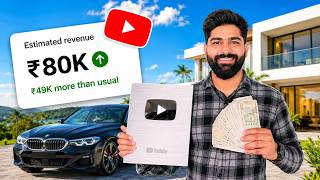
Earn ₹3000 per 1000 views in USA finance
44sHigh earning claims and proof of a small channel making ₹1 lakh hook viewers interested in quick monetization.
▶ Play Clip"The title promises a method to create a USA finance channel, and the video delivers a detailed tutorial with examples and tools."
This video provides a step-by-step guide on creating a faceless USA finance YouTube channel, claiming earnings of up to ₹3000 per 1000 views. It covers niche selection, finding trending topics, script creation using AI, video production with AI avatars, and SEO optimization.
A USA finance channel can earn up to ₹3000 per 1000 views, with examples of channels earning over ₹1 lakh with only 1300 subscribers.
Channels like 'Breaking Bench' and 'Chatty Histrion' show high views (e.g., 16 lakh views in a month) using AI avatars and simple video formats.
Use Google Trends, set region to United States, category to Business and Finance, and look for trending topics like 'Iran Peace Deal' or 'dollar falls'.
Use Claude to generate a 15-minute script by pasting a news link and using a prompt to create a detailed script.
Use 11 Labs or Clip Champ's text-to-speech (Christopher voice, pace 1x) to generate voiceover. Export as audio only.
Free stock video websites are mentioned for downloading visuals to overlay in the video.
Use the YouTube Create app to set aspect ratio to 16:9, create AI avatar, overlay stock videos, and add captions.
Upload video as unlisted/private for 1 hour, then public. Use Claude to generate title, description, tags, and hashtags. Upload during US peak time (12-3 PM EST).
By following this process—selecting a profitable niche, using AI for scripts and voiceovers, and optimizing for SEO—you can create a faceless USA finance channel that generates significant revenue.
What is the estimated earning per 1000 views for a USA finance channel?
Up to ₹3000 per 1000 views.
00:01
Which tool is recommended for finding trending topics in the USA?
Google Trends, with region set to United States and category to Business and Finance.
04:11
What AI tool is used to generate a 15-minute script from a news link?
Claude.
05:48
Which voice is recommended in Clip Champ for voiceover?
Christopher voice with pace set to 1x.
07:59
What aspect ratio should be used for long-form videos in YouTube Create?
16:9.
09:18
How can you create an AI avatar in YouTube Create?
Use the 'Generate a Video' feature with a prompt like 'make a character talking about finance'.
09:57
What is the recommended video length for better views?
15-25 minutes.
06:27
What is the best time to upload videos for a USA audience?
12:00 PM to 3:00 PM EST.
18:12
What should you do with video visibility for the first hour after uploading?
Keep it unlisted or private to allow processing.
15:38
Which two news websites are recommended for finding finance news?
Bloomberg and CNBC.
05:34
High Earning Potential
Claims of earning ₹3000 per 1000 views and channels with low subscribers earning over ₹1 lakh demonstrate the niche's profitability.
00:01Using Google Trends for Topic Selection
Provides a practical method to identify trending finance topics in the USA, essential for content relevance.
04:11AI Script Generation
Using Claude to generate a 15-minute script from a news link streamlines content creation.
05:48Free Video Editing with YouTube Create
Demonstrates a completely free method to create professional-looking videos with AI avatars and captions.
09:05SEO Optimization Using AI
Using Claude to generate title, description, tags, and hashtags optimizes video discoverability.
15:24[00:01] that how to create a USA finance channel? Please bring a detailed video on this. You can earn up to ₹3000 for 1000 views. Here you can also see the proof of a channel. Just look here, ₹85,000 views have come on this YouTube channel
[00:14] and here you can see the earnings. This YouTube channel has only 1300 subscribers and so few views, this YouTube channel is able to earn more than Rs 1 lakh. tell you about such a niche where even if your video gets just 1000 views
[00:28] , you can earn up to ₹3000 and these YouTube channels are now growing very fast and you can also monetize them very quickly. In this video I will explain to you all the details about what a finance niche ideas is. Here I will tell you about two channels
[00:42] which have already been monetized and will show you two channels which are growing very fast and they will get monetized very soon. You should also start your YouTube channel in this niche very soon. After that,
[00:54] where do you find trending topics for the finance niche because here we will teach After that, how do you create a script for those videos that will appeal to the USA audience. After that I will tell you the absolutely free process of how to make a video.
[01:08] How can you make videos ? How to create an AI avatar. After that, how to do SEO of those videos so that your video reaches the right audience and your video reaches the people of USA. So friends, you are
[01:21] So friend please like the video. If you have not subscribed to the channel yet, then subscribe to the channel and press the bell icon so that whenever I upload new ideas of USA, you get the notification first and you can start those YouTube channels first.
[01:34] Friends, look at this YouTube channel, there is a YouTube channel named Breaking Bench. 86 videos have been uploaded by this YouTube channel. You can see here that this YouTube channel has also got 75 subscribers. Let me show you here what
[01:47] this channel is doing. I go to the video section and you can watch their latest videos. 2400 views, 1300 views and look here 21000 views in 5 days. 2200 views in 6 days, 2500 views in 9 days and look here,
[02:00] 4.3 lakh views in 10 days are coming on his YouTube videos. If I show you his popular videos, then look at the popular videos, brother, 16 lakh views in a month. Friends, here you can watch their videos. This is an AI
[02:13] Here you will also see it written that this is an AI video and inside it you can see that in the entire video you will get to see only this AI avatar and in the entire video it is just explaining the whole thing and
[02:27] in the entire video it is just explaining the whole thing and which is also of the same type but it is even easier to make. Here you can see a YouTube channel Chatty Histrion which has uploaded 70 videos. He has got 7000 subscribers.
[02:41] If I show you popular videos, look, 2 lakh views in 5 days. If I play their videos for you, then you can watch these videos here. Now look what is happening here in this video that a caption is being written.
[02:53] Here a complete caption is coming below. Images related to it are coming here. Videos are coming in and here an AI avatar is speaking its words. It is being said. And videos like this are also being monetized on YouTube.
[03:05] Because here you can also see the join button. Look here, you will see the join button on this YouTube channel and the join button was also visible on the previous channel. This means this YouTube channel is monetized. Now let me show you two such channels which are
[03:17] growing very fast using this same method and they will also get monetized very soon. Here you can see a YouTube channel named Conflict Pulse and if you talk about their videos, they have just started uploading them. I have
[03:29] uploaded only 13 videos and look here you can see 22,000 views in 3 days and go down and see, I will show you the popular ones. Here 22,000 views in 3 days, 4500 views in 2 days. How quickly this YouTube channel is growing. After that
[03:43] you see another YouTube channel, 18 videos have reached 1000 subscribers. And talk about popular videos, 31,000 views in 13 days. If I play their videos for you, you can see what is there here? This is the AI avatar,
[03:56] it is the same as that AI avatar and the entire video is being played in the background and the complete caption is written here. Now I Friends, we have seen all these YouTube channels. Now the question arises that
[04:11] from where will we first find trending topics for these videos ? So if you want to find trending topics, then you have to go to Google and search Google Trends. What do you want to search? Google Trends. You have to search.
[04:24] website like this will appear. After that you have to go to Trending Now here. As soon as you click on Trending Now, you will see India written here. Here we will click on India and by scrolling down here, you have to
[04:38] select United States here. As soon as you select United States, you have to click on All Regions here. Now we have the searches that are being searched the most in America. What do we do now? Here you have to go to All Categories. Who is our channel on now? It is
[04:54] on finance. So here you have to click on Business and Finance. Now we have got those topics which are in most demand in America and on which people are searching a lot. These are the topics of the last 24 hours. You can
[05:07] also go here and see the best topics of the last 4 hours. So what did we see here ? Iran Peace Deal: Brother, a peace deal is being done with Iran and on top of that you can see here that many things are going on like dollar falls against major P.S.
[05:21] Brother, dollar has started falling in the market because ever since the talk of this deal started, we are here with you, whenever you see any keyword, you will also get to know its trend here whether it is going up or coming down, after that
[05:34] try good news, either use Bloomberg news or use CNBC news. Like we have got these two news. CNBC news is here. What has come here after that ? We have Bloomberg news.
[05:48] What do you do now? You just have to copy the link of this news exactly to the same from here. Now we have to create a script based on that news. And the best tool for creating scripts today is Cloud. There are some limits here that
[06:01] you can send only this many messages for free. So you have to use your limits carefully. You have to go to Cloud Pay and log in here. Friends, you have to paste the link of your news here. After that you have to write this print completely
[06:13] and then you have to enter it here. Now friends, whatever your news is, it Now friends, whatever your news is, it Why are we getting a 15-minute script written? Friends, such videos gain a lot of
[06:27] views through suggestions and if you make a video of 6-7 minutes, then it is possible that your videos may not get many views. So if you make big videos of 15 minutes, 20 minutes, 25 minutes, then your videos will get a lot of views. I
[06:39] able to make such videos very quickly. Now friends, here we have got a complete 15 minute script related to our news. Now in this you have to cut all the things written like Narrator Host and copy the entire thing here, The Dollar Just
[06:53] Dropped Oil Markets Are in Chaos. Whatever headings there are and whatever things are in brackets, you have to ignore them and copy everything. Here also you can see that he
[07:05] gave us the entire script and also explained the entire process. As soon as we clicked on download here, our entire friends, we have the script. Now let me tell you how to generate voice over.
[07:19] After that, where will you find the videos that you want to put inside that video? How do you do editing and how do you do SEO. So watch the video till the end. You will get all these things here. Now the best for voice over is
[07:31] 11 Labs. If your videos start getting views from 11 Labs, then you should buy a paid account because then you will be able to invest. If you see a good response, you can also create some characters for free using Google AI Studio and
[07:44] 11 Labs. What other option do you have after that You have to search Clip Champ on Google. After that you get to see the complete interface of this method. And what do we do from here ? You have to click on the text to speech
[07:59] option. When you click here, it will ask you whether you want to choose the English language. Whose voice do you want to generate, then you have to select this Christopher here. Pace you have to
[08:12] put one x here. As soon as you enter your text, your script here. After that, whatever AI generated voice you have will be ready. After that you can export it directly by clicking on Export and then clicking on Audio Only.
[08:26] Once your audio is ready, here are some websites from where you can download videos for free. You can take screenshots of all these websites. You can use stock videos for free from all these websites. Now you will understand
[08:40] you will understand know perfectly how to make your video. Now we also have these stock videos. We have downloaded it. We also have a voice over. Now
[08:53] I will tell you how to do all this editing so that a finance related video of yours is ready. After that I will tell you how to do SEO of such a video once it is ready with you. Now friends, to
[09:05] make such videos, you have to open the YouTube Create app and here I will tell you how to do the entire process for free. What do you have to do? After that click on Create Project. click on Create Project, we will have a blank clip here. You have to
[09:18] look, this short video format is visible here. Now where do we go from here? We will go to the aspect ratio and make it 16:9 so that our long video is ready. Now what do we have to do first ?
[09:32] We will first create an AI avatar for your video. What are the rest of the people doing now? What are they doing? The entire video is being voice generated by the AI avatar itself. If you like that method too, then use it. Otherwise I will tell you
[09:44] how you can create a loop so that people keep reading the captions or keep watching that video instead of that character. So not many people will pay attention to the lip-syncing of the character. So first of all we tell you how to create a character.
[09:57] and here you have to write make a character in shoot talking about finance and Within a short while, a generate video option will appear here and
[10:09] your video will be ready to be made. After that I will tell you what you have to do next step. Whenever you try to make your video, it appears ' Try Again'. So what do you do? You have to login with another Gmail ID
[10:22] what do you do? You have to login with another Gmail ID video. Now what I will do is use this video and click on the video. Now we clicked on Use Video. what shall we do now? First of all,
[10:35] this aspect ratio of our video is made in a different format. We'll make it smaller and by clicking on this video here, I'll bring it a little bit here. What do you do now ? If you want to
[10:48] make more videos of the same character, what should you do? You have to take a screenshot of this. As soon as you take a screenshot of it, crop this screenshot here so I can create more characters using this image.
[11:02] Now look, I have set it aside here. Look here, we have set it aside. After that, whatever volume it is, whatever it is saying, if you want it, you can keep it. I have muted it here. Now I will
[11:14] we can see white on the side. What will I do after that? Here I will click on Generate a Video. After that, upload up to three ingredients is click on the image of this character and I will write here Talking
[11:28] about US Iran conflict. Please make one more video on the conflict going on between US and Iran. So it will another video of ours has been generated with the same character. What should I do? I will click on Use Video
[11:42] and set this video here where we had set the last video. Let's zoom it in a little bit. And here you can see this character was talking here. After that next this
[11:54] moving backwards, I will go here and cut it. If this character is moving backwards in the middle then and
[12:08] What do you do now? You have these two clips. You see, these two clips have come. You can also export it. You have to directly click on Export here. You have to click on Allow.
[12:21] This is about notifications and soon your entire video will be exported. Next, click on Create Project again. Now we have to click on this 11 second video which we had taken. Now by doing this we will keep
[12:35] Now by doing this we will keep duplicate option is coming again. We will keep duplicating it. You can see it here. So look here we have reached 1 1/2 minutes.
[12:48] Reached here in 2 minutes. After that we put it completely here, what did we do? Now this character will keep speaking here in the same manner. What do we do now? Whatever script we have here, whatever voice over has been generated, we have to bring it.
[13:01] So what do you do now? Here you will get the option of sound. Click on the sound option. Now you have to go to your music. You have to allow it on your music. After that, whatever recordings you have will be
[13:13] Now look, you have to click on whatever your recording is. Now look, audio is down. What do we do now? You
[13:28] Now I have downloaded the videos. What should I do? I will click on overlay here. all the videos that I have downloaded. selected here. Now look, we have got these back to back videos. What will I do now?
[13:41] We'll zoom in on this a little bit. You can zoom with your hand and place it on the side here. Now look, it is completely placed on the side here. Now whatever videos have come here, we will upload all those videos here. Now
[13:54] ? Let's click on Overlay again. And now let us add this video here. Clicked on Import. After importing, look here, this video has also appeared. We will set this aside. Just after this,
[14:08] we will zoom this a little here and set it on the side. Now you can see that the video which I played and showed you, you have made it absolutely free. Look here, he is talking about one thing and here whatever
[14:21] visuals you have, you will keep adding visuals related to whatever is being said. So in this way you can make a complete video. Now the question arises that how will the captions that were being written there be made? So you will see an option below here.
[14:33] Click on it and captions will appear here and you have to click next. Now what is your video inside the video? It is English, the sound is inside our video. After that we will click on Create. Within a short time, it will
[14:45] Look, he has made this entire caption. down a little. And we will change its style a little. The font is fine. We keep the colour yellow. And let's make our background black.
[14:59] Darken the opacity. And here you can now see that this is the entire color. We also make this a little more yellowish here so that it looks a little more vibrant. You can see it here. Now see, whatever is being said here, the
[15:12] same is being written in caps and our video of that type is ready. Now we have to do it and directly go here and export it. Now after exporting the EXO, let me tell you how to do SEO of this video and what
[15:24] things you have to put in the title description tags. Whenever you open YouTube, it will show this method. You have to click on the plus icon and after that you have to upload your video. see a video option on the side. Now we will next take the video that we made
[15:38] Now look, whatever title I will tell you here, you have to enter it here. In Publish Visibility you have to keep it unlisted or private for 1 hour. After that you have to make it public so that the entire processing is done. You have to click no
[15:51] here in Select Audience. After that, whatever description we create, you have to paste it here. And here AI is used, now what do you see, what are you doing? Using YouTube's own AI. So if you do
[16:04] not select anything here, then YouTube itself will accept it as yes. So if you leave it blank here, then leave it blank. After that the option of add tags will appear. I will also tell you how to create tags. You have to do all these things.
[16:16] After that a pencil icon will appear here. With that you can upload thumbnails on your videos. And to upload thumbnail your mobile number must be verified. And with one number you can verify two YouTube channels. And you can use this mobile number of
[16:29] anyone. This number has no OTP etc. comes on it. Just once YouTube verifies that you are not a robot. After that you have to upload it directly. Now friends, your video is
[16:43] ready. Now you need title, tags, description for your video. Now friends, the place from where we got the script made from Cloud, has complete information about our video, what has been said in our video and
[16:55] where you can engage the viewers. So it will give you the best title description and tags. So you have to go there and paste this print. Now friends, as soon as you write that prompt, Cloud will create the perfect package for you.
[17:08] You can see YouTube SEO package here and you can see everything here. What have they done here? A title has been suggested to us that you can use this title. Or you can use this title or
[17:21] this one also. He has given one of his best. After that he has given you three more options which you can use. After that he also explained the entire logic as to why this title would work. After that, the complete description of your video
[17:34] is given that here it is being covered in our video. It has also given the complete time stamp of your video. But you should not use this time stamp because this one can be a little wrong. After that he has
[17:47] written this entire option. He has told what is the source of this video? A disclaimer has also been made for you. Hashtags have also been created for you. After that, at the end of the video description, he has told that you can use these three hashtags and the
[17:59] rest of the hashtags also. What do you need to include in the tags? You can use any of these tags that you like. which is 12:00 to 3:00 in the afternoon in America. At that time you have to
[18:12] upload this video. Due to which this video will get a lot of views. Now friends, we have learnt all the things but one thing is still left which might be coming to your mind that brother, you have not told us about thumbnails, how can you make such thumbnails.
[18:25] So friends, for the thumbnail you can watch it by clicking on this video here. also get USA channel idea. Along with that you will understand how you can copy anyone's thumbnail and how you can generate thumbnails for free from A. So see you
[18:39] can generate thumbnails for free from A. So see you in the next video, till then Jai Hind Jai



⚡ Saved you 0h 18m reading this? Transcribe any YouTube video for free — no signup needed.