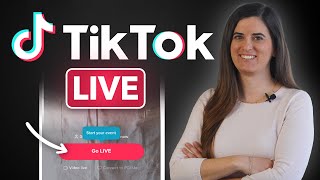

Monetiza en TikTok Live
43sEl título promete ingresos, un tema que genera gran interés y curiosidad, ideal para captar clics.
▶ Play Clip
[00:02] to music. The platform also allows you to go live through its TikTok Live feature, so brands and content creators can connect with their audience and interact with them in real time. And not
[00:16] only that, but the platform also allows you to monetize your content. Want to learn how? In this video, we'll explain everything you need to know. Let's take a look. What is TikTok Live? Live streaming
[00:30] on social media is now a standard feature of these platforms, and TikTok is no exception. Through the TikTok Live functionality, you can connect with your audience live and see their comments in
[00:43] real time. This feature has great advantages for brands and content creators. On the one hand, it's a great way to give your TikTok strategy a fresher and more spontaneous feel, helping you build a
[00:56] closer relationship with your community. On the other hand, this closer connection will increase your ability to build audience loyalty and boost your reputation. It will also help you enhance your social media advertising and social
[01:11] ads strategy. Let's see. How to do a live video step by step: First, open the app and select the plus symbol, the same one you use when you want to upload content. Below the red button, you'll see several format options: Camera,
[01:26] Story, Templates, and finally, Live. Here you can choose to do a normal live stream from your phone's camera, play a game on your phone by sharing your screen, or connect to TikTok Live Studio from
[01:40] your computer. Once you're in, you can give your live stream a name, choose a topic to talk about, and also choose a goal you want your viewers to help you achieve. Although adding all this information is
[01:54] optional, we recommend doing so to capture the audience's attention and help people communicate when they join your broadcast. If they know what you're going to talk about or show them, it's easier for them to stay and watch if
[02:08] they're interested. Finally, tap the red "Go Live" button. A countdown will appear on the screen, and when it finishes, your live stream has started. Now you can talk to your viewers,
[02:21] Now you can talk to your viewers, read their messages, use filters, or launch polls. Don't be alarmed if you see a message warning you... You must comply with the community guidelines. Simply keep in mind that you must be
[02:33] responsible and respectful of the platform's rules and the audience in order to avoid penalties. If you're not entirely sure how to go live, we'll give you some recommendations to make it easier. You have the option to
[02:47] schedule a live stream instead of launching it immediately. You can go to your calendar icon next to the menu. Here you can create an event, give it a name and description, set up a timer, and record a promotional video with the
[03:02] Live event link. This way, when you broadcast the live stream, your followers who have already registered will be notified. Also, if you release a video after scheduling the live stream, you can link the broadcast
[03:16] within the same video so they can watch it and subscribe. Something very positive about TikTok is that if, during your broadcast, there is a viewer who is bothering you, insulting you, or leaving inappropriate comments, the platform provides you with
[03:29] different tools to handle this situation. You can mute this account during the live stream so they can no longer comment, and all their comments will be deleted. This way, your live streams
[03:43] can be smoother and more effective. This will create a pleasant atmosphere for the rest of the audience. On the other hand, during broadcasts you can also add moderators to handle this for you, so you won't have to
[03:57] be constantly checking all the comments. If you want your live stream to look more professional, one option is to broadcast it from your computer. If you choose the TikTok Live Studio option, you can use software
[04:11] designed specifically for TikTok Live. You can share video streams or streams from your video game console from your desktop computer. This option is currently only available for Windows. So you can also
[04:25] connect it with OBS. For example, if you have a Mac, before starting the live stream you should make sure you have a good internet connection so it doesn't fail in the middle of the broadcast. Be in a space with good lighting and sound.
[04:39] It's important to plan a live stream of at least 30 minutes. This will give users time to connect and watch part of your live stream, and above all, plan to do the live stream during your audience's peak activity times. You can
[04:55] find this out by going to your profile and clicking on the top menu, then Creator Tools, Statistics & Followers. Here you can see the peak activity times. Activity divided by days and hours. As a recommendation, a strategy you can
[05:10] use to get more people to your live stream is to publish some videos beforehand. When you're live, if someone is watching one of your videos, they'll see a message notifying them that your
[05:22] account is live at that moment. If you've published a lot in the days before, you'll have a better chance of reaching many accounts when you're live so they see the notification. What are the requirements to do
[05:35] videos on TikTok Live? On platforms like Instagram, any account can do a live stream with its audience, but TikTok Live is different because you need a minimum of 1,000 followers. If you have fewer,
[05:49] the live option won't appear active on your interface. As a second requirement, the platform states that you must be over 16 years old. Although you can create an account with a minimum age of 13, keep in
[06:02] mind that to send and receive virtual gifts with monetary value during the live stream, you must be over 18. Can you monetize live streams on TikTok? Unlike other social platforms where it's
[06:17] impossible to earn money with live streaming, at least... You streaming, at least... You this, you'll need to meet certain requirements, such as having the
[06:31] option available in your region, being over 18 years old, having a minimum of 1,000 subscribers, and having an account that's at least 30 days old. To see if you meet the requirements, click on your profile menu, then on
[06:44] Creator Tools, and then on Live Gifts. Here you'll find the information you need if TikTok Gifts work as follows: First, viewers buy virtual coins on TikTok with real money, which they can then use to
[07:00] purchase online gifts. To do this, go to your profile menu, click on Settings and Privacy, and then on Balance. Here you can top up your balance and buy coins. Users can send these gifts to their favorite users during live
[07:15] streams, and they will automatically be converted into diamonds in the creator's account. When a certain number of diamonds is reached, these can be exchanged for money. And that's all for today! Are you ready
[07:30] to start launching live streams for your audience on TikTok? If you're interested in learning more about how to monetize and earn money on this social network, that's it! Don't miss the video on screen! You can also learn what TikToks are and how they
[07:43] work. We also have a free course where you can learn how to adapt your company's advertising to TikTok. Thank you very much, and see you in to TikTok. Thank you very much, and see you in the next video!
⚡ Saved you 0h 07m reading this? Transcribe any YouTube video for free — no signup needed.