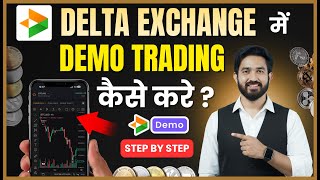

Learn Trading Without Losing Money!
41sThe promise of risk-free trading education immediately grabs attention of aspiring traders.
▶ Play Clip"The title accurately promises a demo trading tutorial, and the video delivers exactly that, though it includes some repetitive explanations and promotional content."
This video is a step-by-step tutorial on how to use the demo trading feature on Delta Exchange India to learn crypto futures trading without risking real money. The presenter walks through the entire process, from creating a separate demo account to placing a trade with leverage, setting stop-loss and take-profit orders, and closing the position.
Delta Exchange India offers a demo trading feature that allows users to learn trading for free with virtual money, avoiding real financial losses.
To start, open the Delta Exchange India homepage and click on the 'Peacock' section, then select 'Demo Trading' to be redirected to the demo trading interface.
Users must create a new Gmail account (not linked to their real Delta Exchange India account) and use it to log in or sign up for the demo trading platform.
The demo account provides $100 (approximately ₹8,500) in virtual funds, which can be used to place trades and learn the platform's mechanics.
From the market options, users can select a coin like BTC. The current price is displayed (e.g., $91,497), and users can choose to 'Buy Long' if they expect the price to rise or 'Sell Short' if they expect it to fall.
Leverage allows users to amplify their position. For example, with 100x leverage, ₹1,000 becomes ₹1 lakh, with the broker providing the remaining ₹99,000 as a loan.
A limit order executes only at a specified price (e.g., 91490), while a market order buys at the current market price. The presenter chooses market for demonstration.
Users can set a bracket order, which includes a stop-loss and take-profit trigger price. For example, setting a 0.25% stop-loss limits potential losses.
Before placing the order, the platform warns about leveraged positions and potential liquidation. Users must click 'I Understand' and then 'Place Order'.
After placing the trade, users can view their profit/loss in the portfolio section. To exit, they click 'Close', specify the number of lots to sell, and confirm.
Demo trading is a safe way to learn futures trading on Delta Exchange India. The presenter recommends practicing with the demo account before using real money.
The video effectively demonstrates how to use Delta Exchange India's demo trading feature to learn crypto futures trading without financial risk. It emphasizes the importance of practicing with virtual funds before trading with real money.
What is the purpose of demo trading on Delta Exchange India?
To learn trading for free with virtual money, avoiding real financial losses.
00:04
How much virtual money is provided in the demo account?
$100, approximately ₹8,500.
02:52
What is the difference between 'Buy Long' and 'Sell Short'?
Buy Long is used when you expect the price to increase; Sell Short is used when you expect the price to decrease.
04:10
Explain how leverage works with an example from the video.
With 100x leverage, ₹1,000 becomes ₹1 lakh, with the broker providing ₹99,000 as a loan.
04:36
What is a limit order?
An order that executes only at a specified price, e.g., buying BTC at 91490 when the current price is 91497.
05:21
What is a bracket order?
An order that includes a stop-loss and take-profit trigger price to manage risk.
06:00
What warning does the platform give before placing a leveraged trade?
It warns that if the market moves against you, your position will be automatically liquidated.
07:38
How do you close a position in the demo trading platform?
Go to the portfolio, click 'Close', specify the number of lots to sell, and confirm.
09:31
Demo Trading as a Learning Tool
Highlights the core value proposition: risk-free learning for new traders.
00:04Leverage Amplification
Clearly explains how leverage can multiply capital, a fundamental concept in futures trading.
04:36Bracket Orders for Risk Management
Demonstrates a practical technique for setting stop-loss and take-profit levels.
06:00Liquidation Warning
Emphasizes the risk of leveraged positions, a critical principle for traders.
07:38[00:04] want to learn trading on Delta Exchange India , but you also want to avoid losses, then friends, there
[00:16] Yes friends, the name of this feature is Demo Trading. That means you can learn trading here for free. After that you can trade here with your real money. But here Delta Exchange India provides you demo
[00:30] trading. Where there is some money in your wallet, there will be some money here. That is demo money with which you can take trades here and learn trading here. Ok? So today I will
[00:45] tell you step by step how to do demo trading, through which you will be we have to open the home page of Delta Exchange India.
[00:59] As soon as you open the home page of Delta Exchange India, the you have to click on the peacock section. As soon as you click on the peacock option, the
[01:11] As soon as you click on the peacock option, the you can see that it is written Demo Trading. Now as soon as you click on Demo Trading, the Trading. Now as soon as you click on Demo Trading, the
[01:25] browser will open in front of you in this manner. That means you will be redirected to your browser. Ok? So now here you will see the option of login and sign up. You will say that we already have an account in Delta Exchange India. Ok? So what do you do? Apart from your current
[01:42] Gmail in Delta Exchange India, you will have to create another Gmail. You will need to login to the demo trading account using another Gmail ID. Ok? So here you have to click on the login or sign up option. So the
[01:57] interface will open in front of you in this manner. Ok? Here you can also sign up with your email or password. Or if you click on the Google option, then like every time, the interface will open here in this manner.
[02:10] Ok? And all other Gmail IDs logged in your phone will start appearing here. So, you have to select the same Gmail ID which is not linked with your real one Delta Exchange India. You have to select that mail. Understand
[02:24] ? After that, you will be asked something like this here. So here you have to continue whatever is there. As soon as you click on the continue option, the interface will open in front of you like this. That means your account will be
[02:37] created here as a demo account. Ok? So here the interface will open in front of you like this. That is, this is the home page of the demo account. So here above there is a wallet option. So if you click on the wallet option, you will
[02:52] see that you get $ here for demo. Okay and here for demo. Okay and you can see this $100 = ₹8500 Okay, so here you can do demo trading through this, that is, you can learn trading.
[03:07] Okay, so here you have to come to home. When you come to Home, you come to Home, you can see that if you click on the market option, the option will open in front of you in the same manner.
[03:22] Future BTC Option Ethereum Option Okay, so here you will see all the coins here. There is DG Coin, there is Bitcoin. Ok? You will see all these coins here and
[03:36] here we will click on the BTC option. As soon as we click on the BTC option, the As soon as we click on the BTC option, the You will get to see the current price of BTC here. You can see this is running at $91497
[03:55] volume can also be seen here. Ok? So here it is written buy long and here it is written sell short. That means, do you think that the price of Bitcoin will you think that the price of Bitcoin will increase or right now it is 91497,
[04:10] so do you think that the price of Bitcoin will increase and where can you see it ? So you can go and see the chart. Ok? So if you think that the price of Bitcoin will increase then you have to buy long here and if you
[04:22] decrease, it will decline then what should you do ? You have to short sell. Ok? So according to this you have to take the trade here. You can see the leverage, You can see the leverage, 100x leverage means that you have
[04:36] 100x leverage means that you have ₹1000, so if you take leverage of 100x, then your money of ₹1000 will become ₹1 lakh. Did you understand? That means your ₹1000 will become ₹1 lakh. If you take leverage of 100x or 200x
[04:52] then your ₹1000 will become ₹lakh. So here I have taken 100x leverage. This here I have taken 100x leverage. This means that our ₹1000 will become ₹1 lakh i.e. ₹99,000 which you get here as a loan through the broker. Ok? So
[05:06] I am giving you an example of what leverage is? If you want to learn in detail then you can watch my previous video. The link is showing in the i button above. called leverage? What is called liquidation? Ok? Then you will understand it well.
[05:21] Ok? So let's leave 100x here. After that there are many options in market limit here. So limit means that right now the
[05:33] price of BTC is running at 91497. So I will place the order for this only when 91490 also goes. By doing this I will set the limit. So when its price goes to 91490 then this order will be executed and the charges in it are also less. But to
[05:47] show you, I will select the market here and we will buy it at this price in the market itself. The meaning of market is that we will buy it at whatever price it is running at. Ok. After that, here you can see that the
[06:00] interface is visible in front of you in this manner. We selected leverage as 100x and here We selected leverage as 100x and here we entered 10%, that is, we entered 10%, that is, how many dollars do we have here? $100 is 10%
[06:12] how many dollars do we have here? $100 is 10% * 100x leverage. So how many lots can we buy ? So here you can see we can buy nine lots. That means we had $100, 10% of that, okay, and here you can see that it is 100x
[06:27] leverage. Okay, so we will be able to buy nine lots from this. So here we are now in the bracket order, here you can see the trader will place the price and stop loss. So as soon as you click here, the option of placing stop loss and trigger
[06:41] price will open in front of you. Here's the bracket order. Ok? So you can see how much profit you want to take and how much loss you can bear. Ok? Take Profit and Stop Loss. So, here I would like to tell you that
[06:55] I would like to tell you that profit from the price at which you have taken the entry, then I will trigger the price here. And here you can see that I will enter 25, I have selected 25, so
[07:12] 25, I have selected 25, so if it goes down by 0.25 of the price at which I took the entry and it decreases, then I will be able to bear only that much loss. Having done this, I will click on set bracket here. If you want to do more and
[07:24] take profit, then you can also select five. , select that here and click on Set Bracket. As soon as you click on Set Bracket here, the interface will open in front of you like this.
[07:38] First you will be asked whether you are taking a leveraged position and if the market moves against you your position will be automatically liquidated. So I told you what liquidate means? So you can watch my previous video. Ok? It has been
[07:52] explained very well. You will know once you see it. After this, click on I Understand here. As soon as we click on I Understand, here you can see how much fee will be deducted, what is the execution price here.
[08:05] Ok? All this is written here. So, here you will click on Place Order. As soon as you click on Place Order, an we have purchased nine by nine lots here. Ok. From that you can see that we had
[08:19] selected the market price. No limit was imposed. So you can see that the price keeps fluctuating a bit. So bought three lots here at 85.5. You can see that four lots were bought here at 85.6 and two lots were bought
[08:34] here at 85.7, the price fluctuates. So whatever is there comes in this way. So there is no need to worry here. Ok? So here we have placed stop loss and also set trigger price. Ok? And this is how we
[08:49] traded here. Ok? So you can see here how much balance we have used , how much is there in the wallet, you will also see that here. After that you have to go to the portfolio. To see whether you are making profit or loss,
[09:02] you have to go to your portfolio. Now as soon as you come to the portfolio option, you will see an interface in such a way that it shows how much profit and loss you are currently making. Ok? And you have to click here, then you
[09:14] can see your stop loss and the trigger price that you have set, you will also see it here. Ok. So if you want to exit with this much profit, what do you have to do click on the close option. What have you done? You
[09:31] But you want that if I am making more profit here then I should you have to click on the close option. As soon as you click on the close option, an As soon as you click on the close option, an
[09:45] entry you had made. What is your market price right now? Ok? And you can see all this here and you can learn trading in a good way. Okay, so here you can see the quantity, you are asked whether you have
[09:59] nine lots, which means you have bought nine lots of BTC. How much of that do you want to sell right now? lots as you want, you can write that here. If you want to sell all the lots then you have to confirm it by clicking on Reduce Only here.
[10:14] Ok? So here you will be told that if you sell this lot now, then how much loss you will incur, how much profit you will make, you will be able to see this here. So, you will be able to see this here. So, if you are making this much loss or profit
[10:27] and you are okay with it, then you have to click on confirm here. Now as soon as you click on confirm, the interface will open in front of you like this. submitted and the order you have placed here will be filled here. The
[10:41] order will be submitted and executed. You will exit the trade from here. And here the bracket order has been cancelled because you have placed a stop loss here. Trigger price has been set here. But before that
[10:53] you yourself closed this position. Therefore bracket orders have also been cancelled. So in this easy way, you
[11:07] at Delta Exchange India with demo money without using your own money. So a very good feature has been given here. If you also want to learn, then first you can learn trading here through a demo account. After that you can trade in futures if you
[11:19] how did you like the video, do tell me in the comment section. And in my previous video I had told about leverage and liquidation and in the video before that I had in Delta Exchange India. So if you have n't seen that video yet, go and watch it. That
[11:34] video is such that you can easily learn trading. You will understand once you see it. can easily learn trading. You will understand once you see it. like the video and don't forget to subscribe to Bhai's channel.
[11:47] learn crypto trading on Elta Exchange India, then do not in the next video. Till then take care. Bye. Hail India.

⚡ Saved you 0h 11m reading this? Transcribe any YouTube video for free — no signup needed.