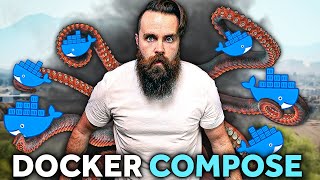

Docker Big Bang: One Command Creates 14 Containers
45sThe dramatic visual of creating an entire hacking lab with one command is highly impressive and sparks curiosity about Docker Compose's power.
▶ Play Clip"Title promises a single command to create a full IT infrastructure, and the video delivers exactly that with a hacking lab demo."
Docker Compose allows you to define and run multi-container Docker applications with a single YAML file, replacing tedious docker run commands. This tutorial covers installation, basic usage, networking, volumes, and deploying a WordPress stack, culminating in a hacking lab with 13 vulnerable machines.
Running one command creates 14 containers, 3 networks, and a full Kali Linux hacking lab instantly.
Install docker.io and docker-compose via apt update && sudo apt install docker.io docker-compose -y.
Create a project folder and a docker-compose.yaml file. Define version, services, image, ports, and restart policy.
Use 'docker-compose up -d' in the same directory as the compose file to start containers. 'docker-compose down' stops and removes them.
Define networks at top level with driver and subnet. Assign containers to networks with static IPs using IPv4_address.
Deploy WordPress with two services: WordPress (image, ports, environment) and MySQL (image, environment, volumes). Use depends_on for startup order.
Map a host directory to /var/lib/mysql in the MySQL container to persist database data across container restarts.
Docker Compose simplifies multi-container management, enabling rapid deployment of complex applications like WordPress or hacking labs with a single file and command.
What command installs Docker and Docker Compose on Ubuntu?
sudo apt update && sudo apt install docker.io docker-compose -y
01:23
What is the default filename Docker Compose looks for?
docker-compose.yaml
02:27
What does the 'depends_on' directive do in a Compose file?
It ensures that the specified service starts before the dependent service.
12:40
How do you map a host directory to a container volume in Compose?
volumes: - ./host_path:/container_path
13:05
What command stops and removes all containers and networks defined in a Compose file?
docker-compose down
05:37
What is the default network driver in Docker?
bridge
09:14
How do you assign a static IP to a container in a Compose network?
Under the service's networks section, specify ipv4_address: <IP>
09:54
What environment variables are required for the WordPress container to connect to MySQL?
WORDPRESS_DB_HOST, WORDPRESS_DB_USER, WORDPRESS_DB_PASSWORD, WORDPRESS_DB_NAME
11:52
What is the purpose of the 'restart: always' directive?
It ensures the container automatically restarts after the host machine boots.
04:01
What does the 'docker-compose ps' command show?
It shows only the containers that are part of the current Compose environment.
05:25
Docker Big Bang
The dramatic visual of 14 containers and 3 networks appearing instantly from a single command is the hook that demonstrates Compose's power.
WordPress Success
Seeing a fully functional WordPress site running from a simple Compose file is a satisfying 'aha!' moment.
14:07Hacking Lab Ready
After a long download, the Kali Linux hacking lab with 13 vulnerable machines is finally up, fulfilling the intro promise.
15:48[00:00] I'm going to run one command and watch what happens. Go. Within seconds, 14 containers spanning three networks created out of thin air. An entire IT infrastructure, and in this case, it's a carrot Linux hacking lab with 13 vulnerable machines.
[00:14] Just like that, bam, a Docker big bang. And then with one command, they're gone. This is the power of Docker Compose. A Docker tool that allows us to build entire Dockerized worlds with one file.
[00:27] saving us from the tedium of creating and running Docker containers line by line. Run, Docker, run! So in this video, I'm going to teach you how to use Docker Compose. It's remarkably simple, and if you're like me, you're going to kick yourself for not knowing this sooner.
[00:40] Now, there are three things you need to start composing a Docker Symphony. First, you'll need just a little bit of Docker knowledge. Just to continue it. Like if you've run a Docker container before, you're probably good. But if you haven't, that's okay. Just watch this video right here, and I'll show you everything about it.
[00:54] And come back and see me. I'll wait. Listen to that. Two, you're going to need some Linux. It could be your computer, it could be a VM, local in the cloud, WSL2, I don't care, it doesn't matter. But if you do want to follow along with me, I'm using the latest version of Ubuntu desktop inside of VirtualBox.
[01:09] And if you want to build that VM for free, you can watch this video right here. And finally, and most importantly, you're going to need some coffee. Because everything in IT requires coffee. Now once you're in Linux land, let's go ahead and launch our terminal. And now let's go ahead and install some Docker computers.
[01:23] We'll do a quick update, sudo apt update, update our repositories, little sudo password action here, and then with one command, I'll install docker, click install docker.io and also docker-compose.
[01:36] I'll do a dash y at the end, and quit copybrake, let us do it soon. Now once you have it installed, what do you say for old times sake being created with Docker container in the old fashioned way? sudo docker run, we'll name it web, do a few switches, ITD, expose reports, and we'll
[01:50] use Nginx as our image. Simple, elegant, the way our grandparents used to run it, but old. So what do you say we do the same thing, but with Docker Compose? So I'm going to scoop this out of the way, but I'll keep it viewable right there.
[02:03] And I want to know the terminal. Now whenever you're working with Docker Compose, the first thing you're going to do is make a folder dedicated to that one Compose thing you're doing. It'll make sense why here in a second. So let's go ahead and do make DIR, and we'll name it copy time.
[02:15] And then we'll jump in that directory, CD, copy time. We're in. And now let's make our Docker Compose file. And this is going to be one file that does everything. It's kind of crazy. So nano docker-compose.yaml.
[02:27] Two things here real quick. First, I'm naming it docker-compose.yaml. Unless you have a really good reason not to, go ahead and name it that. When you're using Docker Compose, it looks for that name by default. So why do you even go from that? Just do that. And then also notice we have the .yaml, which is YAML.
[02:42] Technically, it's a data serialization language, but that's too complicated. Just think about it as a configuration file. It's a nice, pretty way of writing out configuration. It's easy for computers to read and it's easy for us to read. You'll see, it's beautiful.
[02:54] So let's go ahead and jump in that file. And here is where we'll start to write our symphony, our sweet, sweet Docker music. The first thing we'll do is define the version by simply typing in version colon and then right after that, putting in double quotes, three.
[03:06] That's the current Docker version. You may be watching this in 20 years and we're at Docker version 12. 20, I don't know, but it's three right now. So let's do three. Then hit enter. Next we'll define services, so just type in services, if you can spell it right, unlike
[03:18] me. And then tab. Now keep in mind, YAML loves its space. It needs some personal space. Just like Python. So when I say tab, I mean it. Under services is where we define our containers. So I'll just call this guy website colon and then enter once more.
[03:33] And then I'll tab twice, two tabs. And now I'll start configuring that container. First let's do our image. Type in image colon and what we have? Nginx. That's it. So we type in Nginx. Get that part done.
[03:45] And then right under there, keeping the same space and we'll do our ports. Watch what I do here, again this is YAML stuff, YAML speak, tab, tab, tab, I'll do a dash, space, and in parentheses I'll specify the port mapping. So we're doing 8080, and actually we'll do 8081, 8080 that we're taking up right now, and we'll map that to the port 80 of our container.
[04:01] Now that is it We done Oh actually there one more thing we can do Let tag over to be in line with ports and we say restart always so it always comes back up after your machinery boots You want that, right? Yes.
[04:13] Okay, so that's a compose file. Simple, but it'll work. So we'll actually try it out. I'll do control X, Y, enter the save, and with one command, docker-compose up, and then dash D to put it in the background. That's all we got to do.
[04:25] Hit enter, do the password, done. Now, a couple of things here. Notice I ran that command while in that copy time directory, the same directory where my compose file lives. Make sure you do that. If you don't, you'll have to do some dash F and specify where it's going to, it's just
[04:39] the whole thing. Just make sure you're in the same directory. Also notice this. Yeah, it did create my website. It named it copy time underscore website one, which copy time was an in my folder. So that's why that's kind of important. And then website being the name of my service.
[04:52] And then just put one after it. Like, assuming you're going to make more of that. But then also notice good old Dr. Compose made a network for us too. That's some service. He created a default bridge network and put our container inside. What a good guy. And yes, that is the default behavior of Docker Compose because we didn't do anything differently.
[05:07] You can change that, and I'll show you here in a bit. Now, I do want to make sure our website works. Let's go out there. Actually, first we'll do a Docker PS. There's our two containers, and there's 8081 right there, the one we just spun up. And actually, this is kind of cool. If we do Docker Compose PS, it'll only show us the Docker containers within that Compose environment right there.
[05:25] That's kind of cool. And we'll make sure things work. localhost, port 8081. Beautiful. Now like I showed you in the intro, we can bring down that entire thing with one command. And the entire thing. We have one thing in there right now. We're going to add more. Just hang tight.
[05:37] But we can do sudo, joker, compose, down, down boy. And it just deletes it. In fact, it removes the network and the container. Now we don't have to do that. If we just do another up command here, bring it back up. Instead of down, we can do stop.
[05:50] It's simply stop in the containers. See if I'm going to do down once more. Just to delete it. So what I want to hit home here right now is that the Docker Compose file is simply the Docker Run command. It just looks a little weird.
[06:02] It has a different format. We have to describe it in a certain way. But that's really not too difficult with the power of Google. Let's go look at some Docker documentation. We covered the basics here. But there's obviously a lot more. So go Google it. It's pretty cool. But don't do it yet. I'm going to show you some more stuff.
[06:14] Because we're about to get a little crazy. Now, you know what I love about Docker containers? They're safe. They're secure. They're isolated. Most of the time. Giving you a bit of security. But you know what's not, Tim? your computer.
[06:26] Because you're not using Bitdefender Total Security. Because it's basic. You're not living life inside of a Docker container. You need protection. You need someone to hold you and tell you that you're safe and that they're looking out for you and your device and your data.
[06:38] And shoot, look at that. This is new. Data breach alert for LinkedIn. Are you on LinkedIn? Well, there you go. Bitdefender has to be back. For protection, they got you with the antivirus, advanced threat defense. They're also doing some crazy online threat prevention.
[06:51] They're doing some cloud-based magic. By blocking online threats at the network level. And should anything get through, which I doubt it, they're going to be scaring your system for vulnerabilities. But it's not getting through, because you've got a firewall going on.
[07:03] It's crazy. And then I know many of you wish you would have had this before it was too late. Ransomware remediation. They'll help restore your encrypted files if you get hacked. And no, don't just assume you're safe. Don't just assume you're immune. Anyone can be hacked.
[07:15] Even me. This is why I have this. And one of the biggest ways you can be hacked. This is why I have my employees do this. Fishing attempt. I think it's an anti-spam going on. And I know my audience, I know you guys care about privacy. Fit Defender bringing security, has your back with SafePay, DTN, Password Manager.
[07:30] And this is pretty cool. Video and audio protection. You're always wondering, hey, is someone listening to me? Can they see my webcam right now? They'll make sure they're not. They'll have that control in place. And they'll make sure no one's tracking you. And they'll make sure, hey, are your kids being a little crazy?
[07:44] Because mine are always being crazy to help me keep tracking my kids. And you don't have to worry about performance. With Fit Defender's profile, you can tell them, hey, right now I'm working. Or, hey, I'm playing a game. Please don't bog down my system. They'll adjust to what you're doing at the moment.
[07:56] So you can toggle that yourself or just let them decide. They probably know better than you. So check out Bitdefender Premium Security. I got a link below and it looks like they're giving us... ...taggum... 10 devices 1 year subscription 59 discount Don miss that Because again we don live in Docker containers even though that does sound kind of awesome We don So back to Docker With our proposed file we can create just a ton of containers like I mentioned before inside
[08:21] And also we can create networks. So real quick, let's add another container. Let's just do a duplicate of our NGINX container here. So we copy website here, and then making sure I have the correct spacing, I'll paste it right there. And I'll just rename a few things. Website 2. We'll do a different port, 8082 this time.
[08:34] and noticing that I'm keeping both these containers under the services section. And now we have two containers. Control X, Y, enter to save, Docker Compose Up, Dash D, two containers. But we're not stopping there. Let's add a network.
[08:46] Now, if you watch my Docker networking video, you can watch that right here. Normally, to create a network, you have to run a command like this. Let's do the same thing inside a Docker Compose file. Now, now with Docker Compose.yaml, and down here underneath our containers, we'll start a brand new section called Networks.
[09:00] Noticing that it will be in line with services. It's a top-level config. And then we'll tab over, name our new network. It was copyright. So we did copy, colon, enter, tab, tab. Here it does get a bit different. We're going to specify ICAM, which stands for IT Address Management.
[09:14] Enter, tab, tab, tab. And now we're at the config. So we'll specify our network driver, which here will say default. Which in Docker, the default network is the bridge. Enter, tab, tab, tab. We'll do some config, colon, enter, tab, tab, tab, tab.
[09:28] And then we'll specify our subnet inside double quotes. So that right there is how you take that Docker command. and then yeah, there's some left over here on the side. Sorry, guys. Forgot about you. Let's take a command and convert it into Docker Compose YAML.
[09:40] Not too bad, actually. You just have to kind of know it. And then finally, one more thing. When do you say we throw one of those containers inside that network? Because right now, it won't happen. Let's take Website 2. Just under his restart, I'll add networks, colon, enter, tab, tab, tab.
[09:54] I'll specify the network, copy, and then his IPv4 underscore address. I'll say 192.168. What was that network? 40, yes. Or 92. And the two will do dot like 21. So now is our compose file. We're creating two containers, one network.
[10:07] Let's save it and test it out. Until xy enter the save docker compose up dash d. Let's watch the magic happen. That was fast. Now notice something here. We already had our compose file up and running. But here when we changed the file and we ran the docker compose up command once more,
[10:22] it just updated what we changed. It created that new network and it recreated website too. Let's take a look. We'll do dockercompose.cs. There they are. We'll do a Docker Network LF. There's our two Compose Networks, one by default, one we specify.
[10:35] And then if we inspect our new network, Docker inspect, if I spell it right, I can see that container inside right there with the IP address reconfigured. Okay, cool. So we've done two containers and a network. But what do you say we get just a little bit crazier?
[10:48] And this will uncover the true power of Docker Compose. Because our next task, let me clear this out for you. We're going to deploy WordPress with Docker Compose. Now here's why you would want to use Compose with WordPress. WordPress has two main components.
[11:00] It has a front-end website or a front-end server, and it has a MySQL database. And in a Docker deployment, that'll be two separate containers. And this will be a bit different because there's something special that we'll have to do to connect these two guys to make them kind of, well, connect.
[11:14] It'll work. Let's try it real quick. So actually, let's go ahead and make a new, brand new compose file. So let's see V dot dot to get out of that directory. Let's make a new one. NKVIR WordPress. Let's jump in there. Nano.
[11:26] DockerCompose.yaml. We are in. Now, same story as before. We'll define our version. good old three. And we'll start with our services. Defining our two containers we need for WordPress. First, we'll start with WordPress. We'll call him WordPress. And for our image, we'll simply pull
[11:38] the WordPress image from Docker Hub. For ports, we'll map port 80 to 8080 on our machine. Actually, now we can do something else that way. Let's do like 8089 because I forgot where we were. And the next is something interesting. We're going to have something called environment. And here,
[11:52] we'll put specific parameters that are specific to WordPress inside the WordPress environment. Let me go ahead and paste a few right here. You can copy the code from below as well. Noticing here we have things that are specific to WordPress, like all the database info.
[12:04] We can pass those environment variables into WordPress as we're creating a container. And pretty much every one of these are referencing what we're about to do with a SQL Server, or a MySQL Server. Sorry MySQL So we go ahead and add our MySQL Server We call that service MySQL The image will be MySQL colon 5 Now I put that in between quotes And then we also do some environment variables for him So now we seeing that WordPress is matching the SQL service as its database
[12:28] the password as copy, and the database name as WordPress. Now a couple of cool things we can do with containers and how they interact. First up here in WordPress, let's add another parameter, and we'll call this depends underscore on colon.
[12:40] We'll hit enter, a couple tabs, and we'll tell it to depend on MySQL. And this is cool because what this will do is tell Docker Compose, hey, before you make this WordPress container, even if you get the first guy up here, make sure you make the MySQL guy first because WordPress depends on him.
[12:53] So you can tell him to do that. That's kind of neat. So don't make him until you've made him. And one more cool thing you might want to add to your WordPress deployment because you could legit just run your WordPress website inside Docker like this. But here on the MySQL container,
[13:05] let's add one more section, and we'll call this Volume. And Docker Volumes allow us to map a Docker directory to a directory on our system, on the host system. That way, if the Docker container ever gets blown up, dies, or restart it, delete it, whatever,
[13:18] that directory, the data, still exists on the host, which is kind of important for a database. We can simply map it like this, telling it, hey, in this current directory, go ahead and create a volume called MySQL, and map that to inside the container,
[13:31] varlib MySQL, which is what MySQL cares about. Now, this will work beautifully, but I do want to go through the trouble of adding a network. If you know how to do that, if you remember how to do that, go ahead and do it right now, I don't want Docker creating that for me. I want to do it myself.
[13:43] Oh yeah. Then I'll add those containers to the network. So there's a completed Docker Compose file right here. Isn't she pretty? So let's control X, Y, enter the save. I'm just bringing that bad boy up. Docker Compose Up-D.
[13:55] It's going to download all the things it needs for WordPress in MySQL. It'll take a second. Click Copybrain. It feels like magic when it's doing that. I love it. And just like that, we get our WordPress website running. I'll do a little Docker Compose TS. No, it's Compose.
[14:07] It's Compose TS. There they are. Let's see if we can get to it. localhost, port 8089. Yes! WordPress website. That's so cool. And also notice if I do an Ls right here,
[14:19] there's that MySQL folder. That's where MySQL is mapped. I jump in there. There's all MySQL goodies. So if I were to do a pseudo-docker-compose-down, let's tear it down and delete it, I still have my database intact,
[14:31] which means bringing it back up. Yeah, it's creating brand new things, but MySQL is still mapping to that same database file. And I refresh the page. Same stinking website. That's pretty cool. Now of course, you can deploy that lab I showed you earlier.
[14:43] I did that right now. Let's do Hacking Lab for my new directory. I'll start my Docker Compose file. I'll just paste all that in there. It's a lot. But you'll notice that it looks familiar. We've already talked about a lot of this. It's just a bunch of networks and a bunch of containers,
[14:55] all connected together in various ways. By the way, yes, all of these are vulnerable containers from a place called Volhub. Not Volhub, Volhub. They basically turn Volhub virtual machines into containers.
[15:07] So shout out to them. I'll put a GitHub link below. And of course also right here I have my Kali Linux machine. Which is cool because once I launch this, I'm going to do it right now. It's going to take a minute because I have to download all of those container images. So while that's downloading, it might take a minute for you.
[15:21] It's taking a minute for me. Here's some Dr. Compose inspiration. Because again, companies mainly use Dr. Compose to deploy their apps. Because they can kind of package them all together. Make sure they're connected the right way. So things like getting into Minecraft, which all it does is define a volume and an image.
[15:35] but more complex things like, um, pie holes with Cloudflare DOH. BAM! So I'll put this link below for some inspiration. I'm gonna check it myself. Man, it's still downloading. Oh my gosh. So Docker Compose. Knowing it not only makes you awesome,
[15:48] but it unlocks the door to a ton of fun projects. Just knowing Docker better. Moving from creating Docker containers with simple run commands, run docker run, to deploying actual Dockerize apps. Oh, okay, it's finally done.
[16:01] So I can jump into, uh, my Kali Linux box. Haha, I'm in. install and map when you update it first and I have to start hacking away. So that's the video. Thank you for taking time to have some coffee with me and talk to some Docker. This is my favorite
[16:14] thing to do. And by the way, have you hacked the YouTube algorithm today? Let's make sure you do. With that like button on the notification bell, comment, subscribe. You gotta hack YouTube today, ethically, of course. Yeah, that's all I got. I'll catch you guys next time.




⚡ Saved you 0h 16m reading this? Transcribe any YouTube video for free — no signup needed.