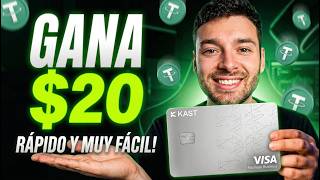

50% Cashback on Everything!
44sGrabs attention with an unbelievable offer of 50% cashback, making viewers curious about the details.
▶ Play Clip"The title promises easy money and delivers a practical guide, though the 'very easy' claim is slightly oversold given the multi-step process."
This video explains a limited-time promotion from the crypto card platform KAST, offering 50% cashback (up to $20) on all purchases made between April 6-19. The creator provides a step-by-step guide on how to sign up, order a free virtual card, deposit crypto, and maximize the reward, along with additional perks like 4% cashback in Move tokens and airdrop points.
KAST is running a promotion from April 6-19 where users can get 50% cashback on purchases up to $40, with a maximum refund of $20.
KAST is a Visa card that works worldwide. It offers a free virtual card for contactless payments and online purchases, and a physical card (free but with shipping costs). Users can deposit crypto and pay in any currency, with automatic conversion.
The campaign runs from April 6-19. Users get 50% cashback on all purchases, up to a $20 limit. For example, spending $40 yields $20 back, spending $20 yields $10, and spending $100 still only yields $20.
The promotion is only available to users who register through the creator's link in the description or pinned comment. Existing users can also participate if they use the link.
Users can deposit USDT or USDC from exchanges like Binance. They can also withdraw funds to their bank account in local currency, which is a key feature.
The creator shows how to create a KAST account, set language to Spanish, and order a free virtual card in minutes. The physical card is also free but requires shipping costs.
To load the card, go to 'Start', press 'Receive', select 'Stablecoin', choose USDT, and select the network (e.g., Binance SmartChain). Copy the address and send from your exchange.
When withdrawing from Binance, ensure the network matches (BEP-20 for Binance SmartChain) to avoid losing funds. The address and network must be correct.
Users can spend on anything: dining, online shopping, subscriptions, etc. The creator used it for a $20 AI subscription (Shemai), effectively costing $10 after cashback.
KAST also offers 4% cashback in Move tokens and Cast points (airdrop points) on purchases, adding extra value.
Users can add the card to Google Pay or Apple Pay for easy contactless payments from their phone.
Cashback is paid about a week after the campaign ends (around April 26). The creator encourages viewers to use the link and share their plans in comments.
The video provides a clear, actionable guide to earning $20 cashback with KAST, emphasizing the importance of using the creator's link and acting before the April 19 deadline. It also highlights additional perks like Move tokens and airdrop points, making it a worthwhile opportunity for crypto users.
What is the cashback percentage and limit for the KAST campaign?
50% cashback up to a $20 limit.
02:54
What is the campaign period for the KAST promotion?
April 6 to April 19.
00:01
What is the maximum cashback you can receive if you spend $100?
$20, because the limit is $20.
03:25
What network is recommended for depositing USDT to KAST?
Binance SmartChain (BEP-20).
06:31
What additional rewards does KAST offer besides the 50% cashback?
4% cashback in Move tokens and Cast points (airdrop points).
09:10
How long does it take for the cashback to be paid after the campaign ends?
About a week, around April 26.
10:06
What is the minimum withdrawal amount from Binance mentioned?
$6.
07:40
50% Cashback Offer
This is the core value proposition, offering a significant discount on everyday purchases.
02:54Exclusive Link Requirement
The promotion is only valid for users who register through the creator's link, making it a community-exclusive deal.
03:39Network Matching Warning
Emphasizes a critical step to avoid losing funds during crypto transfers.
07:14Additional Rewards
Shows that users can stack multiple benefits, increasing the overall value of the card.
09:10Timeline for Cashback
Provides a clear expectation of when users will receive their refund.
10:06[00:01] fuel, or the dinner you might have this weekend could cost you half as much? Well, that's what I bring you today. It's a campaign that runs from April 6th to April 19th, where you can
[00:15] April 19th, where you can spend up to $40 and get 50% cashback with a limit of $20, that is, a 50% discount and it's very easy. And we're going to
[00:27] do it all using cryptocurrencies, and we're going to achieve all of that with cast. going to explain what Cast is, how you can create an account, how you can request a free virtual card to make those purchases, how you can
[00:42] deposit the money there, and what you should spend it on to get the most out of your reward. I'm going to tell you all that step by step, super expensive, but obviously don't forget to leave your like first. Well,
[00:55] for those who don't know, we already talked about Cast on the channel in screen, which you can go and watch to learn how everything works step by step, but basically it's a Visa card with which we can pay
[01:08] anywhere in the world. We can have the virtual version which is completely free and we can use it from our cell phone to pay without contact or simply using the card details for online purchases. But
[01:20] we also have the physical card which is also completely free, only we would have to take care of the shipping cost. We have well, this is the one I ordered, I used it for my trips and made a lot of
[01:33] purchases, as you can see on the screens. I basically bought from many places and had no problems. The best thing about this card is that we can use it very easily. We deposit crypto into our account and can pay
[01:46] Argentina, Mexico, Colombia, the United States, Europe, or anywhere in the world. You pay the currency you deposited is directly converted to the currency of that
[01:59] country. You don't have to do anything special, that's the best part. For example, I'm from Argentina and it's very good for Argentina because if you travel abroad, credit cards have very significant surcharges. The dollar conversion rate
[02:12] with this one they take it at a spectacular price. But hey, if you're from another card where you add funds and then pay. Although it's treated like a credit card, it functions like a prepaid or debit card. It is available in
[02:26] countries that usually have limitations. Some may be told me that in Venezuela they were unable to complete the Venezuelans who are in another country and have a national document from that other
[02:41] country can request it by placing that other document instead of their Venezuelan one. But hopefully, with time, all those blockages can be lifted. But anyway, let's get back to the campaign, which runs from
[02:54] April 6th to April 19th. It offered you what is a cashback, a 50% refund on all purchases you make with the card up to a limit of $20, that is, the maximum refund you can have is $20. The ideal scenario is
[03:10] that you make purchases during that period for the equivalent of, for example, $40 and the campaign ends, that is, before the end of April, you will be receiving $20 in your account or 50% of the corresponding amount. For example, if you made
[03:25] a purchase of only $20, you will be receiving $10. 50% of that, as long as the limit is not exceeded. And if you spend much more, for example, $100 during that time period, you will only receive $20 in cashback. This is a
[03:39] campaign they created exclusively for people who register at CAS through the link I've included in the description or pinned comment below, or by that appears on your screen. It's only for the easy money community
[03:52] . In Argentina, for example, it's a great thing. We spent about 60,000 pesos and return 30,000 pesos to us. But remember, the using the link below. If you already created one from the previous video, you
[04:06] can also participate. But if they don't create the account through that link, they won't who want to take advantage of the promotion and don't know how to do it, I'm going to show you how to make a deposit. They can do it directly with USDT or USDC that they have
[04:19] on any other exchange, such as Binance. And the most interesting thing sent or simply want to withdraw it, they can also send it simply withdraw it to their bank account using local currency. That
[04:33] 's one of the best things, I think, that there are several withdrawal options, not the first thing we need to do is create an account on CAS. Let's assume identity, and have a zero balance. Now we're going to find out
[04:47] how to make a deposit. Here we have our CAS account. Let's open it. In this case, I put everything in Spanish. They tap the K up here, go to where it says account and select Spanish as the language. Here we can see my total balance. I have
[04:59] some money in the virtual account to cover expenses and other money returns, because it also has that feature. Now, how do we order the card? We're going to scroll down here and you'll see a section that says cards.
[05:11] They press there and they'll order the virtual one. They choose the model they like best and order it. It's free, it's issued in a couple of minutes, and it's Visa. You physical copy, as we are seeing here, where I incurred many expenses on my trips,
[05:26] free because the shipping is at our expense. It really works very well. I have it here, no problems, zero complaints, and the style is really good. Now, I've also been using the virtual one. We can see that
[05:39] the expenses I've been making down here . If I change the physics, we can see the expenses I've been incurring with the physics. I even have two virtual ones, one Pinguin, a project we analyzed on the channel a long time ago and it's
[05:52] well, I don't use that one that much, I use this one I ordered first more. Now, how do we load the card? Let's go to where it says start. Once we have the . And we see that there are two very clear buttons, one that says receive and another that
[06:06] says pay. Let's press the one that says receive and we see that we have several options. In this case, we're going to use stablecoin because we're going to deposit USDT directly from our pod account. We press
[06:18] stable Coin and well, we have several options. We can use USDC, USDT, or whatever currency we have. I just selected USDT, we even have more options, but let's go select the network. I usually use very cheap ones, but in this case
[06:31] we're going to use the most popular one, Binance SmartChain. We select that and it we have to make the transfer. We can do it either with another mobile phone on the screen and sending the money inside, or we copy the
[06:45] there and that's it, it says copied. Now what we're going to do is go to our Binance account or wherever they have theirs. We opened the account and now we're going to go to where it says assets and here where it says assets we're going to press where it says send. We select
[07:00] the option to withdraw crypto and here we will look for USDT. USDT. We select USDT and here where it says address we are going to paste the address that we just copied in Cast. Where it says network we are going to select, be careful with
[07:14] before, remember, it was the Binance SmartChain. Here it is. BNB, SmartChain, BEP 20 in this case, if you look it up. And there it says Binance SmartChain network. This must always match
[07:27] ; do not send it through two different networks. Now, where it says withdrawal amount, we're going to put how much we want to send here. Here, for example, we can put $10. We see that there is a minimum of six, but we can put 10 or 100 or 50, whatever
[07:40] example, am going to load 40 to take advantage of that promotion and get $20 back Then, I click perform and I click withdraw. I confirm the transfer like any crypto transfer, as long as you take the same care I
[07:55] copied is the same and that the problem. And that's it, withdrawal in process. Now we have to go to the cast wallet, go back and wait for the cryptocurrencies to arrive, and it will take
[08:07] . Now, while we wait for the money to arrive, which I think has already arrived, what should we spend that money on to get the 50% discount? Okay, whatever you want. If you want to go out to dinner, simply pay by card from your
[08:20] cell phone because it's added to what would be your Google Wallet, and you can pay with your cell phone using NFC, or you can buy things online by adding your card details, which I'm not showing for obvious security reasons.
[08:32] accepts a Visa credit card, they're going to be accepting that card. It could be at the supermarket, it could be at a dinner party, paying for delivery, or with a digital subscription. For example, I just used it to pay for my
[08:45] Shemai subscription, which is artificial intelligence, and it costs about $20 per month. This expense will be included in that promotion and instead of 20 it will only cost me $10. For example, if you want to try artificial intelligence now that it
[08:57] 's very fashionable, you could do so with a pretty interesting discount. The key spend money anyway, now you have a reason to do so and save yourself some money, at least $20. And as a bonus, notice that when I click where it says
[09:10] rewards, they're also giving us a 4% refund in Move tokens, which we withdraw them and sell them on any exchange. And they also give us Cast points, which are airdrop points that this platform will have in the
[09:25] future. That's why I 'm using it; I'm earning points. It says it's valued up to $50, but it could be considerably less. That's up to $50, but the 4% Move Tokens refund is very welcome when you add even this
[09:40] 50% cashback. Okay, now let's go back and notice that it says received $40. Uh, basically it arrived in a minute, it's very fast and now I just have to pay and that's it. Notice that if you go to the cards and tap where it says "more",
[09:53] you can tap where it says "add to Google Pay" and you'll be able to add it to Google Pay or Apple Pay depending on the phone you have, and you'll be able to pay from there simply with your phone. It's very easy to do. I used that because, honestly, I don't
[10:06] So, remember the dates from April 6th to 19th. All expenses you make during that period are 50% refunded up to a limit of $20, which will be paid to you a week after it ends, around April 26th. It's
[10:21] usually earlier, but that's roughly the deadline. So, it's just a matter of going to the link in the description, registering, verifying the account, loading the money, and refund, and I'll try to get you more of these campaigns in the future, but
[10:34] if you don't, it'll just be this one and I won't be able to bring you any more. I always like to hear from you, so share in the comments what you're going to take advantage of, what you're going to buy with this refund. And if you found this
[10:47] this or more information, don't forget to like, subscribe, and turn on notifications so YouTube will let you know whenever I upload new content. See you in the next video. Goodbye, Crypto Trader.



⚡ Saved you 0h 11m reading this? Transcribe any YouTube video for free — no signup needed.