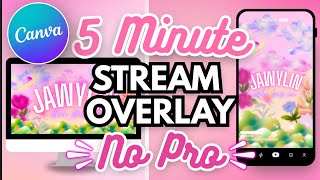

Free Stream Overlay in Canva
45sShows how to create a professional-looking stream overlay for free, which is highly valuable for new streamers.
▶ Play Clip"The title accurately describes a free Canva tutorial for a stream overlay, and the content delivers exactly that."
This tutorial shows how to create a free stream overlay using Canva's free account. The creator demonstrates step-by-step how to choose a background, add decorative elements, animate them, and include text like 'Stream Starting Soon.' All elements and animations used are available without a Pro subscription.
Create a new video project in Canva and name it (e.g., 'Twitch stream').
Select a background (photo or video) and set it as background by right-clicking.
Search for free elements like 'watercolor flowers' to use as fillers.
Animate elements using free animations like breathe, pan, or baseline.
Add text using free font combinations (e.g., glow, sparkle) and customize colors/effects.
Animate text as well, then download the overlay via Share.
What type of project should you create in Canva for a stream overlay?
Create a new video project in Canva.
0:25
How do you set a video or photo as the background in Canva?
Right-click on the element and select 'Set video as background'.
1:24
Name three free animations recommended for elements in the tutorial.
Breathe, pan, and baseline.
2:45
How can you change the color of a video or photo element in Canva?
Use the Edit button to adjust temperature, saturation, or change specific colors.
1:04
What two font combinations are used in the tutorial?
Glow and sparkle.
3:22
Setting Background
Shows a simple right-click method to set any element as a full-screen background.
1:24Free Animations
Identifies specific free animations (breathe, pan, baseline) that add life to overlays.
2:45Free Font Combinations
Demonstrates that Canva offers free font combos with effects like glow, usable without Pro.
3:22All Elements Free
Confirms that all decorative elements used in the tutorial are available in the free tier.
1:47[00:00] Let's upgrade your stream by creating
[00:01] this completely free stream overlay
[00:03] using Canva. I do have several other
[00:05] tutorials for different kinds of YouTube
[00:07] intros or even stream overlays that you
[00:09] can create with Canva, but a lot of
[00:11] people have been asking how you can
[00:12] create one with a free account. For
[00:14] that, I created an entirely new account
[00:16] that does not have Canva Pro so that I
[00:18] can use all the elements that I know you
[00:20] would be able to. Once you have created
[00:21] your Canva account, if you haven't
[00:23] already, you want to create a new
[00:25] project and make sure it's a video. Of
[00:27] course, you'd want to name your project
[00:28] so that when you save it, you can find
[00:29] it easily. I just named it Twitch
[00:32] stream. I always recommend your first
[00:33] step being to find your background. You
[00:35] can always look at the elements first
[00:36] and see what kind of vibe you want to go
[00:38] for, but I always select the background
[00:40] first because then after that, I can
[00:42] then choose the elements that go well
[00:43] with the background. I am going for a
[00:45] more floral kind of look. I searched up
[00:47] floral. You can either choose a photo as
[00:49] a background or a video. It's up to you.
[00:51] I couldn't find anything that caught my
[00:52] eye, so I searched up gradient cloud and
[00:55] picked something that I thought was
[00:56] cute. Canva also has an option for if
[00:58] you pick a video or a photo or an
[01:00] element, you can change the settings so
[01:02] that the colors look different. You just
[01:04] hit the edit button at the top tab and
[01:07] adjust. From there, you can adjust the
[01:09] temperature or the saturation. Sometimes
[01:12] they give you the color edit where you
[01:13] can choose a specific color in the
[01:15] element and change that. I also made
[01:16] sure that the video settings were on
[01:18] repeat. So it would automatically start
[01:20] at the beginning again once the video is
[01:22] over for the overlay. Set the video or
[01:24] photo as your background. You just right
[01:25] click on it and at the bottom it says
[01:27] set video as background. It should size
[01:29] it automatically to fill the screen.
[01:31] After you have chosen your background
[01:33] and are satisfied with it, this is the
[01:34] fun part in my opinion. You click
[01:36] elements, go to the graphics or photos
[01:39] and you just pick whatever elements you
[01:41] think would go best as fillers, kind of
[01:43] like stickers. The good news is if you
[01:45] want yours to look exactly like mine,
[01:47] all of these elements are free. So, you
[01:49] don't need a pro account to use these. I
[01:51] honestly forgot what I searched, but you
[01:53] can always search up watercolor flowers
[01:55] or flowers and they should pop
[02:35] Now, to really bring your overlay to
[02:37] life, you want to animate all of these
[02:38] elements. You select the ones that you
[02:40] want to animate, click the animate
[02:41] button, and there's a bunch of different
[02:43] kinds of animations you can choose from.
[02:45] My go-to animation is always breathe or
[02:47] pan or baseline. Those are what I
[02:50] usually use for almost all of my intros
[02:52] and stream overlays.
[02:55] After
[03:06] your background, your elements, and
[03:08] animating your elements, click on text.
[03:10] This is where you'll add stream starting
[03:12] soon. Things easier. We are going to use
[03:14] one of their font combinations that they
[03:16] already have set for us. There are some
[03:18] for pro users as well, but we are of
[03:20] course using the free version. I thought
[03:22] the glow option went really well with
[03:24] the overlay. This font combination is
[03:27] also just a template. You can change the
[03:29] font if you want to or change the color
[03:31] of the text or even the effect if you
[03:33] want the glow to be more intense. You
[03:35] just want to play around with the
[03:36] settings until you get something that
[03:37] looks exactly like how you want it to.
[03:48] Now for the stream starting soon text, I
[03:51] am using the sparkle font combination. I
[03:53] think this goes well with the glow name.
[04:08] Finally, once again, you want to choose
[04:10] an animation for both text and see what
[04:12] looks best for you.
[04:34] You are finally done. All you have to do
[04:36] is hit share and download it and it is
[04:38] ready to go. I also have a ton of intro
[04:41] and stream overlay templates that you
[04:43] can grab on my Etsy shop. They are all
[04:45] 100% editable. You just have to download
[04:47] them and edit anything you like using
[04:49] this tutorial. saves you a lot of time
[04:51] and money all while upgrading your
[04:53] content. The link will be down below for
[04:54] anybody who's interested. I'll also have
[04:56] a secret promo code below so you can
[04:58] save just from coming from this video.
[04:59] Don't forget to hit that subscribe
[05:00] button for some more easy tips and
[05:02] tutorials. And I cannot wait to see you
[05:04] in my next
⚡ Saved you 0h 05m reading this? Transcribe any YouTube video for free — no signup needed.