

Why Your Business NEEDS Google My Business!
45sDirectly addresses a common pain point for local business owners, promising a solution that drives clicks.
▶ Play Clip"Delivers a solid step-by-step tutorial as promised, but includes a promotional pitch at the end."
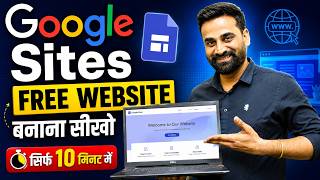
This video is a step-by-step tutorial on how to create a Google My Business (now Google Business Profile) listing for a local business. The presenter, Rahul, a digital marketing expert, walks through the entire process live, from searching for the service to verifying the business, and provides tips on ranking the listing on Google Maps.
The video is aimed at anyone with a local business, such as a shop, showroom, school, or college, who wants to list it on Google My Business.
Rahul introduces himself as a digital marketing expert with 7 years of experience running his own agency.
To start, go to Google and search for 'Google My Business'. Click on the official 'Google Business Profile' website.
Google offers a free business profile. Click 'Start Now' and ensure you are logged into the Google account you want to use for the listing.
Enter the name of your business (e.g., 'Skills Baja') and click continue.
Select the business type: online retail, local store, or service business. If you have a physical store, select that option.
Enter your website URL if you have one. Then select the business category (e.g., 'online education or training').
Enter the physical address of your business, including state. If the address is not recognized, click 'None of This' and proceed.
Use the map to pin the exact location of your business. Confirm the pin to list your business at that location.
You can add your contact number to highlight it on your profile, or skip this step.
Verification is crucial. Without it, your listing will not be verified and will not be yours. The verification process starts after completing the initial steps.
Add services, business description, and photos. Photos help customers see your business on Google Maps.
You can claim a $20,000 advertisement credit (likely a typo for $200 or similar) or skip it. This is for Google Ads marketing.
After completing the steps, your profile is created. You can edit and add more details later.
Google My Business listing gets approved in 10-15 days. After that, it can rank in local searches on Google Maps.
To rank your listing, get positive ratings and reviews. Google ranks listings with positive reviews higher.
The video concludes with a summary and an offer to create the listing for a fee (₹1500, or ₹1000 for subscribers).
Creating a Google My Business listing is a straightforward process that can be completed in about 10 minutes. To ensure your listing ranks well on Google Maps, actively collect positive reviews and ratings.
What is the first step to create a Google My Business listing?
Search for 'Google My Business' on Google and click on the official website.
01:37
How long does it take for a Google My Business listing to get approved?
10 to 15 days.
07:59
What is the key factor for ranking a Google Maps listing?
Getting positive ratings and reviews.
08:13
What are the three business types you can select when creating a listing?
Online retail, local store, and service business.
02:44
What happens if you don't verify your Google My Business listing?
Your business will not be verified and the listing will not be yours.
05:36
Ranking depends on reviews
Directly addresses a common problem and provides a clear, actionable solution.
08:13Approval time is 10-15 days
Sets realistic expectations for users.
07:59Listing is free
Highlights a key benefit of Google My Business.
02:02[00:03] any local shop, you have a showroom, you have a school, a college or you have any kind of physical store and you also
[00:15] want to list your business on Google My Business, then today's video is going to be most important for all of you. Look friends, my name is
[00:27] Rahul. I am a digital marketing expert. I have been running my own digital marketing agency for the last 7 years. expert. I have been running my own digital marketing agency for the last 7 years. teach you that brother, if you have any local business, then
[00:40] how can you list that business on Google Maps and by listing it on Google Maps, and by listing it on Google Maps, See, in this video today I am going to show you the listing of a Google My Business
[00:56] live step by step and I am going to tell you and I am going to tell you
[01:08] do watch the video till the end and if you want to watch more such videos continuously then you can join me. Subscribe to this channel and press the bell icon to get updates on upcoming videos. You will keep watching and
[01:21] learning. Let us now begin today 's video.
[01:37] list any of your businesses on Google My Business, what is the first thing you have to do? Friends, you will have to go here to Google Pay and here you have to type friends Pay and here you have to type friends Google My Business and simply friends, you have to
[01:49] click on the search button. Like friends, you will click on the search button and here the website will come to you Google Business Profile Get Listed on Google. So simply friends, you have to click on this website. As soon as you
[02:02] click on this website, friends, here you are going to stand out on Google with a free business profile. See, whatever business profile you create on Google, Google does not charge you any fee for it. You can do the listing for free. So now you have to click on the
[02:15] Start Now button given here. Like friends, if you click on this, you will see that your account will be automatically logged in here with your email ID. So you must have a mail ID on which you will
[02:28] do the listing. Take care of this thing. Ok? So I have used the mail ID here. Now friends, here you will have to enter the name of the business. So, here I have a business called Skills Baja, so I will
[02:44] use it here and click on the continue button here. Like friends, you will click on the continue button. Now here comes Choose Your Business Type. So here there are different options like online retail, you have a local store, you have a
[02:57] service business, you will have to select that, so can tick here, if you also have an online store then you can tick here
[03:09] and if you provide any service etc. then your business makes visits to customers, okay if you provide any service by going to the customer's house then options in which I have websites etc. and I also have a local store. So I will simply
[03:24] click here and click on the Next button. Now friend, as soon as you click on the next button, now here the option of add your online store will come, what will you have to do in it? You will have to enter the URL of your website. So now
[03:37] You will have to enter the URL of your website. So now click on the Next button. So you will have to put your website here. After that friends, the business category is coming here. So I will put online
[03:51] education or training here, I will put it something like this. Education I will put something like this. Let me take a look at the skills once because my website is related to skills. So okay, we'll just put anything in now. We can change this later.
[04:06] So we started an education centre. After that click on the Next button. So whatever your business is, you will have to select it here according to its category. And after that the next option is coming, enter your business address. So wherever your
[04:18] shop is located, you will have to enter it here. Like I enter any address here. And after that friends, you have to select the state. Like my state is Rajasthan. So I selected Rajasthan here. Clicked on the Next button.
[04:30] what option are you getting here? Is there your business? So look here, different options are coming to you that is this your business brother? So this is not our business. We will click on None of This and here we will
[04:42] click on the Next button again. As soon as friends, you click on the Next button again, the you. Friends, what you have to do in this is that wherever your institute is, you will have to put
[04:55] this Google Map in this way to list your business there. Ok? Wherever your store is located. Like I tick it here and confirm it here. So my business will be listed here. After that comes
[05:08] Add Your Contact Number. So if you want to highlight your number in Google My Profile then you can add your number here. Otherwise I will click on the skip button. Like friends, if you click on the skip button, you will put your business on the map.
[05:21] So here you will have to select both the options and click on the continue button. Like friends, you will click on the continue button. Now almost all the process of our Google My Business listing gets completed here. And here
[05:36] your verification process starts here. So friends, you will have to do the verification process. If you do not do the verification process then brother, your business will not be verified here. The listing will not be yours.
[05:49] So our verification is done. After that comes the customized profile. So friends, you can add your services here. So my service is can add your services here. So my service is to try a secondary education. Ok? This is how
[06:02] we offer services to people. If you want to add any custom service as per your requirement then you can do it. And after that click on the Next button again. Like friends, you will click on the next button. Now here
[06:14] you have to select Business Arts. So you click on the next button. Like friends, you will click on the next button. So whatever description you have related to business, you can
[06:28] add it. After that comes add photo. So friends, you will have to choose whatever photos of your business are there in this. Like I enter any photo here, see it here, in this way I enter the photo. If you have any store, showroom or
[06:41] school, you can upload its photo here. So what will that photo be? People will be able to see it on Google Maps and they will be able to know about your school, college, how the school looks, how the shop looks, how the showroom looks. In
[06:53] this way you can put images here. Ok? For example, you can put images like this. So after placing the images here, you have to click on the Next button. After that friends, you will get the option to claim your 20,000
[07:06] advertisement credit. Friends, if you have a local shop or a business listed on Google My Business, then you can also market it through Google Ads. want to do marketing then you can click on Claim Your Credit for now or if you do not
[07:20] want to do it then you can skip it by clicking on the skip button. Our work is almost complete. Now we will click on the Next button. As soon as you click on the next button, see friends, you will be able to see our profile like this.
[07:33] And look like this, our business profile has been created. The address etc. arrived. If we want, we can add more missing details here. Ok? Friends, as soon as you add all these things, you can edit
[07:45] your profile from here. Your entire profile will be updated automatically. And look at the Google team, there is a time for verification. Your Google My Business listing gets approved in 10 to 15 days after entering all these details
[07:59] and after that, if anyone searches on Google My Business or Google Maps by entering keywords related to your business in the locations around you, then your listing ranks there. There's one more thing I want to tell you about end ranking.
[08:13] See if you have a Google Map business listing and it is not ranking, many people face this problem in Google Map. So let me tell you there is a solution for that. Its solution is that brother, you should get ratings and reviews posted on the listing of your Google Map business.
[08:26] brother, you should get ratings and reviews posted on the listing of your Google Map business. then your web sorry business listing on Google will never rank in Google. So if you want to rank your business
[08:40] listing on Google Maps, then get good if you are positive. If you post something positive, Google will rank it. If you don't add it
[08:53] then Google will not rank it. Ok? So keep this thing in mind. If you are doing the right work on your listing then you can easily rank your listing in Google. Ok? So friends, this was today's
[09:06] complete video in which I told you how you can complete your Google My Business listing in just 10 minutes. There is one more thing I would like to share with you in this video. Look friends, if you also have a business
[09:18] and you also want to create a Google My Business listing profile for your business. That listed on Google Maps then you can call our team. I have given you the number in the description. What will our team do? Your Google My
[09:34] Business listing will do it for you. We charge ₹1500 for that or if you are our subscriber, we will list you within ₹1000 and share it with you. If you want to get the listing done, the team number is given in the description.
[09:49] Talk and get your business listed and you can take it online. Ok? So that's all for friends. I will meet you in the next video with a new topic. My heartfelt thanks to all my dear friends for watching today's video completely and supporting and subscribing to me and my channel.
[10:02] supporting and subscribing to me and my channel.



⚡ Saved you 0h 10m reading this? Transcribe any YouTube video for free — no signup needed.