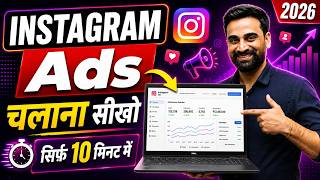

Why Run Instagram Ads via Facebook?
45sExplains the surprising connection between Instagram and Facebook's ad manager, piquing curiosity.
▶ Play Clip"Delivers a solid step-by-step tutorial as promised, though it includes some promotional fluff and a lengthy course pitch."
This video is a step-by-step tutorial on how to create and run Instagram ad campaigns for business promotion. The instructor, Rahul, demonstrates the entire process using Facebook's Ad Manager, explaining budget allocation, audience targeting, placement selection, and ad copy creation. The tutorial is designed for entrepreneurs and business owners looking to promote their products or services on Instagram.
Rahul introduces himself as a digital marketing coach and promises to teach viewers how to create an Instagram ad campaign within 10-15 minutes, covering budget, targeting, placement, and ad copy.
To run Instagram ads, you must use Facebook's Ad Manager because Instagram, Facebook, and WhatsApp are all owned by Meta, and ad placements are managed through Facebook's platform.
Open your Facebook profile, go to the menu, and click on 'Ads' to access the Ad Manager. Ensure you are using your real profile.
Click 'Create' and select an objective, such as 'Engagement'. Then choose 'Manual Placement' and continue.
Enter a campaign name (e.g., 'Digital Marketing Course Live'), keep campaign details as 'Engagement', and set the budget. Choose 'Adset budget' and set a daily budget (e.g., ₹1500).
Name the ad set, select conversion location (e.g., 'Calls'), set performance goal to 'Maximum number of calls', and choose the Facebook page.
Set a daily budget (e.g., ₹1500) and disable scheduled ads by removing the tick.
Set location (e.g., India), minimum age (e.g., 20), language (e.g., Hindi), maximum age (e.g., 40), and gender (all). Use detailed targeting to select interests like 'digital marketing' and 'business owners'.
Choose 'Manual Placement' and deselect Facebook to ensure ads run only on Instagram. Ads will appear in Instagram feed, profile, explore, stories, and reels.
Add a name for the ad, connect your Instagram profile (required for Instagram ads), and upload creative (single image). Enter the destination phone number with country code.
Use ChatGPT to generate primary text and headline. Paste the text into the ad copy fields.
Review the ad preview, click 'Publish', and the ad will go under review. Once approved, it will start running. Ensure you have funds in your ad account.
The video provides a comprehensive, step-by-step guide to creating Instagram ads using Facebook Ad Manager. By following the instructions, business owners can effectively target their audience and run successful ad campaigns on Instagram.
Why do you need to use Facebook Ad Manager to run Instagram ads?
Because Instagram, Facebook, and WhatsApp are all owned by Meta, and ad placements are managed through Facebook's Ad Manager.
02:03
What are the two types of budgets you can set in Facebook Ad Manager?
Campaign budget and ad set budget.
05:06
What is the first step in creating an ad campaign in Facebook Ad Manager?
Click 'Create' and select an objective, such as Engagement.
03:48
How do you ensure your ad runs only on Instagram?
In placement settings, choose 'Manual Placement' and deselect Facebook, leaving only Instagram platforms selected.
08:40
What is the recommended way to write ad copy according to the tutorial?
Use ChatGPT to generate the primary text and headline, then paste it into the ad copy fields.
11:09
What is the purpose of detailed targeting in ad sets?
To target specific audiences based on interests, behaviors, or demographics, such as 'digital marketing' and 'business owners'.
07:34
What must you do to run ads on Instagram specifically?
Connect your Instagram profile to the ad account.
10:02
What happens after you click 'Publish' on your ad?
The ad goes under review, and once approved, it will start running if you have funds in your ad account.
12:28
Meta's Unified Ad Platform
Explains why Instagram ads are managed through Facebook, a key insight for beginners.
02:03Manual Placement for Instagram Only
Shows how to isolate ads to Instagram, a crucial technique for platform-specific campaigns.
08:40Using AI for Ad Copy
Demonstrates a modern approach to generating ad copy with ChatGPT, saving time and effort.
11:09Ad Review and Approval Process
Clarifies the post-publish process, setting expectations for ad delivery.
12:28[00:03] video. Friends, my name is Rahul. I am a digital marketing coach. And in today's video, I am going to teach all of you that within the next 10 to 15 minutes, how can you create an ad campaign on Instagram and how can
[00:17] you promote your business there by creating your ad campaign on Instagram. I am going to show you step by step how to make an Instagram ad campaign. In
[00:31] whenever you create an ad campaign on Instagram, how to allocate the budget there , how to build it, how to target the audience, how to decide the placement on Instagram and how to write ad copies etc. I am going to
[00:44] give you all this information here and I am also going to show you by creating a live ad campaign. So if you are an entrepreneur, you are a business owner, you have any product , any service, you want to promote it on Instagram and
[00:57] you want to create your own ad campaign, then watch the video till the end. If you watch the video till the end, then after that you will be able to create your own Instagram ad campaign and also promote your business on Instagram. Let me start the video.
[01:09] Look, if you think this video and this channel is useful for you then Sharing with your friends. To join me and watch more such videos continuously, watch more such videos continuously,
[01:24] please subscribe to the channel and press the bell icon button. Let's start today's video.
[01:38] want to market any type of business or product on Instagram, then what should you do first? Friends, you will have to go here on Facebook and simply type Facebook and search. Like friends, you will
[01:50] search by typing Facebook here. Now here you can see friends, in this way Facebook will open in front of you. First of all, what you have to do is, brother, you have to switch your real Facebook profile here. Now look, many people might be thinking that
[02:03] I want to make an ad on Instagram. So why have I come to Facebook? So see, the reason for this is that brother, Instagram, Facebook, WhatsApp all belong to the same company and their ad manager is run by Facebook.
[02:17] We decide all the placements through Facebook's Ad Manager. Whether you run ads on Instagram, WhatsApp, or Threads, any platform that belongs to Facebook, Meta, we target it through Facebook's ad
[02:30] manager only. Ok? So from here we will use Facebook's ad manager and we will target Instagram in ad placement, so that ad will run only on Instagram. Ok? I will explain that entire process to you. Don't worry. Ok?
[02:43] So what do you have to do now? Here you have opened your Facebook ID. Now simply you have to go to the menu here and here you have to click on Ads. Friends, as soon as you click on the ad, your ad account will open in front of you here.
[02:56] But before that, keep in mind that If it does not happen then your marketing will not happen here. Ok? So here you can see that as soon as I clicked, our Facebook Ad Manager will
[03:10] Friends, if you want to learn Facebook marketing in a more advanced way, then advanced way, then
[03:23] If you want to purchase, you can go to the description or go to our website and purchase our course directly or you can also call our team about purchasing Facebook Ads course. They will
[03:35] purchase it and give it to you. Ok? You can also purchase it directly from the website. You will find the link in the description. Ok? What do we do now? Let's go ahead step by step. So let's see what needs to be done to create an ad campaign? First of all
[03:48] you have to go here and click on Create. After clicking on Create, friends, the Here you will have to select an objective. So like here we select an objective of engagement brother. Ok? So we
[04:01] what do you have to do here? Click on the continue button. As soon as you click on the continue button. you have to click on Manual Placement, above Engagement Campaign and here you simply have to click on the Continue button. As soon as you click on the Continue button here,
[04:15] now the complete step by step process of creating our ad campaign will appear in front of us like this. Now here we will create the campaign in three steps. And keep in mind that from here the video will be a little important, so do
[04:27] not skip it. If you have any doubt then comment me. I will answer your questions and if you like the video then please like and share it. Let's move ahead now. So here you see, when you create a campaign, the first thing it asks you is the
[04:39] campaign name, so here you have to enter the campaign name which is your business, which is your live digital marketing course, so I want to promote it here. Ok? Digital Marketing Course Live I put this. And after this friends,
[04:53] option of campaign details. So in this you have to keep options and engagement. Do n't make any changes. After this the budget is coming here. So, first of all, we can decide the budget in two ways, one will be your campaign budget, the other will be
[05:06] your adset budget here. So we will keep the adset budget here only. After that we will remove it from here. And after this, you will not have to make any further changes here. As soon as you click on the Next button, our first step will be completed.
[05:20] And the second step has come, our ad set. Now see what is an ad set? How can we create an add set? I will give you complete information about this, I have already uploaded some videos before this. We have also posted a recorded crash course on Facebook.
[05:34] learn. Ok? So Friends, what do you have to do simply to create an ad set ? Here we will add Ad Set One once so that we will know which Ad Set is this of ours. Ok? After that
[05:49] friends, the conversion option is coming here. So here you have the option to select which location you want. So here you have the option to select which location you want. friends calls. If you are running ads on Instagram and you want to generate calls from there, then
[06:01] calls. After that friends, here in performance goals maximum number of calls and Facebook page became our Wax Media Solution. In this way you will do all the settings here. Have to scroll down. Friends, inside the budget, look here you can see the
[06:15] daily budget. You get the option of daily budget and lifetime budget here. So we will keep the daily budget here and in the daily budget you can choose how much you want to spend daily. So here I made it say 1500.
[06:27] So in this way you can choose your daily budget. Have to scroll down. friends, see here that we will remove the tick on the scheduled ads. We will not schedule our ad. After that you have to scroll down
[06:41] and here you will get an option of audience control. So do audience control. First of all you have to enter the location here. So our target location is India. Whatever location you want to target, you can
[06:54] change it here. After that friends, you will see the option of Show More here. So here you will get a chance to select the minimum age. So here we will make it 20. Ok? after scrolling down you will also get the option of language. So language friends,
[07:08] I put Hindi here. So here you can select your language in this way. Whatever your product, whatever your service, you will have to target its audience according to its language. What to do after this?
[07:21] Scroll down and here you will have to create the audience in a little more detail. asking that brother what will be the minimum and maximum age ? So we will keep our maximum age as 40. Ok? And here we will keep gender as all. After this,
[07:34] friends, detailed targeting is coming here. So this is very important. target the audience that can digital marketing course ? They will either be business owners or
[07:48] entrepreneurs or people who are interested in digital marketing. digital marketing here. Ok? I enter digital marketing. So look here digital marketing has arrived. And all the people who are interested in digital marketing will be
[08:01] automatically targeted here. Or if I want, I can also target business owners here. I'm putting business owners here. Ok? And here will come small business owners or business owners.
[08:15] Look, it is coming. Business Owner Here it is coming. You will also get the option of small business owner. Here it is. So I will tick this here. So in this way you can target your audience. So in this way you can target your audience.
[08:28] You can directly target those people here who can become your customers. you will get the option of placement. So in placement, you friends can also decide where your ad will run. So this is what we were asking you to decide.
[08:40] I was telling you to decide that I will tell you how your ad will Look, we will go to manual placement and after going to manual placement, see, here you get the option of platforms. So look at the platform,
[08:53] selected here. So we will also remove Facebook here. Now what will happen once Facebook is removed is that our only placement will be Instagram. The platform will remain Instagram only. And look, our ad will run in the Instagram feed, ad will run on the profile
[09:07] , ad will run on the Instagram explorer. Similarly, it will work in Instagram Stories and Ok? So wherever ads run on Instagram , only our ads will run there on Instagram. This ad will no longer run on Facebook. But we will run the ad through
[09:21] Facebook's ad manager. Placements are targeting Instagram. So in this way, targeting Instagram. So in this way, scroll down and after scrolling down you have to
[09:37] You can also remove this by ticking this one. Ok? Exclude Platform. Ok? In this way, and here you simply have to click on the Next button. As friends, you will click on the next button, here you will see that your last step is still left. And this is
[09:50] our ad copy. So see how to write the ad copy , how to mention it. First of all, add name here, so here we will keep one. Apart from this, I will not add anything else. And here our identity remains at the end. So
[10:02] come here automatically. The Instagram profile is not connected to it. So that's why Instagram will not come here. Ok? But you will have to connect your Instagram profile here. not connect your Instagram profile, your ad will not run on Instagram. So
[10:16] you can see here. Let me check if Instagram is connected with it? So I'll tick this again. Ok? So here, if you want to run it on Instagram, then brother, you will have to connect your Instagram profile here. Ok? We are
[10:29] selecting a Facebook page here. Ok? And what do you have to do after that After scrolling down, friends, here you have to see the ad creatives. So here we will keep manual upload. And here you have to keep single image and cross.
[10:42] In end destination you will have to enter your country code here. Like I you will have to add the number here. So whatever your number is, you can add it 714267, so in this way you can add your number.
[10:55] You can also see the OK call back request option here. So if you want to do it, you can do it. Here your setup is creative, so here we will click on add image and after clicking on add image, whatever ad image you have, you will have to add it here. So
[11:09] this image here is ours. We will do this next. And here we will keep its size etc. original. Ok? And here we will do next again. After that friends, you can get the primary text written by charge GPT. I already got the primary text written from Charge GPT.
[11:21] This primary text here is written by After copying, friends, we come back and paste the primary text here. You can get these four written by GPT. Friends, here in the headline
[11:35] you can add live digital marketing course. Ok? And after that friends, you have to scroll down. Here you have to enter live digital scroll down and click on the Next button again. And
[11:48] look here you have image generation, some images are being automatically generated for you. So brother, you do not have to use any of these images. These are useless images. We will keep only the images we have. We click on the Next button again.
[12:01] languages are being translated. So we will not translate any language here. Here again we will click on the Done button. As soon as you here, they are installed in this way. As soon as the ad creation feel is applied,
[12:14] scroll down a little, you will see the entire ad here. you will get to see your ad. The call now button is person will directly call us.
[12:28] we will receive the customer's call and will reply to him as per his requirement. Finally click on the publish button and as soon as you publish it, our ad will go under review and after coming out of the review and after the ad is approved,
[12:43] our ad will start running here. Let me show you how to cross this and show you. And here we click on a campaign. And see, in this way your ads will be submitted here. Ok? Now
[12:58] what to do here? Is. As soon as you come out of the review, Meaning, funds have to be added. As you add funds, your ads will start running on Instagram. Ok? How to create ad campaigns on Instagram? Using
[13:14] Facebook Ad Account That I think you must have understood. If you have any doubt or confusion then please comment. I will definitely try to answer your questions. If you like the end video, please like and share it so that our videos can
[13:26] reach as many people as possible. We can get support. Ok? So that's all for today's in the next video with some new information. I will definitely make an announcement before ending the video. Look friends, if you are a person who is running a business,
[13:39] you are a working professional or a housewife, a student and you are , then we have launched our live digital marketing course. We already have many batches. And
[13:52] We make a batch every two months. So if , doing digital marketing course, then you can join our batch. You will find my team number in the description. Get information about the course. If
[14:05] anyone wants to have a meeting with me, he can do so with me. You can in next 60 days I will teach you Digital Marketing. We have kept the fee for our course at ₹15,000 which is quite less for you. Now whoever wants to join can contact our team.
[14:19] So that's all for today's video. See you my channel and subscribing.

⚡ Saved you 0h 14m reading this? Transcribe any YouTube video for free — no signup needed.