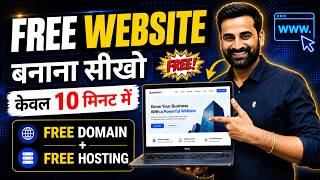

How to Make a FREE Website in 15 Minutes!
44sPromises a quick, free solution for a common business need, capturing immediate attention.
▶ Play Clip"Delivers on the promise of a free website tutorial, but includes promotional fluff and upsells."
This video is a step-by-step tutorial on creating a free website for a business using the website.com platform. The presenter demonstrates the entire process, from signing up to customizing templates and publishing, emphasizing that no money is required for the basic plan. The video also mentions optional paid upgrades and additional services offered by the presenter's team.
The video is aimed at business owners who want to create a website without spending money.
The presenter is a digital marketing coach and entrepreneur, promising to teach viewers how to create a free website in 10-15 minutes.
The free website includes a free domain name and free hosting, with no payment required.
The presenter recommends website.com (ws.com) as the easiest platform, though other options exist.
Website.com offers free hosting, custom domain email, online bookings, and product selling.
Click 'Start Now', then choose 'Complete Free Website' (no credit card required). Select the 'Start for Free' plan which includes 5 pages and 500 MB storage.
Sign up with Google using any email ID, then wait for the account to be created.
A ready-made website is provided; users can edit it or choose a different template from the template library.
Editing is done via drag-and-drop: change text by clicking, change images by uploading or selecting from stock.
Add company description, services, and change images to match the business.
Edit footer with address, phone, email, and logo. Manage pages (home, services, contact) via page settings.
Click 'Publish' to get a free domain and view the live website.
Optional upgrade to a professional domain or premium plan ($4/month) for more features like unlimited pages, 2GB storage, SSL, and no ads.
Share the URL with customers to sell products or services directly.
The presenter's team offers professional website design on WordPress with domain and hosting, and a digital marketing course.
The video provides a straightforward, free method to create a business website using website.com, with optional paid upgrades for more features. It also promotes the presenter's paid services for those seeking professional help.
What is the first step to create a free website according to the video?
Go to Google and search 'free website'.
01:34
Which platform does the presenter recommend for creating a free website?
website.com (ws.com)
01:47
What does the free plan on website.com include?
5 pages, 500 MB storage, forms, online bookings, and online store.
03:18
How do you sign up for a free website on website.com?
Click 'Start Now', choose 'Complete Free Website', select 'Start for Free', then sign up with Google.
02:53
What is the cost of the premium plan mentioned in the video?
$4 per month.
14:14
What are the benefits of the premium plan?
Unlimited pages, 2GB storage, SSL, customizable forms, online store, no ads, premium support, and 30-day money-back guarantee.
14:27
How do you change the background image on the website?
Click on the image, select 'Select from Files', upload or choose an image, then click 'Save'.
06:58
What is the final step to make the website live?
Click the 'Publish' button.
13:20
Free Domain and Hosting
Highlights the core value proposition: a completely free website with domain and hosting.
00:48Free Plan Details
Specifies the exact inclusions of the free plan, setting clear expectations.
03:18Publishing Process
Demonstrates the simple one-click publish process, making it accessible for beginners.
13:20Premium Plan Value
Presents a low-cost upgrade option with significant benefits, useful for scaling businesses.
14:14[00:03] video. Look friends, today's video is going to be most useful for all those people who want to create a website for their business , but do not want to spend any money in making that website. Meaning, if you want to learn how to create a free website for your business
[00:17] , then you must watch this video till the end today. Look digital marketing coach. I am an entrepreneur, a business owner. And today in this video I am going to teach you brother how you
[00:32] can also create a free website for your business and that too within the next 10 to 15 minutes. Today in this video I will also show you how to create a free website step by step, after watching which you will be able to learn yourself and you will be able to create your website easily and list your business there.
[00:48] And in the website that we will create, you will also get a domain name. All the domains that are there will be available for free. Plus you will also get free hosting etc. in it. You don't have to pay any money to anyone. Ok? So let's
[01:01] start the video and learn how to create a free website. Before starting the video, I would definitely like to make a request to all of you. If you think that the video and this channel is Sharing with your friends. To join me and
[01:14] join me and press the bell icon button. Let us now begin today's video.
[01:34] So what's the first thing to do, guys? You will have to go to Google Baba and here friends you will have to type free website and simply you have to click on the enter button. As soon as you click on the enter button, friends, see here some
[01:47] platforms are coming. You can select any one of these platforms. If you talk according to me, then friends, the easiest and simplest for you is ws.com, so here I click on website.com and
[02:00] as soon as friends, you click on website.com, this platform opens in front of you. Look, there is no recommendation from my side. You can create a free website on any platform. You get a lot of platforms.
[02:12] But I am opening website.com for you because it is easy to can easily create your website. Now look here friends, it is written Buy a domain name get free website and email, in which you get the option to create a free website
[02:26] and you can do this thing inside your free website, you get free hosting, you get custom domain email in it, you can take bookings etc. online and you can also sell products etc. online,
[02:41] what to do here now? You have to click on the Start Now button given below. And friends, as soon as you click on the Start Now button which is given, now the process of creating your free website starts. Look here friends, first of all
[02:53] coming is Buy a Domain Name Get Free Website and Email Name. Ok? So look here friends, if you want,
[03:05] Or here is another option, sign up for a completely free website. No credit card, none required. So here we will click on Complete Free Website. Like friends, you will click on the complete free website.
[03:18] You can see here that the plans that you have to sign up for will be opened in front of you. And you have to choose this first plan. Start for free in which we will get a completely free website. We can create five pages. 500
[03:31] GB of MB storage will be available. And you can put forms etc. here. You can take online booking etc. And other online stores etc. We can also sell products in it. So we will choose this plan here. Ok? So we will click on Start for Free.
[03:44] click on Start for Free. Now we will click on Sign up with Google. And here we will use a mail ID. use any one mail ID. And friends, as you will use your mail ID,
[03:58] And friends, as you will use your mail ID, click on the continue button. As friends, when you click on the continue button, you will wait is coming. That means your account on website.com is being created now.
[04:13] Like friends, your account will be created. Now see, the next step will open in front of you. Look, in this way the next step opens in front of you. Once we click on the Next button,
[04:27] your next step will open in front of you. Click on the Done button. Ok ? Now friends, here you can see that your website.com dashboard has opened in front of you. And what is the most important thing ? Look here,
[04:41] you have already found a website ready. Look, you have already got the entire website ready. Now you don't have to do anything in this. If you want, you can design and develop this website. Or suppose you don't like this website, then
[04:54] what will you do here? You will click on the template library and here you have multiple templates. Look, there are multiple templates. If you want any one template then you can choose that template. And according to that template you
[05:08] can create the website. So it will depend on you which template you want to take , which template you want to work on. Look here you get the entire section. Temperate library is available. Here you get the option to design the site.
[05:21] Here you get the site file. You can manage your online store from here. You You can manage your online store from here. You Ok? So in this way, the entire
[05:34] landing page or dashboard of your website.com opens in front of you and in a way, this website is ready for you. what shall we do now? Suppose this website has been created in front of us. what shall we do now? We will design this website according to our business for
[05:48] free. No charge to be paid. So what did we do first? Created an account on website.com. After that, after our account was created, the dashboard opened like this. And this website is ready for us. Now we will
[06:02] design it. After that we will publish it and get our free domain. And our website ready done. That's all the work, just create a free website. what shall we do now? Look, I will design it. The design process is simple. Suppose
[06:15] This needs some changes. So we will put it here. For example, suppose any of us has a website. So we will put it here like a welcome to Wax Media. Ok? That's all you have to do. After that, this change has to be made here. So,
[06:31] ? If you scroll down a little, you will see this written. Ok? We you will see this written. Ok? We provide the best digital marketing
[06:43] services. Ok? This is how you can write. If you want to change this content then you can change this also. You have to make some changes in place of the Get Started button. For example, if you want to call us, you can call us. If you want to change the contact us one, you can do it.
[06:58] Here your image is pasted behind the question. So you will click on it. The image option is coming here. We will click on Select from Files. And here you get options for images. So here we will click on social media trash
[07:11] stock images. And whatever our business is, we can use some images here related to it. Like here we will put digital marketing. Like here we will put digital marketing.
[07:23] Like friends, if you click on the enter button, matter. You will have to take or
[07:35] upload the images for digital marketing. So I click on My Files. And I can upload it here. I will click on upload. And here I can put any image as per whatever your product is,
[07:48] you will have to download and keep the images etc. accordingly. Ok? So for example, suppose I upload this image today. So I will click on the upload button and in this way this image will be uploaded here. Ok?
[08:01] So look, the image is being uploaded here. It will take a little of your time. Ok? So what can you do in this way? Whatever product or service you have, you will have to keep its images etc. first. And you can easily upload that image here.
[08:14] can see that this image has been uploaded. So I will select this one. Friends, what do you have to do after selecting the end image? I have selected this image and will click on the save button. As soon as I click on the save button, friends, my
[08:27] background image will change. Friends, what will I do after changing the image in this way and this way scroll down. After that friends, here you have to write about the company. So whatever you want to write about your company, you can write it. Like
[08:40] welcome to here I will write Wax Media. Ok? In this way you can write Welcome to Wax Media. Ok? And here we will write A, Best Digital Marketing
[08:58] Digital Marketing Company in Jaipur. This is how you can write. And you will have to give a little description about your company here. You can change whatever buttons you want. This image has to be changed here. So brother, the
[09:10] What do you have to do in this way? Have to scroll down. And service is written. So here you will have to change the service in other services. Like the basic plan is written here. So you can put it in its place. Like I
[09:23] want to provide web design services. So I'll put web design. And what do I have to do here? This image will have to be changed. So here I will click on Image and here I will click on Select from Files. Friends, as soon as
[09:36] I click on Select from Files, I will get the option to change the image here. Ok? So what do we do? Here So what do we do? Here we search by using web design logo. And here we
[09:50] we search by using web design logo. And here we search on the image. Or you will have to take any image like this. Sorry, assume you took the image. You can take any image like this. And
[10:05] I save this image here. Ok? Whenever you put an image on your website, use a copyright free one. Ok? This is how I download this image. And what will we do here? We will upload this image. Ok? So
[10:18] look, this is how we can upload this image here. And this image has been uploaded here. Okay? Now we will select this image here and save it. So look here, its logo has changed and its web design. After that friends, you
[10:32] Whatever you want to keep in the starting price. And here you can change your description as per your requirement. Like we can put here we offer best web
[10:45] services in your budget. Ok? In this way you can put all your services here. Rest of the
[10:57] friends, you can change the two services in the same way by dragging and dropping. After that friends, your footer comes here at the end. So if you have to make any changes in the footer like you have to use the address here, then you can put 702 A
[11:11] you can put 702 A like Balaji Tower Jaipur. In this way you can change your description. You can change the number. You can change your mail ID. Here is your company logo. So here
[11:23] you can change the company logo. Ok? In this way your entire website is almost ready. And these remaining pages like your service gallery, contact us, you will design them in the same manner. If you want to make any changes inside this, here. For example, suppose you want to move
[11:37] Contact Us and Gallery forward or backward here, then you can do it this way. Here, suppose you want to change the name of a page. Some changes have to be made in it. Like here you have to see the page settings. If you want to do SEO of the page then you can do it. And you want to move up
[11:51] , you want to move down. Similarly, if you want to change the name of the page , clone it, disable the page or delete it, then you will get all the options here. You can use any of these to
[12:04] manage your pages. You can manage the menu. Ok? So in this way you can easily manage your entire website on website.com. Editing is done by dragging and dropping. Brother, on the surface, you will get the
[12:16] opportunity to design the entire website. Now if you cannot design a website superficially then brother, then you cannot even create a website. You can create a website in this simple and easy way. If you want to change any text, just click on it and
[12:29] write whatever you want to write. If you want to change the image , click on the image. Please upload your website image. Put an image of the business. It is just that simple. Ok? Now you will make it, if you sit then brother you will make your website. No issue will
[12:42] arise. If you want to change this logo then go and click on the logo and click on select from file. And here, if you have any logo, like this, then we selected it and see here the logo will change. It's
[12:55] that simple. There is no rocket science involved here. Ok? Apart from this, if you want to change any other page then it is kept like home here. If I want to edit the service page, then I will click on service here and
[13:07] whatever I want to edit inside it, as soon as I click on it, the option to edit it completely will appear here. So in this way you can also edit the service page. And the next page is your Contact Us, you can add it in the same way.
[13:20] See the entire Contact Us opening in front of you. So just drag and drop and edit, nothing else. After that, as soon as your editing is complete, click on the publish button of the website and see here that your
[13:32] website has started getting published. And this is it, you have got a free domain for your website. If you want, click on View Your Website and you can finally see the look of your website. How will it look? In this way
[13:46] you will get to see the look of your website. Look at this. Ok? You must be seeing all the changes we have made. If you want to make it a little professional, then brother, you can do one thing,
[13:59] by clicking on Get a Professional Domain Name here, you can get a professional domain name for your website. What Professional Dominium does is it can take their professional domain name. Or you can subscribe to their premium plan.
[14:14] Any small plan. I am not recommending. I am not promoting it. I am not recommending. I am not promoting it. I am $4 monthly plan, then you will get one Domino for one year. Ok? You wo
[14:27] n't find it cheaper than this anywhere brother. Keep this in mind. After that you will get unlimited website pages. You will get 2GB of storage. You will get https. You will get SSL customizable web forms and can take bookings. You can create an online store.
[14:41] And the banner ad of website.com is there. That too will go away. Ok? You will get premium support and there is a 30-day money back guarantee. Now tell me, what else do you want for $4 a month, brother? What else can you get cheaper than this ? Ok? So
[14:56] you can subscribe to any of these plans in which you will get all the benefits and here on website.com you can continue your website. Ok? So in this way, if you want, you can create a free website for your business. If you want to
[15:10] invest a little money, then you way to create your business website in less money.
[15:24] I told you how you can create a free website for your business I taught you how to create services etc. and everything.
[15:36] After creating this website, take the URL of this website. Share it with your customers and there you can sell your product or service directly to your customers through this website. And at the end of this video, I would like to share one more thing with you
[15:49] friends. Look, if you have any business and want to create a website for that business, a professional website, then you can also contact our team. Our team will provide you website designing services
[16:01] at a low cost and the website we will create for you will be provided on WordPress in which you will get one year domain, one year hosting and a professional website. The costing will also be low, we will create and share a complete professional
[16:13] customized website as per your business. If you want to know the price, how will the website delivered to you? So you can contact my team. Apart from this, there is one more announcement for all of you if you are my subscribers.
[16:28] See, if you are an entrepreneur, a business owner, a student, a working want to learn digital marketing, whether to grow your business, for passive income, for freelancing, or for a job, then you can join our
[16:41] live digital marketing course. We have launched live digital marketing course batches for you. When is the next batch? What is his fee? What will you learn in the course ? What will be the benefits?
[16:53] All its information can be obtained by calling my team. You will find my team number in the description. So you can call. Whether you want to get a website made or Ok? So that was today's complete video. I hope you understand the video. If you
[17:06] want to join the channel and subscribe and press the bell icon button. Let's meet video completely, supporting me and my channel and subscribing.
[17:20] my channel and subscribing.



⚡ Saved you 0h 17m reading this? Transcribe any YouTube video for free — no signup needed.