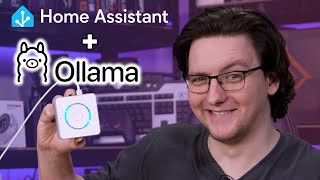

Local LLM for Your Smart Speaker!
48sShows the missing piece for fully local smart home voice control, a hot topic for privacy-conscious users.
▶ Play Clip"The title accurately describes the content: a guide to setting up Home Assistant Voice with Ollama for a local LLM solution."
This video demonstrates how to connect a locally running Ollama large language model (LLM) to Home Assistant Voice, enabling fully local voice commands and question answering. The setup is straightforward and leverages Docker containers for easy installation.
An ESP32-based smart speaker that handles voice commands and home automation locally using Whisper and Piper.
The device lacks a proper conversation agent for answering questions, which Ollama can provide.
Ollama is an open-source way to run large language models locally, and it's easy to set up with Home Assistant Voice.
A reasonably powerful PC with a GPU (lots of VRAM) or at least enough system RAM is needed. The setup uses TrueNAS Scale with Docker containers.
Installation is as simple as clicking install in the App Store, setting parameters like storage pools, CPU cores, RAM, and optionally passing a GPU.
Add the Ollama integration in Home Assistant by entering the server IP and port, then select a model. The command line allows choosing smaller parameter sizes.
Example: 'ollama run deepseek-r1:1.5b' or 'ollama pull deepseek-r1:1.5b' to download without running.
In Home Assistant, go to Voice Assistant, select local assistant, and change the conversation agent to the Ollama model. Adjust settings like instruction, context window, max message history, and keep alive time.
Recommend changing from -1 (permanent) to a few minutes to avoid permanent RAM usage.
Leave LLM control set to 'No Control' to avoid compatibility issues; commands are handled locally by Home Assistant, while questions go to the LLM.
Asking 'How long is an inch in centimeters?' yields a response: '1 inch is approximately equal to 2.54 cm.' Responses are slower due to speech-to-text, LLM generation, and text-to-speech.
DeepSeek R1 produces verbose thinking text; the creator prefers Llama 3.2 for cleaner responses.
Web search capability is desired but not yet implemented.
Setting up Ollama with Home Assistant Voice is remarkably easy and provides a fully local, private LLM-powered voice assistant. While responses are slightly slower, the results are great for answering questions and controlling home automation.
What is the name of the open-source tool used to run large language models locally?
Ollama
0:36
What hardware is recommended for running Ollama effectively?
A reasonably powerful PC with a graphics card with lots of VRAM, or at least enough system RAM.
0:53
How do you install Ollama on TrueNAS Scale?
Click install in the App Store, set parameters like storage pools, CPU cores, RAM, and optionally pass a GPU.
1:39
What command downloads a model without running it?
ollama pull modelname:params
3:48
What setting should be changed to avoid permanent RAM usage by the model?
Change the keep alive time from -1 (permanent) to a few minutes.
4:31
Why is it recommended to set LLM control to 'No Control'?
Because many models don't support tools (required for control) and to keep commands handled locally for speed and compatibility.
4:46
What is the response time like for questions using the local LLM?
Responses take longer than the built-in conversation agent due to speech-to-text, LLM generation, and text-to-speech.
6:02
Which model does the creator prefer over DeepSeek R1?
Llama 3.2
6:54
Ollama as Local LLM Solution
Introduces Ollama as an open-source tool that enables fully local LLM integration with Home Assistant.
0:36Easy Installation via Docker
Demonstrates how TrueNAS Scale's Docker-based App Store simplifies Ollama installation.
1:39Optimizing RAM Usage
Provides a practical tip to change the keep alive setting to prevent permanent RAM consumption.
4:31Balancing Local Control and LLM
Explains the rationale for keeping command handling local to maintain speed and compatibility.
4:46Model Selection Preference
Recommends Llama 3.2 over DeepSeek R1 for cleaner, less verbose responses.
6:54[00:00] a couple of weeks ago I showed off this
[00:02] the home assistant voice preview Edition
[00:05] an esp32 based smart speaker that if set
[00:08] up to use whisper and Piper handles
[00:11] voice commands and home automation fully
[00:15] locally through home assistant it's
[00:17] amazing but the one thing that it's
[00:19] missing is a proper conversation agent
[00:24] sure asking it to turn your lights on
[00:26] and set timers is useful but being able
[00:29] to ask questions and get answers would
[00:32] be really nice that is where AMA comes
[00:36] in ama is an open-source way to run
[00:39] large language models locally and it
[00:42] turns out it's ridiculously easy to set
[00:45] up and connect to home assistant voice
[00:48] so let me walk you through it and then
[00:50] demo just how useful it is first things
[00:53] first you'll need a Lama setup and
[00:55] running and you need a reasonably
[00:58] powerful PC for this ideally with a
[01:00] graphics card with lots of vram although
[01:03] it can run just on the CPU relatively
[01:07] quickly so long as you have enough
[01:09] system Ram too in my case I already have
[01:13] two home servers running already one for
[01:16] work and one for personal use so set up
[01:19] on my personal Nas which is running the
[01:21] latest stable build of true N scale and
[01:25] that latest stable build part is
[01:27] actually really important only in the
[01:30] last few months has tras finally
[01:33] migrated to using Docker containers as
[01:36] their Apps Manager that means installing
[01:39] a Lama is as easy as clicking install in
[01:42] the App Store setting up any parameters
[01:45] you might want like letting it use
[01:47] existing storage pools if you'd prefer
[01:50] and setting up how many CPU cores to
[01:52] allow it to use as well as how much RAM
[01:55] and if you can pass a GPU into it then
[01:59] that too then they're just hitting save
[02:02] that's pretty much it ready to go you
[02:05] can open the container shell and try and
[02:08] set up the various models and you know
[02:11] try them out right in the command line
[02:13] and this does actually give you a bit
[02:15] better control too although we'll come
[02:17] back to that in a second but you can
[02:19] also just leave it alone and head to
[02:21] home assistant you want to head to the
[02:23] devices and Integrations page and add
[02:26] the AMA integration put in the IP
[02:29] address of the Alama server and the
[02:31] correct port and then it will ask you
[02:34] what model you want to use here you can
[02:37] take your pick although this is where
[02:39] the command line interface might
[02:41] actually be beneficial if you don't have
[02:45] much RAM like my server did when I first
[02:47] set this up I've since doubled to 32 gig
[02:50] which still isn't that much for a ZFS
[02:52] server but either way you might find
[02:55] that you need to run the smaller
[02:57] versions of the models wherever possible
[03:01] these models all generally come with
[03:03] differing parameter counts the more
[03:05] parameters generally the better the
[03:08] responses but the harder they are to run
[03:11] and certainly the more memory it takes
[03:13] to run them too from home assistant
[03:17] there doesn't seem to be a way to
[03:19] install a particular parameter size
[03:22] version of a listed model it will just
[03:25] download the default which is often the
[03:28] largest one if if you need to pick a
[03:30] smaller one you might need to use the
[03:33] command line interface anyway which you
[03:35] can then run a Lama run model Name colon
[03:39] parameter size so as an example AMA Run
[03:43] Deep se- R1 colon
[03:45] 1.5b or if you just want to download the
[03:48] model but not run it swap run for pull
[03:52] once you've pulled the models you want
[03:53] or just pick the default in home
[03:55] assistant saving that will create an
[03:57] entity for the model in home assistant
[04:00] you can create as many of these entities
[04:02] as you want and try and swap them out
[04:05] see how the the responses work but once
[04:08] you've got that to be able to use the
[04:10] model with voice head to Voice Assistant
[04:12] click on local assistant and then change
[04:15] the conversation agent to the Alama
[04:17] model you want to use in the settings
[04:21] for that you can change the instruction
[04:23] given to the model along with the
[04:25] context window size Max message history
[04:28] and the keep alive typ personally I
[04:31] would recommend changing that from minus
[04:33] one which means permanently keep the
[04:35] model alive to something reasonable like
[04:38] a few minutes so it doesn't end up
[04:40] sprawling all over your systems Ram
[04:43] permanently there is also a setting to
[04:46] let the llm control home assistant
[04:49] although you will find that it's best to
[04:51] leave that set to No Control partially
[04:54] because a bunch of models don't support
[04:56] tools a required feature for the contr
[04:59] control to work and partially because of
[05:02] the setting in the main menu there
[05:05] prefer handling commands locally this
[05:08] means that commands like turn on lights
[05:11] are handled by home assistant or the
[05:13] home assistant agents while questions
[05:16] that it doesn't know the answer to are
[05:18] passed off to the llm that means those
[05:21] commands are run faster and more
[05:23] efficiently and it keeps the
[05:25] compatibility problem at Bay 2 so now
[05:28] with that set up we've successfully
[05:30] connected home assistant voice to a
[05:32] locally run large language model it's
[05:35] remarkably simple and works pretty well
[05:39] okay
[05:40] Nabu how long is an inch in
[05:54] cenm 1 in is approximately equal to 2.54
[05:58] cm
[05:59] there you go now responses do take a bit
[06:02] longer than the built-in conversation
[06:04] agent because it's now doing speech to
[06:06] text generating response from the llm
[06:09] and then text to speech to voice the
[06:12] answer but considering this is all
[06:14] running locally I'm pretty happy with
[06:17] that the one thing that you'll want to
[06:19] try out and consider is which model to
[06:22] use well deep seek R1 is the new hotness
[06:26] the r in the name may as well stand for
[06:28] reasoning because the responses it gives
[06:31] contain an awful lot of text for a
[06:34] relatively simple question asking it
[06:37] what you know an inch in centimeters is
[06:40] spits out two large paragraphs of
[06:43] thinking followed by a single sentence
[06:46] answer if you could maybe filter out
[06:48] everything in the think tags that might
[06:51] work but for me I just opted to use Lama
[06:54] 3.2 instead that seems to work pretty
[06:57] well the only other thing that I'd like
[06:59] to add to this is the ability to search
[07:01] the web although that doesn't seem like
[07:04] the most simple of additions so I'll
[07:07] have to put that one on hold for the
[07:09] time being in short then setting up a
[07:12] llama and home assistant voice is
[07:14] remarkably easy and the results well a
[07:17] little on the slow side are great let me
[07:20] know in the comments if you set this up
[07:22] and how you get on with it and which
[07:25] model you end up choosing as well so
[07:27] yeah that's how to set it up if you want
[07:29] to see more videos like this one you can
[07:30] hit the Subscribe button check out
[07:31] plenty of other videos in the end cards
[07:33] including the home assistant voice
[07:35] preview Edition review that'll be in the
[07:37] cards on the end cards and in the cards
[07:39] above and otherwise that's pretty much
[07:41] it hope you enjoyed the video thank you
[07:43] for watching if you want to check out my
[07:44] own Open Source Hardware the open source
[07:46] response time tool and open source
[07:48] latency testing tool those are available
[07:50] at os.com Linked In the description
[07:53] nowise yeah thanks for watching hope you
[07:54] enjoyed it we'll see you on the next
[07:56] video
⚡ Saved you 0h 07m reading this? Transcribe any YouTube video for free — no signup needed.