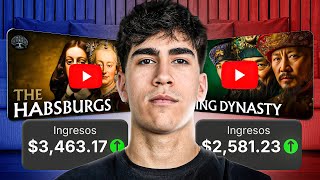

History Niche Explodes: 80K Subs in 2 Months
45sReveals a lucrative niche with rapid growth, promising high engagement from creators seeking success.
▶ Play Clip"Delivers a practical, step-by-step guide but oversells 'free' since some tools have paid tiers."
This video demonstrates a complete workflow for creating monetizable, faceless history YouTube channels using free AI tools. The creator shows how to generate channel branding, find viral video ideas, write scripts, create animated images, and produce voiceovers—all with minimal cost and effort.
History niche is exploding in popularity, with channels like Armcha's Extra History gaining 80,000 subscribers with only 13 videos in two months.
Traditionally, history videos cost $20-$30 each, but AI can achieve similar results for nearly free, potentially earning €10,000-€15,000 per month.
Use ChatGPT to generate a similar logo to a reference channel, but not exactly the same, to avoid copyright issues.
Ask ChatGPT for 10 name ideas based on your content niche, then pick the one you like best.
Create a simple banner with a call to action like 'Help me get the first 1000 subscribers' to increase subscription rates.
Go to YouTube Studio, customization section, upload logo, banner, and set channel name and identifier.
Generate top 10 keywords for your niche using ChatGPT and paste them into YouTube settings to help the algorithm recommend your channel.
Selecting viral ideas is crucial; even the best video won't grow if the idea isn't in demand.
Use the Viral tool (paid) to find viral ideas by filtering channels with up to 500k subscribers and analyzing view-to-subscriber ratios.
An idea with 900k views from a 30k subscriber channel indicates high potential due to excellent view-to-subscriber ratio.
Save selected ideas to an analyst folder to get suggestions on hooks, video structure, and thumbnails.
Copy the transcript of a popular video in your niche, paste into ChatGPT, and ask it to generate a new script with a different structure.
Convert the script to JSON format using ChatGPT, then paste into Whiskey tool to generate animated images (10 free attempts).
Use CapCut or ElevenLabs for text-to-speech; both have free trials, CapCut costs €18/month, ElevenLabs is more expensive.
Create a new project in CapCut, select 16:9 format, import images, voiceover, and royalty-free music, then export.
For evergreen channels, upload 2-4 videos per week; consistency is more important than quantity.
By following this AI-driven workflow, you can create a profitable faceless history channel with minimal investment, focusing on viral ideas and consistent uploads.
What is the approximate cost of traditional history videos?
$20-$30 per video.
00:16
How many free attempts does Whiskey provide for image generation?
10 attempts.
14:13
What is the recommended upload frequency for evergreen channels?
2-4 videos per week.
19:13
Why is it important to filter channels by subscriber count when finding ideas?
To validate that ideas have high demand regardless of channel size.
07:50
What does the Viral tool's folder analysis provide?
Suggestions on hooks, video structure, and thumbnails.
09:34
What is the cost of CapCut per month?
€18 per month.
16:39
Exploding Niche
Shows the potential of the history niche with rapid subscriber growth.
00:01Importance of Viral Ideas
Emphasizes that idea selection is more critical than video quality.
05:25View-to-Subscriber Ratio
Provides a concrete metric to validate video potential.
08:29Script Rewriting
Shows a method to create original scripts by restructuring existing ones.
10:40Consistency Over Quantity
Advises maintaining a sustainable upload schedule for long-term growth.
18:33[00:01] history niche that's currently exploding in popularity. Dynamic profiles, more than 80,000 subscribers with only 13 videos. And the best part is that they started just two months ago. Channels like Armcha's Extra History, Historian's, or Epic
[00:16] views with history videos in 3D animated style. And this is where it gets interesting. Traditionally, making videos like this costs between $20 and $30 help you achieve the same results with much less effort and much less money.
[00:32] Everything will be generated with artificial intelligence and practically free. And it's the same method I use with my channels to generate between €10,000 and €15,000 per Let's start with the first point, which is channel customization, including the
[00:46] logo, banner, and channel name. To create the channel logo, we will follow two steps. The first step is to go to YouTube and take a screenshot of the logo. And the second step will be to go to ChatGPT and tell them to generate a similar logo for us,
[01:00] but adapted to our style. It's important that you don't copy and paste and make a logo exactly the same. So we're going to copy it here and paste it into the GPT chat. We're going to tell him, "Generate a similar [music] logo with
[01:14] "Generate a similar [music] logo with yellow colors, but not exactly the same." We're going to press enter and see what it generates. He create the logo. It's already generating the logo, as we can see on the
[01:28] screen. We see that, look, notice, he's made us a logo that's quite similar, recommend that if you see yourself forward, you refine the logo a little so that it's not exactly the
[01:42] see how you can do it, we'll leave it like this. Once we have created the logo, channel name. One of the problems people have is that they get mentally confused and overthink what kind of name or what name they should call
[01:56] the channel. Personally, what I do is ask Chat GPT, I give them a little information about what kind of content I'm going to upload and I tell them to generate 10 names for my own YouTube channel and the one I like the most is the one I put on
[02:09] my channel, I don't overthink it too much . So we're going to say, give me 10 names for my YouTube [music] channel where I talk and upload videos about history from years ago. We're going to press enter and you'll see that it will automatically and very
[02:26] quickly give us 10 names, and from there we're going to choose the one generating chronicles of the past, echoes of history, eternal legacy, archive of for example, I liked the one about eternal legacy . So, since it's
[02:40] eye, we'll select this one. At the banner level, you don't need to overthink things words, all I do in the banner is make a call to action. I propose that help me get the first 1000 subscribers. This means that when you
[02:55] tell someone to do something, if that person liked your content, it likelihood and rate of subscriptions. Once we understand how we have done this customization, let's create the channel. Once we have
[03:07] created the YouTube account, what we would have to do is go to YouTube [music] Studio of that channel of that account we have created, go to the customization section which we find in this sidebar below and
[03:19] put the logo, put the banner and put the name and identifier of the channel. I've already the banner here, you can put a call to action, you can even not put a banner, , but we have to take it to a much simpler [music].
[03:32] So, create any banner, put the subscription option, and for the logo, what we would have to do is go to [music] to GPT chat, save this image, click save, and for the channel name we would have to copy the one
[03:44] we have chosen, which is eternal legacy, go here and put the eternal legacy name and the identifier here as well. Okay? If we see that it doesn't let us because here it tells us that they don't accept it. Let's put, for example, a low bar
[03:59] accepts it. To upload the logo, click here in the image section. Click here to upload and we'll upload the file. We arranged it a little bit [music] . We click on done and then we would click on
[04:12] publish. You're not posting anything, you're just updating [music]. metadata. And what do I recommend you continue with regarding Metadata? giving the channel information about what kind of content we are going to upload so that it can be
[04:28] recommended in an easier way. As you know, nothing is easy, but it is YouTube information about [music], what type of content, what type of videos we are going to upload, it is more likely that it will be recommended a little faster. To do
[04:40] this, we're going to go down here to the gear icon, to the settings, we're going to select channel, and from here I want you to generate keywords for [music] know them, which you should also know according to your reference channels, you're going to
[04:53] go to Chat GPT and say, "Give me the top 10 [music] keywords for the niche I told you about." Notice that it's already starting to generate would have to do here, the process we would have to follow, is to copy, go to
[05:10] YouTube Studio and paste little by little. Okay, you can copy them all, go going to copy all the words for you, I 'm just doing it so we have seen step one, the customization of the channel, let's now go
[05:25] to step two, which is one of the most important steps and is the step of the winning ideas. To do this, I first want you to understand what it is and the importance of it, the importance of having winning ideas within our channel.
[05:37] Look, we can make the best video, we can have the best niche, but if we don't really select viral ideas, we'll never get to exploit our channel. Because? Because if we select ideas and upload videos that do
[05:50] difference, and that don't take advantage of the current demand, we won't go grow. To do this, it's important that you focus 100% of your attention on finding those viral/potential ideas. Personally, to select
[06:05] ideas from my automated channels, from my own channels, I use the artificial intelligence tool for finding paid tool, but it ensures you select good ideas, which I've already
[06:18] told you is the most important thing, and it saves you many hours of your time explain a little bit about how the tool works. We have the first main page, which this tool selects and finds for you
[06:33] [music] according to the keywords you enter. You can enter keywords from your niche or you can ask generate those keywords for you. I'm going to show you how it works now. Here we have
[06:46] the keywords section, and we can add them manually, or as I said, we can ask the I. To do it faster. I'm going to To do it faster. I'm going to tell it, "Give me the best
[06:58] tell it, "Give me the best keywords in English to find keywords in English to find viral ideas in the story niche. viral ideas in the story niche. It's important that you understand what a
[07:11] channel is, a Faceless channel. Think of this tool as artificial intelligence, and the more information you give it about what you need, the better going to click on this, we're going to press enter, and it will automatically
[07:24] give us these keywords. Here we could add some words reference channel or if you want it to show you some ideas from a channel, and we're going focus on long videos, and we're going to
[07:37] click on launch research. Once it 's launching this research, we can go to the filters section. And you know that I'm always very specific that we can't be inspired by a channel that has 1, 2, or 3
[07:50] Because if we're inspired to select ideas from channels that have 3 million subscribers, we can't validate whether those ideas are from channel have a high demand for that idea? To find out, Viral
[08:03] lets you filter this, and we'll set the maximum number of subscribers, for example, 500,000 . We'll select English as the language and first, we'll select " very general results, like music,
[08:16] we'll then select "this month," but first, let's select "this year." We'll apply filters, and this will run another search for viral gems. Notice that these ideas have been shown to us. For example, this idea was uploaded 9
[08:29] months ago, has nearly 1 million views, almost 900,000 views, with a channel of 30,000 subscribers. That is, the view-to- subscriber ratio is very good, and this tells us that it has many
[08:43] the channel. So, what does that mean ? It validates that this is a very promising idea. If we want to analyze it more deeply, we can view advanced analytics. [Music] and we can
[08:56] see how many views it has, the video speed, how outlayer it is, and above all, the great thing about this is that it compares this idea with previous ideas and other ideas on the channel. We see that it has also given us some
[09:08] that it's a slightly different format. Here you would also have to filter by the formats you use, but you could look around and select format. Why? Because ultimately, you're talking about a general theme, which is
[09:22] select an idea and adapt it to your that, imagine you really like these two ideas, okay? Well, you can select them and assign an
[09:34] analyst. We'll select "New Analyst" and name it " [Music] Story Analyst." Why? Because if we now click "Create," then " Save Videos," and go to our analyst here, "
[09:46] Story Analyst," we see that these two have been saved. And what option can we use? Now, with this? We can run the folder analysis, and the tool analyzes why these ideas are viral, why they have potential, and gives you suggestions for
[10:00] what you can do on your channel, what ideas you can pursue. Notice that it's given us this idea. We could definitely do it. This one too, and this one as well. Notice that it's generated these ideas, especially considering the
[10:12] but the great thing is that it gives you advice on what hook to use, the video structure, and even a little bit about the thumbnail. So here, you could select three emphasize that you can start by searching for your own ideas,
[10:26] but I'm going to recommend this tool because, first, it ensures you select and upload viral ideas, and second, it will save you countless completely understand the initial process. In this, and in all of us who have
[10:40] gone through that process, we don't have much time. The next step would be to generate leverage Chat GPT, the artificial intelligence we all know. To follow the step-by-step process, you have Go to that channel, to that
[10:53] imagine it's this most popular video from this channel from 4 months ago. And trick. If you go here and click on "more" [music] in the description, down here we have the transcription section. If you click on "show transcription," the
[11:08] If you click on "show transcription," the click on the three dots and then on " disable." To do this, you're going to copy the entire script. Once copied, it's normal for it to take a little while
[11:21] because this video is very, very long. You're going to go here to the what you want. [music] If you paste the script and tell it to generate one in another language, it will translate it, but we do
[11:33] cause us a lot of problems, and we're looking at the long term. So the prompt I recommend you give it is... I want it to analyze that [music] script and structure another one from scratch, changing the structure slightly, but
[11:46] let's tell it that. I want you to generate a script with the reference I'm going to give you. It's important that you don't do it exactly as is going to give you. It's important that you don't do it exactly as is , as that could cause
[11:59] , as that could cause problems. I want the same message, but structured differently. We're going to click on script reference and copied earlier. We'll press enter, and from here it will start
[12:13] generating the script. Notice that it's already generating it. Here it tells you the hook from the first few seconds to approximately 40 seconds . It's also important to keep in mind that it's normal for GPT chat to shorten it,
[12:25] To lengthen the script, I recommend going paragraph by paragraph and telling it to lengthen exactly what you want so that the video is much longer. Notice that it continues writing the script and Notice
[12:39] that [music] has actually created a pretty big, quite long script in just a few seconds. Now, I want to emphasize that if you wanted to make it longer, you'd have to go paragraph by paragraph and lengthen the things you wanted,
[12:52] but notice that in a moment he's created a script [music] of over ready, what we're going to do next is copy this script, paste it into the GBT chat itself, and ask it to convert it to Jason format. Why?
[13:07] Because next we're going to use this tool here, this extension. And tool do? This tool will generate the images according to the script we're going to
[13:19] [music] So, now we're going to ask it, "Make So, now we're going to ask it, "Make this script in Jason format," [music] okay? And we're going to copy it here. And once we send it, [music]
[13:32] And once we send it, [music] notice that now it's going to start creating this type of prompt, Okay? So, [music] is in JSON format. And all we're going to do is copy and paste it into the Whiskey tool, the one I
[13:45] showed you earlier. If you look, it keeps generating quite a few prompts, okay? And notice that here at the end, okay ?, it's going to tell you which one you have to use, okay? Uh, here it tells us, well, if we want to continue
[13:59] with the following steps, but simply by copying this one from here and going [music] to Whiskey, we're going to click " enter tool" and describe exactly what we want to generate these images.
[14:13] This tool is completely [music] free, okay? You have 10 attempts to generate those [music] stock clip images, animated, so to speak, and those 10 [music] are free. So, let's copy the
[14:27] prompt we mentioned earlier, press enter, and notice that it's already generating the images. This usually takes about 15 30 seconds [music] Look, while I was
[14:41] explaining this, it already generated the images. I'm going to choose, for example, this one here, okay? If we wanted a different, more realistic format, etc., we would have to tell it. So, imagine we want this image,
[14:54] but they're the same because I clicked " generate more of that style." Imagine we want any of these images. I'm going to select this one. Well, I'm going to click "animate" up here, okay? And I'm going to click "put your
[15:09] hands on your head." Okay? We're going to press enter, and it's automatically generating that animation, that stock clip. Notice that up here on the right it tells us we have eight more generations, okay? I did it earlier
[15:23] to test it, but notice that you have 10 completely free. Notice that it has already generated the stock clip, and notice how good it stock clip, and notice how good it looks,
[15:41] Again, [music] has this style, okay? But we could make it more realistic, and so on. It's just so you can see what you can do in a super fast and free way. Now let's move on to creating that script and
[15:57] voiceover. For that, we can use this tool here, which is CapCut, or we can use the one that everyone, in quotes, used, [music], which is Eleven Laps, okay? To produce the voice, all we have to
[16:09] do is go here to text speech, okay? And here we would put the script we want, and then here we would select all the voices, one of the, well, you can configure it a little bit if you want the voice faster, if you want the voice
[16:24] slower, with more similarity, right? And you can also do it here in CapCut, which is, well, both are paid, but CapCut has a free trial, and if you want to pay for it, it's 18 € per month, if I'm not mistaken. And, well, Level
[16:39] more expensive if you want to generate a lot of [music] text, okay? But it's true that both tools have a free trial, so take advantage of the one that suits you best. Once we have those
[16:52] generated clips and images, and also that generated AI voice, [music], we're going to move on to the final step, which is a very simple step, but one you need to CapCut as well, as I mentioned before, it has a free trial,
[17:07] left. Obviously, you have to register or log in if you've already registered, and you're going to click on "create a new one," okay? Create a new what? A new project, and then you're going to click here in the video section and
[17:21] select the 16 [music] 2.9 format, okay? Why? Because otherwise, the LinkedIn, [music], TikTok, uh, YouTube . Instagram, etc., etc., etc. Okay? So, we're going to click here on 169, okay? And
[17:35] this will automatically open up here. So, what do we have to do? We have to export what we've already done, which are the images, okay? And here we also have to add and download
[17:49] the vocals [music] first and paste them here. And once you've done this, all [music] from here in CapCut, which is completely free up here where the export option appears. Notice that it's already downloading. Now we
[18:03] have to click here to download and that's it . And that's it. And to finish up, if you want, you can also add some royalty-free music from YouTube Studio also recommend is going to YouTube, finding royalty-free music, and
[18:19] paste it here. [Music] is also that simple. When you have your file downloaded, all you have to do is take and move it here. The music, the image, the stock clip, and the voiceover.
[18:33] Finally, I want to talk a little bit about publishing strategy. How many videos do I recommend uploading at the beginning so that, above all, the channel becomes profitable and you don't have to be generating a huge number of videos at the
[18:46] start, since I understand it's complicated to do initially. It's true that once you get the hang of it, it becomes easier, but I'm going to recommend what I would do. First of all, I would look at
[19:00] or what those competitors are doing, and analyze how many videos they are uploading per day. If it's a trending channel, which I don't recommend at the beginning, you'll have to upload one video
[19:13] a day because the one who uploads the most news gets the most success, but on bergreen channels, channels where they upload ideas that work over time, I would videos per week. Obviously, it depends on how much time you have and if you
[19:27] want to invest it. Whether you have some capital or not, if you want to do it completely free with these tools, you could four, okay? The more videos you upload, the better YouTube will understand what
[19:42] kind of audience to recommend those videos to, and the faster they'll rank in the algorithm. So, as I always say, the more videos you upload, the better, but above all, upload a weekly amount that you can maintain. It's no
[19:54] use if you start uploading five or six videos a week and then, two weeks later, drop to one video a week. That's not what we want. What we want is to maintain that weekly video upload. Now that you've gotten
[20:07] this far, I don't have any courses to sell you. I just recommend that you use the Viral tool, since anything that's just an image Having a good niche and selecting those viral ideas, that's what will give you
[20:20] going to give you this discount code that you're seeing on the screen. So Apply it to the first line of the description. M.

⚡ Saved you 0h 20m reading this? Transcribe any YouTube video for free — no signup needed.