
Stop Losing Your Twitch Content
45sAddresses the common fear of losing VODs and offers a simple automated solution.
▶ Play Clip"The title is accurate: the video shows exactly how to auto-post Twitch clips to multiple social media platforms using repurposed.io."
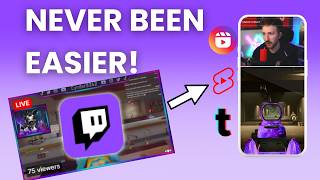
The video demonstrates how content creators can use the tool repurposed.io to automatically backup, schedule, and repurpose their Twitch streams, highlights, and clips to multiple social media platforms, including YouTube Shorts, TikTok, Instagram, Pinterest, and Twitter.
Twitch does not save content forever; repurposed.io can automatically backup uploads, highlights, and clips to Google Drive or Dropbox without manual downloads.
Creators can select 'repurposed existing content' workflow to schedule old Twitch clips and highlights for publication to platforms like YouTube Shorts at specific days and times.
For all future content, creators can set up a workflow that automatically sends every new stream, highlight, or clip to a destination platform (e.g., Pinterest) without any manual action.
Name three social media platforms mentioned where repurposed.io can auto-post Twitch clips.
YouTube Shorts, TikTok, Instagram Reels, Pinterest, Twitter
[01:28]
What three types of Twitch content can be backed up or repurposed using repurposed.io?
Uploads, highlights, or clips
[01:14]
What are the steps to create a backup workflow in repurposed.io?
Select Twitch as source, choose destination (e.g., Google Drive), select content type (highlights/uploads/clips), and click 'Create Workflow'.
[00:58]
How does repurposed.io handle scheduling of existing (old) Twitch content?
You can schedule the days and times for old content to be published on other platforms.
[01:45]
Can repurposed.io take old Twitch clips and publish them to YouTube Shorts automatically?
Yes, using the 'repurposed existing content' workflow and selecting the destination platform.
[01:28]
Repurposing Twitch content is key to growth
Establishes the core premise that streaming alone isn't enough—repurposing is necessary for reaching broader audiences.
[00:00]Backup workflow setup
Provides a step-by-step method to automatically save Twitch content to cloud storage, preventing data loss.
[00:58]Scheduling old content for publication
Demonstrates how to revive existing content and schedule it for release on other platforms, maximizing its lifespan.
[01:28]Automate future content distribution
Introduces a set-and-forget automation that pushes every new stream/highlight/clip to multiple platforms automatically, saving creators time.
[02:01][00:00] Which creators? This is huge. If you're a gamer, a podcaster, an IRL streamer, a music artist, or even an esports pro, your content is way too good to just sit there on Twitch. Twitch is where
[00:14] you create, but if you're not repurposing your clips, highlights, and full streams to YouTube shorts, Instagram rails are even backing them up to Google Drive. You're throwing away growth, but that changes right now. With repurposed.io, you can automate everything and get your content
[00:31] everywhere without lifting a finger. And I'm about to show you exactly how easy it is. So let's go ahead and get started. First up, stop losing your content. Twitch doesn't save your videos forever. If you're not backing them up, they're eventually gone. But now, you don't have to worry
[00:46] about that. With repurposed.io, you can automatically backup all of your uploads, highlights, and clips to Google Drive or Dropbox. So nothing ever disappears. More manual downloads, no more lost vods,
[00:58] no more okrap. That stream is gone forever. All you have to do is go to create new workflows on the top right, and you select Twitch on the left side as the source, and you select Twitch, and you select your Twitch account, and then you do backup on my content, and then you select Google driver
[01:14] Dropbox, and then you choose that one. And you can do highlights, uploads, or clips, and backup, back it up, and just do create workflow. And you're good to go. You can also automatically schedule all of your old content. If you've got killer clips, and you just wanted to repurpose all
[01:28] of those, all you have to do is go to repurposed.io, and in the workflows tab, you just do repurposed existing content. You select Twitch as your source on the left side, and then you can choose the destination to any of the platforms. Let's say YouTube Shorts, for example. And then when you do,
[01:45] highlights, you can do create workflow. And you see now you can select the days and times that you want your old content to go and publish for you on all these other separate platforms. And lastly, you can automate all of your feature content, so it's set it and forget it.
[02:01] Every new Twitch stream, highlight, or clip can instantly be repurposed to all platforms without lifting a finger or moving forward. Select Twitch as your source, and then select the destination, and move forward. Let's say Pinterest, for example. And then when you do create workflow,
[02:15] all content that goes from Twitch uploads, or highlights, whatever you choose, or clips, will automatically go to the destination, which in this case is Pinterest. So if you're not using this, you're missing out on free growth. So make sure you connect your Twitch
[02:31] and start repurposing right now. Remember, it's less effort, more content, less burnout, more reach. Repurpose and Twitch. Let's make your content work for you.
⚡ Saved you 0h 02m reading this? Transcribe any YouTube video for free — no signup needed.