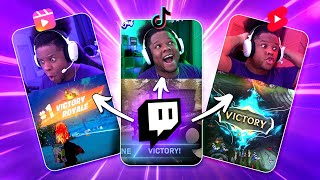

Why Posting Twitch Clips on Short-Form Platforms is Essential
45sHighlights the importance of cross-posting clips for growth and sponsorship opportunities, a key concern for streamers.
▶ Play Clip"Title accurately promises 6 methods, and the video delivers exactly that with detailed pros and cons."
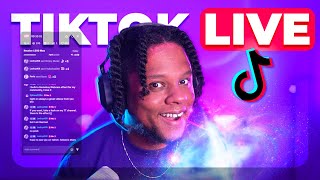
This video explores six methods for converting Twitch clips into short-form content for platforms like TikTok, Instagram Reels, and YouTube Shorts. The creator reviews web-based tools like Streamladder, JoinCombo, and CrossClip, as well as manual approaches using desktop editing software (Premiere Pro, DaVinci Resolve) and mobile apps (InShot, CapCut). The goal is to help streamers efficiently repurpose their clips to grow their audience across multiple platforms.
Posting clips on short-form platforms is the best way to bring attention to your live stream, even if conversion is low.
Instagram Reels, TikTok, YouTube Shorts require portrait mode; Twitter can use landscape. Square format works for YouTube Shorts.
Dedicate a day (e.g., Sunday) to reformat clips for the next week. For busy streamers, find a workflow to transform clips efficiently.
Popular web tool. Free version: 720p 60fps, limited templates, no circular webcam support. Paid ($4/month annually) unlocks 1080p 60fps, stickers, custom templates.
Free tool with full template access, circular webcam support, custom layers, text, and multiple clips. Works on phone browser. Pro offers auto-editing while live.
Free version has watermark and outro, 720p 30fps, limited layouts. Paid removes watermarks and adds layers. Supports montages.
Use Premiere Pro or DaVinci Resolve to create a template with gameplay, webcam (circular mask), and blurred background. Replace footage quickly.
Use clipper.xyz to download clips, then InShot or CapCut to add picture-in-picture, circular mask, text, and captions. InShot exports 1080p 60fps free (with watermark removal).
The best method depends on your needs: web tools for speed, desktop software for control, and mobile apps for on-the-go editing. Experiment to find what fits your workflow.
What are the four short-form content platforms mentioned for posting Twitch clips?
Instagram Reels, TikTok, YouTube Shorts, and Twitter.
00:30
What video format do TikTok, Instagram Reels, and YouTube Shorts require?
Portrait mode (9:16 aspect ratio).
00:36
What is the free export resolution and frame rate for Streamladder?
720p at 60fps.
04:58
What feature does JoinCombo Pro offer that automatically formats clips while you are still live?
Auto-editing of clips while live streaming.
07:48
What are the two watermarks present in the free version of CrossClip?
A watermark and an outro video with their logo.
09:53
What is the free export resolution and frame rate for CrossClip?
720p at 30fps.
11:00
Which mobile app allows exporting at 1080p 60fps for free (with a removable watermark)?
InShot.
17:23
What is the purpose of using clipper.xyz in the mobile workflow?
To download a Twitch clip directly to your phone.
15:30
What is the advantage of using a desktop editing software like Premiere Pro over web-based tools?
More versatility and control, and the ability to create a template that automatically places webcam and background when footage is replaced.
11:16
Clips drive attention
Establishes the core reason for repurposing clips: to grow on other platforms.
Streamladder simplicity
Shows the most popular tool with its free limitations and paid upgrades.
02:30JoinCombo free power
Highlights a free tool that offers circular webcam support and custom layers, rare in free options.
05:31Desktop template workflow
Demonstrates a professional, repeatable method using masking and replacement for efficiency.
11:16Mobile workflow with InShot
Provides a complete mobile solution using free apps, achieving 1080p 60fps output.
14:48[00:00] oh look at that pretty much every day we
[00:02] see a twitch clip going absolutely viral
[00:05] on those short form content platforms so
[00:07] posting your clips on those platforms is
[00:08] basically the best way to bring
[00:09] attention to your live stream now on the
[00:11] realistic side of thing you're not
[00:13] necessarily going to have a huge amount
[00:14] of conversion but if it allows you to
[00:16] grow on another platform that still
[00:18] contributes as your career as a content
[00:20] creator you know how creators are always
[00:22] talking about how they want to get
[00:23] sponsored but the truth is it's way
[00:25] easier to get some sponsors from some
[00:26] platforms versus others but anyways to
[00:29] keep it simple you need to be posting
[00:30] your clips to other platforms there's
[00:32] going to be instagram reels there's
[00:33] going to be tick tock there's going to
[00:34] be youtube shorts and there's going to
[00:36] be twitter now twitter might let you get
[00:38] away with normal format 16x9 landscape
[00:41] mode but other platforms such as tick
[00:42] tock instagram reels and youtube shorts
[00:44] they absolutely want you to post in
[00:46] portrait mode all the youtube shorts you
[00:47] can even post a square if you have a
[00:48] good schedule that allows you some time
[00:51] off basically to work on your channel
[00:53] and stuff like that you can take like i
[00:54] don't know your sundays and then just
[00:56] reformat all your clips from that week
[00:58] to be able to post them during the next
[01:00] week but if you're constantly streaming
[01:02] or you have a full-time job on top of
[01:04] streaming and you have kids or whatever
[01:05] you have you gotta figure out a workflow
[01:07] to transform your twitch clips into tick
[01:09] tocks into instagram reels into youtube
[01:10] shorts so today i'm going to be talking
[01:12] about all the different ways all the
[01:13] different software that you can use in
[01:15] order to accomplish that i'm going to
[01:16] tell you what's special about each and
[01:17] every one of them with the pros and cons
[01:19] so that you can decide which one you're
[01:21] going to use for your workflow and i'll
[01:23] be telling you all that right after a
[01:24] message from our sponsor this portion of
[01:26] the video is sponsored by ownpro own pro
[01:28] is a complete service to help you
[01:30] jumpstart your streaming career by
[01:31] offering you every single thing that you
[01:33] need in order to become the streamer
[01:35] you've always wanted to be you'll get
[01:36] access to over 600 overlay packs and
[01:39] alerts you'll get widgets such as events
[01:41] list stream labels you need help
[01:43] managing your stream here's a custom
[01:45] chat bot ownedpro even went as far as
[01:47] creating copyright free music just to
[01:50] make sure you stay on the safe side on
[01:52] pro has the biggest library of overlay
[01:55] packs on the internet and allows you to
[01:57] install them in one click
[01:59] look at that there's so many
[02:01] now i've been working with owned for a
[02:03] while now so they decided to throw in 50
[02:06] off of their pro plan so if you want to
[02:09] upgrade simply use code guile g-a-e-l
[02:13] for fifty percent off but i'll let you
[02:15] find this out at own dot gg slash guy
[02:18] level pro that is own 3d.g
[02:22] guy level pro okay so this is actually a
[02:24] while after i recorded the intro the
[02:26] total video was over an hour so i'm
[02:28] gonna try to do this way faster we're
[02:30] gonna start with the most popular one
[02:31] which is streamladder.com
[02:33] you come in here and the cool thing with
[02:35] streamladder is that you can access your
[02:37] clip in many ways but eventually you're
[02:39] gonna have to log in at some point
[02:40] basically you can enter the clip url
[02:42] which you can find from your twitch
[02:43] channel you can upload a local file if
[02:45] you already downloaded the clip and you
[02:47] can directly log in with your twitch
[02:49] account and then oh actually you don't
[02:51] need to log in you just type your the
[02:52] name of your twitch account and then
[02:54] search the clips boom that means that
[02:55] you can do this for any any person's
[02:59] twitch clips if you're an editor for
[03:00] example and you're working with a
[03:01] streamer boom this is great let's pick a
[03:03] random clip here and it's going to bring
[03:05] us right there we can change the video
[03:07] if we change your mind right here and
[03:08] this is uh one of the things one of the
[03:11] particularities with stream ladder is
[03:13] that you have pretty much like three
[03:14] templates that are free one of them is
[03:16] not necessarily usable if you don't have
[03:18] a webcam so it's like webcam only
[03:20] gameplay only or this single format
[03:24] where you're gonna have like a rectangle
[03:25] with your webcam now if your webcam
[03:27] overlay is circular in my case for
[03:29] example it can be very difficult the
[03:31] thing is you can see a circular face
[03:33] camera right there but this is paid
[03:34] actually you have to pay for the trim
[03:36] ladder plus which we're gonna take a
[03:37] look at right now you'll be able to
[03:39] exploit in 1080p 60fps you can add
[03:41] stickers the stickers is basically
[03:43] something to add your name in a cool way
[03:45] it's not totally necessary especially
[03:46] when platforms like uh instagram or even
[03:49] tiktok will allow you to just put text
[03:51] over it so you can just do that directly
[03:53] into the app send directly to tik tok
[03:55] send to youtube short premium templates
[03:58] use on mobile send results to phone save
[04:00] crop areas which is like basically save
[04:02] the template hopefully so that when the
[04:05] next time you log in you can just pick
[04:06] the template and it knows where your
[04:08] face cam is gonna be support development
[04:10] so now it's actually not a lot of money
[04:12] per month is four dollars per month if
[04:14] you pay annually all right let's go
[04:15] ahead and pick the free one and you will
[04:17] see what i mean when i say that if you
[04:18] have like a square ish camera it's gonna
[04:21] be an issue as you can see right there
[04:23] but you can always select like the face
[04:25] cam ratio for example let's say
[04:27] four thirds
[04:28] is the closest thing or there's also
[04:30] free form which you can just select like
[04:33] that and then and then you have game
[04:35] feed and this one you cannot change the
[04:37] proportion based on the template just
[04:38] click edit video it's gonna bring it
[04:40] here so the thing is uh that you can't
[04:43] just move those things around after that
[04:45] on the free template that is at least
[04:47] you can switch the face cam position
[04:48] from top to bottom if you want to and
[04:50] those are the stickers i was talking
[04:51] about as you can see here you would be
[04:53] able to place put that here you would be
[04:55] able to place this thing but you have to
[04:56] pay for it so let's get rid of it output
[04:58] settings we're locked in at 720p 60fps
[05:01] so click let's click render clip and
[05:03] it's going to bring us here this is the
[05:04] part where it will most likely ask you
[05:06] to log in in order to render the video
[05:09] so streamladder is popular for a reason
[05:11] apparently when it comes to 720 60fps it
[05:13] has one of the best qualities but that
[05:15] is for people who actually have very
[05:18] very good quality don't be fooled it
[05:20] tells you here send to tiktok but you
[05:21] need streamladder plus and any
[05:23] streamladder plus but you can download
[05:25] it the fact that you can't use it on
[05:26] your phone without having streamladder
[05:28] plus it's kind of like a disadvantage
[05:29] but but here it is streamladder the
[05:31] other option is one of my favorite ones
[05:33] and it's join combo this one you kind of
[05:36] have to log in with your twitch account
[05:37] but it will immediately access all of
[05:39] your clips it will even show you the
[05:40] most recent clips right there you can
[05:42] save templates for completely free you
[05:44] have access to all the templates that
[05:45] they already have but also you can move
[05:47] things around you're gonna see if i
[05:48] click this for example i have access to
[05:50] circular webcam for free i have access
[05:52] to all of those things for free and i'll
[05:54] be able to add my own layers look at
[05:55] that i have two templates that i already
[05:57] saved for free i don't have a premium
[05:59] account and let's say we're starting
[06:01] from scratch for example and my webcam
[06:03] looks kind of like that gonna pause this
[06:05] and i'm just gonna do this
[06:07] center it a little bit and of course you
[06:09] can um go ahead and change the the shape
[06:12] of the webcam if you want a square
[06:13] rectangle portrait lens landscape and
[06:15] also custom click continue and it
[06:18] already knows where the gameplay is it's
[06:19] kind of like by default you have to pick
[06:21] where the gameplay is but if you do want
[06:23] to move it around because it's not
[06:24] correct you can always move every layer
[06:27] around even the background
[06:31] which is amazing this works on your
[06:32] phone so you go to joincombo.com on your
[06:35] phone on a browser let's say chrome and
[06:37] you'll be able to do pretty much all of
[06:38] this but you're not going to have as
[06:40] many options as you have here here i can
[06:42] add an extra video if i wanted to i can
[06:45] add multiple clips back to back or on
[06:47] top of each other if i wanted to i can
[06:49] add an image if you have a logo you want
[06:51] to put on it boom you can do this for
[06:53] free for free all of that for free join
[06:55] combo if you want to put text if you
[06:56] want to add manual subtitles you can do
[06:58] it straight from here and like not even
[07:00] counting all the options you have there
[07:02] and you pretty much have a full on video
[07:04] editor at the bottom here it's not like
[07:06] fully fledged video editing but it's
[07:08] very fast and it's uh practical once
[07:10] you're done you can click uh export and
[07:11] we're going to talk about like the pro
[07:13] plan as you can see at the bottom here i
[07:14] can save the template so if i have
[07:17] multiple clips from the same stream or
[07:19] if my overlays don't really change when
[07:21] i'm in gameplay scene i can just use the
[07:23] template and just click and i'll never
[07:24] have to even select my webcam anymore it
[07:26] will automatically know where it is and
[07:28] set it up i can share to tick tock for
[07:31] free i can share to youtube for free now
[07:33] what does pro offer if there's all of
[07:36] that the cool thing with pro is that
[07:37] they have some automatic stuff first of
[07:38] all it's more expensive but it also has
[07:41] options for it um as i said if your
[07:44] overlays don't change that much it can
[07:46] basically already format those clips
[07:48] while you're still live so you're live
[07:50] streaming and people are taking clips or
[07:51] you're telling your chat hey clip this
[07:52] clip that once you're done streaming
[07:54] your clips are already like they're
[07:56] they're already ready to post
[07:58] so that's pretty dope of course you have
[08:00] all unlimited custom templates early
[08:02] access to new features you can cancel at
[08:04] any time unlimited videos priority
[08:06] support vip discord role this is more
[08:08] for a support thing but yeah
[08:10] automatically edited clips right there
[08:11] includes increased file upload size
[08:15] in the case of twitch clips maybe you
[08:16] don't wanna like maybe that you don't
[08:18] care about that but if you're saving
[08:20] your clips through the replay buffer in
[08:22] obs so that you can physically have the
[08:24] clips you might want to upload them and
[08:26] in a priority rendering queue so it
[08:27] renders faster i'm guessing and then you
[08:29] will have an inbox where all the clips
[08:31] that you edited will just reside and you
[08:34] can access this from your phone and
[08:35] easily post to talk to youtube to
[08:37] whatever you want you can manage your
[08:39] templates here and it's it's just great
[08:41] that's combo and here we have cross clip
[08:43] which is created by the people at stream
[08:44] labs and uh even though i'm logged in i
[08:46] actually don't have access to all of my
[08:48] twitch clips directly i might have to
[08:50] copy paste a link so let's go to my
[08:53] twitch channel or maybe i'm missing
[08:54] something if i click i'm feeling lucky
[08:56] what is it going to do it's going to
[08:57] pick up
[09:00] that's not me that's a popular streamer
[09:02] what okay that was weird anyways let's
[09:05] go to my channel and pick a clip from my
[09:07] clips okay i have a clip here uh warning
[09:10] it's glory i was playing the game evil
[09:12] dead the game so let's do this paste the
[09:15] clip click get clip and it's right there
[09:17] cool thing with crosslip is that it
[09:19] shows you the output and you can also
[09:21] move things around even though it
[09:23] doesn't update in real time you have to
[09:24] play pause
[09:26] for me at least maybe it's different on
[09:28] other browsers there you go and you have
[09:30] you can trim the clip if you want
[09:32] although you can't split it or delete
[09:34] parts in between you can select the
[09:36] output format landscape square or
[09:39] portrait for tick-tock and all of that
[09:40] you can blur the background if basically
[09:42] there's a spot where the background is
[09:44] visible you can see that's blurred or
[09:47] you can just not blur it and it's just
[09:49] gonna be a black background now one
[09:51] thing to keep in mind is that cross clip
[09:53] comes with not only a watermark but also
[09:56] an outro video with a little animation
[09:58] of their logo so it's like double
[10:00] watermark and uh you have to pay to
[10:02] remove both of those when it comes to
[10:04] your layers if you want to basically add
[10:07] additional layers you will have to pay
[10:09] for the pro and we're going to take a
[10:10] look at the pro in a little bit so you
[10:12] will have options for your camera like
[10:15] square and in that case i got to play
[10:17] and move this around boom and now it's a
[10:19] square and i would have to select my
[10:21] camera play around with this until it
[10:23] turns into a square there you go and it
[10:26] definitely gives you option to move
[10:27] things around to make them look good my
[10:30] camera is here i'm going to put the
[10:31] blurred background on again boom there
[10:33] you go so if i want to add any type of
[10:35] layer
[10:36] i have to upgrade to pro if you want to
[10:38] change the layout you can go here up to
[10:40] layout go to browse layouts and uh check
[10:43] out what they have not a lot of options
[10:45] not a lot of um not very very versatile
[10:48] we don't have the circular webcam we
[10:50] don't have a ton of things here but you
[10:51] can save some of your own layouts for
[10:54] free with the free version which is
[10:56] something let's click on compile and
[10:58] then you will give a title quality is
[11:00] gonna be stuck at 720p 30fps for the
[11:03] free version
[11:04] and you can click start compilation now
[11:06] it's compiling you can actually create
[11:08] montages if you want to put multiple
[11:10] clips back to back that is something
[11:11] that you can do and there you go your
[11:13] clip is done and now let's check out the
[11:16] difficult way of doing things this is
[11:18] what i use
[11:19] most of the time it is uh more complex
[11:22] than any web-based stuff but it gives me
[11:24] more versatility and uh the goal here is
[11:26] to create some sort of template that i
[11:28] can just replace the footage and it will
[11:31] automatically pick where my webcam is
[11:33] where the background is and stuff like
[11:35] that and the way i do this is i create
[11:36] two compositions so i'm using adobe
[11:38] premiere here but that doesn't mean that
[11:39] you need adobe premiere to do this you
[11:41] can use any free editing software or any
[11:43] other other editing software that you
[11:46] have davinci resolve is one of them is
[11:48] like the main one that i'm going to take
[11:49] into account i'm even counting premiere
[11:51] and davinci resolve as separate tips
[11:53] basically but what you want to do is
[11:55] create a composition where you basically
[11:56] drag and drop one clip and then you
[11:58] separate the three of them one of them
[12:01] is the background let me just turn off
[12:02] that so this is the background and all i
[12:04] did was basically scaled it up to fill
[12:07] the screen i'm gonna add a blur later on
[12:10] and then the second one is going to be
[12:12] my main gameplay i scaled it up a little
[12:14] bit 140 percent and i dragged it down
[12:16] just a little bit and then i have the
[12:18] last one where it's basically my camera
[12:20] and the way i did that is by using the
[12:23] circle here the the ellipse mask and i
[12:25] just moved it around right i just went
[12:28] ahead picked it and placed it exactly
[12:30] where i wanted all right now from there
[12:32] what i want to do is create a new
[12:33] sequence and with the composition that i
[12:35] have i want to cut it so that next time
[12:38] i want to have this all i have to do is
[12:40] go back to my original footage right
[12:42] click it and then click replace footage
[12:44] now i don't use davinci resolve i'm
[12:46] guessing that it must be easy to do it
[12:49] i've heard a lot of good things about it
[12:50] so i'm guessing it must be easy to do
[12:52] the same thing there so if i want to
[12:54] switch this to another clip i can just
[12:56] pick the clip here click select and boom
[12:59] as you can see it automatically added it
[13:02] now it shows me that this clip is
[13:04] shorter that's not a problem we can go
[13:06] ahead and basically trim it somewhere
[13:07] else now you want to change of course
[13:09] like the cuts here are not going to work
[13:10] so i can delete them just bring back the
[13:12] first composition and boom now i can
[13:14] edit my stuff and i can automat
[13:16] automatically add captions with premiere
[13:19] which is why i like using it there is a
[13:21] whole captioning section and it's um
[13:23] yeah it's great i always advise people
[13:25] to add captions as much as they can even
[13:27] visually on screen but it's not
[13:29] something that you need to worry about
[13:30] too too much because platforms such as
[13:32] tick tock will add automatic captions
[13:34] and instagram allows you to use stickers
[13:37] to add captions too i don't know about
[13:39] youtube shorts i just don't use it like
[13:40] that but if you can the best thing you
[13:42] can do is hard code or burn the captions
[13:45] into the video not only for people who
[13:47] don't have access to audio but it's an
[13:48] additional attention grabber people just
[13:51] can't help themselves but to read the
[13:53] captions now the auto caption on in
[13:55] premiere is not perfect but it does its
[13:57] best especially on a twitch clip where
[14:00] you're going to have gameplay sound and
[14:01] you're gonna have
[14:02] music and maybe you have some characters
[14:04] speaking at the same time but i like it
[14:06] because i can quickly edit it and also
[14:08] like add some presets to make it pop and
[14:10] look a little bit better than if i was
[14:11] doing it with um joint combo for example
[14:14] for example here it says playing smite
[14:16] but i said playing smart i'm gonna
[14:17] double click
[14:18] change this boom and now i can create
[14:20] captions and i can pick like the
[14:22] frequency maybe i want just a couple
[14:24] words at once in that case maximum
[14:27] length character i would do this click
[14:29] create and boom now i have and you can
[14:32] see it but it's at the bottom here i can
[14:33] select it
[14:35] put it in the middle just so you can see
[14:36] it make it bigger
[14:38] and just like that
[14:44] there you go
[14:45] so that is the editing software route
[14:48] now i'm going to show you how you can do
[14:50] those things with your phone and it's
[14:52] also pretty much the same as the editing
[14:55] software route but it's on your phone so
[14:57] you can do it on the fly you can do it
[14:59] from anyone's phone and stuff like that
[15:01] keeping in mind that crossclip has its
[15:03] own app to do that and join combo is
[15:06] accessible from your phone and i believe
[15:07] streamladder is also accessible from
[15:09] your phone but if you want to get fancy
[15:10] you're going to be using two apps in
[15:12] order to do this so here's what i like
[15:13] to do basically i'll find a clip on the
[15:15] twitch app i'll go to my channel go to
[15:17] my clips and then tap on it we're gonna
[15:20] pause it we're gonna click top right on
[15:22] the share button and we're gonna copy
[15:24] the link basically copy link
[15:26] boom and then we're gonna go on chrome
[15:28] or any web browser that you want and i'm
[15:30] gonna go on clipper.xyz
[15:32] i'm gonna paste the code in there right
[15:34] there and i'm gonna click download now
[15:36] and it's basically gonna ask me to
[15:38] download whatever quality i want and
[15:40] i'll download it on my phone 1020p
[15:42] download right i already have the clip
[15:44] so then after that i'm gonna get in shot
[15:46] i'm gonna go in in shot which is an
[15:48] editing app i'm gonna click on video new
[15:51] and i'm gonna find the original clip
[15:53] which i believe is this one check mark
[15:55] boom this is what it's going to look
[15:57] like click on canvas if you want to make
[15:59] sure you set it to the tick tock format
[16:00] basically and here you can already
[16:02] basically zoom in a little bit because
[16:04] this is going to be the gameplay anyways
[16:06] right we're going to have to reimport it
[16:07] to get the webcam i'm gonna drag this
[16:09] down a little bit click on the check
[16:10] mark now we're good we're gonna look for
[16:12] something that says pip this is picture
[16:14] in picture i'm gonna click it once we're
[16:16] gonna find the same clip right and we're
[16:18] gonna drag this down until it basically
[16:20] fills the screen we're gonna drag to the
[16:22] side because we're looking for the
[16:23] webcam remember and then we're gonna
[16:25] find mask bottom here we're gonna find a
[16:28] circular mask in our case and now we can
[16:30] basically put this in the middle
[16:34] and adjust our mask
[16:37] just like that you can click check mark
[16:40] here accept and place this in the middle
[16:43] and you're basically done the cool thing
[16:44] with inshot is that it allows you to add
[16:47] some text you know you can put whatever
[16:49] you want possibly like your twitch name
[16:51] and you can even animate it if you want
[16:53] to do some cool stuff like there's so
[16:56] many
[16:57] options
[16:58] when it comes to this app click check
[17:00] mark let's say we just want this
[17:02] and i want to make it small i'm using my
[17:04] two hands here can make this go
[17:06] throughout the whole clip there's even
[17:08] copyright free music straight into the
[17:10] app tap okay if you're using the free
[17:13] version there's actually a watermark but
[17:14] you can get rid of it there's gonna be a
[17:17] tiny little x on top right of the
[17:19] watermark i believe just tap it and then
[17:21] boom you're done when you click save you
[17:23] can save to 1080p 60fps which is the you
[17:27] know all of the web-based options will
[17:29] not allow you to do and then click save
[17:31] and that's it you can directly share
[17:33] since you're on your phone you can
[17:34] directly share on tick tock instagram
[17:36] even youtube everything and boom you're
[17:39] done with in shot in a couple of seconds
[17:41] you can add your text you can add your
[17:43] captions that way too another software
[17:45] you can use i keep saying software app
[17:47] if you will is cap cut and cap cut is
[17:50] also pretty great you can tap on new
[17:51] project select the clip click add first
[17:54] of all we're going to change the format
[17:56] by sliding the bottom bar until we see
[17:58] format boom and we will see nine by
[18:00] sixteen is what we're looking for we can
[18:03] click back or a little arrow bottom left
[18:06] and then we're gonna find overlay bottom
[18:08] here
[18:09] add overlay and then you pick
[18:11] the main clip click add
[18:14] i'm gonna hold and then drag just to
[18:16] make sure it's really on the left it is
[18:18] okay cool i'm gonna select it and we're
[18:20] gonna find a mask there it is mask
[18:24] circle just like the other one really
[18:27] like no difference pretty much i
[18:29] personally prefer using in shot because
[18:31] it seems to be more malleable there's a
[18:33] lot of like snapping going on with cap
[18:35] cut that i just don't enjoy that much
[18:37] click ok and now you can tap and drag
[18:40] the mask around you can even use your
[18:43] two fingers to make it a little bigger
[18:45] and then you'll be able to adjust that
[18:47] mask a little bit better there we go the
[18:49] gameplay you can select it by tapping on
[18:51] it use two fingers to zoom in a little
[18:54] bit
[18:55] nice and we should be able to click away
[18:57] from everything
[18:58] click back here and we're going to find
[19:00] that background and it's under canvas
[19:03] for to find the blur background you can
[19:05] click blur
[19:06] and there you go you can adjust the the
[19:08] amount of blurring you want to happen i
[19:10] like that one now the cool thing with
[19:12] capcom is that it has all sorts of
[19:14] amazing effects so if you're doing a
[19:15] montage using it you can do some really
[19:17] really professional looking montages
[19:19] using only cap cut that's the whole
[19:21] thing with cap cut is that it has
[19:23] amazing presets obviously you can also
[19:25] add some text and add some templates and
[19:28] and a lot of things even auto captions
[19:31] which i i didn't even know was an option
[19:33] and we're not going to do that now but
[19:34] check it out definitely check it out and
[19:35] once you're done you can click top or
[19:37] right on the little arrow that's
[19:38] pointing up to boom and now it's
[19:41] exploiting and there you go you have a
[19:44] full clip a full clip ready to share to
[19:46] tic toc and everything oh i forgot to
[19:48] show that it does add an outro kind of
[19:51] like cross clip but the cool thing with
[19:53] cap cut is that you can select that
[19:54] outro right there and delete it for free
[19:57] i just forgot to do that
[19:59] oof
[20:00] okay okay hopefully you're still with me
[20:02] so uh as i said i count premiere and
[20:04] davinci resolve as two different tips
[20:06] but um yeah i hope you guys learn a
[20:09] couple of things and maybe you'll be
[20:10] able to choose the one that's more
[20:12] suitable for you you're gonna tell me
[20:14] what's worth it what's not let me know
[20:15] in the comment section below if you use
[20:17] another method in order to transform
[20:19] your clips into short form content or
[20:21] portrait format i should say but yeah i
[20:23] had to turn off the ac in order to
[20:25] record the video with good audio thank
[20:27] you so much for watching also check out
[20:29] truey's merch okay i'm gonna put a link
[20:31] in the description if you guys want to
[20:33] get a stream smarter not harder t-shirt
[20:35] check out the description for that and
[20:36] also check out truey amazing content
[20:38] creator that also does stuff related to
[20:40] twitch streamers and i will see you guys
[20:42] next time go out there make me proud get
[20:44] level out
⚡ Saved you 0h 20m reading this? Transcribe any YouTube video for free — no signup needed.