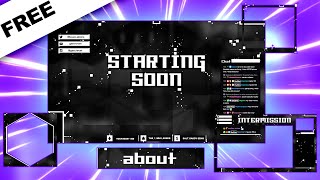

Full Twitch Overlay Pack in One Video
45sPromises a complete solution in a single video, appealing to streamers looking for efficiency.
▶ Play Clip"The title accurately promises a full Twitch overlay pack made for free with templates, and the video delivers exactly that."
This tutorial demonstrates how to create a complete Twitch overlay pack using the free online tool Photopia. The creator walks through designing a starting soon screen, be right back screen, intermission overlay, camera overlay, banner, profile picture, and panels, all with a consistent black-and-white, sharp rectangular style. The video also promotes Own3d's animated emote maker and provides free templates.
Create a full Twitch overlay pack in one video using Photopia, a free Photoshop alternative.
Own3d is a one-stop shop for Twitch overlays, emotes, and badges, with a new animated emote maker.
Twitch channel: banner, profile picture, panels, offline image. OBS: starting soon, be right back, intermission, camera overlay, labels bar.
Color scheme: black and white. Style: sharp rectangles with small square details for a futuristic look.
New project: 1920x1080, 300 DPI. Use inspiration from Pixabay for background images.
Create rectangles for chat box, labels bar, and social media area. Add text 'starting soon' with a square font (Millennia).
Use custom shapes for bit, star, and dollar sign icons. Add social media icons (Twitter, YouTube, Instagram) and text.
Add small black and white squares around the design to create visual complexity and balance.
Copy merged visible layers, apply Gaussian blur, and overlay with lowered opacity to create a glow effect.
Add a blurred abstract background from Pixabay, desaturate, and adjust opacity. Export as PNG.
Duplicate starting soon, change text to 'be right back' and 'offline'. Adjust layout and export.
Remove main text, add a 1080p rectangle for gameplay/camera, and use layer masks to cut out holes.
Create a new file, duplicate design elements, and use masks to create a transparent frame with details.
Banner: 1920x480. Profile picture: 900x900 square, use a hexagon shape with mask for a frame.
Create 640x640 panel with background, text, and a stroke effect. Save as PSD for easy editing.
All files created: starting soon, be right back, offline, intermission, camera overlay, avatar, banner, panels. Templates available on Photopia and Gumroad.
By following this tutorial, you can create a full Twitch overlay pack for free using Photopia, with consistent branding and reusable templates. The process emphasizes simplicity and efficiency, allowing you to customize or commission overlays for your stream.
What are the dimensions and DPI recommended for a Twitch overlay in Photopia?
1920x1080 pixels, 300 DPI.
03:15
What color scheme and style are used in this tutorial?
Black and white color scheme; sharp rectangular style with small square details.
03:02
How do you create a blurred background effect in Photopia?
Copy merged visible layers (Ctrl+Shift+C), paste, apply Gaussian blur, overlay with lowered opacity.
12:58
What is the purpose of using a layer mask when creating an intermission screen?
To cut out holes in the overlay so that camera or gameplay can be placed in those areas.
17:57
What dimensions are recommended for a Twitch panel in this tutorial?
640x640 pixels (double the standard 320 width for better pixel density).
25:02
How do you add a stroke effect to text in Photopia?
Select the text layer, go to Layer Style (effects), add a stroke, set color and thickness (e.g., 2px).
26:37
What is the shortcut to duplicate a layer while moving it in Photopia?
Hold Alt and drag the layer with the Move tool (V).
11:35
How do you invert a layer mask in Photopia?
Select the mask and press Ctrl+I.
19:17
Full overlay pack in one video
Sets the ambitious goal of creating all necessary Twitch overlays in a single tutorial.
Branding consistency
Emphasizes the importance of a consistent color scheme and style for professional-looking overlays.
03:02Visual complexity through simple shapes
Demonstrates how adding small random squares can make a design appear more intricate than it is.
10:52Blurred background effect
Shows a clever technique to create a glow effect using Gaussian blur and opacity adjustment.
12:58Layer masks for intermission screen
Explains how to use layer masks to cut holes for camera and gameplay areas.
17:57[00:00] can we make a full twitch overlay pack
[00:02] in one video basically today i'm gonna
[00:04] be showing you how to make everything
[00:06] you need for twitch channel we're gonna
[00:08] start with the twitch page everything
[00:09] you can customize and then we'll go to
[00:11] the broadcasting software all the
[00:12] elements that you'll need in order for
[00:14] your stream to look good we're gonna
[00:15] stay consistent with the branding so
[00:17] we're gonna pick a color scheme a style
[00:19] and we're gonna stick with it now before
[00:20] we get scared we're gonna be using
[00:22] photopia.com to do everything it's free
[00:25] it's basically photoshop but for free
[00:26] and you can access it right now on your
[00:28] phone your tablet your computer on top
[00:30] of that i'm gonna be making whatever we
[00:32] make today available to you also for
[00:34] free so whether you're trying to revamp
[00:36] your twitch channel and you want to
[00:37] learn how to make everything or maybe
[00:39] you're an aspiring graphic designer who
[00:41] would like to get commissioned to do
[00:43] overlays for other people either way you
[00:45] get multiple free templates and free
[00:47] education but i gotta pay my bills
[00:49] somehow so this video is actually
[00:50] sponsored by owned and maybe you know
[00:52] that owned is your one-stop shop for
[00:54] everything you can customize as a twitch
[00:56] streamer or youtube streamer or even
[00:58] just a youtuber one has the biggest
[00:59] library for everything ever overlay
[01:01] packs emotes animated emotes but they
[01:04] also allow you to create your own stuff
[01:05] if you want to make emotes you want to
[01:07] make badges avatars even gaming logos
[01:09] but there's a brand new thing that they
[01:11] just came out with which is the animated
[01:13] emote maker and let me show you go here
[01:15] you click on make your own animation you
[01:17] can use emotes that you already have on
[01:19] twitch you can upload emotes from your
[01:20] computer you can also transfer some
[01:22] emotes that you already created using
[01:24] owned i'll use my twitch emotes i have
[01:26] to connect with twitch authorize now all
[01:28] my emotes from my twitch channel will
[01:29] appear on the left here and i can just
[01:31] pick which email i want then from there
[01:33] i'll see all the animations that are
[01:34] available for example this one i can
[01:36] click and when i hover it will show me
[01:38] the animations this one is like fire
[01:40] that's a thumbs up it's party time we'll
[01:42] get a bonk that's a residence sleeper oh
[01:45] that one would be cool for like big
[01:46] donations we get an rip we're getting
[01:49] buried anyways i'm gonna let you check
[01:51] the rest out over at own dot gg slash
[01:54] get level that's my special little link
[01:56] also owned is always getting like cool
[01:58] promos and stuff like that so keep an
[02:00] eye out for that top bar right now you
[02:02] can get 50
[02:03] with the code streaming on all products
[02:06] so that's all wn 3d dot gg slash gal
[02:09] level
[02:10] all right let's determine everything
[02:11] that we need to make a full overlay pack
[02:13] first of all the twitch channel
[02:15] customizing it you will need a banner a
[02:17] profile picture we're basically going to
[02:19] make a template with a hole in the
[02:20] middle so that people can put their
[02:21] avatars or their profile picture in
[02:23] there then we're gonna have panels so
[02:25] we'll make one template and we're just
[02:26] gonna change the text and then offline
[02:28] image or the video player banner image
[02:31] so that's your twitch channel itself now
[02:34] when it comes to obs studio or whatever
[02:35] broadcasting software you're using
[02:37] overlays we're gonna have a starting
[02:38] soon overlay we're gonna have a be right
[02:40] back overlay and then an intermission
[02:42] overlay where you basically have your
[02:44] camera at the forefront maybe a little
[02:46] bit of the gameplay top right or
[02:47] somewhere then we'll make a camera
[02:49] overlay in case you want a gameplay
[02:50] scene that includes the gameplay being
[02:52] full screen and then your camera is
[02:54] going to be in a corner somewhere now
[02:55] there are some elements that we might
[02:56] create between scenes such as a labels
[02:58] bar where you want to put recent
[03:00] followers recent subscriber recent here
[03:02] for the branding we're going to go with
[03:03] black and white for the color scheme and
[03:05] for this style we're gonna go with very
[03:07] sharp very rectangle but with some added
[03:09] little details maybe like tiny little
[03:11] squares to make it look more futuristic
[03:13] and more advanced are you ready let's do
[03:15] this all right photopia.com that's step
[03:18] one you open up your browser you go to
[03:20] photopia.com you click on new project
[03:23] top left you're gonna see the dimensions
[03:24] we're gonna go 1080p because that's what
[03:26] most uh screens are so 1920 by 1080 and
[03:30] for the dpi we're gonna go 300 so it's
[03:32] nice and clean click create boom there
[03:34] you go i like to start with the biggest
[03:36] thing in the in the whole pack and that
[03:38] is basically the base layer like
[03:40] starting soon screen or offline image
[03:42] now this is the hardest part when you're
[03:43] sitting here and you have a blank page
[03:45] you should be looking at inspiration
[03:47] like on google images and stuff like
[03:49] that or you should get an image in so
[03:51] that you get your creative juices
[03:52] flowing i like going to pixheer.com
[03:55] those are public domain images basically
[03:57] and look for some keywords like abstract
[03:59] you might remember this little thing
[04:01] which is part of an overlay pack that i
[04:03] made recently keeping in mind that the
[04:05] style is going to be sharp rectangles
[04:07] and all that i actually like this image
[04:09] right there we might not keep it but
[04:11] let's just get started right click on it
[04:13] i'm gonna click copy image go back to
[04:15] photo pia control v control alt t to
[04:17] transform and then just drag it
[04:19] nice and this is basically our
[04:21] background what we need on a starting
[04:22] zoom screen is the text that says
[04:24] starting soon of course we need uh we're
[04:26] gonna make a little space for the chat
[04:28] we're gonna place it conveniently for
[04:30] our intermission screen too and we need
[04:32] a labels bar you can add a social media
[04:34] like line if you want but it doesn't
[04:36] matter so let's start by creating a
[04:38] bunch of rectangles because that's the
[04:39] principle of graphic design click on the
[04:41] rectangle tool press u or press u sorry
[04:44] fill we want this to be either black or
[04:46] white we're gonna go with black
[04:48] and then we might add some accents in
[04:50] white later on now i know that my
[04:51] intermission screen is probably gonna
[04:53] look something a little bit like that
[04:54] this is the spot for the camera and then
[04:56] on the right side we'll have logo or
[04:58] gameplay and then here the chat will be
[05:01] right so i can use this to basically
[05:03] have an idea of where i want my chat to
[05:06] stay on my intermission my other screens
[05:08] like the starting zoom to be right back
[05:10] and all that just to make it easier on
[05:12] ourselves really so i can delete that
[05:14] one by dragging it to the bin and i'll
[05:16] also delete that one to drag it to the
[05:18] bin i'm just gonna keep my chat right
[05:20] there right press v to have the move
[05:22] tool and let's drag it down i actually
[05:25] have something called input history so
[05:27] it should show you what i'm pressing so
[05:29] if i ever forget to press something just
[05:31] pay attention to
[05:32] this right there so
[05:34] v for the move tool and i'm going to
[05:37] select my shape here so every time you
[05:39] create like a new shape or whatever it's
[05:40] going to appear on the layers let's just
[05:42] pay attention a little bit we have our
[05:43] background which was white we can turn
[05:45] off the black and white background boom
[05:48] there we go and we kind of know that our
[05:51] um labels bar is probably gonna go
[05:53] somewhere over there i'll probably keep
[05:56] it within the realm of our um on top of
[06:00] the webcam on the intermission that's
[06:01] not a it's not a huge concern right now
[06:03] or maybe i can make it its own like huge
[06:06] bar at the bottom and in this case i
[06:08] would want single label rectangles first
[06:11] just like that
[06:12] let's add the text just to
[06:14] add the text
[06:15] so we click on the t right well we click
[06:18] yeah we click on the t right there and
[06:19] then we click once will it load a little
[06:21] bit and then we type our text starting
[06:24] starting suit i'm going to click and
[06:26] drag to select and we're going to find a
[06:28] font that we kind of like remember the
[06:30] style all right so this is the part
[06:31] where as long as you select your
[06:33] branding in your head you should not
[06:35] struggle to make decisions basically we
[06:37] picked a style which was a bunch of
[06:39] rectangles so very sharp and stuff like
[06:41] that so we're not going to be using
[06:43] comic sense uh
[06:45] we're going to be using common sense not
[06:47] comic sense a bars when it comes to our
[06:49] font so we're immediate we know what
[06:51] we're looking for ish we're looking for
[06:52] something bulky something i really want
[06:55] to use this but i already use it in
[06:57] another tutorial so let's let's look for
[06:58] something else just very square and this
[07:01] time i'm not downloading any new fonts i
[07:02] want to use um fonts that photopia
[07:05] already has so that it's more accessible
[07:07] to you and it's easier to follow maybe
[07:09] okay so there's this one called metro it
[07:11] has a lot of diagonal lines but we'll
[07:13] see if that works size here you can go
[07:15] hover over size and drag up with the
[07:17] text tool selected you can click away
[07:19] and then bring stuff here i don't like
[07:22] the font i don't like it okay so we have
[07:24] this one called millennia and that's
[07:25] what i'm gonna use so let's bump up the
[07:27] size a little bit now if you want to
[07:29] control stuff like the text formatting
[07:30] you can go to the right and find
[07:32] something called character if you don't
[07:34] see it you can go to windows and then
[07:35] find character and it's going to appear
[07:37] basically this is where you can control
[07:38] your tracking your leading and all of
[07:40] that basically this the space between
[07:43] characters and between lines and all of
[07:45] that you can also have paragraph if you
[07:47] want it to be like in the middle for
[07:48] example boom that is something that you
[07:50] have access to we might actually use
[07:52] that yeah i like that let's let's put it
[07:54] in the middle so i'm gonna go back to my
[07:56] move tool i'm gonna press ctrl a in
[07:57] order to select everything and while my
[07:59] move tool is selected basically i will
[08:01] have access to the align tools that are
[08:03] up top here so i can center
[08:06] horizontally vertically horizontally i
[08:08] guess and then vertically so now i know
[08:10] that my starting tune is in the middle
[08:12] of the screen but we're probably going
[08:13] to move it to give some more balance i
[08:15] like having my text be white so while
[08:16] the text is selected you can go back to
[08:18] character and you'll see an image like a
[08:21] color rectangle you can change that
[08:24] click ok oh now it's if we're really
[08:26] trying to push the style we might create
[08:28] some rectangles i'm going to double
[08:30] click on the t near the text layer and
[08:32] i'm going to try to play around with the
[08:34] leading a little bit well there's less
[08:36] that's more compact there we go and if
[08:39] we want to really play up with the style
[08:41] you can double click on the name of your
[08:43] layers to name them because i'm starting
[08:44] to get confused already but that's going
[08:46] to be chat box and that's going to be
[08:49] uh labels label 1. uh what did i say
[08:52] yeah i was going to create so press on
[08:54] the rectangle tool
[08:56] and just create a box where you think is
[08:58] enough there's probably another way of
[09:00] doing this but whatever
[09:02] nice
[09:03] and let's create one for the starting
[09:04] soon it doesn't matter if the g is out
[09:07] of bounds try to center it as much as
[09:09] you can and if you can't you know that
[09:10] you can center it horizontally by
[09:12] pressing ctrl a again collecting both of
[09:15] those pressing v to get back to the move
[09:18] tool center
[09:19] boom now you know it's centered
[09:21] perfectly ctrl
[09:22] d to deselect nice we have like a black
[09:25] and white thing going on that i kind of
[09:27] like okay now let's play around with the
[09:29] chat box a little bit more maybe i want
[09:31] it to say chat box right or just chat
[09:35] i'm going to press t to bring up the
[09:36] text tool i'm going to click once and
[09:38] i'm going to type chat
[09:41] i can type it uh you know start with
[09:44] uppercase in the lowercase or all
[09:46] uppercase doesn't matter let's go chat
[09:49] now basically most of your efforts are
[09:51] going to be during your starting stream
[09:53] like during the first piece of graphic
[09:55] everything else you're basically going
[09:56] to be copying it so it's going to go
[09:57] super fast once you're done oops press
[10:00] ctrl t instead of ctrl alt t ctrl alt t
[10:03] to transform
[10:04] we're going to bring that around here
[10:06] now in the layers list we want the chat
[10:08] to be on top of the chat box so it's
[10:10] visible and we want that to be
[10:13] way smaller you can press control plus
[10:14] to zoom in and you can hold space
[10:17] in order to move around
[10:20] in that corner maybe in that corner i
[10:22] think that corner is fine i'm going to
[10:24] create a white rectangle just to kind of
[10:25] separate
[10:27] what's going on here rectangle here and
[10:29] i'm going to just click
[10:31] drag
[10:32] drop
[10:33] double click on the the icon next to the
[10:35] shape layer to change the color boom and
[10:38] that's you know that's a little bit of
[10:40] decoration right there you can click on
[10:42] it as you can see it's not fully
[10:44] in there you can click on it and while
[10:46] you have the move tool selected with v
[10:48] you can press the arrows on your
[10:49] keyboard to place it perfectly nice now
[10:52] ctrl minus to zoom away we're getting
[10:54] somewhere it doesn't look like much but
[10:55] we're getting somewhere you can also
[10:56] hold alt and then scroll to zoom in and
[10:59] out we're gonna keep that design and
[11:01] we're gonna add it to our label for
[11:03] example i'm gonna go find my label boom
[11:06] and i'm gonna pick rectangle and i'm
[11:08] gonna do the same thing
[11:10] just create a rectangle that goes on top
[11:12] of it double click on the icon make it
[11:15] white boom press move tool place it
[11:18] perfectly you can you can transform it
[11:20] if you want to but i'm going to keep the
[11:21] little imperfections maybe it'll give it
[11:23] some character you know this is
[11:25] obviously like too high doesn't matter
[11:27] okay another thing i'm gonna do here is
[11:30] duplicate this one that i just made i'm
[11:33] gonna make sure i'm on move tool i'm
[11:35] gonna hold alt
[11:36] click and drag i can hold shift i
[11:39] believe to stay on the same line so alt
[11:42] and shift alt drag shift to keep it in
[11:44] line and i'm gonna drop it ctrl alt t to
[11:47] transform and i'm gonna make this like a
[11:49] square ish as you can see it's
[11:51] proportional so i'm gonna hold shift
[11:53] to make it not proportional for once
[11:56] and once it looks kind of like a square
[11:59] you can let go this is where we're gonna
[12:00] put some icons so things like you know
[12:02] new follower all of that is gonna be
[12:04] represented in an icon nice i actually
[12:07] like the little imperfection not gonna
[12:09] lie but we're gonna be adding way more
[12:10] details to this so don't worry be happy
[12:12] now this is about where we start
[12:13] grouping stuff together because you know
[12:15] we have separate sections so our label
[12:17] that little shape on the right you can
[12:19] call it little shape if you want to
[12:21] little bar nice
[12:24] and this is basically the background for
[12:26] the icon so we're gonna call this one
[12:28] frame okay i'm gonna hold shift on my
[12:31] keyboard and then click down to label to
[12:34] select all three of those and i'm gonna
[12:36] press ctrl g
[12:37] now i have them in a folder and that
[12:40] folder is basically
[12:42] label
[12:43] one
[12:45] cool now i can hold alt on my keyboard
[12:48] click drag and with the move tool
[12:50] selected i can move this boom i created
[12:52] a copy i can hold shift to keep it in
[12:55] line
[12:56] so it doesn't move
[12:57] and i can create some sort of space in
[13:00] between it nice we want three of those
[13:02] usually you can put more if you need but
[13:04] whatever let's do that again so hold alt
[13:07] drag up and we create another copy and
[13:10] we're going to kind of eyeball it so
[13:11] that it's
[13:12] kind of
[13:14] the same distance in between them
[13:16] doesn't matter too much you can still
[13:17] use your arrows on your keyboard to move
[13:20] them
[13:21] i believe that is the same distance
[13:23] maybe not
[13:24] boom so now you have three labels you
[13:26] can rename them
[13:29] remember we're spending a lot of time on
[13:31] this so that we don't have to spend a
[13:32] lot of time on the rest
[13:35] now that we have a labels bar we can put
[13:38] it on top if we want to i kind of want
[13:40] it to be like a full like a full screen
[13:42] thing
[13:43] but i don't know if that's a good idea
[13:44] we'll think about all that during
[13:46] decoration
[13:47] uh i want to go back to my chat box and
[13:49] i want to add some more
[13:51] quote-unquote decoration let's go here
[13:53] i'm going to pick my rectangle tool and
[13:54] we're going to create a rectangle at the
[13:56] bottom here
[13:58] you can hold space while you're creating
[14:00] it to move it around i want this to be
[14:02] kind of thin nice double click on the
[14:04] icon make it white there you go okay not
[14:07] bad remember that we can replace that
[14:09] background when whenever we feel like it
[14:11] really now because of the chat box being
[14:13] so big on the right we kind of have a
[14:15] balance problem left left side is empty
[14:18] and we're kind of running out of
[14:20] elements
[14:21] so what we're going to do is put our
[14:22] socials over there
[14:24] same thing we're going to put three main
[14:25] socials you can put more if you want to
[14:27] before that i want to group everything
[14:28] that is with the chat box together so we
[14:31] have that little shape over there we
[14:33] have the chat text we have
[14:35] the bottom shape and we have the main
[14:37] shape so i'm going to hold shift click
[14:38] on the top one press ctrl g boom and now
[14:41] they're all together all right so let me
[14:43] zoom in a little bit and let's create
[14:45] our social thingy thing with the
[14:48] rectangle tool selected you want to do
[14:50] something like this there we go maybe we
[14:52] want it to be white this time right
[14:54] we're balancing black and white we're
[14:56] playing around a little bit i like it
[14:58] it's gonna be very visible unfortunately
[15:00] but
[15:00] uh you don't have to keep it in every
[15:02] scene to be fair in this case i'm not
[15:04] gonna separate the icon i mean i could
[15:06] but i don't want it to look like the
[15:07] labels bar too much so i'm going to just
[15:10] keep it like completely white when i
[15:11] hold alt to duplicate
[15:13] hold shift to keep the axis that do the
[15:17] same thing hold alt to duplicate hold
[15:19] shift eyeball the distance and select
[15:21] them all and the layers list and um yeah
[15:24] this is where you decide where to place
[15:25] them in order to kind of offset the chat
[15:27] and the chat is like bottom right so
[15:29] maybe we want this oops wait what oh i
[15:32] activated auto select you want to make
[15:34] sure if you're clicking on stuff and
[15:35] it's selecting different layers as you
[15:36] can see over there
[15:38] you have auto select enabled let's go
[15:40] back to our shapes
[15:43] there you go and when it comes to the
[15:44] size of stuff nothing needs to be huge
[15:46] to be completely fair um one big sign of
[15:49] you know amateur graphic designers is
[15:52] when everything is huge i keep pressing
[15:54] ctrl t instead of ctrl alt t ctrl alt t
[15:57] i maybe want this to be a little wider
[15:59] holding shift in order to make it
[16:01] stretch that and maybe i want the whole
[16:03] thing to be a little
[16:04] tinier
[16:05] okay so far so good again the background
[16:08] doesn't look like much we're gonna
[16:09] probably change that eventually of
[16:12] course the more elements you can put the
[16:14] better it kind of looks
[16:16] like if you can have if you had like an
[16:18] extra six this would be perfect right if
[16:20] you had an extra three socials that you
[16:22] wanted to plug but if you have a logo or
[16:24] if you have some sponsors or anything
[16:26] like that this is where you want to put
[16:28] that if you want to put a message hey
[16:30] make sure you follow the stream or
[16:31] whatever boom but we don't have any of
[16:33] that so we're going to stay like this
[16:35] all right let's go back to our labels uh
[16:37] we can even group them all together
[16:38] we're going to group the groups boom and
[16:40] the reason why i'm doing that is because
[16:42] i would like to make sure that they are
[16:43] centered so if i if i press ctrl a and i
[16:46] click center horizontally while they're
[16:48] selected will they behave
[16:52] they will okay cool now they're centered
[16:54] ctrl d to deselect
[16:56] nice now the main text we want to maybe
[16:59] group that together so starting soon
[17:01] with the background and all that ctrl g
[17:04] we're going to call that main text and
[17:06] maybe we want to move that a little bit
[17:07] just to play around with the balance
[17:09] once again
[17:10] i just kind of like it a little above
[17:13] the midpoint
[17:14] all right let's try not to overthink it
[17:16] and let's add more details to finish it
[17:19] up the labels we want some icons in
[17:22] there and each label has their own group
[17:24] so we're gonna make sure we add our
[17:25] icons in the right group i'm gonna click
[17:28] on frame basically when i click on
[17:30] something and then i create something
[17:32] else i know that the next layer is going
[17:33] to be on top of right on top of it so
[17:35] it's basically for placement control
[17:37] plus to zoom in
[17:38] is this like too big or two as an
[17:41] affiliate i like to put subs cheers and
[17:43] donations if you're not affiliate you
[17:45] can put follow donation and then top
[17:47] donator and pick whatever icon you want
[17:49] for that let's start with here you can
[17:51] download an image from google of like a
[17:53] bit so i type twitch bit and google
[17:56] images and boom you have this one or you
[17:58] can go you know the painstaking way of
[18:00] creating it yourself i'm gonna make one
[18:02] just uh just to flex on you i'm gonna
[18:04] create a rectangle i'm gonna press the
[18:06] pen tool which i know i don't i try not
[18:08] to make too many tutorials about it i'm
[18:09] gonna hold ctrl in order to have access
[18:11] to the points
[18:12] and um oops
[18:15] and we're gonna we're just gonna move
[18:16] stuff around until it looks like a bit
[18:19] uh ctrl alt t to transform
[18:21] actually holding shift while rotating to
[18:24] have better rotations like 15 30 60
[18:28] press enter control click control click
[18:31] away which will click to make sure only
[18:33] one is selected and control click and
[18:36] drag holding shift
[18:38] there we go
[18:40] there you go twitch bit icon okay get
[18:42] the move tool double click on the shape
[18:44] to change the color we want this to be
[18:45] black and we're gonna just move it in
[18:48] place ctrl alt t to transform hold alt
[18:51] to maintain proportions just like that
[18:53] okay and for the second one i'm going to
[18:55] do the same thing except i'm going to
[18:56] add maybe a star for subscribing
[18:59] and
[19:00] a dollar sign for donating so i'm going
[19:02] to pick the second label
[19:04] star custom shape
[19:06] so i click and held on on
[19:09] the shape layer thing and i'm going to
[19:11] click down there and i should have
[19:13] something that looks like a star or i
[19:14] can just find star
[19:16] boom star this time i can just click and
[19:18] drag directly holding shift to maintain
[19:21] proportions to make it you know perfect
[19:23] releasing nice double click on the icon
[19:26] make it black
[19:27] boom we're good and for the dollar sign
[19:30] i wonder if they have custom shape for
[19:32] dollar signs so click on the shape tool
[19:34] now that looks like that
[19:36] uh money
[19:39] guess there's that dollar or you can
[19:42] just type uh dollar sign with the text
[19:44] tool to be fair that's what i mostly use
[19:46] boom double click now i placed it in the
[19:48] wrong group that's why it's not very
[19:50] visible so i'm going to open up that
[19:51] other group and just place it right
[19:53] there nice our labels bar is complete
[19:57] pretty much for the socials um we're
[19:59] going to see if photopia already has
[20:01] social icons
[20:03] you click on custom shape click the drop
[20:06] down here and let's type something like
[20:08] twitter
[20:09] and it does
[20:10] fun fact this is something that
[20:11] photoshop doesn't have you have to
[20:13] import your stuff maybe you have to save
[20:15] them and all that but by default
[20:16] photoshop doesn't give you social media
[20:19] logos in this case i placed it wrong
[20:21] we're gonna go find our top shapes
[20:23] because that's what it is we'll group
[20:24] them up together the other one would be
[20:27] youtube you want to put like most
[20:29] important stuff for you holding shift to
[20:31] keep it proportional double click make
[20:34] it black last one can be instagram or
[20:36] twitch i don't know if they have twitch
[20:38] that would be great oh they do
[20:40] they totally do but it's your twitch
[20:42] channel so maybe you don't want to
[20:43] twitch on your
[20:45] twitch instagram will do this is an
[20:47] outdated
[20:48] this is outdated this is an outdated
[20:50] logo of instagram but
[20:52] we'll take it we'll definitely take it
[20:54] photo pia if you're watching this you
[20:56] gotta update this there's one thing that
[20:58] i tell people when i'm doing stream
[20:59] review and they do their graphics wait
[21:02] what happened here oh it needs to be on
[21:03] top there we go i'm always like you use
[21:05] the wrong instagram logo i selected the
[21:08] move tool and then moved it around to
[21:09] make it kind of centered there you go
[21:11] now if you want you can immediately add
[21:12] the text right you're gonna put your ads
[21:15] gonna click once if you don't wanna use
[21:16] the exact same text that you use for
[21:18] that main text that's completely fine
[21:20] you usually want something that is more
[21:21] readable let's see if this is readable
[21:25] oh no i'm gonna double click on the t to
[21:27] select the text we're gonna open up our
[21:29] paragraph thing we're going to make that
[21:30] black click ok
[21:32] size you can click on the the text and
[21:34] then drag down nice click away and also
[21:37] drag i think that's pretty cool
[21:39] paragraph are we centered yes we are
[21:41] we're going to keep it that way that's
[21:43] pretty nice that's pretty good all right
[21:45] click text again youtube
[21:47] i'm going to keep it lower case just for
[21:49] the style i guess also so it
[21:51] differentiates from the main text
[21:53] a level
[21:54] move tool text tool and instagram i'm at
[21:58] gail yes all my social medias are not
[22:01] the same which is a shame but um
[22:04] i've come to terms with it don't come
[22:05] for me nice let's group all of that
[22:07] together
[22:08] ctrl g
[22:10] and that is social all right actually i
[22:12] want some more details in the chat to
[22:14] make it look more well thought of look
[22:16] at that look how look out i usually
[22:18] don't do this i usually like don't even
[22:19] name my layers at all but you know i'm
[22:21] showing a tutorial i'm showing you the
[22:23] good practices so uh chat we want that
[22:26] tiny little shape here i want to
[22:27] duplicate it i'm holding alt i'm
[22:28] dragging down this time because i want
[22:30] it to be underneath it i'm going to
[22:31] press ctrl
[22:32] alt t
[22:34] i'm going to
[22:35] drag but i'm going to hold shift to
[22:37] stretch it
[22:38] i just want it to be right
[22:41] there
[22:42] nice press enter and that one that was
[22:44] up top i want that to be black now
[22:46] double click on the icon make it black
[22:48] just more
[22:50] detail-ish right more detailed and yeah
[22:52] this is the part where we decorate a
[22:54] little bit more we might we might add uh
[22:56] some more random squares and all that
[22:58] but this is basically what's uh the part
[23:00] that's gonna cement our um style so i
[23:04] wanna click above that background image
[23:06] and i'm going to create a bunch of
[23:07] rectangles because that's what graphic
[23:09] design is hold the shape tool until you
[23:11] see rectangle let's do this
[23:13] someone's going to think i'm serious
[23:15] when i keep saying graphic design is
[23:16] just a bunch of rectangles i'm kind of
[23:18] serious though i'm not going to lie i'm
[23:20] not going to lie i'm kind of serious
[23:21] just kind of i'm gonna place this like
[23:24] that
[23:25] i like it i'm gonna duplicate it to put
[23:27] one underneath it
[23:29] i'm gonna double click on that new one
[23:30] i'm gonna make it white so basically
[23:32] adding more black and white
[23:34] kind of every everywhere
[23:36] to create some sort of balance just to
[23:39] create some sort of visual clogging to
[23:41] make this look more intricate than it
[23:43] really is but we know the truth you you
[23:45] and i we know the truth we know we know
[23:47] that this is just oh wow he just put a
[23:49] bunch of rectangles everywhere i'm gonna
[23:50] select those two rec two rectangles yeah
[23:53] i'm gonna click uh i'm gonna hold alt
[23:55] and drag them
[23:56] and now i can just place them wherever i
[23:58] want of course the order changed so you
[24:01] might have to switch which one is white
[24:02] which one is black i'm just gonna put a
[24:04] little bit up there remember that we
[24:06] have a lot of um we have a lot of
[24:08] elements on the right side and not
[24:10] enough on the left side whatever is
[24:12] showing here we're actually gonna just
[24:14] drag that top one put it at the bottom
[24:17] and yeah now we have white on black
[24:19] i don't like it let's switch them up
[24:21] double click uh make the black white
[24:25] and make the white black there you go
[24:30] it doesn't matter if you're black or
[24:32] white i'm trying to play
[24:34] sorry okay um do i like that bottom
[24:37] right uh left maybe not enough
[24:40] again this is just visual clogging i'm
[24:43] going to duplicate this and maybe put a
[24:45] little bit of it over there nice i'm
[24:48] going to duplicate it again i'm going to
[24:50] move the bottom part i'm going to make
[24:51] sure this is up top so i can keep an eye
[24:53] as you can see we're creating a ton of
[24:54] layers we can merge them if we want but
[24:56] if you ever want to move one of them it
[24:58] might be a pain i'm going to ctrl alt t
[25:01] on that one so that it's kind of
[25:02] symmetrical
[25:04] holding shift to stretch press enter
[25:06] selecting the other one on top of it
[25:08] ctrl alt t holding alt for proportion
[25:11] but i really want uh stretching so
[25:14] alt
[25:15] and shift to drag from the middle and
[25:18] also stretch now is this really in the
[25:20] middle no idea press enter select the
[25:23] bottom one control t again
[25:27] hold alt and shift to stretch
[25:30] make it proportional-ish
[25:32] nice
[25:33] uh control a to select everything and
[25:35] then
[25:36] center horizontally i forgot to select
[25:38] the other one doesn't matter we can just
[25:40] select the other one now select
[25:41] horizontally it's going in the middle
[25:42] anyways ctrl d to deselect
[25:46] nice now we have a bunch of this looks
[25:48] like the cover for
[25:50] guitar hero this is the black and white
[25:52] that reminds me of it for some reason
[25:54] okay nothing to do with guitar hero at
[25:56] all all right
[25:59] so that's all at the bottom you can put
[26:01] this as random shapes ctrl g to select
[26:04] them all and group them boom boom uh
[26:07] random
[26:08] shapes nice
[26:10] and then on top so i'm going to click on
[26:12] whatever is all the way up top i'm going
[26:14] to create a new layer by clicking at the
[26:16] bottom here new layer boom and i'm going
[26:18] to select uh b for my brush and we want
[26:21] a square brush because our style is
[26:24] square remember
[26:25] do you rim okay so i have a little
[26:28] square here
[26:29] hardness is 100 so it's not going to be
[26:30] feathered at all and then i don't know
[26:33] if you can see the colors
[26:35] uh
[26:35] can you see him
[26:38] you can okay cool we have black for uh
[26:41] foreground white for background you can
[26:43] click on that little arrow to switch
[26:45] them up so now i have white
[26:47] if not you can just click on the color
[26:48] and then pick it
[26:50] okay
[26:52] and now we're gonna add even more square
[26:54] but we're gonna start with like kind of
[26:57] big square-ish
[26:59] and we are on a layer on top of
[27:01] everything so you might have to do this
[27:03] for every time you change the text
[27:04] especially if you're going to add a lot
[27:05] near the text
[27:08] so keep that in mind
[27:12] and this is how you trick people into
[27:13] thinking
[27:15] that your design is more elaborate
[27:18] than it really is
[27:19] random squares we try to balance it a
[27:21] little bit we're not adding a ton of the
[27:24] big ones but
[27:26] enough i know that this part doesn't
[27:28] have much
[27:29] so i'm gonna add more
[27:32] here just to put some visuals
[27:35] again adding random stuff don't be
[27:37] afraid to add some in the corners and
[27:39] the
[27:40] this is just like tiny details so it
[27:42] doesn't matter it's not important
[27:43] information so you can put some
[27:45] outside of the frame a little bit can
[27:48] combine some together maybe you want a
[27:50] cluster for example right you want one
[27:53] here
[27:54] one over there
[27:55] and one
[27:57] about there
[27:58] okay
[27:59] that's nice let's right click and make a
[28:03] smaller square 12 pixels is fine
[28:06] maybe i want to zoom in a little bit
[28:09] now i really wanna
[28:16] add some more random squares
[28:26] all right now we've created something
[28:28] that is visually like
[28:31] it's visually clustered but no one can
[28:34] say that this is not like complex
[28:37] i'm gonna get rid of the background now
[28:39] i'm gonna click on that background image
[28:40] and i'm gonna press ctrl i
[28:44] we can have like a better idea of what
[28:45] we created it's more like 8-bit i i
[28:47] wasn't necessarily going for that but
[28:51] i don't necessarily dislike it i'm going
[28:54] to do a little technique and
[28:56] see if that works i'm going to click on
[28:59] that top layer here i'm going to press
[29:01] ctrl a i don't i didn't need to click on
[29:03] the top layer
[29:05] i'm going to press ctrl shift
[29:07] c
[29:08] and that's going to copy everything
[29:10] that's visible within that selection
[29:12] right and i'm going to press ctrl v
[29:15] now basically what it did is that it
[29:17] created like a merge image of everything
[29:19] that was visible so i have on top of
[29:21] everything i have
[29:22] the same thing but it's all in one layer
[29:25] now i can go to filters
[29:27] go to blur and let's go with gaussian
[29:29] blur because that's usually easy on your
[29:31] computer let's bring that up a lot
[29:34] 31 is fine click ok
[29:37] and let's drag this on top of our
[29:38] background okay that's basically giving
[29:41] us some sort of a glow effect
[29:43] it's not necessarily what we're going
[29:44] for i'm gonna press
[29:46] v for the move tool i'm gonna move this
[29:48] around
[29:49] okay
[29:50] i'm gonna go on top of the layers list
[29:52] on opacity i'm going to bring that down
[29:54] a little bit
[29:57] and i basically want to create a pattern
[29:59] right so with the same layer selected
[30:01] i'm going to hold alt and i'm going to
[30:02] duplicate it
[30:05] for once the sharp lines at the bottom
[30:07] here don't necessarily matter
[30:10] and maybe you want them to intersect a
[30:12] little bit to create a nice effect
[30:14] duplicate again holding alt
[30:16] nice another thing you can do is ctrl
[30:17] alt t
[30:18] right click and then flip horizontally
[30:20] so that basically flips the image so
[30:23] that it doesn't look too much uh the
[30:25] same hold alt
[30:27] move it around maybe we could stretch it
[30:30] ctrl alt t
[30:31] and hold
[30:33] hold shift to stretch
[30:35] maybe that would look okay not too bad
[30:38] alt
[30:39] i did not expect to make this i'm not
[30:41] gonna lie now the fact that this is
[30:42] black and white i want to try something
[30:44] else okay just that's just for my
[30:46] pleasure i'm gonna click on the top here
[30:47] ctrl a to select everything ctrl shift
[30:51] c
[30:53] to copy everything that's visible ctrl v
[30:56] and i'm going to invert this right
[30:57] because it's black and white so if you
[30:59] want a white
[31:00] version of this because the dominant
[31:02] color here is black we could press ctrl
[31:04] i here
[31:06] and this is what it would look like
[31:09] this is not bad
[31:11] this is not bad chat anyways uh let's
[31:14] delete this
[31:15] but basically if you wanted to that's
[31:17] what you would have all right the
[31:18] question now is do i still want an image
[31:20] as the background or am i satisfied with
[31:22] this i definitely do to it because of
[31:25] all the details that i have here i
[31:26] definitely want something that is blurry
[31:28] in the background so let's go back to
[31:30] pix here and maybe let's find something
[31:32] that is more reasonable as a background
[31:35] let's go back to our abstract and we
[31:37] definitely do not want any shape that is
[31:39] going to be too noticeable but we're
[31:40] going to blur it out anyways it doesn't
[31:42] matter that much i like this yeah i'm
[31:44] going to right click copy image
[31:47] back to photo pia control v or actually
[31:50] i'm going to click on the background so
[31:50] let's put it it puts it on top of it
[31:52] ctrl v
[31:54] ctrl alt
[31:55] t
[31:56] bring this in the middle maybe
[31:58] hold alt
[32:00] drag up
[32:01] this is
[32:03] this looks good
[32:05] i'm not gonna lie this looks pretty good
[32:08] gonna make it bigger just so i can
[32:09] center it a little bit better with the
[32:11] with the text yo what have i done look
[32:15] at that
[32:16] not bad right
[32:18] uh and i'm going to press ctrl shift u
[32:21] on that background that we just placed
[32:23] to make it black and white ctrl shift q
[32:26] u
[32:28] not hue and let's blur it like i i don't
[32:30] want to blur it but let's blur it let's
[32:32] blur it gaussian blur
[32:34] and this time maybe we want less nope
[32:36] never mind
[32:38] okay now we can lower the opacity to
[32:40] make it darker
[32:46] and there you go pretty complex but
[32:49] this is how you make a starting to an
[32:50] overlay now we're going to click on file
[32:53] and we're going to export as png
[32:57] click save and save it somewhere in a
[32:59] folder make a folder for this okay
[33:01] another thing i'm gonna do is uh save it
[33:03] as a psd just in case like photo pia
[33:05] crashes on me or something like that
[33:07] starting soon
[33:08] and we're going to go off from
[33:11] there
[33:12] so from this we're going to create our
[33:14] offline image we're going to create our
[33:16] bi back screen and even our intermission
[33:18] screen all of the screen dimensions are
[33:20] exactly the same so since this is the
[33:22] same kind of um
[33:24] screen we're gonna go ahead and make our
[33:26] bri back scene i'm not gonna make an
[33:28] ending scene because i you don't need
[33:30] one really you should just directly raid
[33:32] but if you really want one you can still
[33:33] make it just change the text right so
[33:35] we're gonna go to our main text actually
[33:37] want to put all of that into background
[33:40] let's put all those together and control
[33:42] g
[33:43] and background
[33:46] call it back main text you see the text
[33:48] here double click on the t
[33:50] and you can call this one b
[33:53] b
[33:55] right or is the diagonal line coming in
[33:57] the b i hate that
[34:02] and then
[34:04] enter
[34:05] back
[34:06] this is actually perfect it fits it fits
[34:08] it perfectly
[34:10] that's really nice we don't even have to
[34:12] change like the
[34:14] the squares that much
[34:16] i think uh that's pretty nice now you
[34:18] can export this as a png
[34:20] when i told you it was going to go
[34:22] faster like that's what i mean boom you
[34:24] have your brow back scene now be right
[34:26] back enter
[34:27] nice uh let's say offline image for
[34:30] example apparently oops oh go full
[34:33] apparently
[34:35] off
[34:36] line
[34:38] nice now we have the shapes in the
[34:40] background that just don't match so we
[34:42] want them to match so click on this and
[34:44] we're just going to stretch them ctrl
[34:46] alt t hold alt and shift
[34:49] to drag from the middle and to stretch
[34:53] boom
[34:54] ctrl alt c
[34:56] drag from the middle and stretch
[34:58] boom
[34:59] there you go now why would i have a chat
[35:02] in my
[35:03] offline image great question you
[35:05] shouldn't serves no purpose so we can
[35:07] turn it off uh labels bar same thing
[35:10] so we have labels boom that's why we
[35:12] group them maybe you want the main text
[35:15] to be more centered
[35:16] uh understandable
[35:18] grab that
[35:20] now we are missing like a bunch of
[35:21] details on the right side so i might
[35:24] duplicate this uh
[35:26] we're missing a lot of details on the
[35:28] right side now i'm gonna duplicate this
[35:30] basically the layer with all the little
[35:32] details and i'm just gonna put some more
[35:34] here i'm just gonna drag it okay so i'm
[35:36] gonna
[35:36] hold alt click drag
[35:39] and just
[35:42] bloop as if nothing ever happened
[35:46] and now we can export export as
[35:50] png
[35:54] save offline nice now how do we make the
[35:57] intermission screen we're not gonna use
[35:59] the main text so we're gonna turn that
[36:01] off we're gonna bring the chat back
[36:03] uh we're gonna turn off that extra layer
[36:06] that we put on the chat probably gonna
[36:07] have to move the social
[36:09] bar somewhere here's not bad and we're
[36:11] going to create a
[36:14] rectangle for our main frame basically
[36:16] make sure no one hacks into that
[36:17] mainframe wow
[36:19] 1990s hacker movie joke okay let's uh
[36:22] just drag it up like that now if you
[36:24] really want to use this as a gameplay
[36:26] scene meaning your gameplay is going to
[36:27] be on that main scene you want it to be
[36:30] the correct aspect ratio so basically
[36:32] what you would do let me control z real
[36:34] quick
[36:34] you would click once
[36:36] and then type 1080p basically
[36:38] right
[36:40] press ok and now from there you would
[36:42] just transform but without stretching
[36:44] ctrl alt t to transform of course
[36:47] and as you can see it's not stretching
[36:49] it it's maintaining the proportion
[36:50] without clicking anything and now you
[36:52] would place it in a way
[36:55] for it to be like that
[36:57] right
[36:59] and now basically you can put your
[37:01] gameplay and it will fit perfectly now
[37:03] here's the thing i don't want to i don't
[37:05] make intermission screens for a game
[37:07] play i try to avoid them but if that
[37:09] floats your boat
[37:10] do your thing thing
[37:12] you want to try to keep the margin left
[37:14] and right the same just so that
[37:15] everything feels balanced that's nice
[37:18] now obviously you want this to be on top
[37:20] of all the details
[37:22] although it doesn't matter because you
[37:23] should probably cut a hole in it so that
[37:25] you can easily put your
[37:27] camera or gameplay we're going to add an
[37:29] additional screen top right
[37:32] so that is if you're using your camera
[37:34] as your main thing in the main rectangle
[37:37] you can put your gameplay there
[37:39] like if you're in the lobby right so
[37:40] that people know oh he's in the lobby
[37:41] that's why he's showing his face right
[37:43] now not currently in game or you can put
[37:46] your gameplay in the middle here and
[37:47] then this will be for the camera if you
[37:51] want to use this as a game screen i
[37:53] advise against it but whatever the
[37:55] problem here with this is that you have
[37:57] some space here if you want to put some
[37:58] text we can go back and just
[38:00] duplicate this text or just move this
[38:02] text
[38:04] to make it say intermission right
[38:07] i type this in lowercase if i select all
[38:09] of that and i actually want this to be
[38:11] uppercase i think there is
[38:13] this okay this button here under
[38:15] character will make it uppercase you can
[38:17] play around with the size
[38:19] nice a little bit cluttered to be fair a
[38:21] lot of details this is not the best
[38:23] graphic design but it's a style that i
[38:25] never did before and i wanted to do it
[38:28] there we go boom
[38:29] um how would we cut those holes i'm
[38:31] gonna go ahead and click on that little
[38:34] lock on our background here okay
[38:37] select the background select everything
[38:39] that's visible
[38:40] hold shift
[38:42] right i'm gonna
[38:43] group
[38:44] them
[38:46] okay everything is together
[38:48] right
[38:49] let's go back in here and we're going to
[38:50] select just the shape of where we want
[38:53] to cut out so i'm going to press ctrl
[38:55] and then click on the icon next to the
[38:57] actual layer i'm going to press ctrl
[39:00] shift now so
[39:02] control to add a selection and then
[39:04] shift to add to the selection boom
[39:07] okay
[39:08] now i have both selected
[39:10] can collapse this
[39:11] i'm going to go bottom and i'm going to
[39:13] add a layer mask
[39:16] i did the opposite of what i want so i'm
[39:17] going to press ctrl i to invert that
[39:20] mask
[39:22] and that's how you make an intermission
[39:23] screen
[39:24] easy clap look how fast we're moving
[39:27] we have so many files already
[39:29] that's your intermission
[39:32] okay cool remember that webcam overlay
[39:34] we talked about this one it can be any
[39:36] size you want really but we can click
[39:38] file new um let's let's go with 1080
[39:43] just so that we can have an idea it's
[39:45] going to be small if gameplay is full
[39:47] screen it's probably going to be
[39:48] somewhere like this in a corner right
[39:51] now this is where you select the format
[39:52] if you want it to be square if you want
[39:54] it to be
[39:55] 16 by 9 aspect ratio if you want it to
[39:57] be long
[39:58] whatever i'm gonna make it a little
[40:00] elongated not totally a square
[40:03] and let's say it's gonna be this size
[40:06] nice
[40:07] i'm gonna create a i'm just gonna
[40:08] duplicate this
[40:12] ctrl alt t i'm going to stretch
[40:15] a little bit of it i might want to have
[40:18] this go up like that
[40:22] so i'm
[40:23] using shift and alt and all that to
[40:25] stretch or to drag from the middle
[40:27] like that that's nice if you want to put
[40:29] your name down there maybe
[40:31] okay cool i created another one i'm
[40:33] going to control and click on the icon
[40:36] i'm going to click on the bottom one i'm
[40:37] going to turn that off
[40:39] and i'm going to create a mask same
[40:40] thing that we just did basically invert
[40:42] the mask
[40:43] but now we have something with a
[40:45] transparent background basically right
[40:48] nice
[40:49] now if you want to add some details and
[40:51] all of that stuff you want to you know
[40:53] spend a little bit of time
[40:55] let me invert that
[40:57] i'm going to make the background great
[40:59] just so that we can see what we're doing
[41:00] i'm going to press ctrl l
[41:03] and
[41:05] don't worry about that part you don't
[41:06] have to do that point but basically i
[41:07] want to go back and add some of the
[41:09] details that i had before
[41:11] with my brush
[41:17] oops
[41:18] forgot to create a new layer a new layer
[41:20] let me turn that off
[41:22] and you want to put oh my god on top of
[41:24] everything
[41:26] there you go
[41:27] and you want to place maybe a couple
[41:30] of squares mostly on the outside to make
[41:32] it look like it's more
[41:35] intricate than it than it really is
[41:38] the whole point of graphic design is
[41:39] making you think that you're a good
[41:40] graphic designer when you're not
[41:44] nice
[41:45] let's go with three pixels
[41:47] this could be it this fits the style
[41:49] this could be it but we're going to go
[41:50] back to our starting soon you can see
[41:52] our tabs here
[41:54] are different
[41:56] um maybe i want to turn off i can i can
[41:58] right click on the mask disable it
[42:01] and i'm also going to turn off those
[42:03] shapes
[42:06] including the main text i'm going to
[42:07] press ctrl a
[42:09] ctrl
[42:10] shift
[42:11] c
[42:12] to basically copy everything that i see
[42:15] bars uh
[42:17] control v
[42:19] it's like oh you just copy pasted this
[42:20] thing yes i did
[42:22] now with my frame selected i want to put
[42:25] this right on top of it
[42:26] i'm gonna hold alt and then click on it
[42:28] and it's basically going to apply
[42:30] to the bottom one it's going to only
[42:32] show on the pixels that are visible on
[42:34] that frame that we created
[42:36] hold alt click once boom you see that
[42:38] little arrow that means that it's only
[42:40] showing here now i can move it around
[42:43] press v move tool
[42:45] and as you can see it's appearing there
[42:48] right i can also transform it ctrl alt t
[42:52] uh in this case i kind of want to keep
[42:53] it proportional we have a bunch of
[42:54] squares in there
[42:57] and uh there you go that's how you
[42:58] create like a fake super detailed webcam
[43:01] but no one's gonna you don't want this
[43:03] to say chat obviously
[43:06] but if you were to you know
[43:07] strategically place it
[43:10] it can look pretty cool
[43:12] yeah i like it like that i like it like
[43:15] i like it like that turn off the
[43:17] background
[43:18] uh actually keep the background for now
[43:20] go to crop tool or press c drag
[43:24] make sure you don't cut out anything
[43:27] drag
[43:29] nice
[43:30] drag
[43:32] drag press enter now turn off the
[43:34] background accidentally turn that off
[43:36] there you go and then save
[43:38] file
[43:40] export as png
[43:42] save
[43:43] camera overlay enter save i'm also going
[43:47] to save this as a psd i should probably
[43:50] save this as my intermission screen
[43:52] right click on that mask
[43:54] enable
[43:56] nice
[43:57] turn that off
[43:59] uh i know the text
[44:00] there you go
[44:02] that's intermission
[44:04] okay for things like your banner you
[44:05] just need like the size right you need
[44:07] to to know what the size is in my case i
[44:09] just try to remember what my previous
[44:12] banner was i figure it out once and then
[44:15] i just
[44:16] go off of that so click file new and
[44:18] let's go 1920 by 480
[44:22] click create
[44:24] and um
[44:25] we're not going to do a lot of effort
[44:27] press control v
[44:29] remember that remember that part
[44:31] is v to have the move tool and if you
[44:34] want to feature like if you really want
[44:35] to feature like your socials and stuff
[44:37] like that you can turn it off on your
[44:40] main
[44:41] overlay here and copy just the
[44:43] background and then just add specific
[44:45] elements in my case i just want the main
[44:48] squares so i'm going to zoom out ctrl
[44:50] alt t actually i'm you know what no no
[44:53] no no no i'm going to turn that off go
[44:55] back to intermission and right click
[44:57] disable raster mask we're going to
[44:59] disable the chat
[45:00] we're going to add back that extra layer
[45:02] okay disable main text
[45:05] okay disable social that's our
[45:07] background
[45:08] actually i should probably save this too
[45:10] this is just as background export as png
[45:13] background
[45:15] nice okay control wait ctrl a ctrl shift
[45:19] c
[45:20] go to the banner
[45:22] ctrl v
[45:23] ctrl t just to keep an eye on where you
[45:26] really want it to be and stuff like that
[45:28] and middle is fine middle is pretty fine
[45:32] press enter and now again if you just
[45:34] want to add like just the socials you
[45:36] can go there i'm gonna
[45:39] do this and i'm gonna basically select
[45:42] everything
[45:45] that is within
[45:46] this
[45:47] i also see that um i actually added a
[45:50] square on top of my social here i can go
[45:52] and delete that
[45:54] um by finding the eraser tool
[45:57] just like that there we go anyways
[45:59] so social what are the shapes this this
[46:02] this
[46:03] so shape five shape ten i'm holding ctrl
[46:05] to select them
[46:07] i should i didn't i don't have to do
[46:09] that
[46:10] um
[46:12] okay so what are the shapes we have
[46:13] shape five
[46:15] places better
[46:16] shape five five five
[46:18] and i'm gonna click on their icons i'm
[46:21] gonna click on their icons holding
[46:23] control to have actually a selection
[46:25] ctrl shift on the next ones to add to
[46:27] the selection and now i have
[46:30] this basically they're all selected ctrl
[46:33] shift c
[46:34] and this is pixels now if you mess up
[46:37] and you want to change the text on your
[46:38] banner now you can't like this is baked
[46:41] then ctrl v
[46:43] you don't have to use this technique but
[46:44] if you use it just know just know
[46:47] v move it if you're using like a
[46:49] template for your banner it will show
[46:50] you where you know your text is gonna
[46:52] show up and all that good stuff but
[46:54] let's play it place it roughly here
[46:56] and let's just pray that hey you know
[46:58] what that's gonna be visible whatever
[47:00] uh
[47:02] export as png that's gonna be your
[47:04] banner
[47:06] banner okay
[47:08] we can save as psd if you want to i
[47:11] usually don't even bother for this but
[47:14] i'm gonna giving i'm gonna be giving
[47:15] that to you so you might want that uh
[47:18] what else profile picture new this is
[47:20] gonna be a square you can make this 900
[47:22] by 900 it doesn't have to be that big
[47:24] but
[47:25] boom
[47:26] go back to our intermission
[47:28] turn off social control a select
[47:30] everything
[47:32] ctrl
[47:33] shift c to copy everything that's
[47:36] visible ctrl v
[47:37] nice ctrl alt t to transform place it
[47:40] wherever you want
[47:42] you can scale it down i'm holding alt to
[47:44] drag from the middle and here you can
[47:46] put a shape that you want i could go for
[47:49] square
[47:50] picked rectangle here i should go for
[47:52] square that would be the best answer but
[47:54] um
[47:55] it's going to be
[47:57] i cannot speak i cannot speak here i
[47:59] should go for a square but it's going to
[48:00] be circular anyways so if you want to
[48:03] have an idea of how circular it's going
[48:04] to be usually go to the corner from
[48:06] corner to corner
[48:08] or hold shift to make a perfect thing
[48:10] here
[48:12] and this is what's gonna be visible so
[48:13] from there i can pick a shape that maybe
[48:15] i like
[48:16] uh five side polygons go with six side
[48:20] press enter
[48:21] and maybe i want this right
[48:24] like that
[48:25] holding space to move while i'm creating
[48:27] put it roughly in the middle
[48:29] nice so that's the shape that i want
[48:31] press ctrl a to v for the move tool
[48:34] make sure you center it horizontally and
[48:36] vertically you can turn off the circle
[48:38] you don't need it anymore you can press
[48:40] ctrl click on that icon
[48:42] click on
[48:43] the background that you added add a mask
[48:47] control i to invert the mask turn off
[48:49] the background you don't need it turn
[48:50] off that shape you don't need it oop
[48:52] there you go and now someone can put
[48:54] their face here right and they're going
[48:56] to have like a cool little
[48:58] frame that matches everything i want to
[49:00] go a little bit deeper actually i want
[49:02] to add that frame again i want to add
[49:05] some white
[49:06] i'm going to
[49:08] offset it a little bit by using my
[49:10] keyboard
[49:11] arrows
[49:16] and now i'm gonna
[49:17] drag that underneath it i'm gonna hold
[49:19] alt on the mask drag drop it boom
[49:22] actually i should have put it on top
[49:23] there you go on top
[49:26] there you go so now
[49:27] you can't really see it but that's what
[49:29] it's going to look like there's going to
[49:30] be a little bit of a
[49:32] shift there i can do that again hold alt
[49:35] drag it down i'm using my keyboard to
[49:37] create some sort of shift
[49:39] it's not really visible because the mask
[49:41] is moving with it but i'm going gonna
[49:43] alt drag and drop the mask from this
[49:45] layer which is the correct one and i'm
[49:47] gonna put it here it doesn't make sense
[49:49] it's not symmetrical it doesn't matter
[49:52] turn off the background and save that
[49:54] export as png save
[49:57] avatar nice nice nice nice nice nice
[49:59] nice nice uh what else is left
[50:02] the panels should i save this yeah let
[50:04] me save this the panels okay so for the
[50:07] panels usually twitch will
[50:09] resize everything to 320 when it comes
[50:12] to the width when it comes to the height
[50:13] you can put whatever you want but i like
[50:15] doubling stuff just to make sure there's
[50:17] like a better pixel density so i go
[50:20] 640 instead of 320 right and i also go
[50:24] 640 for the height and then i'll just
[50:26] decide on the length uh on the height
[50:28] later on we can put the background black
[50:30] directly here
[50:32] do we'll be doing ourselves a service
[50:35] and um hopefully we still have the
[50:36] background copied control v
[50:39] yes we do
[50:41] nice
[50:42] um hopefully we have the same
[50:44] font selected yes we do so here you can
[50:47] type what i like to do is type my
[50:49] biggest word my biggest word is usually
[50:50] instagram or subscribe
[50:53] i'm gonna select it and i actually want
[50:55] it to be
[50:56] white
[50:58] it's not letting me selected for some
[51:00] reason let me just double click on the
[51:01] text
[51:03] and hoping that it is selected even
[51:04] though it's not showing it to me
[51:07] click on the
[51:08] color boom make it white i'm getting a
[51:10] little tired i don't know if you can
[51:11] tell
[51:12] but yeah the reason why i put the
[51:14] biggest word is because
[51:16] when i do this
[51:18] later on we're gonna modify the
[51:20] background a little bit more
[51:22] everything else is going to fit i know
[51:24] everything like about is going to fit
[51:25] artwork is going to fit rules subscribe
[51:28] um
[51:30] schedule everything
[51:32] now we have a lot of white the text
[51:33] going to be why we're going to find a
[51:34] way to separate this but don't worry
[51:36] about it let's look on our background
[51:37] here and ctrl alt t since it's
[51:39] significantly
[51:42] bigger
[51:43] we want we want that scaling that
[51:45] scaling is pretty important and let's
[51:47] drag this up
[51:49] if we can find a spot that doesn't have
[51:51] i can still show that little detail but
[51:52] without too many in the middle it would
[51:55] be perfect kind of like that that's nice
[51:57] we're gonna keep it um rectangle i'm
[51:59] going to press v for the move tool no c
[52:02] for the crop tool and i'm gonna decide
[52:04] on the height of my panel now
[52:07] and considering the font is pretty wide
[52:11] i think a pretty slim panel would be
[52:13] cool
[52:14] boom
[52:14] if you want to go overboard you can add
[52:17] like an extra
[52:18] rectangle
[52:20] here's my shape
[52:21] here
[52:22] and let's just add it
[52:27] is that white nope
[52:30] there we go it's not i didn't even add
[52:31] it in the frame press
[52:34] move tool let's bring it in there you go
[52:37] nice click on instagram go to paragraph
[52:39] make sure it's centered it is centered
[52:41] and what i do is i use my other overlays
[52:44] to have like a list of panels that i
[52:46] want i can right click here
[52:53] and i can see all the panels that i
[52:54] usually
[52:56] use
[52:57] we put them on my other screen but
[52:58] basically you know
[53:00] uh discord about uh artwork a blank one
[53:04] if people want to customize them
[53:06] commands donate
[53:08] facebook instagram merch music but you
[53:10] only put the ones that you need so we're
[53:12] just gonna i'm gonna put about and then
[53:15] you do whatever you want
[53:18] nice uh i'm gonna format it so that it
[53:20] even if it even if it goes over the
[53:22] white part it does it's it's not gonna
[53:24] be confusing but before that i'm gonna
[53:26] ctrl a i'm going to center it on that
[53:29] line there we go
[53:31] vertically vertically
[53:35] with the text selected i'm going to go
[53:37] down to effects here layer style if you
[53:39] will and i'm going to add a stroke
[53:42] nice
[53:43] this stroke will be
[53:46] it should be gray it should be gray but
[53:47] we're gonna put it black to make sure
[53:50] or we can just color pick some of the
[53:52] gray around here
[53:56] not completely black so that we don't
[53:58] break the illusion completely
[54:00] and i think the thickness is the
[54:02] thickness
[54:03] and i think the thickness should be at
[54:05] two i like it all right click okay
[54:09] boom there you go you have your panel
[54:11] you can export it now this is my least
[54:14] favorite part is the whole panels part
[54:16] click save
[54:17] i can create a new folder for panels
[54:21] and we're going to call this one about
[54:23] i'm also going to save it as a psd so if
[54:26] you're getting this file all you have to
[54:28] do is come here double click on the text
[54:29] and type whatever you want and then
[54:30] exploit
[54:32] psd and this is panels
[54:36] nice oh my god uh what else is next uh
[54:39] is new what else is needed did i center
[54:42] it horizontally
[54:43] i did not it doesn't matter you'll have
[54:45] to do that
[54:46] ctrl d to deselect did we do everything
[54:49] i don't think we did did we
[54:51] offline image starting soon by back
[54:53] intermission
[54:54] camera overlay avatar background banner
[54:58] panels
[54:59] uh that's it
[55:02] that's it we pretty much did everything
[55:05] uh of course if you want to go advanced
[55:07] if we were making like an animated
[55:09] overlay then it would be i would put
[55:11] something like transitions in there i
[55:14] would put alerts but um to be fair you
[55:16] can use those panels to make to make
[55:18] alerts right you just type follow
[55:21] boom exploit that put it in stream
[55:22] elements that shows up the name of the
[55:24] follower shows up underneath it boom you
[55:26] have followers right artwork if you're
[55:28] going to use this make it link to my
[55:29] gumroad page gumroad.com
[55:32] yeah i just got to figure out how to
[55:33] make one thing that i noticed about
[55:35] photopia which is pronounced photo p i
[55:37] think but i like calling it photopia i
[55:40] don't know it sounds better there's psd
[55:42] templates i'm gonna find a way to post
[55:45] it here you see here it says add your
[55:46] own templates i'm gonna find a way to do
[55:49] that i'm gonna publish them and i'm
[55:51] gonna tell you how to find them wait
[55:53] it's telling me how okay so i need to
[55:55] publish every single one of those first
[55:58] and then i can um
[56:01] post them as templates okay so here's
[56:03] what i'm gonna do i'm gonna upload all
[56:05] of those in the base like the store i
[56:08] guess and all you have to do is go to
[56:09] photopia.com uh pick psd templates and
[56:12] then type my name in the search bar
[56:14] right or just type twitch or whatever
[56:16] keyword i'm also going to post
[56:18] individual links in the description for
[56:20] the psd like so that you can directly
[56:23] have access to them
[56:24] right i'm also going to post a link to
[56:26] an imager where you can download like
[56:28] the images i'm gonna get rid of my name
[56:30] here in the socials for example boom you
[56:33] can download this and then just add your
[56:35] own text here and boom you have a
[56:37] starting zoom screen all right i'm gonna
[56:38] do all of that but we made it we made it
[56:41] we made a full overlay pack i feel like
[56:43] i'm missing something and i can't
[56:45] remember what it is but it doesn't
[56:47] matter it doesn't matter how long have i
[56:49] been recording for almost two hours oh
[56:51] my god all right so with this knowledge
[56:54] you can either make your own stuff or
[56:56] you can even get commissioned even
[56:57] though i know i only showed you one
[56:59] single style watch my other videos on
[57:01] how to make overlays you'll learn about
[57:03] other styles but this is the basic of
[57:05] hey you want a full revamp what
[57:08] files do you need
[57:10] those for the people getting the images
[57:11] it's not going to be a full overlay pack
[57:13] as you can see i did not make all of the
[57:14] possible panels so you will have to go
[57:17] with the templates in photopia and
[57:19] create your own panels if this was kind
[57:21] of hard to follow because i was going
[57:22] too fast or you really don't know how to
[57:24] use any of that type of stuff do not
[57:26] worry i'm currently working on i
[57:28] shouldn't announce it but i'm working on
[57:29] a course for basic graphic design the
[57:32] point of the course is to teach you
[57:33] everything that you need to know in
[57:35] order to be up and running when it comes
[57:36] to creating graphic design especially
[57:38] simple graphic design such as twitch
[57:40] overlays i don't know making pamphlets
[57:43] if you're making uh credit cards credit
[57:45] cards i mean business cards and stuff
[57:47] like that so the whole point of my
[57:49] course will be to get you up and running
[57:51] and making money with graphic design or
[57:54] just learning enough to make stuff for
[57:56] yourself whatever your goal is either
[57:58] way i'm very tired and very hungry i'm
[58:00] gonna go grab a bite and i thank you so
[58:02] much for watching if you are looking for
[58:04] some dope overlays that are already
[58:06] pre-made and easy to install check out
[58:08] gumroad.com level i have my my my own
[58:11] overlays basically that are over there
[58:12] yes you can use them for your stream go
[58:14] check them out most of them are free the
[58:16] rest is very affordable again thank you
[58:19] for watching see you guys later guy
[58:21] level
[58:22] out

⚡ Saved you 0h 58m reading this? Transcribe any YouTube video for free — no signup needed.