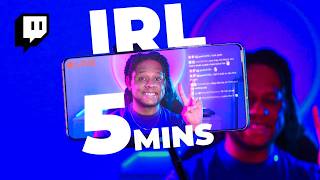

Quickest IRL Stream Setup in 2026
44sViewers love quick, actionable tutorials for mobile streaming, and this segment delivers a fast setup walkthrough.
▶ Play Clip"Delivers a solid, practical tutorial that matches the title, though some parts are padded with casual commentary."
This video is a practical tutorial on how to live stream IRL (In Real Life) content on Twitch using a mobile device. The creator walks through the entire process, from setting up the stream through the Twitch app to managing the stream once live, including troubleshooting common issues like two-factor authentication and camera orientation. The tutorial also covers useful features like the 'Be Right Back' scene, channel points, and tips for accessories and bots to enhance the streaming experience.
To start a stream, tap the plus button at the bottom right of the Twitch app. From there, you can select the game, set the stream title, and configure go live notifications, tags, and content classification.
You can place stream markers and save all settings. Access additional options via the three dots, including editing stream info and opening the Stream Manager.
The Stream Manager provides an activity feed, allows launching and managing predictions, and includes a rewards queue for channel points. You can also hide the rewards queue if not in use.
The square button at the bottom opens a quick scene manager. You can switch between scenes like 'Chatting' and 'Be Right Back'. The 'Be Right Back' scene automatically mutes your mic, which is useful when you step away.
The flip camera button lets you switch between front and back cameras. There's also a mic button to control audio. These are essential for showing different perspectives during an IRL stream.
You must have two-factor authentication (2FA) enabled on your Twitch account to live stream from the app. This is a mandatory security measure.
Once you start the stream, you cannot switch between landscape and portrait orientation. You must choose before going live, so plan your setup accordingly.
If you encounter issues with 2FA, uninstalling and reinstalling the app usually resolves the problem. This is a common fix for stream setup issues.
Once live, you can see chat on the right side and access stats. You can tap to hide the chat overlay, which is useful when doing activities like driving.
The 'Be Right Back' scene works well and automatically mutes the mic. It's a good practice to test it before going live to ensure it functions as expected.
When ending the stream, the app asks for confirmation. After ending, you can use a phone stand to keep the device upright, and some stands show battery level.
Streaming drains the phone's battery quickly. Using a phone stand with a built-in battery indicator can help manage power. Also, consider using a bot like Streamlabs to handle follows, subs, and tips.
This tutorial provides a comprehensive, step-by-step guide to mobile IRL streaming on Twitch, covering setup, features, and troubleshooting. By following these instructions, you can start streaming quickly and effectively, with tips to avoid common pitfalls.
What is the first step to start a stream on the Twitch mobile app?
Tap the plus button at the bottom right of the app.
What is required to live stream from the Twitch app?
Two-factor authentication must be enabled on your account.
02:21
Can you switch between landscape and portrait orientation after starting a stream?
No, you cannot switch once the stream has started.
02:38
What does the 'Be Right Back' scene do automatically?
It automatically mutes your mic.
02:07
What is a common fix for two-factor authentication issues in the Twitch app?
Uninstall and reinstall the app.
03:04
What can you do in the Stream Manager?
View activity feed, manage predictions, and access rewards queue for channel points.
01:12
Why is a phone stand recommended for IRL streaming?
To keep the phone upright and some stands show battery level, helping manage battery drain.
04:46
What is the purpose of using a bot like Streamlabs?
To handle follows, subscribers, and tips automatically.
04:59
Two-Factor Authentication Required
This is a critical security requirement that many new streamers might not know about, and it's a common stumbling block.
02:21Orientation Lock
Knowing that you cannot switch orientation mid-stream is crucial for planning your setup and avoiding frustration.
02:38Reinstall Fix
A simple troubleshooting step that can resolve 2FA issues, saving time and frustration.
03:04Battery Drain Advice
Practical advice on managing battery life during long streams, which is essential for IRL streaming.
04:59[00:00] And you want the quickest and easiest setup. then. then what you want to do is click on that little plus at the bottom right here.
[00:13] if you want to stream games, stream URL, post a story, or open up your dashboard. So tap that and immediately get a very unflattering image of yourself. We can immediately pick the specific game And also the stream title.
[00:28] You get your go live notification text here too. In my specific case it's just chatting. can then type your tags content classification if need be.
[00:44] You can also place your stream markers here. And just like that, all my settings are saved. First of all, we're going to click on the three dots.
[00:57] You can also edit your stream info from there. If I tap on Stream Manager so you can know exactly what that is. a lot of information from the stream, such as your activity feed.
[01:12] You can launch and manage predictions. if you click on the little dots top right here, you get even more options here. You also have the rewards queue for channel points.
[01:27] For example, if you know you're not going to use channel points, can tap bottom right on that little icon and you can go ahead and reward request. So now it's not going to be part of the pages that show up here,
[01:42] Okay. So let's go back to the top left. Then we're gonna click on that little square button that is at the bottom. and this is a quick scene manager chatting is the scene that we're on right now.
[01:55] And be right back is a cool little behind back scene in case you have to, Let's tap on that. Click on chatting and we're back. but on the right back screen, your mic is automatically muted.
[02:07] You can unmuted if you want, but it's great that it's automatically muted. Then we have the flip camera button which you can just press like that. when you're trying to show off something then you have your mic.
[02:21] Okay. Now the last button we have is right there. you want to have two factor authentication activated on your account. But you need that in order to be able to live stream from the app.
[02:38] If you want this to actually be landscape, you need to start the stream you will not be able to switch between landscape and portrait like you used to.
[02:50] The set up will look like this. I actually run into a couple of issues, which is good because I can tell you First of all, you want two factor authentication to be on.
[03:04] Basically uninstall the app and reinstall it and you should be good. And there it is now your life. And you can even see chat on the you can even see chat on the right side
[03:18] and you basically have your eyes on all your stats and all that stuff. you can just tap on it and it will hide it, Say hi to YouTube. So yeah, all the buttons right here, they still work.
[03:34] I have this weird talent where I can identify what's inside a wrapped present. You just watch. So basically minimize that window so you can still see
[03:49] I'm probably going to blow this out. You're not supposed to see this. And if you want to hide chat especially if you're doing, like, dangerous stuff like driving.
[04:04] So here we're going to test the be right back screen real quick. something else to note is that if you're going to launch the broadcast
[04:16] are you sure you want to go live or anything? You know you're not going to have any warning. We're going to swap the camera.
[04:30] It works beautifully. Chat. It was a pleasure. it actually asks you if you want to end the stream. And there you go. I will put a link in the description for one that is like suitable.
[04:46] like this at the end, so you can sit your phone down. that tells you exactly how much battery you have left.
[04:59] and some of them have a screen like this one. is going to drain the phone's battery pretty fast. Finally, I would advise you having a bot like the Streamlabs bot or the Stream
[05:12] When you get a follow, a subscriber, a tip, most importantly. If you would like to see other videos on maybe more complex setups using different
[05:24] or the remote control desktop IRL live stream setup. I'll see you next time. Bye bye!


⚡ Saved you 0h 05m reading this? Transcribe any YouTube video for free — no signup needed.