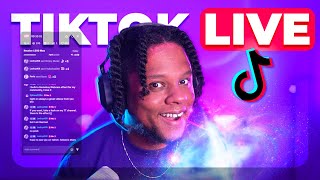

AI Filters Can Shrink Your Jaw in Live Streams
45sThe shocking visual of AI altering facial features in real-time sparks curiosity and engagement.
▶ Play Clip"Delivers a solid tutorial with real feature walkthroughs, though some sections feel like filler."
This video provides a comprehensive tutorial on TikTok Live Studio, showcasing its features for new streamers in 2026. The creator demonstrates how to set up scenes, go live, and utilize advanced tools like AI filters, effects, and interactive alerts, while also comparing it to OBS Studio.
The video covers new features in TikTok Live Studio, including interactive alerts and defensive features, and how to go live quickly.
Users can start with templates or blank scenes, add game capture and camera, and choose themes like neon light yellow power or cyber neon geometry.
In settings, users can select camera, resolution, and adjust sources. The camera is added automatically after selection.
Before going live, set stream title, game, and resolution. Clicking 'Go Live' confirms these details.
Click 'Go Live' to start streaming. Chat can be popped out and repositioned, and follower goals can be moved.
Sources can be centered, cropped, rotated, flipped, and have screen projections. Edge feathering is integrated.
TikTok Live Studio integrates many TikTok filters, including smooth skin, face shape adjustments, and eye widening, all adjustable in settings.
There are full makeup and body tabs, allowing changes like jaw size, leg length, and neck/shoulder adjustments, which are AI-generated.
Atmosphere effects add animations around the streamer, and backgrounds include green screen and AI-generated options.
Chroma key has adjustable similarity and outline settings, and background blur is available. Custom backgrounds can be added.
Integrated camera overlays with masks and cropping. Free overlay packs are available at gumroad.com/get level two.
Sound effects can be added and played. 'I optimize' analyzes and enhances video look and feel, though may cause freezing.
Dynamic effects combine video filters, sound effects, and layout changes triggered simultaneously, like camera zoom with sound.
Interactive alerts and games like co-host, multi-guest, and guessing games are integrated, oriented towards TikTok live streaming.
Widgets like BTS chat from Tikfinity.com can be used, though some features are now behind a paywall.
The creator advises beginners to not be put off by differences from OBS Studio, as TikTok Live Studio is well-rounded and easier for beginners.
Notifications and chat options include background opacity adjustment, making chat more visible during gameplay.
Moderation features include real-time assist, extended chat, floating window moderators, muted accounts, and auto-translation.
To end the stream, click on the timer at the bottom, then pause or end. There is no big red stop button, which is unintuitive.
After ending, the software shows views, highlights, and tips like who got the most watch time, a unique feature.
TikTok Live Studio offers a comprehensive, beginner-friendly streaming solution with integrated AI effects, interactive features, and post-stream analytics, making it a strong alternative to OBS Studio for TikTok-focused streamers.
What is the first step to set up a scene in TikTok Live Studio?
Click the arrow on the front page and choose a template or blank scene.
00:44
How do you go live in TikTok Live Studio?
Configure live info (title, game, resolution) and click 'Go Live'.
01:54
What AI features are available for face adjustment?
Smooth skin, face shape (jaw size), eye width, nose size, and makeup effects.
03:56
How can you add a custom background in TikTok Live Studio?
Use the custom button in backgrounds to upload an image.
10:40
What is the purpose of dynamic effects?
They combine video filters, sound effects, and layout changes that trigger simultaneously for impact.
13:19
How do you end a live stream in TikTok Live Studio?
Click on the timer at the bottom, then select 'End Live'.
19:54
What post-stream analytics does TikTok Live Studio provide?
It shows views, highlights, and tips like who got the most watch time.
20:48
Integrated AI Filters
TikTok Live Studio integrates many TikTok filters directly, allowing real-time face and body adjustments.
03:56Dynamic Effects
Dynamic effects combine multiple actions (filter, sound, layout) triggered simultaneously, a unique feature.
13:19Interactive Alerts
Interactive alerts and games are built-in, reducing need for third-party tools like StreamerBot.
14:08Post-Stream Analytics
Automatic highlights and watch-time stats are provided, a feature not commonly seen elsewhere.
20:48[00:00] So my jaw is getting smaller. You see that? you can make your legs look longer. This seems to be clearly generated by AI because, like, you can't really name
[00:14] So what is big win? So there's like interactive alerts and it's been a while since I made a video on it.
[00:27] I'd like to go over a bunch of new ish features that are available right now. how to go live as fast as possible, and then we'll get to defensive features. Then here on the front page, you're going to get a bunch of tips and tricks.
[00:44] And you can also watch a couple tutorials. Before going live you want to set up your scenes. You can just click on the arrow here.
[00:59] Then here you can start with some templates or start with a blank scene. Game capture in the background. Camera here. If you want a theme, for example.
[01:13] You can have neon light yellow power, cyber neon geometry. It also tells you in detail exactly what's going to be in the scene here. Wait a couple seconds and your scene is pretty much ready.
[01:26] that on the left here. I'll have all my sources. That will open up the settings. Here you can choose which camera you want to use at which resolution.
[01:40] And as you can see it added my camera. technically that's all you need to go live. You would want to look up top on live info.
[01:54] And this is basically where you can set your stream title the game you're playing, Your stream resolution. Because when you go live, it's going to ask you to confirm all of that.
[02:11] This is your audio mixer. and everything. And once you're ready, click go live. We're doing it live.
[02:26] So you can just click Go Live and set that up. I have my chat popped up right there. So here I have, a view of the chat.
[02:41] So what I can do is select it here, then go to the left and basically hide it. If the follower goal is in your way, you can place it wherever you want. But you can't do that when your life right?
[02:56] That's why the amount of people that just come in at a at a time on TikTok live. First of all, per source, I'm going to select my camera. there's a bunch of stuff that I didn't have before, like we didn't have before.
[03:12] the screen. You can center in different axes, crop, rotate, flip. also have screen projections for the sources, which is pretty cool.
[03:25] We'll click adjust. It opens up this box right here. You can have edge feathering. So that's integrated into the software which is pretty nice.
[03:39] Now something else to note is that TikTok has a bunch of like filters. And they kind of integrated a lot of them into TikTok live studio. Let's actually I could just right click and fit to screen.
[03:56] So if I click on the the settings right there. And you can see there's a bunch of tabs with a whole lot of things to go through. And hence for example, can give you smooth skin, smooth
[04:10] skin, if I can speak and you can like really dial it in. Oh actually it is. Wow. You don't have basically they make it so that you don't have to worry about
[04:23] You can just slap on a filter directly and you're good. There's the shape of the face that we can bring down, and you can see that my jaw basically is getting smaller.
[04:38] Thank you for the follow. Appreciate it. Oh my God. It's always weird. Always weird. And you can make your eyes wider, I believe so if I do, I don't.
[04:53] But yeah, it's supposed to make your eyes wider or narrower. I'm guessing your nose can be smaller or bigger, perhaps. I haven't tested this yet.
[05:07] Oh. That changes. Oh. So you can pick which foundation applies to you the best. Oh, God,
[05:21] And then if we click on effects there, like, there's too many to go through. It goes a little too wild even. But I think of a lot of the filters that are available on TikTok,
[05:36] and you basically have those and yeah, they're right there and they work pretty. It's like it reacts to physics a little bit. So, yeah, you you can pick.
[05:48] but you can actually, favorite them so you can go back to them. sitting here, getting a bunch of them and then, later on.
[06:01] I can change my beard. Yeah. Sorry about that. This. So VTuber options, apparently weird.
[06:17] There's a lot. So shape trails. There it is. You can do magic. So there's like, effects that work with just your hands.
[06:33] Oh, wow. Yeah, very silly stuff. There's also atmosphere. Oh, there it is. Clear effect.
[06:45] If you just have a white wall like me and you don't necessarily want. Also, I skipped, makeup. I don't know if I'm the best, but, like, there's there's a full makeup tab,
[06:58] and then there's a body tab, which means that a lot of the TikTokers A lot of those are new to me because I haven't spent the time to actually go and test everything, but it's it's kind of wild out there.
[07:12] Or is it? Oh, yeah. but also just the color correction in general when it comes to body. Neck and shoulder.
[07:27] We're not going to test that. I'm sorry. You're going to have to. you can make your legs look longer. Which is wild, which is absolutely, absolutely wild.
[07:40] So yeah, I was saying that if you just want to add a little more pep to your stream, you can add some atmosphere, effects. So they don't affect you, but they just add a little bit of, animation around you
[07:55] and the background in general, Yeah, I could see myself using this over, over. Like this one. like if you're used to, you know, putting filters on your pictures.
[08:10] Those are basically let's, just play with like, white balance, if you want to add a little bit of, oh, I got something else. I learn so much from you. Hey. Thank you, thank you for stopping by.
[08:25] There's an emotional tab. But, yeah, basically, let's as you can see, it can change your image quite a lot. So if you feel like your webcam is not as interesting, thank you for that, Gigi.
[08:40] Is that a diamond? Thank you for the heart. Thank you for the yellow. Habibie. Yeah. This farming, that stuff, Thank you, thank you.
[08:53] There's also backgrounds some of those say I let's click on the non eyes first. And yeah you have a green screen effect integrated.
[09:05] You can get animated backgrounds strict from the software If you want to have like a cooler gaming studio, of course.
[09:17] This seems to be clearly generated by AI And then the ones that say, I, I'm going to click on it is better.
[09:29] And I don't know what's the difference between this and the others, and like the others, we can see that those other images are also AI generated.
[09:41] Maybe some of them are not AI generated. Like, that's also a kind of weird, weird thing to mention. This one says I.
[09:56] And then just chroma key. this is where you would you can activate it to in order to, You can color pick here.
[10:10] Let me click on chroma key settings because similarity is way too much. Oh my god way too sensitive. But hey kind of a better key than than before outline.
[10:25] Wow. Yeah, there's, there's enough settings for you to play Let's go back to the original. you can actually just blur the background a little bit, which is kind of nice.
[10:40] I don't see anything to make it. There is a custom button here, so I'm going to click on that. See. So if you have an image you can put that.
[10:53] blur that I want, but no, it just it blurs it or it doesn't. All right, let's go back to original and check that last tab, which is appearance. Basically, TikTok live has integrated camera overlays and, wow, amazing UI.
[11:12] The camera preview is blocking whatever this says. Adding a theme to the source will blah blah blah, whatever. There you go. And you can see it also crops.
[11:24] It creates a mask on top of the overlay, So if you don't want to spend time in or doing whatever, you can add your own camera overlay directly. Not all of them, But hey, if you want to get more overlays,
[11:37] I have a pack of free ones right now over at gumroad.com/get level two. Boom. And you're good. Then, just like OBS. So you can quickly have your camera in whatever shape you want.
[11:54] But you can always go back and click on the shape And you can see it took into account the cropping. This is not something that you can do so easily in in OBS studio, for example.
[12:09] And hence here is just going to be the same one that we had before, except, So it's the exact same thing we had. to make it integrated into your dashboard, but we're not going to do that.
[12:24] There is a sound effect option right here that you can click. you can hear it, but it's it's working like there's clapping. And you can add a new one by clicking here.
[12:41] really trying to make it seem like like it's worth it to use TikTok live studio. There's something called I optimize and I wonder what that is.
[12:54] may cause freezing, which I'm guessing probably would like change If I go back to my camera and I go back to settings.
[13:07] analyze and enhance the look and feel of your video with I. Did it I don't know if it did
[13:19] Then there's dynamic effects. Use dynamic effects to intensify your reactions and guide your viewers attention. The dynamic effect can combine a video filter, sound effect,
[13:32] and layout change that trigger simultaneously for a powerful impact. I'm guessing like it's a bunch of multiple actions that you can set up The camera can zoom in and play a sound effect or something.
[13:44] So camera focus, for example. Oh so audio like this is already set up into TikTok.
[13:56] All you have to do is set the hotkey and then you have it. Wow. So I can see what's going on. So what is big win?
[14:08] So there's like interactive alerts that do quite a lot. You can tell that those are really oriented towards
[14:20] So, those are fun little things to do. Like if you were to use OBS studio, for example, you would need like streamer bot, you would need to make sure that stream robot is open when that is working.
[14:33] Like it's pretty cool that a software actually gives you all that stuff. So, something else is that on the bottom left here,
[14:45] that you can do, and honestly, like the whole, currency of TikTok and the different types of live streams and the different games and all of that.
[14:57] I, I'm not super comfortable with it because I don't know anything. But you can co-host stuff, you can have multi guest, viewer wishes a playbook could play together guessing game, live goal Poland.
[15:11] If you really watch TikTok a lot I feel like you might be familiar with. I am not, unfortunately, but they're right there and they would probably. And they will probably explain it to you if you click on them.
[15:24] just letting you know that, hey. especially things that are, really, really related to, you know, live streaming on TikTok and what viewers might expect from you.
[15:38] And TikTok will basically hold your hand to it, you know, click around. As I always say, that's how you learn how softwares, software work, right? for widgets and, BTS chat, for example, is something that I usually use.
[15:54] Tik finity.com, I believe I'll put a link in the description. It's kind of like the service that goes with TikTok, even though TikTok already has like a lot of options to help
[16:06] Attract more viewers with game rewards. You can now give away in-game items to draw and engage more viewers during life. No idea which games enjoy which items and how that works.
[16:19] specific tasks such as watching live, adding comments, and more. but I don't know if you manage it or if it's automatic like Twitch does. So So, yeah, TikTok can get pretty complicated, but it doesn't have to be.
[16:35] and as I say, like, if you're a beginner to this, add a new scene, add All right. You're a streamer because you live stream.
[16:47] If you are a Twitch streamer and you're like, oh, I don't I don't like TikTok live or blah blah blah, stop putting barriers in front of yourself. Just because it's not OBS studio doesn't mean that it's Unusable,
[16:59] especially if you absolutely stop yourself from streaming on TikTok altogether just because the software is not just like the other software you use. Maybe TikTok is your thing, and just because you're being too picky
[17:12] that you want, you're actually missing out. For example, notifications here, you have access to a bunch of stuff,
[17:25] There's always like new things to learn from. And if you want to stream, I don't remember if I said that or not. You just can't change mid-life.
[17:40] your camera and all that stuff be vertical by just clicking here before going live. You can have your settings right there. I don't know if that's visible right there. And chat.
[17:56] Here I want to show the chat options before we go. So the background opacity because it hovers. and you're still going to be able to watch your, chat, keep an eye on your chat.
[18:13] especially if you're playing a game and you're moving your mouse around. But, yeah, you can play with the opacity and, make it more visible, which are all options that are pretty rare on any other, platform.
[18:28] I'm not necessarily telling you, hey, you have to use it, but I'm saying that all the excuses of, oh, it's not as good as OBS studio. Go kind of goes out the window because this is a more, well,
[18:41] well rounded, software after all, for streaming, even if it doesn't give you the the freedom that OBS studio will give you. A lot of presets make things much easier for beginners.
[18:53] Appreciate you. Yeah. Thank you, thank you. Where's that. Real time assist, extended chat, floating window moderators, muted accounts,
[19:09] Auto translation is something I didn't know that I. I usually ban people who come to my stream and and refuse to speak English.
[19:24] So yeah, you have all your moderation and, your chat settings right here. So as I said, it's a website with services, extra widgets, channel points and all that.
[19:37] I might make a video on it. a lot of the features are now behind a paywall, which wasn't the case before. So, maybe it's worth it to, explore what is available for free now
[19:54] and what isn't, Final thing is something that I actually don't like about TikTok live studio right now is, let's say the stream is done, which it is right now. There is no big red button that says stop streaming.
[20:08] You have to click on the time here at the bottom, And within that timer you can pause the live stream or end the live stream.
[20:21] Don't make me look around. And there's nothing intuitive about clicking on the time to to end the live. At least you're not going to end it accidentally.
[20:34] If you click and live, it asks you, hey, are you sure you want to end the is that at the end of your stream, you're actually It's going to tell you how many views you got.
[20:48] and all that good stuff. a couple of highlights that it took automatically for you. If no one clipped anything, if you didn't clip
[21:03] you're going to watch those clips and see if they're adequate. And they're always giving you tips. Like like who got the most watch time during that one?
[21:20] I think that's a pretty cool feature. I haven't seen that anywhere else.
⚡ Saved you 0h 21m reading this? Transcribe any YouTube video for free — no signup needed.