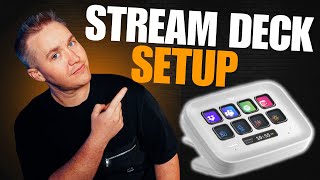

Stream Deck Setup: First Steps
45sShows the unboxing and initial setup, which is relatable for new streamers.
▶ Play Clip"Title accurately describes a full setup breakdown for streamers; video delivers on that promise."
This video provides a step-by-step guide for setting up the Elgato Stream Deck Neo, from unboxing to customizing workflows. The host explains how to download the software, navigate the interface, and use the marketplace to add plugins for platforms like OBS, Spotify, and TikTok Live.
The Stream Deck Neo has a fold-out stand and a USB-C port. Plug it directly into your computer; it lights up with preloaded settings like apps, links, and emojis.
Go to elgato.com/downloads and select the Stream Deck software for your operating system (Mac or Windows). No sign-up required.
The software shows virtual keys that correspond to physical buttons. You can delete, replace, and add pages to organize workflows for different platforms like TikTok or Twitch.
In Preferences, check for updates, manage connected devices, add accounts (Twitch, YouTube), and adjust settings like sleep mode and brightness.
The Marketplace offers plugins, icons, and sound effects. Download plugins for OBS, Discord, Spotify, etc. Log in to your Elgato account for seamless integration.
After downloading the Spotify plugin, you can assign keys for play/pause, next/previous track, and volume control. The changes appear on the virtual Stream Deck.
Download the TikTok Live plugin from the Marketplace. Note: TikTok Live Studio is not available on Mac, so Windows users can use it directly.
Create separate pages for different workflows (e.g., OBS). Use the physical buttons on the Neo to navigate between pages.
Know your goal, download the software, and use the Marketplace to get the plugins you need. The Stream Deck streamlines live streaming and desktop workflows.
Setting up the Stream Deck Neo involves downloading the software, exploring the Marketplace for plugins, and customizing keys to match your streaming or productivity workflow. The device simplifies multitasking by centralizing controls.
What is the first step after unboxing the Stream Deck Neo?
Plug it into your computer via USB-C.
0:40
Where do you download the Stream Deck software?
From elgato.com/downloads.
1:26
What can you do in the Preferences section of the Stream Deck software?
Check for updates, manage devices, add accounts (Twitch, YouTube), adjust brightness and sleep settings.
4:27
What is the Marketplace used for?
Downloading plugins, icons, and sound effects for the Stream Deck.
6:08
Which streaming platform's plugin is noted as not working on Mac?
TikTok Live Studio.
8:40
How can you navigate between different pages on the Stream Deck Neo?
Use the physical page navigation buttons on the device.
9:40
What are the three key steps to setting up the Stream Deck according to the video?
Know your goal, download the software, and use the Marketplace to get needed plugins.
10:41
Unboxing and Physical Setup
Provides clear first steps for new users.
0:40Software Download Instructions
Essential for getting started; includes OS-specific guidance.
1:26Marketplace as Central Hub
Explains where to find all plugins and customizations.
6:08Key Takeaways Summary
Condenses the setup process into three actionable steps.
10:41[00:00] Are you a streamer that just bought your
[00:02] Stream Deck and you're not entirely sure
[00:04] how to set it up? You've seen all these
[00:06] cool features and you want to be able to
[00:08] use it for things like Tik Tok, Twitch,
[00:11] and all these other platforms that you
[00:13] can stream live from. You want to be
[00:15] able to have these cool effects. Well,
[00:17] in order to get those cool effects, you
[00:19] need to be able to set up your Stream
[00:22] Deck for yourself. And in this video,
[00:24] I'm going to show you the first phases
[00:25] that you need to do to be able to set up
[00:27] your Stream Deck. We're using the Stream
[00:29] Deck Neo. And in this video, I'm going
[00:31] to be showing you everything a toz that
[00:33] you need to take the first initial steps
[00:34] to be able to get this thing up and
[00:37] running. So, let's dive
[00:39] [Music]
[00:40] in. Now, when you first unpack your
[00:43] Stream Deck Neo, it's a really easy
[00:45] setup. In the back, there's like a
[00:46] little fold out here that you can have
[00:48] so that you can adjust it and then have
[00:50] it sit up properly on your desk. This
[00:52] comes with a USBC port right here that
[00:55] you can see. You're going to plug that
[00:57] straight into the side of your computer.
[01:01] Whether you're using a Mac or a Windows,
[01:02] you can just plug that directly in here.
[01:04] You'll see that it'll light up initially
[01:06] with a couple preloaded settings. You're
[01:09] going to see apps, links, emojis,
[01:11] tutorials, undo, redo. These are just
[01:13] presets that they give you. These
[01:15] presets are interesting because you can
[01:17] customize every single one of them. and
[01:20] I'm going to show you exactly how to set
[01:21] it up so that you can eventually get to
[01:23] that phase to where you're customizing
[01:25] your stream deck. Once you plug in your
[01:26] Elgato, one of the first things that
[01:28] you're going to want to do is you're
[01:30] going to want to head to you're going to
[01:32] want to head over to Elgato US
[01:34] downloads. If you go to elgato.com, you
[01:37] can just come over to the download
[01:38] section. It'll bring you to the exact
[01:40] same thing. This is important because
[01:42] when you are looking at your operating
[01:44] system, you're going to download based
[01:46] off your operating system. So, if you're
[01:47] on a Mac, make sure that you click Mac.
[01:49] If you're on Windows, make sure that you
[01:50] click Windows so that you don't get
[01:52] those two confused and you can have the
[01:53] right download. Right now, I'm using a
[01:55] Mac. Now, what you're going to do is
[01:58] you're going to look specifically for
[02:00] Stream Deck. So, you're going to come
[02:01] over here. We have the Stream Deck Neo.
[02:03] This will tell you everything that it's
[02:05] compatible with, which is important
[02:06] because if you have multiple Stream
[02:08] Decks, like say you have the foot pedal
[02:10] or the Stream Deck Neo, you want to make
[02:12] sure that the download that you have
[02:14] specifically for this is going to make
[02:16] sense. So, you're going to go ahead and
[02:18] you're going to click download. You
[02:19] don't have to sign up. You can say
[02:20] continue with the download. Boom. It'll
[02:23] pop up here. And then you're going to go
[02:25] through the download segment and opening
[02:28] everything up for that. Once you do
[02:29] that, you will see an icon here that
[02:32] says Elgato Stream Deck. You're going to
[02:34] go ahead and click that and open it up.
[02:36] And it's going to show you the keys that
[02:38] you have for your Stream Deck Neo. Now,
[02:41] this looks a little intimidating when
[02:43] you first look at it because you're not
[02:45] entirely sure what everything means.
[02:47] Let's break it down. Each one of these
[02:49] buttons are the physical buttons that
[02:51] are on your Stream Deck. You can delete,
[02:53] replace, and add additional pages so
[02:56] that your Stream Deck isn't just
[02:57] operating as eight keys or however many
[03:01] keys are on the actual dashboard. It's
[03:02] important for you to know that you can
[03:04] create certain folders similar to this
[03:07] apps one that when we click into the
[03:09] apps, you have an entire different
[03:11] setup. So, this is really important when
[03:13] it comes to organization and workflow,
[03:16] right? Maybe you want to have
[03:17] specifically a Tik Tok live stream setup
[03:19] and you go ahead and you click the Tik
[03:22] Tok app on your Elgato and it opens up
[03:24] all the keys that you specifically want
[03:26] to use for that feature. And then say if
[03:29] you're coming over to Twitch and you
[03:30] have a completely different workflow for
[03:32] Twitch, different overlays, different
[03:34] actions, different counters, stuff like
[03:36] that. You can create these different
[03:39] buttons to have different
[03:41] assignments and different breakdowns
[03:44] through them. That was the back button.
[03:45] We're at the home screen now. And you
[03:48] can make each one of these pages
[03:50] different types of actions. You can also
[03:52] add another page. So when you add
[03:54] another page, let's say if I wanted to
[03:56] open up like music settings and then I
[03:59] want to change back and forth between my
[04:00] music, I can do that. So now that you
[04:03] understand what each of these hot
[04:05] buttons means, let's go ahead and look
[04:07] at our default profiles. You can you can
[04:10] create a new profile for each setting,
[04:13] which will essentially create a new page
[04:15] for you. These are your default profiles
[04:18] that it comes with. But when you want to
[04:21] create a new profile, you can start
[04:23] there. And then you want to come over
[04:26] here to
[04:27] preferences. And right here is where
[04:30] you're going to check for different
[04:31] types of updates, different types of
[04:34] devices that you have currently
[04:36] connected to the account, different
[04:37] types of accounts that you want to add
[04:38] to this. Like say you want to add
[04:40] Twitch, you want to add YouTube, you can
[04:42] do that through here. But you're going
[04:44] to go ahead and make sure that this
[04:47] stuff is filled in. It'll show you all
[04:49] the plugins that you have downloaded. It
[04:51] is extremely important for you to keep
[04:52] this constantly updated because there's
[04:54] certain bugs that are constantly fixed,
[04:56] new plugins, new additional features.
[04:59] So, make sure to always check for
[05:01] updates. Great, I'm up to date on the
[05:03] latest version. I got my Stream Deck
[05:05] Neo. You're going to want to set this
[05:07] from sleep from whatever it is to never
[05:10] because you don't want this to just shut
[05:12] down. Um, you can increase the
[05:14] brightness and decrease the brightness
[05:16] here. update firmware constantly making
[05:19] sure that all your updates are good to
[05:20] go when something's not correct. You add
[05:23] your live accounts here. Um, your
[05:26] different types of profiles. You can
[05:27] organize them here, which you can
[05:29] customize based off of your need. Um,
[05:32] you know, you can have the foot pedal
[05:33] one, like if you have your foot pedal
[05:35] plugged in, it has a ton of different
[05:37] types of presets. This is great for
[05:39] workflows, right? This is great for
[05:41] being able to organize your live
[05:44] streaming so that you can make
[05:45] everything done from a click of a
[05:46] button. How how do we get to this point
[05:49] now to where we look at our keys and all
[05:52] that and we actually say, "Yeah, I want
[05:54] to start using some of this stuff. I
[05:56] just don't know where the freak to get
[05:58] it." That is where this next part comes
[06:00] into place. You are going to want to be
[06:03] spending a majority of time building out
[06:05] your workflows in the marketplace. So,
[06:08] when you come back to Elgato here,
[06:10] you're going to go ahead and you're
[06:12] going to click on the marketplace. And
[06:14] this is where you get all the plugins,
[06:17] all the icons, all the sound effects
[06:19] that Elgato is constantly releasing. And
[06:22] you're going to be able to check out the
[06:24] plugins section, right? For like here,
[06:28] we have OBS. If you want to be able to
[06:30] live stream on OBS, you're going to want
[06:31] to go ahead and get this and download it
[06:35] um to your account. Make sure that you
[06:37] log into your account so that
[06:38] everything's seamless for you. Um, if
[06:41] you want to open up Discord, right, you
[06:43] can have a Discord button that directly
[06:45] opens everything up. If you want to be
[06:47] able to add music, you can get the
[06:50] Spotify app and you can go ahead and
[06:53] make sure that I'm going to go ahead and
[06:56] just do this here real quick. But say if
[06:58] I want to play music and I want to open
[06:59] up music, boom, open up in Stream Deck.
[07:03] Now, if we open up in the Elgato Stream
[07:06] Deck, allow it to authenticate. Great.
[07:09] Now, we have a whole segment that if I
[07:13] want to play music and pause music and I
[07:15] have my entire screen in front of me, I
[07:17] don't have to switch over to another
[07:18] screen. I can simply take the Spotify
[07:23] like, so if I were to customize this
[07:25] right now in front of you guys, I'm on
[07:27] page one. I want to do uh Spotify and I
[07:31] want to go ahead and push play. That
[07:35] means that I will open up the app,
[07:37] download it, and it'll begin playing
[07:39] music. If I want to shuffle to a
[07:41] different song, boom, I have my next key
[07:44] for that. If I want to switch to a
[07:46] different track, maybe I want to go back
[07:47] to the previous track, right? Maybe I
[07:50] want to make a volume control, volume
[07:52] up, and then I can add another volume
[07:55] control. And then I can label that
[07:57] volume down. I can turn the volume up
[07:59] and down from my stream deck. And if you
[08:02] see here, it's making the changes as I
[08:06] make them on the virtual Elgato. You
[08:09] could title it. You could say uh Spotify
[08:12] volume down, right? And now it's saved
[08:14] as that. And you can see it on your
[08:16] screen here as well. You can make it a
[08:18] simple phrase that you use. But that's
[08:22] where you start to really start to
[08:24] customize these different features
[08:26] through the marketplace. Now, let's say
[08:28] if you want to add Tik Tok live, we're
[08:30] going to go back to the marketplace. I'm
[08:32] going to do Tik Tok live. Right here,
[08:36] you have the Tik Tok Live to be able to
[08:38] download this. One important thing to
[08:40] know is that if you go to download Tik
[08:41] Tok Live Studio for the Stream Deck, if
[08:44] you have a Mac, it won't work. So, you
[08:46] want to be able to use this and do the
[08:49] same exact workflow for your Windows,
[08:52] which is kind of a pain, but until Tik
[08:54] Tok Live Studio is rolled out on Mac,
[08:57] that's what you're going to have to do
[08:58] for now. But it's all the same type of
[09:00] workflow, same type of downloads. If you
[09:02] want to customize your keys, you will be
[09:04] able to do that through here. And you
[09:07] can upload different icons as well. So,
[09:10] you can choose the pre-loaded icons or
[09:12] you can upload icons as well. So now if
[09:16] we want to create another page, say we
[09:17] want to create a
[09:19] OBS, right, section to where in OBS, we
[09:23] click record, we open up OBS, we click
[09:26] this button and it begins recording for
[09:28] us, right? So this is a way that we can
[09:30] kind of get away from jumping from
[09:32] screen to screen to screen to screen to
[09:34] be able to just navigate back and forth
[09:36] from our Now if you notice on the Neo,
[09:40] there's a button here and here. If I
[09:43] were to press this button here, I would
[09:45] go to page one and then I can flip to
[09:47] page two. As you can see on the screen,
[09:51] which is super convenient because you
[09:52] don't want to be screwing around with
[09:54] this these different types of windows
[09:57] when you can have a piece of hardware
[09:59] that you go back and forth between and
[10:00] you know where everything is. The Elgato
[10:02] Stream Deck is made to make your life
[10:04] easier, not harder when you go to
[10:05] stream. Now we want to create a third
[10:07] page to navigations which is like
[10:11] creating a folder. You can also use this
[10:13] just for overall workflow on your
[10:17] desktop even if you're not live
[10:18] streaming. If you want to clear out some
[10:20] of the buttons, you can just click press
[10:23] delete and then just clear them out. But
[10:27] with each one of these different types
[10:28] of tracks here that you have, you can
[10:31] customize certain types of actions that
[10:34] will allow you to know exactly what
[10:37] button you're pressing and why you're
[10:39] pressing it. At the end of the day, the
[10:41] most important thing for you to
[10:42] understand is what is the goal for the
[10:45] Elgato Stream Deck and then to be able
[10:47] to work backwards through your workflow.
[10:50] But the key things that you need to know
[10:52] are one, you need to know what your goal
[10:55] is for the Stream Deck. Two, you need to
[10:58] be able to download the Stream Deck
[11:01] software. And then three, and last but
[11:04] not least, you need to make sure that
[11:06] you're in the marketplace downloading
[11:09] everything that you need for your Elgato
[11:12] to be able to have the workflow that you
[11:14] want to be able to accomplish. For live
[11:16] recordings such as Streamyard, you're
[11:18] going to want to use OBS. But Tik Tok
[11:20] Live Studio, you're going to make you're
[11:22] going to want to make sure that you
[11:24] download the marketplace for Elgato. And
[11:26] then you can make those customized key
[11:28] features when you go to open up your Tik
[11:31] Tok Live Studio, which we will be doing
[11:33] a deep dive into Tik Tok Live Studio
[11:36] because Tik Tok is one of our partners.
[11:39] We're going to be doing a extensive deep
[11:42] dive into Tik Tok Live Studio and how
[11:44] you can have the best live using Elgato
[11:48] software and hardware. We're going to
[11:50] put that video down here so that you can
[11:52] watch it if you are a Tik Tok live
[11:54] streamer or if you're just using it for
[11:55] regular workflows. We're going to be
[11:57] doing full gear reviews on how you can
[11:59] have the best home studio setup for
[12:01] yourself and whatever workflow that
[12:03] you're trying to accomplish. So, make
[12:04] sure you check out the gear talk. We're
[12:05] going to be listing all the types of
[12:07] Elgato hardware that we're personally
[12:09] using. Last but not least, if you found
[12:10] this video helpful or if you still have
[12:13] questions, drop a comment in the comment
[12:15] section below and let us know how we can
[12:17] help you. This video helped you, great.
[12:19] Let us know where it helped you. Or if
[12:23] things are still unclear, drop a comment
[12:25] and I'm more than willing to jump into
[12:26] things more developed as well as create
[12:29] other videos that we can use to help you
[12:31] in your process of becoming a content
[12:32] creator. I'm manager John and I'll see
[12:34] you on the next
⚡ Saved you 0h 12m reading this? Transcribe any YouTube video for free — no signup needed.