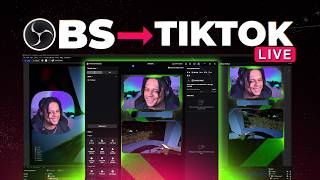

Stream TikTok Without a Stream Key!
45sThe promise of bypassing a common pain point (stream keys) is highly appealing to aspiring streamers.
▶ Play Clip"Delivers on the promise of streaming without a stream key, but includes some filler and assumes prior OBS knowledge."
This video demonstrates how to stream to TikTok using OBS Studio without a stream key, leveraging the OBS Virtual Camera feature. It covers both landscape and portrait streaming setups, including using plugins like Stream Suite for multi-output control. The tutorial also addresses a common requirement for new streamers to use TikTok Live Studio for a few days before unlocking the virtual camera option.
The video introduces a method to stream on TikTok without a stream key, using OBS Virtual Camera. It assumes you have a gameplay scene set up and want to bring it to TikTok.
Click 'Start Virtual Camera' in OBS to create a virtual camera device that other apps can pick up. If not installed, download it.
In TikTok Live Studio, go live and set the orientation to landscape. Add a new scene and select 'OBS Virtual Camera' as the camera source.
OBS Virtual Camera auto-formats. Right-click the source, go to full screen, and select 'Fit to Screen' to adjust.
Once live, you can control the stream from OBS by switching scenes. Note that black bars may appear; adjust camera placement for mobile viewers.
You can use TikTok's basic alerts or integrate browser sources from OBS to manage alerts without touching TikTok Live Studio.
To stream in portrait, change OBS base resolution to 1080x1920. This makes the entire canvas portrait, but requires turning off the virtual camera and refreshing.
For multi-streaming or to avoid messing up your main OBS setup, use plugins like Stream Suite or Atum Vertical. Stream Suite provides an additional canvas for vertical streaming.
In Stream Suite, go to Outputs, select a virtual camera output, and choose the vertical canvas. This creates an extra output for TikTok.
After setting up the output, you can broadcast a vertical virtual camera to TikTok, controlling everything from OBS.
All OBS features work with the vertical stream, including scene linking and overlays. You can add images and adjust them to fit.
New streamers may need to stream for three days using TikTok Live Studio for at least 25 minutes each to unlock the option to select OBS Virtual Camera.
Streaming to TikTok via OBS Virtual Camera is a viable method that gives full control over your stream without a stream key. For vertical streaming, using a plugin like Stream Suite simplifies the process. Be aware of TikTok's initial requirement for new streamers to use Live Studio for a few days.
What is the main advantage of using OBS Virtual Camera for TikTok streaming?
You don't need a stream key.
How do you start the OBS Virtual Camera?
Click 'Start Virtual Camera' in OBS.
00:31
What resolution should you set for portrait mode streaming?
1080x1920.
03:13
What plugin is recommended for multi-output streaming?
Stream Suite or Atum Vertical.
03:39
What requirement does TikTok impose on new streamers to use OBS Virtual Camera?
Stream for three days using TikTok Live Studio for at least 25 minutes each.
07:48
No Stream Key Needed
This is the core value proposition of the method, making it accessible to streamers who want to use OBS without dealing with stream keys.
Portrait Mode Resolution Trick
Changing base resolution to 1080x1920 is a simple yet effective way to switch OBS to portrait mode for TikTok.
02:34Stream Suite for Multi-Output
Using a plugin like Stream Suite allows streamers to maintain their main OBS setup while adding a vertical output, solving a common pain point.
03:39TikTok's Three-Day Requirement
This is a crucial caveat that new streamers must know to avoid frustration when trying to use OBS Virtual Camera.
07:48[00:00] This video will cover one of the many methods of doing biggest advantage with this method is that you don't need a stream key. And let's say that this is your gameplay scene.
[00:14] You have your camera, your gameplay, all your stuff is already set. And you just want to bring this into TikTok with this format. and go to Start Virtual Camera.
[00:31] and it's going to turn What that does is create a new virtual camera, basically another video capture device that anything can pick up. If you don't have it yet you know just Google it. Download it.
[00:47] If you're not logged in yet or if you don't even have access to live, I already have access, so I'm just going to click Go I'm going to go top left and set this to landscape
[01:02] I'm going to show you portrait mode a little bit later. so I can go to my scenes list, click on the little plus to add a new scene, then scroll down and click on blink.
[01:17] you can see here I have the option to add a camera. If you don't see this you can go here and click Add Source. And under camera you want to select OBS Virtual Camera.
[01:32] Now it'll format it automatically for you. You can right click on it, go to full screen and click Fit to Screen. So right now this is just OBS studio.
[01:46] live all you have to do is go live and then control the rest of the stream. So if I switch scenes, for example, I go to my gameplay scene for some reason, it's flipped, but that's fine.
[02:01] And there you have don't worry about the black bars. what will be visible on mobile versus people watching it in landscape. So, you know, for convenience you would probably want to move your camera.
[02:15] I'm doing this off screen in OBS studio and you can see everything Now of course, from there you can have TikTok's basic alerts and things Or you can use Tick Affinity have those browser sources in OBS studio
[02:34] and manage them all there so that you don't touch this software at Okay. Let's say you want to stream in portrait mode. But the problem is that your canvas is ten ADP.
[02:47] But let's say that you would want to have like a whole portrait format. The easiest way, if you're only going to show on TikTok, I advise you doing
[03:01] to your settings to video and then under base resolution. If you have the virtual camera on, you need to turn that
[03:13] You need to put that to 1080 by 1920. then your whole canvas in OBS studio would become in portrait mode.
[03:25] Then what the virtual camera, you would have to go back and refresh it basically. But if you use OBS studio to do other stuff, maybe you don't want to ruin your main OBS studio, or maybe you want a multi stream for example.
[03:39] Adams Stream Suite or Atum Vertical would probably help you. I have the stream suite installed, and what it gives me is basically You can see it here that's still an OB studio I can adjust it.
[03:55] play around with it and do my own stuff just for the vertical. For example, here I can uncross this and just put that up. then for the gameplay I can center it a little bit Drop it in there.
[04:09] So it's basically another canvas and OBS studio that works exactly I have multiple videos on it. Make sure you watch those. I'm gonna make sure I move my camera so we can have more of the gameplay here.
[04:21] I'm going to stop my virtual camera for now and I'm going to go to outputs. So outputs is one of the docs that you're going to get with a streaming suite. then it kind of messes up all of your OBS settings, all of your layout.
[04:35] Appearance and then select the right theme. And then I have the eight on one. and then set this to compact or classic or whatever you want.
[04:52] so now I need a doc called outputs. I already have it in there If you don't see it it is right here output. And I can click on the cogwheel to kind of better show you everything I have.
[05:08] So I have general I have canvas. And of course I have my Adam vertical canvas. And this is where you can basically decide how many outputs you want.
[05:23] Do you want the vertical backtrack which is basically a replay buffer. Do you want vertical recording which I have here? and this is all great, but I want a virtual camera just for the vertical.
[05:35] I'm going to select a virtual camera. then under canvas I can select a vertical. So now I just created an extra output that will be in my list.
[05:50] Sometimes you need to reload OBS. But I'll click once here and it seems to So now we are broadcasting a vertical virtual camera that we can just go on TikTok,
[06:05] like, well, it completely changed it because the settings are not the same. And under resolution we can select the right one. Would you look at that. And just like that.
[06:20] You have your vertical stream controlled completely in OBS studio, which means that everything that you can do at OBS studio, you can do it in here.
[06:33] For example, if I go to full screen, you'll see that my this isn't perfect, but you'll see that my my scenes here are linked. So if I'm streaming on the main canvas, I need I need those to be linked.
[06:47] But I also have scenes that are that have nothing to do with the main canvas. So if I want to use something like, A new image here, click browse now I recently made an overlay
[07:03] for this vertical overlay and we'll select a green one. Click okay and I can adapt everything else to fit set overlay okay.
[07:17] Now make sure it completely fits. It has my camera, but it doesn't have to be like you can And you can see I'm controlling everything through OBS studio.
[07:32] Everything that OBS does, you can see it right here, except this is all OBS. Now there's a mild inconvenience with this whole method. to virtual cameras right off the bat.
[07:48] live streaming with TikTok Live Studio or you haven't streamed in a while, they're actually going to ask you to stream for three days using Live studio for at least 25 minutes each.
[08:02] Okay, so I had to do that to unblock the ability to just select OBS virtual camera, which is silly to me, At least it gets you basically used to TikTok live studio.
[08:16] If it's your first time using live studio, I have videos on that on But yeah, in order to be able to select OBS virtual Camera, And for streams that are 25 minutes minimum.
[08:33] It's been a while since I made a how to use TikTok live studio video. make sure you subscribe so you don't miss A follow me on TikTok actually at GaelLevel and I'll see you next time.
[08:46] Bye bye.
⚡ Saved you 0h 08m reading this? Transcribe any YouTube video for free — no signup needed.