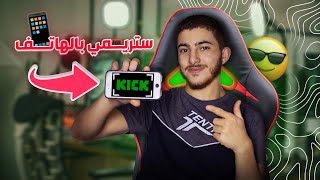

How to Stream on Kick/Twitch with Only Your Phone
45sDirectly addresses a high-demand niche (mobile streaming) with a clear, actionable tutorial, appealing to aspiring streamers without PCs.
▶ Play Clip"The title accurately promises a mobile streaming tutorial, and the video delivers exactly that."
This video provides a step-by-step guide on how to stream on platforms like Kick or Twitch using only a smartphone, covering both Android and iOS devices. The tutorial focuses on using the Streamlabs app and configuring settings for a successful mobile live stream.
The video teaches how to stream on Kick or Twitch using only a phone, applicable for both Android and iOS.
Go to the App Store or Play Store, search for 'Streamlabs', and install the app.
Open Streamlabs, select the platform (e.g., YouTube), and choose your account. Options include flipping the camera, muting, and changing the view.
You can zoom in/out, hide or show elements during the live stream, and lock them to prevent movement. Some features require payment.
Ready-made themes are available for chat and donations. Settings allow control over audio, video, FPS, and recording.
In the OPS app, choose to go live with camera or screen share, select the platform, and connect your account.
For Kick, use 'Custom' server, name it 'Kick', and enter your username and stream key. Obtain the stream key from Kick's website.
Choose camera or screen share, select the stream key, set a title, save permissions, and go live.
The video successfully demonstrates how to set up a mobile stream using Streamlabs and OPS apps, covering both Kick and Twitch platforms. It emphasizes simplicity and accessibility for mobile-only streamers.
What app is recommended for mobile streaming?
Streamlabs
00:15
What are the two platforms mentioned for streaming?
Kick and Twitch
00:01
How do you obtain the stream key for Kick?
Go to Kick.com, open your profile, and follow the steps to get the URL and stream key.
02:42
What does the 'Custom' server option in OPS app allow?
It allows you to enter a custom stream key for platforms like Kick.
02:24
What settings can be adjusted in Streamlabs?
FPS, audio, video, and recording settings.
01:29
Mobile Streaming Capability
Demonstrates that streaming on Kick or Twitch is possible using only a phone.
00:01Streamlabs App Usage
Identifies Streamlabs as the key tool for mobile streaming.
00:15Custom Server for Kick
Explains how to use a custom server to stream on Kick, which is not a default option.
02:24Final Go-Live Steps
Summarizes the final steps to start a live stream, including setting a title and saving permissions.
03:14[00:01] this video we'll learn how to stream on Kik or Twitch using only your phone. If you enjoyed this video, don't forget to leave a like and a comment. I promise! Let's get into the
[00:15] Android and iOS. So, whether you have Android or iOS, there's no problem. I go to the App Store or Play Store, then search for "stream lab." As you can see, this is the program. I go to Kiliu, then open it. I enter, for example, YouTube, and select the account I
[00:29] want. Then, here you'll find options to flip the camera (turn your camera around). Here you can mute the camera, and here you can show the view (you can show the view here and here, and from above). If you want to change the view, for example, here the view is at the
[00:46] bottom, here the view is visible, and here your video appears. If you want to change the view, you can edit it here. This is the chat area. You can come from here and zoom in or out.
[00:58] from here and zoom in or out. Here are points you can hide or show in the middle of the live stream. Here you can lock them so they don't move. So when you're there, you can't move them. Here you have three points, for example, that you can reveal. The ones
[01:14] surrounded by this frame mean you have to pay to access them. For example, pay to access them. For example, these are the themes. You can use them ready-made. For example, the chat is in one way, you understand? Donation and that is in another way. Here
[01:29] we have settings. You want to control the audio or video, anything you want. For example, here is how many FPS you want. If you have a good connection or a good internet connection, the
[01:42] FPS will make the live stream great. Here we have the recording settings, and here we have the audio settings, meaning the microphone audio and the audio of the microphone. For example, this alert, this is the game's sound, for example,
[01:54] all the settings you can find here. For example, in the OPS app, if you want to go live, in the OPS app, if you want to go live, record your phone, then go to Live and choose here whether you want to live with camera or screenshot/share. You click Next, then here it
[02:12] choose the platform you want, you click Select, then Connect and Account, and here you choose which account you want. Anyway, if you want Twitch, you can click Merge here and enter
[02:24] your Twitch account. If you want to stream on Kik, this is Custom. Here it asks you if you want to name it, for example, let's name it Kik so you remember it. Here you choose your username and stream. When you get these, your Kik account appears. Google, you go here and type Kik.com, and then we browse
[02:42] on the desktop, so it looks like Open Kik PC, go to your profile here, and then follow these steps to stream your URL. As you can see, this is the URL and
[02:54] this is the stream key. This is the stream key, and this is the one you want to show. As for the regular URL, it's a copy. This way, you copy it back. This is a copy. This way, you copy it back. you want to show. As for the regular URL, it's a copy. This way, you copy it back. This is a copy. This way, you copy it back.
[03:14] from here and choose either camera or screen share. You don't have to do the step we did for the screen share. You don't have to do the step we did for the stream key. You choose what you stream key. You choose what you want. You press the button and choose from here. You'll find
[03:30] what we did. Click on it, put the stream title here, then click on save to give it permission, and then go live. That's all for our video. If you liked it, don't forget to leave a like and a comment. If
[03:44] message. On Instagram, Ra Ken answered everything. We'll meet in a new video. Peace be upon you.
⚡ Saved you 0h 03m reading this? Transcribe any YouTube video for free — no signup needed.