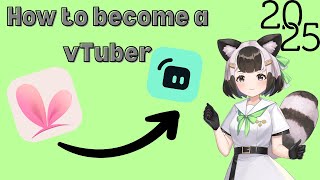

How to Set Up Your VTuber Model in VTube Studio
54sThis is a highly educational segment for aspiring VTubers, showing the exact steps to import a model, which is a common pain point.
▶ Play Clip"The title promises a 2025 vTuber setup, and the video delivers a functional guide, though it lacks advanced tips and has some fluff."
Snapshot 2026-10-31
Every observation TubeSum recorded, plotted as measured.
Based on 9 observations · last observed Oct 31, 2026 · straight lines connect consecutive observations — TubeSum does not measure the days between them.
Exact daily observations; gaps mean no observation was taken that day.
| Date | Views | Avg views / hour | Channel median |
|---|---|---|---|
| 2026-10-31 | 2,763 | 0.2 | — |
| 2026-10-30 | 2,756 | 0.2 | — |
| 2026-10-29 | 2,749 | 0.2 | — |
| 2026-10-28 | 2,746 | 0.2 | — |
| 2026-10-27 | 2,736 | 0.2 | — |
| 2026-10-26 | 2,731 | 0.2 | — |
| 2026-10-25 | 2,724 | 0.2 | — |
| 2026-10-24 | 2,720 | 0.2 | — |
| 2026-10-23 | 2,711 | 0.2 | — |
This video is a practical tutorial for aspiring vTubers, demonstrating how to set up VTube Studio with a custom model and integrate it with Streamlabs for multi-streaming to Twitch and TikTok. The creator walks through the entire process, from importing a model to configuring green screen filters and dual output settings.
The creator uses a second monitor, the free desktop version of VTube Studio, and the paid mobile version to stream directly from their phone.
Streamlabs is used to stream simultaneously to Twitch and TikTok.
In VTube Studio, navigate to 'Change VTS model' to access free models or import a custom one. Importing requires placing the unzipped model folder into the correct directory.
In Streamlabs, add a new source, select 'Game Capture', and name it (e.g., 'VTube Studio 3'). Configure it to capture the specific window 'VTube Studio' and match the title.
In VTube Studio, select background number 8 (green screen). In Streamlabs, add a 'Color Key' filter to the source and adjust the 'Similarity' slider to remove the green background.
Use the Alt key to clip and resize the vTuber model, allowing it to be placed in any corner of the stream.
In Streamlabs settings, link Twitch and TikTok accounts. Enable 'Dual Output' to stream vertically to TikTok and horizontally to Twitch, with separate titles and categories.
After configuring, click 'Go Live' and wait about 3 minutes 30 seconds before starting to allow time for preparation.
The video provides a clear, step-by-step guide to setting up a vTuber stream with VTube Studio and Streamlabs, covering model import, green screen, and multi-platform streaming. It is a practical resource for beginners looking to start streaming as a vTuber.
Equipment Essentials
Lists the minimal gear needed to start vTubing, making it accessible for beginners.
00:03Green Screen Trick
Explains the specific background number and filter settings to achieve a clean chroma key.
03:08Dual Streaming Strategy
Shows how to stream to multiple platforms with different orientations, a key tactic for growing an audience.
04:36[00:03] things I use are a second monitor, V Studio, the free version on desktop. And then I also use the paid version on my phone so that I can stream from my phone phone so that I can stream from my phone directly to VT Studio on my desktop. I
[00:18] also stream through Streamlabs. I also stream to Twitch and Tik Tok at the same stream to Twitch and Tik Tok at the same time. We want to go right here. I have V time. We want to go right here. I have V Studio. You want to open this, drag it
[00:31] over here. When mine pops up, it automatically has mine right here for me. But if I wanted to add a new one, we go up here to change VTS
[00:43] model. And then right here, it gives you a whole slew of free ones that they have already put into the folder that you need. But if you want to import a new one, we import our model. Now, this is scary. I understand for a first-time
[00:57] person, this scared me too. I had no idea what I was doing, but all it's doing is telling you how to open the folder that you need. So, you just open folder that you need. So, you just open this folder. Now, you will have to put
[01:10] your folder in here. What that means is if you have say a certain area where you if you have say a certain area where you have downloaded the file from either a a person that has given it to you or offline like I have for free. They will
[01:26] appear in your file. And then what you want to do is unzip it which I extract here because this is the file where I want it to go. It creates this file right here where it says raccoon. It'll have the same exact
[01:42] name. And all you do is drag this whole thing in here. Okay. Now, I am going to I'm I'm just going to exit this because I don't want
[01:55] it to replace it or anything. But it will just drag and drop. It's that easy. And then what you'll do is some people have to restart their application and it will be there. but it'll have no icon for me. At least mine doesn't have an
[02:11] icon. Um, and then it will appear. And that is basically it. If you just wanted to upload your model, you're you're pretty much done. If you want to stream pretty much done. If you want to stream on Twitch or Tik Tok, then you will have
[02:23] on Twitch or Tik Tok, then you will have to open up Streamlabs. In order to add V to open up Streamlabs. In order to add V Studio onto Streamlabs, you hit sources inside of your scene already. game capture. Add source. And I am going to
[02:39] name this V Studio 3 because I've already done V Studio 3 because I've already done this a few times. You hit add source. to make that small for the sake of the video. Okay, so right here is what I was
[02:54] wanting to show you guys. So, it says capture specific window. We want it to capture specific window. We want it to be V Studio and we want it to match the title. Now, I always hit allow transparency, but as you can see, this
[03:08] doesn't really do anything. It has a background. So, you're going to want to go into V Studio itself, double click, and go to the green one, which is
[03:23] background. You want to find background number eight, which is specifically a green screen. You're wanting to go back to your Streamlabs. You want to to your Streamlabs. You want to rightclick. You want to go to filters.
[03:36] You want to edit filters. And you want to add a filter. You want to go to filter type. And you want to hit color key. Add. And this is already selected to green. You can make it blue, red, magenta. If you don't want
[03:52] it blue, red, magenta. If you don't want a harsh line around yourself, you go to similarity and you pull the similarity up until you kind of don't see these around your character anymore. And then you can just close it. And there you
[04:04] have it. You have your own that you can clip down, which you hit alt, bring it in. Hit alt again on this white little tab and you bring it in. And you can make it as big or as small as you want. Put her in the corner. Same thing over
[04:19] here. You just pull her together and you can put her up there and then you are good to start streaming on Tik Tok and Twitch at the same time. If you go here to your settings and you
[04:36] hit and you hit stream and you update these, if you link them, then they will be an option for you to stream to. So when you hit go live down here in the when you hit go live down here in the bottom and you have disable dual output,
[04:51] well if that's so you enable dual output and it will say do you want Tik Tok to be the vertical and do you want Twitch to be horizontal or if you're on YouTube YouTube shorts it might be YouTube
[05:04] shorts here. It has two different titles. I'm on advanced settings. So, it has title, Tik Tok category, and then Twitch category if you're just wanting regular. I like advanced settings so that you have more control over what
[05:18] that you have more control over what your title is as far as your categories and if you want a Tik Tok specific title like tap for this or tap for a specific goal. And then you just confirm. Now, this you can actually click out of and
[05:32] it won't affect anything. Everything that you did will still be here. um so you're filling this out. That's what I like to do. Um and then it's not a full five minutes that the audience has to wait. I like to wait about a three
[05:46] minutes 30 seconds, something like that. That way I have time to go get water and stretch. Oh my gosh. Like this video if it helped you. Thank you guys so much for watching. I stream on Twitch if you guys want to follow me there. And if you
[05:58] comments and I'll try to get to them as quickly as I can or I'll try to make a for watching. [Music]
⚡ Saved you 0h 06m reading this? Transcribe any YouTube video for free — no signup needed.