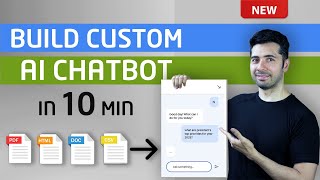

AI Chatbot in 10 Mins No Coding
45sPromises a quick, no-code solution for building a custom AI chatbot, appealing to entrepreneurs and non-technical users.
▶ Play Clip"The title accurately promises a 10-minute, no-code chatbot build, and the video delivers exactly that."
This video demonstrates how to build a custom AI chatbot using Google Cloud's Vertex AI Agent Builder, without any coding. The chatbot can be trained on documents like PDFs, manuals, and ebooks, and then integrated into a website or messaging platforms. The entire process takes less than 10 minutes.
The video shows how to create a chatbot using Vertex AI Agent Builder (Dialogflow CX) with a custom knowledge base from documents like PDFs, HTML, text files, CSVs, Word docs, and PowerPoint files.
The data source used is a 188-page PDF of the US government budget, uploaded to Google Cloud Storage.
Steps include logging into Google Cloud Console, enabling Vertex AI and Dialogflow APIs, creating a new agent, and setting up a data store by importing the PDF from Cloud Storage.
The chatbot is tested by asking questions like 'What are the president's top priorities for 2025?' and it responds with grounded answers, showing the source page (e.g., page 9).
The chatbot can be integrated into a website by enabling an unauthenticated API and copying the provided code. It can also be connected to Facebook Messenger, Slack, Discord, or Telegram.
Conversation history and analytics can be enabled to track user interactions and improve the chatbot.
What Google Cloud service is used to build the chatbot?
Vertex AI Agent Builder (Dialogflow CX)
1:48
What document types can be used as data sources for the chatbot?
PDF, HTML, text files, CSV, Word documents, and PowerPoint presentations.
0:40
Where must the PDF document be uploaded before importing it into the data store?
Cloud Storage (Google Cloud Storage bucket).
2:49
What two data source types are available when creating a data store?
Unstructured documents (for PDFs, HTML, etc.) or CSV for structured FAQ data.
3:19
How do you test the chatbot after creating the data store?
Click 'Preview' to start an interactive session.
4:36
How do you enable conversation history for the chatbot?
Enable the 'conversational history' checkbox in the agent settings.
5:19
What steps are needed to embed the chatbot on a website?
Click 'Manage' then 'Integration', enable the unauthenticated API, and copy the provided code.
5:42
How does the chatbot ground its answers in the data source?
It shows exactly where the information was found in the document (e.g., page 9).
7:12
What can you do if the chatbot's answers don't meet expectations?
Add more URLs or documents to the data source.
8:40
No-Code Chatbot Creation
Demonstrates that building a custom AI chatbot is accessible to non-developers using Google Cloud's Vertex AI.
Data Import from Cloud Storage
Shows a practical method to upload and import large documents (e.g., 188-page PDF) into the chatbot's knowledge base.
2:49Grounding Answers in Source Data
The chatbot provides citations (page numbers) for its answers, increasing trust and verifiability.
7:12Integration with Multiple Platforms
Explains how to embed the chatbot on a website and optionally add voice capabilities via a phone gateway.
5:42Conversation History for Analytics
Enabling conversation history allows businesses to analyze user interactions and improve the chatbot over time.
9:01[00:00] what if you could turn your website in
[00:01] all of those PDF documents manuals
[00:04] guides uh ebooks and reports into a
[00:07] helpful chatbot imagine asking questions
[00:10] and getting instant answers directly
[00:12] from your website your documents or any
[00:15] ebook will guess what I found a way to
[00:17] do this in less than 10 minutes in this
[00:20] video I'll show you how easy it is to
[00:23] build your own AI chatbot with custom
[00:25] knowledge base without any coding skills
[00:28] you can do this for your business or
[00:30] other businesses and start making money
[00:33] by the end of this tutorial video not
[00:34] only you'll be able to create a chatbot
[00:37] and train your AI based on your own data
[00:40] using PDF HTML txt CSV Word documents
[00:45] and PowerPoint presentation files but
[00:47] also integrate the chatbot into your
[00:49] website Facebook Messenger Flack Discord
[00:53] or Telegram in this video you learn how
[00:55] to create a data story agent how to add
[00:57] add structure data to your data agent
[01:00] data store how to enable voice and chat
[01:03] experiences for your agent how to test
[01:05] agent and simulate customer questions
[01:07] how to V conversation history and
[01:09] analytics for your agent all of that in
[01:12] about 10 minutes without any further Ado
[01:15] let's get
[01:20] [Music]
[01:24] started all right so before we start let
[01:27] me show you the document that we'll be
[01:29] using thing as the data source this is
[01:32] budget of the US government and it's 188
[01:35] pages long so to get started we'll go to
[01:37] cloud.google.com
[01:38] uh log in with your account and click on
[01:42] console from the console click search
[01:45] for agent
[01:48] Builder click on agent Builder before
[01:52] creating a new app make sure that the
[01:54] vertex AI API and the dialog flow apis
[01:57] are enabled if they're not enabled get a
[02:00] prompt and then you can enable it on the
[02:04] screen select
[02:06] chat and provide the company
[02:10] name provide the agent
[02:18] name click
[02:21] continue we'll create a data store this
[02:24] is where we can create a data store
[02:26] click on create data store you get three
[02:29] options
[02:30] here you can provide a website URL and
[02:33] it will automatically crawl website
[02:35] content from a list of domains that you
[02:36] defined you can provide the data from
[02:40] your storage bucket or you can import
[02:42] data manually by calling the
[02:44] API I'll select the cloud storage and um
[02:49] you can import a folder or you can
[02:50] import a file I'll select file and head
[02:54] browse I created this bucket earlier
[02:57] where I uploaded that PDF document that
[03:00] I showed you uh I've already uploaded
[03:02] uploaded it um but for your case you can
[03:05] upload any document to your uh cloud
[03:08] storage and you'll be able to select it
[03:10] from here click
[03:12] select so PDF html text files CSV Word
[03:17] document and presentation files fall
[03:19] under the unstructured documents now you
[03:21] can use that as the data source or you
[03:24] can use Json L for unstructured
[03:26] documents with metadata information and
[03:28] click on this link for more information
[03:30] or you can use CSV file for structured
[03:33] um frequently Asked data this is only
[03:35] for chat but for our example we're going
[03:38] to be using the unstructured document
[03:40] click on continue I'm going to name the
[03:43] data store us um budget 2025 25 and
[03:50] click on create it's going to create the
[03:52] data store okay so it created a data
[03:54] store I will select the data store and
[03:57] click on create
[04:11] okay so the data store has been created
[04:12] over here I can click on over um on this
[04:16] link uh to see more
[04:19] information um on this screen I can see
[04:22] the
[04:25] activity and I need to make sure that
[04:27] data has been imported successfully with
[04:29] without any
[04:32] errors and we are using the digital
[04:34] parser now we can hit um preview to see
[04:39] the
[04:45] preview uh now we will test our agent uh
[04:48] testing is an important part of working
[04:49] with conversational agents to find box
[04:51] identify limitations and simulate a
[04:53] customer experience you can start an
[04:55] interactive session with your chat bot
[04:56] to see how it responds to various
[04:57] questions that a customer might ask
[04:59] click on the test agent Link at the top
[05:02] right hand
[05:03] corner um this is where we can uh test
[05:06] the chat bot we can write
[05:10] hello and we have more control over
[05:13] customizing the response of the agent
[05:15] from this screen um we can enable
[05:19] logging um by going here and checking
[05:23] this enable conversational history by
[05:25] checking this box uh we will get the
[05:27] conversation history uh let's suppose we
[05:30] put this on our website and people
[05:33] interact with our chatbot and if you
[05:35] want to be able to see those
[05:36] interactions you need to check this box
[05:39] and hit save we click on manage click on
[05:42] integration let me show you a very cool
[05:44] thing uh you can add a phone gateway to
[05:46] your Bot which will make use of speech
[05:48] to text and text to speech capabilities
[05:50] in the Google Cloud you can head on this
[05:53] manage uh button to enable that feature
[05:57] but for now I'm happy with the text
[06:00] uh chatbot and text based I can click on
[06:04] connect we can enable this
[06:06] unauthenticated API which means that
[06:07] will allow people without authentication
[06:10] to interact with the chat bot and I'll
[06:13] click on enable an authenticated API
[06:16] this is the code that you can use to put
[06:18] on your website and you'll get the
[06:21] chatbot on your website so to see how it
[06:25] would look like click on try it now and
[06:27] you get this um you get this icon at the
[06:30] bottom uh right hand corner so you click
[06:33] on this and this is the chat box that
[06:36] you you can put on your website what are
[06:41] president's top
[06:43] priorities for year
[06:49] 2025 the chatbot read the document and
[06:53] responded with present stop economic
[06:55] prorities lowering cost for American
[06:56] families the administration is working
[06:58] to bring down the uh prescription drug
[07:00] cost health insurance premiums utility
[07:02] bills cost for everyday Goods all while
[07:04] taking on junk fee studs some Airlines
[07:07] Banks and other companies use to rip off
[07:09] Americans and also it's grounded the
[07:12] data and if I click on this link it will
[07:14] show me exactly where it found that
[07:16] information from and as you can see it's
[07:19] on page nine and this is where the
[07:21] chatbot found that information is
[07:24] lowering cost for hardworking Americans
[07:26] the administration is working to bring
[07:27] down prescription dve cost health
[07:29] Assurance we're we are grounding it with
[07:31] our own data source so let me ask it
[07:34] another question let me ask what has
[07:38] president invested
[07:50] in the president has invested in America
[07:53] and American people by signing into law
[07:56] historic legislation such as the
[07:58] American Rescue plan the bipartisan
[08:01] infrastructure law the chips uh and
[08:03] science Act and the inflation reduction
[08:05] act let me ask it another question like
[08:08] um what are some of the
[08:12] accomplishment of the Biden
[08:19] Administration the bid Administration
[08:21] has made historic Investments and mental
[08:23] healthc care including nearly 1 billion
[08:25] to support the 988 suicide and crisis
[08:28] Lifeline the administration is also
[08:29] committed to investing in training more
[08:31] mental health professionals in his
[08:33] expanded certified community behavioral
[08:35] health clinics Nationwide when testing
[08:37] your virtual agent if you find that your
[08:40] bot's answers do not meet your
[08:41] expectations you can always add more
[08:44] URLs to the data source to improve how
[08:46] your Bot handles questions and answers
[08:48] you can add more URLs it can add more
[08:51] documents um other than testing many
[08:53] different paths the customer might make
[08:55] how else can you determine where the
[08:57] problem in friction points or in your
[08:59] version ual agent conversation history
[09:01] in analytics help uh so we enabled I
[09:05] showed you where you can enable that uh
[09:07] conversation history under the agents I
[09:10] already enabled that and to get to that
[09:12] conversation history you can click on
[09:14] conversation history and this is where
[09:16] you're going to see the conversation
[09:17] history and I can click on any of these
[09:20] uh and it will show me uh my interaction
[09:24] with uh the chat bot I've asked it's
[09:28] going to show the history of my
[09:29] conversation and once you put that on
[09:31] your website and you would be able to
[09:33] see the interaction of your chat bot
[09:35] with your visitors website visitors
[09:37] congratulations using the verx AI
[09:39] conversation in dialog flow CX you have
[09:42] successfully created a data store agent
[09:44] your virtual agent can answer hundreds
[09:46] of different questions about your
[09:48] website or any document PDF manual
[09:52] guides ebooks and reports at sector that
[09:54] you may have you don't have to go
[09:56] through the manual process of creating a
[09:58] large number of intense training phrases
[10:01] response messages we literally created
[10:03] this in less than 10 minutes this video
[10:06] was requested in the comment section by
[10:08] a few of my subscribers I read all of
[10:10] the comments and i' love to hear your
[10:13] thoughts um feel free to share your
[10:15] ideas for upcoming videos if you don't
[10:17] have any questions or feedback you can
[10:20] support my work by just typing coding
[10:22] money in the comment section it really
[10:25] helps with the YouTube algorithms if you
[10:27] found this video useful a thumbs up
[10:29] would be highly appreciated stay tuned
[10:31] for exciting new videos to ensure you
[10:34] don't miss out please subscribe and hit
[10:36] the notification Bell icon you may also
[10:38] want to check out the video that pops up
[10:40] on the screen somewhere until next time
[10:44] thank you for watching
⚡ Saved you 0h 10m reading this? Transcribe any YouTube video for free — no signup needed.