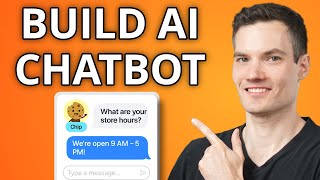

Build an AI Chatbot with Zero Coding
45sShows how to create a powerful AI chatbot without any coding, appealing to non-technical business owners.
▶ Play Clip"The title accurately promises a free, no-code AI chatbot built in minutes, and the video delivers exactly that."
This video demonstrates how to build an AI-powered customer support chatbot using Zapier with no coding required. The bot can answer questions, pull from business knowledge, and log support requests. It can be embedded on a website and integrates with existing tools to take actions like creating support tickets.
Kevin shows how to build an AI customer support chatbot for Kevin Cookie Company using Zapier, no coding needed.
All you need is a Zapier account (free to start). Link in description.
Click 'Create' in Zapier, go to 'Chatbots', choose 'Create from scratch' to customize fully.
Name the bot 'Chip, the cookie helper'.
In the Instructions tab, set greeting and directive. Objective: answer questions about Kevin Cookie Company. Must use knowledge source, not make up info.
In Knowledge tab, add website pages (e.g., recipes) and Google Docs (e.g., FAQ). Can crawl subpages.
If no answer in knowledge, show custom message: 'Sorry, I don't know.' Prevents AI from making up info.
Set schedule to automatically refresh knowledge sources (e.g., daily, weekly) to keep bot up-to-date.
In Logic tab, enable 'Collect leads' to capture name, email, phone when bot can't answer. Stores in a Zapier table.
In Theme tab, set avatar, logo, embed icon, and colors. Preview shows the bot's appearance.
Can connect to Slack, Facebook Messenger, Gmail, Zendesk, or build custom integration. Skipped in this video.
In AI Model tab, select OpenAI GPT-4.1 Mini or 4.0 Mini. Can connect own OpenAI/Anthropic account for more models. Set creativity level.
Use preview window to test questions. Example: 'What are your store hours?' returns correct info. Unknown question triggers fallback and lead collection.
Click 'Share' to get public link or embed code. Can embed as pop-up or inline. Copy script/iframe and paste into website builder (e.g., Google Sites).
In Zapier, view conversations to see customer interactions. Analytics track conversations, messages, links clicked, top keywords, sentiment score.
With Zapier, you can quickly build a no-code AI chatbot that answers customer questions, collects leads, and integrates with your website. The bot stays updated automatically and provides analytics to improve performance.
What is the first step to create a chatbot in Zapier?
Click 'Create' on the left-hand side and go down to 'Chatbots'.
0:57
What are the two ways to create a chatbot in Zapier?
Have Zapier build a starting point automatically based on your website, or create one from scratch.
1:09
What is the purpose of the 'directive box' in the Instructions tab?
It contains the main set of instructions for the bot, including its objective and rules.
1:45
What rule prevents the chatbot from making up information?
The rule: 'Your answer must come from the information returned from that knowledge source.'
2:22
What types of sources can be added to the knowledge base?
Documents, web pages, files, and Zapier tables.
2:42
What is the fallback response set in the video when the bot cannot find an answer?
'Sorry, I don't know.'
3:38
How can you keep the knowledge base automatically updated?
By scheduling a refresh in the 'Schedule all' settings, specifying how often, which day, and time window.
4:47
What information does the chatbot collect when it cannot answer a question?
Name, email, and phone number.
6:22
What AI models are available by default in Zapier chatbots?
OpenAI GPT-4.1 Mini and GPT-4.0 Mini.
8:23
How can you embed the chatbot on a website?
Get a script or iframe embed code from the Share menu and paste it into the website builder.
10:09
What analytics are available for the chatbot?
Number of conversations, messages, links clicked, top keywords, and sentiment score.
11:45
No-code AI chatbot
Demonstrates building a functional AI chatbot without any coding, making it accessible to non-technical users.
Preventing AI hallucinations
Emphasizes the critical rule that the bot must only answer from knowledge sources, avoiding made-up information.
2:22Automated knowledge refresh
Shows how to schedule updates so the bot stays current without manual intervention.
4:47Lead collection logic
Integrates lead capture when the bot cannot answer, turning a limitation into a business opportunity.
5:28Analytics for improvement
Highlights the ability to track conversations and sentiment to continuously improve the bot.
11:45[00:00] Today, I'm going to show you how to build your own
[00:06] with absolutely no coding. I made this video
[00:13] for the Kevin Cookie Company that can answer
[00:17] and even log support requests automatically.
[00:23] chatbot directly on your website so customers
[00:29] Zapier chatbots connect to all your existing
[00:34] your bot can actually take action, like creating
[00:39] it incredibly powerful for real businesses. I'm
[00:46] follow along, all you need is a Zapier account,
[00:51] in the description and as a pinned comment. Once
[00:57] side and go down to chatbots, which is where you
[01:03] need any coding experience. Now Zapier gives me
[01:09] build a starting point automatically based on my
[01:14] this video, I'll choose create from scratch
[01:19] customize the bot. Right down here, we can give
[01:24] the cookie helper. Once you enter a name, let's
[01:29] we can set up its personality and its behavior. On
[01:35] This is where you tell your bot how to greet
[01:40] respond. For the greeting, I'll keep it simple and
[01:45] we have the directive box. This is the main
[01:51] the default looks good, but I do need to customize
[01:55] you are an exceptional customer support
[01:59] questions and provide resources about,
[02:04] so let's enter in information about the Kevin
[02:08] a variety of cookies. Now, the rest of this
[02:12] specify the style of the communication for
[02:16] other rules. This one's very important. Your
[02:22] from that knowledge source. In a moment, we'll
[02:26] and it'll use that to answer questions. We
[02:32] Once all of this looks good, down at the very
[02:36] add the information that the chat bot will use to
[02:42] side, let's click on the knowledge tab. This is
[02:47] and even Zapier tables. Let's start by adding
[02:52] I'll click on this button. This opens up a
[02:56] first source. I'll start with the website. I'll
[03:01] the website for the Kevin Cookie Company. Down
[03:05] subpages. I'll check that box, and then right over
[03:10] found a number of different subpages. Let's check
[03:14] the knowledge source. I’ll go with recipes,
[03:18] go with Clippy's Scrumptious Cookie. Down below,
[03:23] different sources into its knowledge base. Next,
[03:29] find a response in our knowledge source. Now
[03:34] without knowledge sources. Now, I'd rather have
[03:38] select show a custom message, and it'll simply
[03:43] it making up information. In the bottom right-hand
[03:48] have our first source. Let's try adding one more.
[03:53] source. This opens up that same dialogue again.
[03:58] I'd like to add an FAQ file that I have stored in
[04:04] have to start by connecting your Google Docs
[04:09] the top right-hand corner, I'll add a connection.
[04:14] setting up your account, you'll see the connection
[04:19] file that you would like to include as part of
[04:23] I see the Kevin Cookie Company FAQ. I'll select
[04:27] corner, let's now add the source. Right up
[04:32] sources. Our bot's getting a lot smarter. Before
[04:37] Right up here, we have knowledge settings, and
[04:42] response when it can't find an answer. I'm good
[04:47] right of that, we also have schedule all. This
[04:53] these knowledge sources. This is useful if you
[04:58] say a menu or maybe new policies. You can define
[05:04] on, and right over here, you could also specify
[05:09] automatically stay up to date without me having
[05:14] I'll click on save, and the beautiful thing is
[05:18] if I update the Google Doc, that information will
[05:24] I specified. Let's now shift to the logic tab.
[05:29] we can add extra actions and controls to your
[05:35] contact information from users. Underneath that,
[05:41] have a Zap, and at the very bottom, we even have
[05:46] If you haven't heard of a Zap before, maybe you're
[05:51] in Zapier that connects two or more apps together.
[05:57] and how to build them, I have a dedicated Zapier
[06:02] In my case, if the chatbot can't answer a
[06:07] collect their information so I can follow up. So,
[06:13] this page, I'll create a new table to store
[06:17] the different types of fields that the chatbot
[06:22] the customer. So, I have the name, the email, the
[06:25] I don't know if I need a customer's company, so
[06:30] on add field, I can also add additional custom
[06:35] these three work well. Right here, I could define
[06:40] of a conversation, after a few messages, when
[06:44] need this when the chatbot cannot provide an
[06:49] everything else looks good, so let's click on
[06:54] can see the table with the three fields, the name,
[06:58] so let's jump back to the chatbot. Right up
[07:03] logic looks good, so over on the left-hand
[07:07] is where we can adjust the look and feel of the
[07:12] the logo, the embed icon, and down below, you
[07:17] let's choose an avatar. Click on choose image, and
[07:23] and that'll now upload him. Let's go down a little
[07:28] I'll click on custom color, and let's go with
[07:34] I'll click on save changes. Over on the right-hand
[07:38] have that nice modern and sleek white background,
[07:44] he's waving at us. How cute. Over on the left-hand
[07:49] where you can connect your chatbot to services
[07:54] or you could even build your own from scratch.
[08:00] through these different platforms. Now you could
[08:05] if you want even more advanced workflows.
[08:09] simple and just focus on the chatbot itself.
[08:14] Over on the left-hand side, let's now shift
[08:18] model powers your chatbot. Right up on top, we
[08:23] GPT 4.1 Mini, or 4.0 Mini. Those are the default
[08:29] to even more models, right up here, you could
[08:35] and then those different models can power
[08:39] the creativity that your chatbot can take. Now I'm
[08:44] looks good. Now that everything's set up, let's
[08:49] I have the preview window. Here I could talk to it
[08:55] common questions to make sure it responds the way
[09:01] below, I'll type in what are your store hours,
[09:05] I can see the store hours, and everything appears
[09:09] pulling from the knowledge I added earlier.
[09:15] down below, let's type in another question. How
[09:20] We don't have that information on the website,
[09:24] that. Since it doesn't know the answer, right
[09:28] then it also asks me for information, like the
[09:33] support team can follow up. Testing here is quick
[09:38] adding it to a website. In the top right-hand
[09:43] "Share," and we have a few different options.
[09:49] this chatbot. Now, I don't need any assistance,
[09:54] you can get a public link that you can share with
[09:59] they can then interact directly with the chatbot.
[10:04] looks like. And if we go back, you can also
[10:09] two different options. You can place it on your
[10:15] or you can place it in line onto your website.
[10:20] so I'll click on this option, and down below you
[10:25] go with a script right here, and let's copy the
[10:31] using Google Sites, but this works with WordPress,
[10:37] on the right-hand side in the Insert menu, I'll
[10:42] and here I can paste in the code, click on Next,
[10:47] let's center it. So, it's right here in
[10:50] and there I can see the chat bot appear on the
[10:55] click on Publish, and let's see what it looks
[10:59] and here I see Chip the Cookie Helper. Let's jump
[11:04] Where are you located? And then let's submit
[11:09] Cookieville, USA. Back within Zapier, I can
[11:15] see how customers and people are interacting
[11:20] the left-hand side under the Review category,
[11:25] what customers are asking. We can check for any
[11:29] on those interactions. For example, here I asked
[11:35] with the correct address from the knowledge base.
[11:39] you can also check how it's performing over time.
[11:45] Here you can track the number of conversations,
[11:50] and as more people use the bot, this page will
[11:55] the sentiment score, and you have additional
[12:00] are asking and how well the bot's responding.
[12:06] customer support chat bot for the Kevin Cookie
[12:11] to learn more about building Zaps or connecting
[12:16] tutorial linked in the description. Thanks for


⚡ Saved you 0h 12m reading this? Transcribe any YouTube video for free — no signup needed.