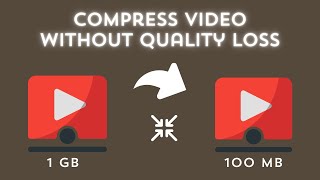

Compress video 90% with FFmpeg
45sShows a huge size reduction with a free tool, promising high value for viewers.
▶ Play Clip"The title accurately describes the content: FFmpeg can reduce video size by 90% with minimal quality loss."
This video demonstrates how to use FFmpeg to compress a video file by up to 90% without noticeable quality loss. The process is free and works on Windows, with steps covering installation, adding FFmpeg to PATH, and running a compression command.
The video aims to show how to use FFmpeg to reduce video size significantly while maintaining quality.
Download FFmpeg from the link in the description, save it to a folder, and copy the path to the bin folder.
Open environment variables, edit the user PATH variable, and paste the path to the bin folder containing ffmpeg.exe.
Navigate to the video folder, open Terminal, and type the ffmpeg command with the input file name. Hit enter to start compression.
The compressed video shows a size reduction of over 90%, with the same resolution but different bitrate.
FFmpeg provides a free and effective way to compress videos by up to 90% without significant quality loss, making it a valuable tool for managing video file sizes.
What tool is used to compress videos in this tutorial?
FFmpeg
How much size reduction is claimed without quality loss?
90%
What must be added to the PATH variable to use FFmpeg from any directory?
The path to the bin folder containing ffmpeg.exe
0:39
What is the first step to open Terminal in the video folder?
Right-click on an empty area in the folder and select 'Open in Terminal'
1:01
What property of the video changes during compression?
Bitrate
1:41
Compress video by 90% without quality loss
Demonstrates a highly effective compression technique using a free tool.
Result shows over 90% size reduction
Provides concrete evidence of the compression effectiveness.
1:31Same resolution, different bitrate
Explains the technical reason behind the size reduction.
1:41[00:00] in this video I will show you how to
[00:02] compress video using ffmpeg to reduce
[00:05] 90% size without loss before we begin
[00:08] make sure you hit subscribe and tap the
[00:10] Bell icon to get Daily Tech videos if
[00:13] you want to compress a video for some
[00:14] reason then you can use FFM Peg to do
[00:17] that there are paid tools to do the same
[00:20] thing but with FFM Peg you can do it for
[00:22] free and I will show you how let's see
[00:25] how to do it on Windows download ffmpeg
[00:28] from the link in the description and and
[00:30] then add it to the
[00:32] path to add it to path just save it in
[00:35] some folder and copy its
[00:39] path next open environment variables
[00:42] settings by searching the environment in
[00:44] start now open environment variables and
[00:47] from the user variables double click on
[00:51] path paste the path to the bin folder
[00:54] where ffmpeg.exe file is save the
[00:57] changes and
[00:58] exit
[01:01] now you go to the folder where the video
[01:03] file is that you want to compress right
[01:05] click on the empty area and then open
[01:09] Terminal type this ffmpeg command edit
[01:12] the input file name here same as your
[01:14] Source video
[01:16] file hit enter and then let it compress
[01:19] your video depending on the size of the
[01:21] input video it will take some time I
[01:25] will suggest leaving your PC idle and
[01:27] not the other
[01:28] work
[01:31] once it is done you will see the final
[01:33] compressed video you can clearly see the
[01:35] size difference it is more than
[01:38] 90% you can also compare the properties
[01:41] of the videos and see both have the same
[01:43] resolution just different bit
[01:46] rate this is it this is all it takes to
[01:49] compress videos on PC using FFM
[01:58] Peg if you found this video helpful then
[02:01] check out more Tech videos on our
[02:02] Channel thanks for
[02:13] watching
⚡ Saved you 0h 02m reading this? Transcribe any YouTube video for free — no signup needed.