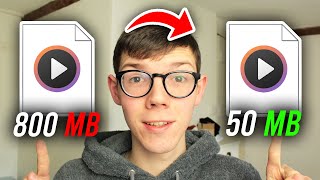

40x Smaller Video Without Losing Quality!
45sShocking before/after file size comparison grabs attention immediately.
▶ Play Clip"The title accurately describes the content: a full guide on compressing video without quality loss using HandBrake."
This video demonstrates how to compress video files without losing quality using the free tool HandBrake. The presenter shows a 40x file size reduction example and walks through the entire process from download to final encoding.
The video shows how to compress a video file without losing quality, with an example of reducing from 88 MB to 2.35 MB (about 40x smaller).
HandBrake is a free program used to achieve compression. The presenter demonstrates downloading it from handbrake.fr.
After installation, HandBrake can be launched via search. The user opens a single video file for compression.
Settings include preset (1080p30), format (MP4), web optimization, video encoder (H.264 or H.265), frame rate (same as source, constant), and output destination.
Click 'Start Encode' to begin. Example shows a 3:30 video reduced from 67 MB to 15 MB (4.5x decrease) with minimal quality loss.
HandBrake is an effective free tool for reducing video file size without noticeable quality loss, with results varying based on settings and source material.
What is the name of the free tool used to compress videos?
HandBrake
0:38
What is the official website to download HandBrake?
handbrake.fr
0:57
What file format does the presenter recommend for the output?
MP4
2:40
What frame rate setting does the presenter recommend?
Same as source, constant
3:01
What was the file size reduction in the first example?
From 88 MB to 2.35 MB (about 40x smaller)
0:22
What was the file size reduction in the second example?
From 67 MB to 15 MB (about 4.5x smaller)
3:48
40x file size reduction example
Demonstrates the dramatic compression possible with HandBrake.
0:22Key settings overview
Provides essential configuration steps for effective compression.
2:18Encoding process
Shows the simple one-click encoding workflow.
3:28[00:00] in this video i show you how to compress
[00:02] a video file without losing any quality
[00:04] if you're new to the channel please go
[00:06] down below and consider subscribing to
[00:07] the channel and once you've done that
[00:09] please go down below and consider
[00:10] leaving a like as well i really do
[00:12] appreciate it and please do watch this
[00:14] video right until the end so the four
[00:16] steps for this guide and let's go and
[00:18] jump straight into this here we are on
[00:20] my computer and here is an example of a
[00:22] video i went and compressed and the huge
[00:24] difference it made in the file size as
[00:26] you can see this one is originally 88
[00:28] megabytes and this video here is
[00:31] 2.35 what a huge increase i believe
[00:34] that's about 40 times smaller so now
[00:36] let's go and get exactly into this guy
[00:38] to achieve this i actually use a free
[00:40] program so let's go and show you where
[00:41] you can go and get it and then how to
[00:43] fully use it and get this huge decrease
[00:45] in file size so all you want to do is
[00:46] going to open up your browser and come
[00:48] to a search engine such as google then
[00:50] all you want to do is go and search for
[00:52] something called handbrake tool just
[00:54] like so and you want to make sure you
[00:55] come to the official website which is
[00:57] handbrake.fr and do keep watching
[00:59] showing the full download process then
[01:02] all you want to do is either go and
[01:03] click on download handbrake or click
[01:05] other platforms if you want to go and
[01:06] check it out for mac as well then all
[01:08] you need to do is go and click on
[01:09] download just like so and you can also
[01:12] go and download older versions as well
[01:14] i'm going to download the new version so
[01:15] go and click download just like this and
[01:17] as you can see it's around 20 megabytes
[01:19] and it's now downloaded you then need to
[01:21] go and open up your file explorer down
[01:23] here to go to your downloads folder to
[01:24] go and find it or it will be in the
[01:26] bottom of your browser just like mine
[01:27] now all you need to do is go and open up
[01:29] this exe file and it's going to go and
[01:31] start the installer and all you need to
[01:32] do is go and follow the installation
[01:34] instructions it's really simple and then
[01:36] it's going to be installed on your
[01:37] system and i'll see you then so
[01:39] handbrake should now be installed on
[01:40] your computer and you may have a desktop
[01:42] shortcut i personally don't so if you
[01:44] don't all you want to do is come to the
[01:45] search icon down here look like a
[01:47] magnifying glass go and click on it and
[01:49] all you need to do is go and search for
[01:50] handbrake just like so and it's going to
[01:52] come up right that there so go and click
[01:54] on it just like this and it's going to
[01:55] go and launch it open so you either need
[01:57] to go and open up a folder with videos
[01:59] in or you can go and open up a single
[02:01] video file personally i'm going to go
[02:02] and take this option here
[02:04] personally i'm going to go and open up a
[02:05] single video file and it's going to go
[02:07] and open up your file explorer the video
[02:09] i want to go and convert is on my
[02:10] desktop and here it is so i'm now going
[02:12] to go and click on open just like so and
[02:14] as you can see it goes and scans it and
[02:16] here we are in handbrake so there are a
[02:18] few key settings you want to go and
[02:19] change so the first thing you want to do
[02:20] is start at the top up here you can go
[02:22] and change the preset personally this is
[02:24] the default one i've always used 1080p
[02:26] by 30 but you can go and click on it and
[02:28] you can go and change it to any of these
[02:30] as you can see there are loads to choose
[02:32] from so i personally keep it fairly
[02:34] simple but you could go and do like a
[02:35] high quality one but fast honestly it's
[02:37] gonna look absolutely fine
[02:39] then you can come down here and choose
[02:40] the format so keep it on mp4 that's a
[02:43] really easy file to go and open then you
[02:45] can go and have it web optimized if
[02:46] you'd like um it's just gonna make it
[02:48] more optimized for the web for
[02:49] dimensions you don't need to change that
[02:51] or filters you can come along to video
[02:53] and then all you need to do is go and
[02:54] make sure the encode is set to that one
[02:56] that should be fine or you can use the
[02:58] video on that's up to you leave the
[02:59] video encoder but come down to frame
[03:01] rate and what you want to do is go and
[03:02] click on this and i recommend doing same
[03:04] as source as your source may have a
[03:06] higher frame rate than 30 then all you
[03:08] want to do is change it to constant as
[03:09] well so it remains constant the whole
[03:11] time and there are the main settings and
[03:13] all you want to do is come down to the
[03:14] bottom to what save as so go and click
[03:17] on browse and it's going to go and open
[03:18] up your file explorer and i'm just going
[03:19] to go and put this onto my desktop just
[03:21] like so and name this com press again
[03:25] just like so i've already compressed one
[03:26] on my desktop there we go i'm now going
[03:28] to go and click start encode and it's
[03:30] going to go and start the encoding
[03:31] process as you can see it goes and shows
[03:33] the percentage down here so all you need
[03:35] to do is go and wait for this to finish
[03:37] and once it's finished it's going to go
[03:38] and say cue finish just like so and then
[03:40] you can go and close off of handbrake
[03:42] just like this so here is the before and
[03:44] after of the two clips i went and did so
[03:46] as you can see the original clip was
[03:48] three minutes 30 seconds long and 67
[03:50] megabytes in size and the new clip will
[03:53] go and hover over this one was 3 30 and
[03:55] 30 seconds in length and it's only 15
[03:57] megabytes so overall i believe that's
[03:59] still around a four and a half times
[04:01] decrease which is still really
[04:02] impressive and it's all going to vary a
[04:03] little bit depending on the settings you
[04:05] use and as well as the video clip you're
[04:07] actually going compressing and just to
[04:09] add in as well the quality looks
[04:10] absolutely fantastic if you're going to
[04:12] open up this video here as you can see
[04:14] it looks really clear and then if we go
[04:16] to the compressed version that also
[04:18] looks really clear as well but of course
[04:19] the best way to go measure the quality
[04:21] for yourself is to go and try it out but
[04:23] to my opinion i do use hammering the
[04:25] whole time it barely affects the quality
[04:26] at all but if you found this video
[04:28] useful please go down below and consider
[04:30] subscribing to the channel leave a like
[04:32] for more peace
⚡ Saved you 0h 04m reading this? Transcribe any YouTube video for free — no signup needed.