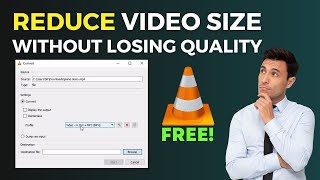

Shrink Videos Without Losing Quality
45sHigh curiosity and value, as many people struggle with large video files but want to keep quality, and the free tool angle is compelling.
▶ Play Clip"The title accurately describes the tutorial, which delivers a free method to reduce video size without quality loss."
This tutorial demonstrates how to compress large video files using VLC Media Player without losing quality. The video shows a step-by-step process to reduce a 96 MB file to just 16 MB using free built-in conversion settings.
The video demonstrates reducing a 96 MB file to 16 MB using VLC.
Open VLC, click Media > Convert / Save, then add the video file.
Choose 'Video – H.264 + MP3 (MP4)' profile for good compression.
Under Video codec, keep H.264; under Audio codec, select MP3 at 128 kbps.
Set destination file, rename, and click Start to begin compression.
Original 96 MB reduced to 16 MB, a reduction of over 80%.
What software is used to reduce video size in this tutorial?
VLC Media Player
0:38
Which menu option in VLC is used to start the conversion process?
Media > Convert / Save
1:02
What profile should be selected in VLC for good compression and quality?
Video – H.264 + MP3 (MP4)
1:28
Which video codec is recommended in the settings?
H.264
1:53
What audio format and bitrate are suggested for better audio quality?
MP3 at 128 kbps
2:15
What was the file size reduction achieved in the demo?
From 96 MB to 16 MB (over 80% reduction)
3:17
Selecting the right profile
Choosing 'Video – H.264 + MP3 (MP4)' is key to balancing compression and quality.
1:28File size reduction result
The demo shows a reduction from 96 MB to 16 MB, demonstrating the effectiveness of the method.
3:17Resolution scaling
Scaling down resolution is a simple way to further reduce file size without major quality loss.
2:01[00:00] [Music] hello guys how are you doing hope you're
[00:09] to convert any big size videos into smaller size without losing quality
[00:19] jumping to the tutorial I request you to subscribe
[00:25] you can support me guys if you want to reduce
[00:30] do that easily for demo purpose I have downloaded
[00:38] size I have to use VLC Media Player app so that
[00:46] open the VLC player if you don't have installed
[00:52] it now let me open the VLC media player so once
[01:02] on the left top Corner click on that there you
[01:09] new window po up click on the add menu so once
[01:15] to downloaded and located in the downloads so
[01:22] and hit open so once you select the video click
[01:28] will open here here on the profile select the
[01:39] so make sure you have selected this profile so
[01:46] here so select that now we have selected MP4
[01:53] have selected h264 option and also you can select
[02:01] it as simple go to the resolution and click on
[02:08] audio codex if you keep the original audio track
[02:15] it and make sure you have selected MP3 format for
[02:25] kb per second and remaining is same and once you
[02:32] have to select the destination file select
[02:38] to rename it for any name let me rename by just
[02:46] profile and destination file hit start button then
[02:53] bar leave for a while to complete [Music] it is
[03:02] we have to see the reduced file okay this is
[03:09] size and this is the exported file after the
[03:17] MB previously and after the conversion you can
[03:25] we have reduced the video file up to 500 sent
[03:34] so that's it guys this was the quick and simple
[03:41] media player for free hope this video helps you if
[03:47] my channel and hit the Bell icon well I trust
[03:52] bye-bye
⚡ Saved you 0h 04m reading this? Transcribe any YouTube video for free — no signup needed.