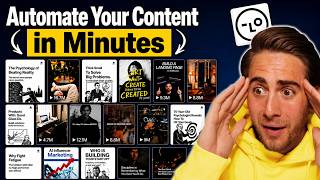

10M Views: My Secret to Content Creation
44sHigh curiosity hook with impressive results, promising a solution to the common pain point of content creation.
▶ Play Clip"The video delivers on its promise of creating a month of content quickly, though it overstates 'a few minutes' due to implied setup time for brand kit."
The video showcases LoveArt, an AI design agent that automates the creation, planning, and organization of an entire month's worth of social media content from a single platform, eliminating the need for multiple tools.
LoveArt acts as an AI design agent that combines the capabilities of Canva, Photoshop, ChatGPT, and video editing software into one canvas, enabling users to plan, create, and organize content without switching between apps.
Users can instruct LoveArt to generate a complete content strategy. For example, a prompt for a premium coffee brand including educational posts, promotions, reels, carousels, and captions, with consistent visuals and social media optimization.
The AI provides a strategy overview including content mix (30% educational, 20% promotional, 20% engagement, 30% lifestyle), posting frequency, visual identity, typography, a 30-day calendar, caption templates, and a quick-start checklist.
Users can request specific content like a 5-slide carousel on 'coffee mistakes.' The AI generates each frame, and users can edit text or other elements directly within the tool, as demonstrated by changing 'three clocks' to 'five clocks.'
LoveArt can transform an image into a short video ready for platforms like Instagram, TikTok, YouTube Shorts, Facebook, and others, saving time and increasing content repurposing efficiency.
The AI can generate engaging captions and hashtags for each piece of content, distinguishing between Instagram and TikTok formats, leveraging data from its earlier research to ensure relevance.
Users can create a brand kit by uploading a logo, specifying design guidelines, colors (e.g., red, gray, blue), fonts, and photography. This ensures all generated content adheres to brand rules.
Skills are standardized design processes (SOPs) that ensure consistent output. A user can create a custom skill (e.g., Memorial Day promotional post) and reuse it for other holidays or scenarios, adapting the workflow without rethinking the design.
LoveArt offers features like thinking mode for complex tasks, auto model selection, image/video generation, web search, and file uploads, making it highly customizable for different projects.
LoveArt saves significant time for creators, marketers, agency owners, and business owners by handling planning, creating, editing, and organizing content in one platform, potentially reducing months of work to minutes.
LoveArt simplifies social media content creation by integrating planning, design, creation, and automation into a single AI-powered workflow.
What percentage of content is allocated to 'educational posts' in the sample 30-day Instagram strategy for a premium coffee brand?
30% educational.
02:02
What does LoveArt's 'brand kit' feature allow users to define?
Logos, color scheme, fonts, design guidelines, and photography style.
08:50
How does LoveArt's 'skills' feature ensure consistency across different projects?
Skills act as reusable SOPs that capture the design workflow and best practices, allowing them to be applied to virtually any scenario with custom inputs.
10:46
What platforms can the generated videos be repurposed for?
Instagram, TikTok, YouTube Shorts, and Facebook.
07:07
What does the user need to provide to start creating a brand kit?
A logo, design guidelines (text), primary colors (e.g., red, gray, blue), and a font.
09:04
All-in-One Content Agent
Demonstrates the platform's ability to replace multiple design tools with a unified workflow.
00:44Automated Strategy Creation
Shows the detailed planning breakdown from the same prompt, including percentages and a full calendar.
02:02Skills as Repeatable SOPs
Introduces a unique concept of capturing workflows as reusable 'skills' for consistent, scalable content creation.
10:46Efficiency for Marketers
Highlights the platform's ability to reduce the time from brainstorming to final assets, directly addressing pain points for professionals.
14:31[00:00] In the last 30 days, I've gotten almost 10 million views on social media, and honestly, the hardest part isn't posting. It's figuring out what to post. Most people spend hours brainstorming content ideas, designing graphics, writing captions, or even creating videos.
[00:14] But what if one AI agent could do all that for you? Today, I'm going to show you how I use LoveArt to plan, create, and organize an entire month of social media content all from one single workplace. And the crazy part? Most of it was done in just a few minutes.
[00:28] So, LoveArt is a brand new AI design agent that works like having an entire creative team inside of one platform. So, instead of having to jump between Canva, Photoshop, Chat2DT, video editing software, you have everything inside of one canvas right here in LoveArt.
[00:44] You simply tell what you want and it actually creates the assets for you. And in today's video, I'm going to walk you through exactly how this works. For example, let's say that you run a coffee brand. You can come over here and you can say something like, create a 30-day Instagram content strategy for a premium coffee brand.
[01:00] Include educational posts, promotional posts, engagement posts, reels, carousels, captions. Keep everything visually consistent and optimized for social media growth. You simply just come over here and tell it that, and this will now actually run off and begin the process of getting this all done from inside of this canvas right here,
[01:18] which is incredibly powerful because I personally think that this is the right way to be able to view this. Otherwise, you'd be in a bunch of different chats, but you'll see right here, once this actually begins creating this, it makes this incredibly easy. We can see right here that it's now going through.
[01:30] It's going to create a comprehensive 30-day Instagram content strategy for our premium coffee brand. It's going to search for current social media trends and best practices to ensure that the strategy is actually optimized for growth and not random like what we would get inside of Canva or ChatGPT.
[01:45] And unlike other AI tools, this isn't only just going to give me ideas. This is actually going to create the assets for me. Now, look at everything this has done. This has actually gone through and done a search for this and got a bunch of different takeaways and brand references, which is pretty insane.
[02:02] In addition to that, this now went through and created the 30-day Instagram content strategy right here. It gives us a strategy overview. So 30% educational, 20% promotional, 20% engagement, 30% lifestyle and behind the scenes.
[02:14] We have our posting frequency right here, our visual identity system, our photography style, typography. This actually goes through the 30-day calendar right here for week one, week two, week three, week four.
[02:27] This goes through all the different caption templates, product features, engagement posts, all the different outlines right here, which is pretty incredible. It goes through the weekly actions, monthly goals, content pillar summary, quick start checklist right here.
[02:40] And now, if we actually like this, we simply can tell this to create all the posts, and now this is going to get started actually doing that. In addition to that, if we wanted to do this manually right here, let's say we got an idea after seeing what this created,
[02:53] this will actually go through, and we could use the image generator, we could use the video generator, we could use the font generator, and we could go through and actually create everything that we want, or edit everything that we want when this creates it.
[03:05] And now look at this. This is literally going through on the right-hand side here, and we can see that this is going through and executing all this with Week 1's posts. And we can also see inside of the canvas here that this is now going through, and this is generating this.
[03:18] And now we can see that just like this, this is starting to actually get generated right here, and this is incredible how consistent it is, the colors, the fonts. This looks absolutely insane, and this is just Week 1 right here.
[03:30] Now we can see that it's going to go through and it's also going to begin to generate week two's content. And while it's doing that, another thing that I did want to show you here is you can actually come over here and we can also get this to generate viral carousels if we wanted to Like if we had a one idea we could come over here and we could say something like create a five Instagram carousel call Three coffee mistakes most people make every morning Use strong hooks and keep it optimized for engagement And now this is literally going
[03:56] to go through and generate this for us in seconds. And now we can see exactly what this looks like right here. We have our cover image, we have our frame two, we have our frame three, we have frame four, we have frame five right here. It even literally added in the call to action right here,
[04:11] which is pretty awesome and if we want to edit anything we simply just come over here we could edit this however we want we could see that we could do a quick edit upscale remove the background we have an eraser we could edit the elements we could edit the text if we wanted to this
[04:24] is how it goes through and extracts the text so that we could change this for example let's just say that we wanted to make this five just for argument's sake we could come over here change this to five click run and this will switch this and now just like that this has actually gone
[04:36] through this has made the change for us to change it from three clocks in the stage to five clocks in this date and didn't change anything else, which is perfect. Then if we come back over to our 30 days of content right here, we could see that week one is now done right here. Week two
[04:50] is beginning to wrap up and this is all going to get created right here. And then we could actually begin to move this over and we could change this however we want. We could see that this was actually meant to be day 14. This is going to be day eight. So we could come over here and we could
[05:03] actually put all of this under here. However, we actually want this laid out. And again, this is Probably one of the most powerful parts of this is we can literally come over here, we could drag and drop this, and we can have this set up exactly how we want.
[05:16] So we know exactly where each of these things are going to be. Now something I did want to go a little deeper on was going to be multi-angle right here. So if we actually click into this, we could see that we can now rotate this photo right here.
[05:29] We could tilt this photo right here if we wanted to, and we could change the scale of this, which is pretty awesome. We can do this with the subject, or we can actually do this from the angle that the camera is actually doing this from,
[05:41] which is pretty awesome right here, and I like this a lot. So we're going to tilt this, we're going to change this around right here, we're going to change this, we're going to click on run, and now what this will actually do is create this as a new photo right here, and this is pretty incredible.
[05:54] So basically, you're able to change the angle from which this photo is being captured, being generated, And this is insane because you could change either the object or you could change where the camera is actually being positioned here.
[06:06] And now we can see the difference between two of these. And these are really awesome because you can actually change how it actually looks, what different perspectives it's from. And I love this right here for being able to change different shots like this and see how it kept all the objects the same.
[06:20] It just changed the angle. On top of that, it's going to make my social media manage life way easier because they just come in here and they've got everything that they need directly inside of here. As you can see, this is now on week three. This is literally generating a month's worth of content for us in a few minutes.
[06:35] And now let's say that we actually wanted to turn one of these into a video. We could do this pretty easily. For example, let's say this one right here. If we want to turn this into a video, here's how we do this. We could literally just come over here, click on this image, and we can say, turn this into a video.
[06:51] And this will now actually run off and do this for us. So this has actually gone through. This has actually created the plan. I'm going to click on continue and this is going to run off and this is actually going to turn this right here into a video and again I don't have any design skills I don't have any video creation
[07:07] skills well I do have video creation skills but again for the sake of this I don't but this is actually going to go through and this is going to generate this what's incredible about this is once it's done this will actually be ready to post on Instagram on TikTok on YouTube Shorts on Facebook
[07:22] you can repurpose this for so many different platforms so that you are able to get way more out of it than any other type of content that you might be creating And now just like that this has actually gone through and this has actually created this into a video right here And you can see exactly what this looks like if we make this full screen
[07:39] and then actually show this off here. And this right here is incredible. We've got this great visual, turned it into a video right here. And this type of content does really, really well on Instagram and Facebook. And that final thing that we could get that to do
[07:51] is we can either select all of these right here or we could just do it for everything and we could say something like, create engaging captions for each of these and include hashtags for TikTok and Instagram.
[08:07] And now this will actually go off and do this. So I want you to think about this. We got this to plan our content, create our content, organize our content, actually create the videos, actually create the images. And now it's going through and it is literally writing Instagram captions for all of this.
[08:23] And what's insane is it even uses emojis and it's breaking it out differently between Instagram and TikTok captions or Instagram and TikTok hashtags. And this understands the difference between all this because of all the research that it did earlier in the process.
[08:37] So from one canvas, from one tool, from one project, we literally just went and planned out, created, got everything that we need for all of this content. And this was literally done in just a few minutes.
[08:50] You could copy the same thing. Now, one of the other features I did want to show you quickly is going to be brand kit. When it comes to actually generating your brand kit, I want to tell you exactly how you can do this. So you're going to click on Create Brand Kit right here. We're going to be able to come over here and actually rename this.
[09:04] So we're going to call this Content Buddy right here. And the first thing we're going to start with is our logo. If you already have your full brand book and you want to just auto-fill everything, you can upload that right here. But I don't have that built out yet, and you probably don't either.
[09:16] So let's walk through exactly how we're actually going to do this. So the first thing we're going to do is we're going to add in our logo right here. Now, this is going to go through. This is going to upload this and then we're actually going to be able to add in everything else. For example, design guidance.
[09:30] I already got this pre-built out so I'm actually going to come over here and just copy and paste this in here and you can see that we have literally everything that we need right here for exactly what my brand guidelines are and
[09:42] different design guidelines. In addition to that, if we come over here into color, we can actually find all the different colors right here. I have my primary color right here, which is going to be red. we can see that I can come over here and I can actually just paste this in here and this
[09:56] actually grabs this for me. In addition to that, I can add in another color which is going to be this gray color that I have noted right here. In addition to that, I also use this blue color so we can literally go through and add
[10:08] in all these different colors. On top of that, if we come over here into fonts, we can either upload a font file or a reference or we can actually select these from a bunch of different fonts right here.
[10:20] I personally want to use this one right here, so we're gonna click on add. Now, if we have any type of photography, we can go through and we can add this in. So if we have pictures on the website, or you have things like that,
[10:33] you can add them in right here. And now the last thing I actually wanted to show you here are all of these different love art skills that they have right here. So if we actually come over here into skills, we can see that they have skills for videos, they have skills for social media,
[10:46] they have skills for e-commerce, for branding, and all of these different things. even marketing and studio right here. And this is why this is important. Essentially what a skill is, is it's an SOP. Because if you're creating content or you're creating designs or visual things,
[11:00] you want to make sure that what you're actually doing is creating something that's replicable. For example, this cross-platform repurposer right here, this allows you to actually give it a creative concept or upload an image,
[11:12] and it will actually adapt it across multiple different platforms. And this actually does the same thing every single time that you use it which is what makes this skill so valuable For example what we can actually do with this is if we come into a new project we come into a new chat and we make sure that we have thinking mode turned on in the beginning
[11:27] we can now say something like, create a social media post for Pinterest for a 25% off for content money for Memorial Day.
[11:41] Now, what this is going to do is this section will go through, this is going to create this piece of content and once it's actually done creating a piece of content I'm going to show you how we can actually turn this into a skill. Okay so now we can see that this has gone through this has created this again this looks perfect with our brand kit right here now what I'm going
[11:57] to do is come over here into skills we're going to click on create a skill right here and what this is going to do is help me summarize this conversation and generate a design skill so now this is going to go through and this is actually going to create a reusable design skill from this
[12:11] conversations so it's going to attract the key workflow the best practices that we use in order to create this Memorial Day Pinterest post right here and it's going to generate the skill that we'll be able to actually look through will be
[12:23] received then we'll be able to reuse this exact work form process whatever we want so now you can see exactly what this looks like right here this goes through and actually captured the workflow we could save this as a skill or if we will actually wanted to look at this and edit this we could see this
[12:38] right here and this looks incredible because it did exactly what I wanted. It created a holiday promotional social media design skill that we can now reuse with other holidays. We can just click
[12:50] save as a skill right here and now we'll actually be able to use this whenever we want. We can come over into skills right here. We could see this and then this literally goes through and we just say that we want to change this for something specific. For example, instead of Memorial Day,
[13:07] Maybe we'll do Halloween, and then we just come over here, and we could change this for Halloween right here. And now this will go through and create a Halloween promotional Pinterest post right here using the same workflow, the same process that it did to create this Memorial Day one that we like.
[13:25] And we could use this with images. We could use this for videos. This is incredible right here to be able to replicate the design process for multiple different scenarios. And just like this, this went through and created a Halloween themed one.
[13:37] Again, looks very similar, uses the same types of things that I love here, like the logo, the colors. But it made it a completely different vibe for Halloween. And again, I cannot go through and do this literally for every holiday because I generated this skill.
[13:51] Other things that you could do, you could turn on or off thinking mode right here to plan complex tasks or to deliver things autonomously. In addition to that, if you click in the models right here, you'll actually be able to change all the different models, or I personally just like to use this on auto.
[14:05] If we come over here, we can change between agent mode, which is what I've used in this video, or image or video generation if you wanted to make a one-off asset. And if we click on this plus right here, you can see we can select assets from the assets
[14:17] library, turn on web search, or even upload a file. And all these different features make this tool totally customizable, so you can generate a month or even months worth of social media content or design stuff, literally in minutes.
[14:31] And this is exactly why I think LoveArt is one of the most interesting AI tools right now. Because instead of helping you with just one part of the process, it helps you with the entire workflow. Planning, designing, creating, editing, and organizing.
[14:43] And if you're a creator, marketer, agency owner, or a business owner, trying to post more consistently, this tool can save you an incredible amount of time. So I strongly suggest you go to the pinned comment below and try Love Art for yourself.
[14:55] You can use it to plan content, create your design, generate videos, and build an entire month's worth of social media content in a fraction of the time. So give it a try at the pinned comment below and let me know what you think.
⚡ Saved you 0h 15m reading this? Transcribe any YouTube video for free — no signup needed.