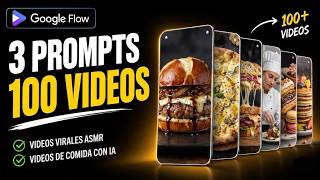

Create Viral ASMR Food Videos with AI
45sThe hook showcases a trending, satisfying video style and promises a simple method, appealing to creators looking for viral content.
▶ Play Clip"Title promises free AI video creation and delivers exactly that—a practical, step-by-step guide with no fluff."
This video demonstrates how to create realistic ASMR food videos using Google Flow, a free AI tool. The creator shows a step-by-step process to generate food preparation clips and combine them with eating scenes, all without needing advanced editing skills.
Google Flow now allows creating videos without a watermark even on free accounts.
Use the first prompt, replace food name with desired item (e.g., hamburger), and paste ChatGPT-generated ingredients.
Select Omniflash model, set duration to 10 seconds, costs 15 credits, works with free account.
Download the first clip, take a screenshot of the last frame, and upload it with a portrait photo to create an eating scene.
Use the second prompt for a personalized eating scene; the third prompt uses the screenshot as the first frame for a different effect.
Combine clips in Canva, set as backgrounds, increase saturation and highlights to 20 for a cinematic look.
Extract audio from both clips and use 'Balance All' to enhance ASMR sounds.
What tool is used to create the AI food videos?
Google Flow
00:27
How many credits does it cost to generate a 10-second video with Omniflash?
15 credits
02:41
What resolution is available for downloads on the free account?
720p
03:49
What settings are increased to give the clip a more cinematic feel?
Saturation and highlights to 20
06:55
What feature in Canva automatically balances audio across clips?
Balance all
07:23
Reusable Prompt System
Shows how a single prompt can be adapted to create hundreds of videos by changing the food item.
01:49Free Watermark Removal
Google Flow now allows watermark-free videos even on free accounts, a significant advantage for creators.
01:34Personalized Eating Scene
Using a personal photo with the second prompt yields more realistic and engaging results.
05:04Cinematic Color Grading
Simple adjustments to saturation and highlights dramatically improve the visual appeal.
06:55[00:11] These incredibly realistic ASMR food videos are taking YouTube by storm. The ingredients appear one by one with smooth, consistent animations, and the end result is surprisingly
[00:27] satisfying to watch. In today's video, I'll show you exactly how to create hundreds of videos like these using Google Flow. The best part is that you Google Flow. The best part is that you only need two prompts, those three.
[00:41] If you want to appear in the video. All you need is a photo of yourself, and I'll leave the prompts in the description of this video so you can copy and paste them one by one, following the step-by- step instructions. By the way, if you want Primo
[00:54] live video calls, pace, and personalized audits of your content where I tell you what to do, so you can get results and
[01:07] automated business. I invite you to my new mastermind/digitalempirescommunity. description of this video so you can enter right now and I'll see you
[01:19] inside. Your first step will be to go to Google. Flow and you're going to create a new project. Now we are going to create the food preparation and organization video. Google Flow has recently added an option to hide the watermark.
[01:34] This means you can now create videos without a watermark, even with a free account. Okay, let's get into the video. I've already created three prompts and as I mentioned, I'll put them below in the description of this video.
[01:49] Look carefully so you can copy and paste them. You're going to copy the first prompt and paste it here. As you can see on my screen, as far as the food is concerned, you can replace it with anything you want, like a hamburger, a
[02:01] sandwich, a pizza, whatever. Let's start by creating a video of a hamburger. So replace all the spaces where the food appears with hamburger. I'll leave it here, like on a clean plate. Next,
[02:15] we need the ingredients. I'm going to ask Chat GPT to generate the ingredients for each food item. So I'm going to copy the ingredients for the Chat GPT burger and then paste them into the ingredients section like this
[02:28] . That's all for prom. From here you can choose between frame or ingredients. It doesn't really matter, since we're not going to upload any images. Configure the aspect ratio as you prefer. Choose an output, select
[02:41] the Omniflash model and set the duration to 10 seconds. This will cost you 15 credits and you can actually do it with the free option. Now about a minute your video will be ready. Let's take a look. As you can
[02:56] see, each ingredient appears one by one with smooth and you think? I don't know, let me know in the comments. Now we're going to create another video, this time of a sandwich. Just click on this arrow
[03:10] to reuse the same prompt. Then replace hamburger with sandwich and the ingredients of a sandwich, as you can see on my screen. That can see on my screen. That 's all. Let's see the result. It
[03:34] these two you think is better. And in the same way you can create hundreds of videos using a single prompt. Now we're going to create the second part of the video in which you or the person you prefer eats the food. First, download the clip.
[03:49] the food. First, download the clip. You can download it in 720p or 1080p free account, only the 720p option will be available. But it's enough, don't worry because eventually if
[04:02] you want to dedicate yourself to this full-time you can get the paid account, but to start and get your feet on the ground, as I always say, the free account is enough. Once downloaded, play the video and take a
[04:15] screenshot of the last frame. Then, upload that screenshot to Flow, and while it's uploading, you can also upload a portrait photo of yourself or the person you want to appear in the
[04:29] video. Now add both the food screenshot and the portrait photo to the prompt like this, just as you see it on my screen. Make sure to select ingredients or ingredients here and then copy the second
[04:42] prompt I provided and paste it here. You will also need to change the name of the food as needed. Or in this prompt it's set to pizza, That's all. Just send the prompt and we'll see the result.
[05:04] eating it with quite a bit of enthusiasm, but it looks good, doesn't it? Very realistic. Now, if you don't want it to look like you 're eating the sandwich, you can do this instead. From here, change this option to frames. Then add the
[05:18] screenshot of the sandwich as the first frame. In this way. Then copy the third prompt and paste it here. As before, change the this case it's already configured as a sandwich, so I can simply
[05:32] sandwich, so I can simply send it. Let's see the result.
[05:44] eating the sandwich. However, I recommend using your own photo and creating the second part with prompt number two, as the results tend to look more personalized. Similarly, you can create hundreds of clips using
[05:57] these prompts, simply by changing the food. Now we're going to combine these food. Now we're going to combine these two parts. Go to Canviles, just Next, open the uploads tab and upload both video clips to
[06:12] Canva. Simply drag and drop them like this. Click the plus icon to add a new page. Now add the first clip to the first page, right-click on it and select set video as
[06:26] background. Then add the second clip to the second page and set it as the background as well. Thanks to the latest Google Flow update, so there's no need to trim videos anymore. Let's see how the
[06:41] two clips connect. As you can see, the two clips transition very smoothly from one to the other, right? It's very realistic. Next, select the first clip and go to edit, then to adjust, and increase both the
[06:55] saturation and the highlights to 20. This gives the clip a more vibrant look and, above all, a more cinematic feel. Repeat the same settings for the second clip. Now right-click on the first page and select extract
[07:10] audio. Do the same with the second clip and then click on one of the audio tracks. Then click here. as you can see on my screen, and select balance all. This automatically balances the audio of
[07:23] all clips. In this case, the audio was increased to the maximum level, making the ASMR sounds much clearer and more immersive. Let's clearer and more immersive. Let's play it back to see how it sounds.
[07:56] result, click share, then download and download the video in 1080p quality. Remember to take massive and imperfect action to get results. Don't let this video, this tutorial, be just another one of the
[08:10] bunch. Remember, if you don't take action, nothing will happen. how I'm creating, growing, and scaling automated YouTube channels from $0 to $3,700 per month in just 30 days, watch this video that's on your
[08:26] screen. And if you want to see how my client earned $4,400 in just 30 days by applying exactly what I teach, watch this other video that's on your screen. Kad



⚡ Saved you 0h 08m reading this? Transcribe any YouTube video for free — no signup needed.