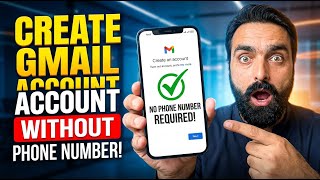

How to Add a New Gmail Account in 1 Minute
45sQuick, practical tutorial that viewers can immediately use to create a new Gmail account.
▶ Play Clip"Title promises a simple Gmail creation guide and delivers exactly that—no fluff, but also no extra value beyond the basic steps."
This video is a straightforward tutorial in Urdu demonstrating how to create a new Gmail account using the mobile app. The host walks through each step, from opening the app to entering personal details and setting a password, emphasizing that the process is simple and hassle-free.
The host opens the Gmail app and clicks on the profile icon at the top to view all existing accounts, then selects 'Add another account'.
After clicking on Google, the app requests mobile verification. The host then taps 'Create account' and selects 'For my personal use'.
The host enters a first name (e.g., 'Saeed'), clicks Next, then provides a date of birth and selects gender before proceeding.
The host picks a username, but since it's already taken, he modifies it (e.g., adds 'double seven') to make it unique.
The host creates a strong password and confirms it, completing the account setup.
The host announces the account is ready, reiterates that the process is easy with no complications, and thanks viewers for watching.
Creating a new Gmail account on mobile is a quick and straightforward process that anyone can follow, requiring only basic personal information and a unique username and password.
What is the first step to create a new Gmail account on mobile?
Open the Gmail app and tap the profile icon at the top.
Which option do you select after tapping 'Add another account'?
Google.
00:28
What type of account does the host choose when creating a new Gmail?
For my personal use.
00:28
What personal details are required during Gmail account creation?
First name, date of birth, and gender.
00:42
What should you do if your desired username is already taken?
Modify it by adding numbers or other characters, like 'double seven'.
01:06
What type of password is recommended for a new Gmail account?
A strong password.
01:20
Simple step-by-step guide
Demonstrates the entire process clearly, making it easy for beginners to follow.
Handling username conflicts
Shows a practical solution when a desired username is already taken.
01:06Emphasis on simplicity
Reinforces that the process is easy and without complications, encouraging viewers.
01:32[00:00] جی اسلام علیکم گیس کیا حال چالے تو آج میں آپ لوگوں کو نیا جی میل آہ بنانے کا طریقہ دکھاتا ہوں کہ ہم کس طرح ایک نیا جی میل کریں گے موبائل میں تو ہم نے جی میل آہ ایپ جو ہے وہ اوپن کیا ہے ٹھیک ہے آہ ادھر ہی جو اوپر آپ کا آئیکن نظر آتا ہے اس پہ ہم کلک کریں یہ میرے سارے ایک آنٹس ہیں ٹھیک ہے اس میں ہم نیچے ہیں کہ یہ لکھا ہے ایڈ اندر ایک آنٹ اس پہ میں کلک کریں گا ہم اس میں گوگل پہ کلک کریں گے
[00:28] اور یہ تھوڑا ویریفیکیشن مانگتا ہے موبائل کا کوڈ وغیرہ تو اس کے بعد میں دیکھتا ہوں یہ create account لکھا ہے نیچے create account پہ اور for my personal use پہ ہم کلک کریں گے
[00:42] ٹھیک ہے اس پہ ہم نام ڈالیں گے کوئی بھی for example سیئے اور پھر next کریں گے data bar ڈالیں گے data bar میں دیتا ہوں
[00:54] کوئی بھی سیئے ادھر جو ہے male female gender کریں گے next کریں گے اور ادھر وہ ہم username ڈالیں گے
[01:06] username ہم کوئی بھی ڈال سکتے ہیں for example میں یہ تو اس کو میں کرتا ہوں next یہ already موجود ہے تو اس کو میں double seven کرتا ہوں
[01:20] یہ بھی ہے تو یہ ہو گیا اب ادھر کوئی strong password ڈالتا ہے ٹھیک ہے تو اسٹرانگ پاسوارڈ جو ہے میں اس میں ڈالوں گا یہ صحیح ہے
[01:32] تو یہ ہو گیا ہمارا ایک آنٹ ریڈی تو یہ تھا اتنا آزی طریقہ اس میں کوئی جنجڈ وغیرہ نہیں ہوتا آپ لوگ اکثر کنکیوز ہوتے تو تینکیو فار واشنگ
[01:46] تیپیوڈیو




⚡ Saved you 0h 01m reading this? Transcribe any YouTube video for free — no signup needed.