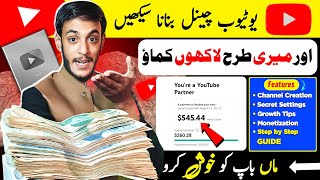

I Made ₹66,000 from ONE YouTube Video!
56sThis segment showcases a specific, high-earning result with a live revenue screenshot, creating immediate curiosity and aspiration.
▶ Play Clip"Title promises a full guide and delivers step-by-step instructions, though the earnings claim is used as a hook."
This video provides a comprehensive guide on creating a YouTube channel using a mobile phone, including channel setup, optimization, and strategies to quickly gain 1000 subscribers. The creator demonstrates earnings of ₹66,000 from a single video to motivate viewers and emphasizes the importance of proper settings for channel growth.
The creator promises to teach how to create a YouTube channel from a mobile phone and shows earnings of approximately ₹66,000 from one video to motivate viewers.
Advises against using an old Gmail account for a new channel. Steps to create a new Gmail account via the YouTube app: tap the profile icon, switch account, add account, create account, fill in details.
After logging in with the new Gmail, tap the profile icon, then 'Create a Channel'. Add a logo (using AI tools like ChatGPT), channel name (ensure uniqueness), and save.
Add a channel banner (created via AI or manually) and a channel description (who you are, what videos you make). Save changes.
Open a browser (Chrome/Opera), search 'studio.youtube.com' (no spaces), log in with the new channel's Gmail. This opens the desktop site for advanced settings.
In Settings > Channel, select your country. Add channel keywords: include your channel name twice, then add famous topics from your niche separated by commas.
Set 'Not Made for Kids'. Enable advanced features: verify phone number (OTP) and complete video verification (record a short face video) to unlock all features.
In Settings > Upload Defaults > Advanced, select your video category (e.g., Education) and video language. Set title/description language to English for better reach.
Find similar famous channels in your niche, subscribe to them, identify their viral topics (videos with high views), and create similar videos with similar titles, descriptions, and tags.
By following the steps to create a properly optimized YouTube channel and using the organic subscriber growth strategy of replicating viral content from similar channels, viewers can build a successful channel and start earning money.
Why should you create a new Gmail account for a new YouTube channel?
Using an old Gmail account can waste time and cause issues; a new account ensures a fresh start.
02:46
What is the first step to create a new Gmail account from the YouTube app?
Tap the profile icon, then 'Switch account', then the plus icon to add a new account.
02:59
How can you create a channel logo using AI?
Download ChatGPT from Play Store, describe your channel and ask it to create a cute logo.
05:37
What should you do to ensure your channel name is unique?
Check that no other channel already exists with that name, otherwise your channel won't appear in search.
06:28
What is the correct URL to access YouTube Studio for advanced settings?
studio.youtube.com (no spaces).
09:07
What are channel keywords and how should they be formatted?
Keywords are famous topics from your niche. Write your channel name twice, then add niche topics separated by commas.
10:49
How do you enable the third advanced feature in channel settings?
Complete video verification by recording a 3-4 second video of your face after receiving a mail.
13:58
What language should you set for title and description in Upload Defaults?
English, for better reach.
15:42
What is the organic method to quickly gain 1000 subscribers?
Find similar famous channels, subscribe, identify their viral topics, and create similar videos with matching titles, descriptions, and tags.
16:39
Earnings from one video
Shows real earnings of ₹66,000 from a single video to motivate viewers.
00:16New Gmail account advice
Highlights a common mistake and provides a crucial first step for channel creation.
02:46Channel keywords importance
Explains how proper keywords help channel ranking and views, a key factor often overlooked.
10:49Organic subscriber growth strategy
Provides a practical, organic method to gain subscribers by replicating viral content from similar channels.
16:39[00:02] Today I will also teach you how to create a YouTube channel from a mobile phone. Along with this, I will also tell you and the money you are seeing is approximately ₹66,000. And this is the
[00:16] earning of just one video of my channel. You may not be able to believe it yet. Come, let me show you live here. The purpose of showing this thing here is to motivate you. If you are free at home, then you should develop the courage to come to YouTube
[00:29] and earn a good amount from here. Here I open YT Studio. n't believe it, you can go and visit manually. You will see this video. I click on the performance of this video. And let me
[00:42] click on revenue here. So look here you can see around $233 and today the price of dollar in Pakistan is around ₹282. So if we multiply this here, it becomes ₹66,000 which I have earned from just one video and I
[00:58] I have earned from just one video and I earning. This mobile phone, this income, this studio, I have made everything from YouTube. So, you can do all this too. You
[01:11] can also earn a lot of money from YouTube. But, for that it is necessary to have a perfect YouTube channel. So if you watch this video completely then I am going to teach you how to create a YouTube channel. After that, you have to know how to complete 1000 subscribers on your YouTube channel as
[01:24] quickly as possible because if you do not complete the subscribers then you will not be able to earn money from your channel. So to earn money it is necessary to complete 1000 subscribers. After that, every YouTube channel has
[01:36] important settings. No channel can grow without settings. Because if you see the videos of my channel here, views like 2 lakh, 1 lakh, 1 lakh, 1.5 lakh. Meaning that the videos go
[01:51] viral. Why is it going viral? Because I have done complete settings of my channel. I am going to tell you these settings also in this video. Inshallah I start uploading videos, your videos will also go viral and you will be
[02:06] able to earn good money from your channel. The only condition is that you have to watch this video completely like the video right now. You will forget later. Apart from this, if you want to watch YouTube related videos next time, then you will have to subscribe to the channel also.
[02:20] Now you have to focus your total attention on this, if you are busy right now then save the video. When you are free and come to bed, then sit comfortably and watch this video. Because your brother will teach you how to create such a complete channel that you just have to
[02:33] earn from it. No one will say that your channel has been created wrongly. I will teach you how to create a complete channel, not an incomplete one. Similarly, I created my channel here. What's the first thing you do? Which mistake you often make. You
[02:46] create the channel from your old Gmail account itself. Don't do this. You have to create a new Gmail account for the new channel. So how to create a new Gmail account ? Let me tell you briefly here. You have to open the main YouTube application through which you watch videos. Here,
[02:59] look down in the right corner, you will see the option of Pay You. You have to click on it. Here you will see the switch account button. You have to click on it. Click on it. You will see a plus icon above. You have to click on it.
[03:11] Click on it. Here it will some processing will take place and this type of interface will open in front of you. What do you have to do here? If you look below, you can see the Create Account button.
[03:24] You have to click on this and here you have to click on For My Personal Use. Here you have to add your name, not the channel name. Like my name is Syed Yasir Abbas, so I wrote Syed Yasir Abbas. After that click on the Next button.
[03:37] Here you have to select the correct date of birth. Like here I select it. And let's do 1998 here. Below you have to select the gender. Male female. After that click on the Next button.
[03:50] Here you have to enter the date of birth correctly. After that, from here you have to select any one user ID as to how your ID should be. If you can create your own then click on the last option. Otherwise,
[04:02] you can select any one of the first two and click on the Next button here. give it a strong password. The password should contain capital letters, small letters , digits and also some symbol. In this way you have to
[04:16] After giving the password, you simply have to click on the Next button below. Yes I am in, you have to click on it. You have to click on the Again Next button. At last you have to click on I Agree.
[04:31] Click on it. You have to wait a little here. After waiting, your Gmail account will be created. It takes time to create a new Gmail account and you waste your time by creating a channel on the old Gmail account. So this is how you have to create a new
[04:44] Gmail account. Once you have created the account, from here you have to select the new So I have selected that Gmail account here. I am saying again and again that I am teaching you to create such an amazing channel that after this you will
[04:59] bless me and if you start working regularly on this channel then you will also start earning a good amount from your channel. So as soon as you login through this Gmail account , this type of interface will open in front of you. You have to click on the Again You button. If you
[05:11] open in front of you. You have to click on the Again You button. If you you will see the name of your Gmail account here. If you look below this, you will see the Create a Channel button. So, what do you have to do? Simply click on Create a Channel.
[05:24] Click on it. Here this type of interface will open in front of you. First of all, you see this logo. This is your channel's logo. You can also submit your picture. If you want to create any such logo, you can do so.
[05:37] How to make a logo? Simply you have to go to Play Store. There is an application called Chat GPT, you have to download it and in simple words you have to say that brother, this is my channel. This is the name of the channel. This is the kind of work I do. So please
[05:50] make me a cute logo for this channel. So he will create the logo for you within seconds. Have to download. As soon as you download it, you have to click on the camera button here. You have to click on the gallery and from here you have to select those people like this.
[06:04] and from here you have to select those people like this. load a little and your logo will be placed here. As soon as you add the logo, see the name section. Click on the pencil button.
[06:16] This is your Gmail account name. You have to remove it from here. Now You have to remove it from here. Now you want to keep a separate name, you can write it. But keep one thing in
[06:28] mind that the name on which you are creating your channel, there should not already be any channel on this name. Or your name will not be entered here. If there is already a channel. Even if it is entered, your channel will
[06:42] not appear in the search. So you have to make sure that there is no channel already with this name. here. Urdu Tech Zone, I just wrote it fake. After that you have to click on the save button. If you click on it,
[06:56] you will see the Create Channel button below. Simply you have to click on it. As soon as you click on it, it will take some time to load here. You will get a popup of Channel Created. This means your channel has been created. But this channel that has been created is an incomplete
[07:09] channel. This is where people make the mistake of creating so many channels and then starting work again. Neither the subscribers increase, nor the views come, nor can he earn money from his channel. The real game of creating a channel starts from here. So now pay attention.
[07:23] Your channel has been created here. What do you have to do? You have to click on the U button once again. What do you have to do? You have to click on the U button once again. you have to click on the pencil button. Now if you look at the background here, you will
[07:35] see a banner option. To put up a channel banner. Now what is this channel banner? You can see a long picture in the background. This is called channel banner. You can also get this made through AI. Otherwise there
[07:48] found in the description. You can also create your own banner by clicking on it. So here you have to set the banner. Click on the camera button. You have to click on Choose from your photo.
[08:00] Simply select the banner you have created from here and click on the save button. As soon as you click on the save button, your banner will be shown here within seconds. Like you can see here. After placing the banner, if you
[08:12] come down a little, you will see an option of description. This is the description of your channel in which you have to ? Who are you? What kind of videos will you make? This means that you have to add a
[08:27] brief introduction of your channel and yourself here. You can also write this description manually. Otherwise you can go to Chat GPD and get it written from there also. So when you get the description, you have to copy it. You have to come here and
[08:41] paste it here. You simply have to click on the save button. all the settings of the channel. But the
[08:54] So what do you have to do to make those settings ? You have to come back from here. After coming back you have to open Google. You can open Chrome. You can open Opera. After opening it, you have to write studio here. After that you have to
[09:07] you have to write studio here. After that you have to write YouTube. After that you have to write it the way I have written it, you have to write it in the same way. If you write after leaving a space, this section will not open. So after writing the same thing, you have to click on the search button.
[09:19] Click on it. You have to wait a little here. After that, YouTube will open here on the desktop site. As you can see here. What do you have to do? You have to zoom in. You will
[09:32] see the logo on the top right corner. You have to click on it. Look here, Switch Account is visible at number three. You have to click on it. From here you have to select the Gmail account on which you have just created the channel. Because here
[09:45] also it is necessary to open the same channel which we have just created. Only then will that channel be set. So here that channel is lying at the end. I have selected that channel. Ok? As soon as you log in to the channel, this type of interface will open in front of you.
[09:57] So, what do you have to do here ? Click on the continue button. Click on it. This is how you have to zoom in. Will zoom in. Will come last on the left corner. You will see the Settings button. Simply you have to click on it.
[10:10] Click on it. Now here come the useful settings. Please pay attention and if possible, rotate your screen so that you can understand each and every thing that I am clicking on which option. What do we have to do first?
[10:23] We have to click like this on the channel section. If we click on it, we have to select the country. From where we are running the channel. It is necessary to select this country. So here you have to click on the dropdown and here you have to
[10:36] select the country. For example, if you live in India then you have to select India, if you live in Pakistan then you have to select Pakistan, whichever is your country. So ours is Pakistan Zindabad. So we selected this. After that you can see the keywords below.
[10:49] Believe me, many people make mistakes here and do not add keywords. Even if they do, they add wrong keywords. Then neither does their channel rank. Nor do their videos get any views. After wasting time, they
[11:02] leave feeling demotivated. So understand the channel keyword. In the channel keyword, we add famous topics of our own category. For example, if I talk about myself, I teach on YouTube. So my keywords here will be how to increase views? How to increase subscribers after that
[11:16] ? How to make a YouTube channel, How to get more views on YouTube, How to do SEO, How to do SEO? How to create a thumbnail? So these are all the topics of my category. So, you have to So these are all the topics of my category. So, you have to
[11:32] example, if you have created a channel on cooking , then you have to write how to make biryani. How to make biryani after that? After writing a keyword, if you put a comma at the end then the example, I will also write it here. First of all, here we write the name of our channel
[11:46] here we write the name of our channel Urdu Tech Zone. Ok? I am explaining to you how a keyword is completed. Wrote Urdu Tech Zone. After that we will put a comma. A keyword will be completed after adding a comma. Now
[11:58] write the second keyword. So here you have to whenever someone searches, your channel appears in the search. So after writing the name of your channel twice,
[12:10] you have to start adding famous topics of your category. Like how to increase views? Comma, how to increase watch time ? Comma, how to do SEO? Comma. I am giving this example. You have to enter all the keywords here according to your category.
[12:23] But the keywords should be like this. It should be in Urdu also. There should be English as well and this is what should happen. Apart from this, it should not happen that you enter the name of another channel here. So this way your channel will never grow. So
[12:36] you have to put the famous topics of your category here. So in this way your channel keywords will be completed. Once this is completed, you have to click on the second number in Advanced Settings. channel is for children or for adults. So here you have to set it as No
[12:50] Set This Channel as Not Made for Kids is not for children. This is for the elders. After doing this, you have to click on the last feature Eligibility. There are three options here. Two out of three are disabled. One is enabled. So it is
[13:04] necessary to enable those which are disabled also. Because without these, you will neither be able to upload long videos, nor will you be able to go live , nor will the advanced features of your channel be enabled. So both of these have to be enabled as well. How to do it? It is very easy. First of all, let us
[13:17] How to do it? It is very easy. First of all, let us Click on the drop down. Click on Verify Phone Number. see a box to enter the mobile number. You have to enter your mobile number here.
[13:31] An OTP will appear on it. As soon as you put that OTP here, this second option will be enabled within seconds. I am not enabling it here because many of the channels on this number of mine are
[13:44] issue arises. Ok? After that, You have to click on the dropdown. Look here we are giving you three options. Either you can do video verification or you can send them the picture of your valid ID card.
[13:58] channel history. You don't have to do anything. Based on your work, YouTube will analyze how you are working, who you are, all the details and automatically enable this third feature. So my suggestion is that you click on video verification. If you
[14:12] click on this, a mail will come on your Gmail account. It will be written in that mail that 'Get Started'. You have to click on it. Then he will ask for permission for the camera. You have to give permission to the camera. The camera will open.
[14:24] He will make you make a three to four second video of your face. You have to and within a few moments this third option will also be enabled for you. So
[14:36] this is the way to enable the third option. After doing this, you simply have to click on the save button. Click on it. Your work is not yet complete. You have to click on this setting button once again.
[14:51] Now we will click on Upload Defaults at number three. what do you have to do? You have to click on the last advanced setting. Click on it. The second option that you see is this one, here you have to select the category
[15:05] in which you are going to work. Now you do not select this thing due to which your channel does not go viral. There are no views on the video. So you have to select the category carefully. So my category here could be
[15:17] education. So I selected education. Whatever category you belong to, you have to select it. you have to click on the video language like this. After clicking on it,
[15:29] If you are making videos in English then you have to select English. If you are select Hindi. If you are making it in Urdu then we will select Urdu here. After that, you can see the
[15:42] You have to click on it and in the title and description language you have to keep neither Hindi nor Urdu. You simply have to keep English here. After selecting this thing, you simply have to click on the save button. As soon as you
[15:58] click on the save button. Now you have a complete YouTube channel. Now you simply have to upload your videos on this channel. How to upload videos? I have made a video on this also. The video will be available on the end screen. So by
[16:11] watching it you can also learn to upload videos. So this is the way to create a YouTube channel professionally. You have created the channel, if you still don't understand then watch the video again. I have told you the complete proper method of creating a YouTube channel.
[16:24] Now let me tell you here how to complete 1000 subscribers quickly. Whatever I am telling you now , please understand it with open ears and also implement it , then it will be useful to you and it will definitely be useful. This is my responsibility. Ok?
[16:39] What do you have to do? In whichever category you created the channel, for example, you created it in cooking , in tech, whatever your category is, you have to search for similar famous YouTube channels of your category.
[16:56] You have to subscribe to them. What do you have to do now ? You have to visit every channel. You have to ? You have to visit every channel. You have to you will know how many average views they get. Every video is getting over 5000
[17:10] views. 6000 5000 6000. Among these 15 videos, you will see one or two videos which will have one or two lakh views. So you have to make a video on the topic which has more views. As it is, you have to
[17:25] make a separate video on the same topic for your channel. Then you have to give a similar title. The same type of description has to be written. You have to write similar tags and upload that video on your channel. You will see that whatever video you upload will also have good reach. You will get
[17:39] good views and when you get more views, you will definitely get more subscribers. This is an organic way to increase subscribers. You have to visit all these channels in the same way, find viral topics and make videos on them.
[17:52] Apart from this, the methods of increasing subscribers like increasing them through this app, doing this , doing that, will ruin your channel , will tell your relatives, will tell your family members, you did not increase your subscribers in any other way. The
[18:09] organic and only then will your channel grow. So, I hope you enjoyed the video. If you liked it, please give it a like. Apart from this, if you select the bell notifications on all so that I can continue to take you along on your YouTube journey
[18:23] and guide you step by step. And also, if you want to get your YouTube channel practically created by us or want to get a channel checked which you already have, then you can contact us on Instagram. Now if you want to
[18:36] learn how to upload videos on this channel, then you can see the video here. Click on it and enjoy this video also. Take great also. Take great care of yourself. Allah Hafiz.

⚡ Saved you 0h 18m reading this? Transcribe any YouTube video for free — no signup needed.