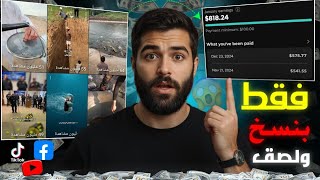

3.6M Subs Without Showing Face
45sReveals a massive, faceless channel's success, sparking curiosity about the method.
▶ Play Clip"Title accurately promises a phone-only content creation method; video delivers step-by-step instructions."
This video demonstrates how to create viral content using only a phone, without showing face or voice. The creator explains how to source videos from Chinese apps like RedNote, write scripts using ChatGPT, generate AI voiceovers, and edit videos with subtitles and effects.
The video shows how to create content that gets millions of views using only a phone, without showing your face or voice.
A YouTube channel with 3.6 million subscribers and 1,300 videos, each getting millions of views, all using the same type of content.
Use RedNote or Kuaishou to find professional videos with high engagement (likes, comments). Download videos using a link and a download site.
Two methods: describe the video manually or upload the video to ChatGPT and ask it to write a script describing what happens.
Use Google Studio (or similar) to convert the script into a natural-sounding AI voiceover. Choose a voice like Sharon.
Use CapCut to set aspect ratio (16:9), mute original audio, add voiceover, adjust speed, apply filters, and add automatic subtitles.
Auto-caption feature may flip text; switch app language to fix. Customize font, style, and add channel name as a watermark.
This method allows anyone to create engaging video content quickly using free tools and AI, making it accessible for beginners to gain views and subscribers.
What are the two Chinese apps recommended for sourcing videos?
RedNote and Kuaishou.
02:16
How do you download a video from RedNote?
Copy the video link, go to a download website, paste the link, and click download.
04:04
What are the two methods for writing a script?
Manually describe the video or upload the video to ChatGPT and ask it to write a script.
05:00
Which tool is used to generate AI voiceover?
Google Studio.
07:14
What aspect ratio should be set in CapCut?
16:9.
09:01
How do you fix upside-down auto captions in CapCut?
Switch the app language back to Arabic (or the original language).
10:29
Massive Channel Success
Demonstrates the potential reach of this content type with real subscriber and view numbers.
00:32ChatGPT Script Writing
Innovative method to automate script creation by uploading video directly to ChatGPT.
05:00AI Voiceover Generation
Shows how to create professional voiceovers without recording your own voice.
07:14Auto Caption Fix
Provides a practical workaround for a common app bug (upside-down text).
10:16[00:04] showing his face or voice, and he creates this content using only his phone because it's easy and simple. Peace be upon you, my brothers. In this video, I'm going to show you how to create content that most people are using on all social media platforms because it's easy
[00:17] and simple, and you can create it using only your phone without showing your face or voice. This content gets thousands and millions of views on all social media platforms. As I said, many people are using it; let's say 50% of
[00:32] people with social media accounts use this type of content. For example, this YouTube channel has 3 million, 600,000 subscribers. The owner of this channel has published 1,300 videos, and the videos are getting millions of views—literally 64 million, 55 million,
[00:49] 51 million—and all the videos are the same. This is just one of the channels that exist on all social media platforms because there are thousands. Why not? Millions of channels create this type of content. And as I mentioned, the content is easy and simple because you simply take the
[01:05] video, add a script, and edit it using video editing software. But where do you get these videos from? How do you add a script to the video you're going to take? And how do you edit it using video editing software? That's what I'm going to show you in this video. God willing, I'll show you
[01:19] how to create this content step by step. That's why I advise you to watch the video from beginning to end to benefit more. You can then share the video with other people who might also benefit from this content. I was asked by someone to share this video, which is why I made it. I explained in
[01:33] detail how to create this content. Also, many friends have asked me to explain content that will be featured in future videos, God willing. And if you'd like me to explain any content of your choice, write it in the comments. I was
[01:48] 100% sure I would explain the content you wanted, but you absolutely must like the video, subscribe to the channel if you haven't already, and activate the notifications button. Without further ado, let's begin our explanation. So, with God's blessings,
[02:02] my brothers and sisters, let's continue our explanation. The first step I will begin with is showing you where to so pay close attention so you know where to get professional videos that will get thousands and millions of views. To get the videos, we will use
[02:16] Chinese applications. There are two applications, my brothers and sisters: RedNote and Kuaishou. Most people who create this type of content get their videos from these two applications. In this video, I will use the RedNote application,
[02:29] so I will go to the Play Store and click on it. We'll go to the search bar, and in the search bar, we'll type "Red Notes" and press search. The app will appear first, and you'll download it to your phone. After downloading it,
[02:42] tap it once, and you'll get to the homepage. You can't see it; we'll tap the "Tread" button that was at the bottom. Tap it once, and then a lot of videos will appear. We'll wait a bit, depending on your connection. You ca
[02:55] n't see this video; this one has 63,000 likes. You can't see 3,365 comments. If this video has engagement, you can't see it. We'll find this video; this one has it.
[03:12] video; this one has it. Watch this video with me. and choose the ones with
[03:24] engagement. For example, this video has this one. 43,000 hearts, you won't see 8,446 comments, 3,500 stars. If this video is suitable for me to work on, I might take it, but you'll see the
[03:37] appropriate videos with a lot of interaction. This application is like TikTok, like Instagram, like Facebook; it has Reels, you won't see. I'll watch a video and continue the explanation with you. For example, my brothers, I found this video, you won't see it. It's a really
[03:50] cool video with a lot of interaction: 295,000 hearts, 1,591 comments, 11,000 stars. If this video is suitable for me to work on, I 'll download it to my phone now.
[04:04] All I have to do is press this share button that's here, like this. Here you have the option to download the video directly, but I don't advise you to copy the link like this. After that, you'll exit here and go to any browser you use on your phone
[04:18] and go In the search bar, type "download video" if you're downloading a video from a file manager. If you're downloading a video from RedNote, open RedNote and click " search." Many websites will appear;
[04:32] click on any site you like, like this. You'll get this screen; keep clicking here and paste the screen; keep clicking here and paste the link you found. Then click "download video." Here, you'll see the download option. Click "download," and the video will start
[04:46] downloading. Wait a little while, and the video will be downloaded to your phone. If you've made it this far, like this video and subscribe to the channel. As you can see, the video has downloaded to our phone. Now we've
[05:00] reached the most important stage: how to write a script. There are two ways to downloading. For our phone, the first method is that you watch what's in the video and start describing it.
[05:17] take that script and give it the ChatJB website and tell it to write the script correctly. Okay? The second method is much more advanced, and I recommend you use it. We'll use the ChatBB website. We'll give the
[05:32] ChatBB website this video and ask it to write the script for this video. This method hasn't been explained by anyone yet. Okay, now pay close attention so I can show you how to do this step. We'll go to Google and type "Shafty" and click
[05:47] on search. The website will appear. We'll click on it as if we've opened the ChatJB website. Now, we'll click on the plus sign that's there. Here on the side, we'll click on "Add Files." Here we'll click on "Show Media," and we'll find the video
[06:02] you downloaded. You see this one, right? We'll click on it, and the video will start loading. The site for ChatBeat will load. We'll wait until the video loads. Okay, it's loaded. Now we'll keep clicking wait until the video loads. Okay, it's loaded. Now we'll keep clicking
[06:18] paste this sentence: "Now use the winning programming method to write a script for this winning programming method to write a script for this video." We'll click on this one. This is
[06:33] Honestly, it's a really cool script, but I did n't like it. That's why I'm going to tell it to write a script that describes what happens in the video I downloaded. We'll
[06:49] describes what happens in the video I downloaded. We'll click on this one. Okay, what video. Now I'm going to tell it to write a script for what
[07:02] you see. We'll have the text for this video. It's that simple. Now we'll... We'll take this text to convert to voiceover. That's why we'll keep pressing and scrolling through this entire text like this, and then we'll press copy. You can use
[07:14] your own voiceover if you want, or you can use an AI voiceover. Now we'll exit like this and go to the search bar. In the search bar, we'll type "Google Studio" and press search. The first
[07:29] website will appear; we'll click on it, and we'll get this screen. We'll click on speech generator and then click on the three bars on the side. Here, we'll use a side. Here, we'll use a single speaker and choose the voice. We'll
[07:43] press here, for example, this voice, the one of Sharon. We'll use it and this voice, the one of Sharon. We'll use it and see once like this, and then we'll press the X at the top. Here we'll stay
[07:57] Press and hold the text we took. We'll change it here. This white snow, we'll remove it change it here. This white snow, we'll remove it completely. We'll add the slope and press Control to run so we can add a voiceover. At
[08:10] voiceover. At sunset, the journey begins. Sliding down the sunset, the journey begins. Sliding down the slope, step by step, slope, step by step, balance is the secret. A small bend, free movement. Didn't you hear, my
[08:23] friends? The voiceover is amazing! We'll download it to my phone. We'll press the three dots and then press Download. Once that's it, we'll have downloaded the voiceover to our phone. Now we've reached the most important stage, which is editing. So you can
[08:35] focus well with me, you can use any editing application you have on your phone, any editing application you understand. In this video, we'll use the Capacitor editing application. We'll press it once and then press
[08:48] New Project. Here, the album will take us. Especially for the videos we have on our phones, we'll choose the video we were recording. We'll tap on it and then tap "Add." This will open the work interface. First, we'll tap on "
[09:01] Dimensions." Here, we'll set the aspect ratio to 16. Then, we'll tap on "Sound." We'll remove the audio from this video by tapping " Mute" on the side. After that, we'll tap "Add Audio." To add the voiceover we were recording, we'll
[09:15] tap on "Files" on our device. Here, we'll type the name we wrote for the voiceover, and the voiceover will appear. As you can see, we'll tap on this plus sign. This will add the voiceover directly. However, the voiceover is longer than the
[09:29] video's duration, so we'll tap on the video like this and then tap on "Speed." Here, we 'll tap "Normal." After that, we'll decrease the video speed slightly, like this. We'll do it four times now. We'll drag this strip to the end of the voiceover
[09:43] and adjust the video according to the voiceover. We'll come here and drag the video like this with the voiceover. Now we'll press on Filter. Here there are many types, choose the one you want. For example, I'll choose blue and orange. We'll press on it. You see
[09:58] how the video has become much clearer. We'll press the checkmark. Now we'll add automatic subtitles to this video. That's why we'll switch the app back to English. We'll go back and video. That's why we'll switch the app back to English. We'll go back and
[10:16] press on the video. We'll press on the text, Auto Caption, and then press Start. on the text, Auto Caption, and then press Start. automatic subtitles, but you don't see the text is upside down. To solve this problem, we'll switch the app language back to
[10:29] To solve this problem, we'll switch the app language back to Arabic, and immediately you'll see the text is no longer upside down. Now we'll press on this text like this. And we'll press on the style here. We'll press on the font, and there are these Arabic fonts. You can choose
[10:43] any font you like. If you made this content in English, you'll press on English, and there are these English fonts. Choose any font you like. If you want to add a font from your phone, you can add it to the application and use it. For example, I'll
[10:57] use this font. I'll press on this one. Don't you see it's a really cool font? Now we'll press cool font? Now we'll press on the style and choose this one. We'll also press on Move, and here there are many types. Don't you see them? Choose any type you like.
[11:09] For example, I'll press on Expand. Don't you see it's really cool? Now we'll press on Check. And if we've already added automatic translation to our video, now we'll go back here and press on Add Subtitles and write the name of
[11:24] our channel. For example, I We'll write Kamal or Al Hadoushi like this. We'll go back a bit and click on English fonts and choose, for example, this font.
[11:36] We'll click on style and choose the text color. We'll put black, for example. We'll reduce the bolding a little so it's not too obvious and click the checkmark. We'll pinch the
[11:49] text down with two fingers. This is the text like this, and you can put it anywhere. For example, I'll put it here at the top and
[12:01] our video is about to be ready. Now, my brothers, we'll click on 720p at the top to increase the video quality for smoother playback. We'll set it to 24 and click on this arrow. This is how you create this content, and most people who create
[12:14] this content use this method. I hope you are all well. If you benefited from the video, and you made it this far, please like the video and subscribe to the channel if you haven't already. Now, I'll leave you with the clip that made us... At
[12:26] sunset, the journey begins: a smooth glide down the slope, step by step. Balance is the secret. A the slope, step by step. Balance is the secret. A slight incline, free movement, and complete control. Here,
[12:38] the beauty isn't in the destination, but in the journey itself. Are you ready to experience freedom on Are you ready to experience freedom on the slope?
⚡ Saved you 0h 12m reading this? Transcribe any YouTube video for free — no signup needed.