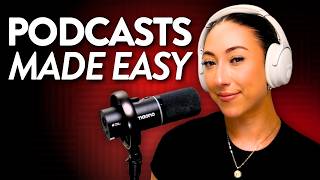

I Avoided Starting a Podcast for 4 Years
60sEvery creator knows the dread of editing and promoting, so this confession about delaying a podcast for 4 years is instantly relatable.
▶ Play Clip"Delivers a real workflow but doubles as a 14-minute Riverside infomercial, so the title slightly oversells the tool's necessity."
In this sponsored video, creator Milli shares exactly how she finally launched her podcast after four years of procrastination, using Riverside to handle editing, AI repurposing, and distribution. She walks through transcript-based editing, AI auto-edits, magic clips, and one-click publishing to Spotify, Apple Podcasts, and YouTube.
The creator had been sitting on the idea of launching a podcast for four years because editing, scheduling, and promotional micro-content felt overwhelming. This video reveals the workflow that finally made it manageable.
In Riverside, cutting mistakes or tangents is as simple as deleting sentences in the transcript. The deletion syncs to the timeline, eliminating the need to scrub audio waveforms.
Riverside's Co-Creator can 'do it all' — remove fluff, improve sound quality, and enhance visuals. In a demo, it identified 52 filler words and 20 pauses and removed them automatically.
Riverside records each person on a separate track, making it easy to clean up crosstalk, focus on one speaker, and adjust the video layout to highlight whoever is talking.
The 'Made for You' section offers AI-polished drafts with fluff, filler words, pauses, and mess-ups already removed. Magic clips, segments, and hooks are pre-made short-form videos for social promotion.
After recording, Co-Creator drafted a blog post, suggested episode titles (e.g., 'Five Essential Books for Growing Your Creator Business'), and wrote an Instagram caption — all from the raw episode.
Co-Creator can generate thumbnails, social media images, episode titles, descriptions, show notes, newsletter emails, and blog posts on request.
Riverside hosts the podcast and can publish directly to Spotify, Apple Podcasts, YouTube, Amazon, iHeartRadio, and more. Spotify review for a new podcast can take up to 24 hours.
The podcast will live on its own YouTube channel 'Milli On Air' and focus on conversations, thoughts, and opinions about the creator economy — intentionally different from her practical, step-by-step main channel.
Riverside's AI-driven workflow removes almost all post-production friction, making podcasting accessible for creators who fear editing. By auto-generating titles, clips, show notes, and publications, the platform lets creators focus on the 'yapping' — the actual conversations.
How can you edit a podcast in Riverside without scrubbing audio waveforms?
You edit directly from the transcript — deleting a sentence in the transcript removes it from the timeline.
03:08
In the demo, how many filler words and pauses were identified and removed?
52 filler words and 20 pauses.
04:44
What does Riverside's 'Do it all' suggestion do?
It removes fluff, improves sound quality, and enhances visuals in one pass.
04:20
How does Riverside handle multiple speakers during recording?
It records each person on their own separate track, allowing crosstalk cleanup and layout adjustments.
05:52
What is a 'magic episode' in Riverside?
An AI-polished draft where fluff, filler words, pauses, and mess-ups are already edited out, making it nearly share-ready.
06:31
What types of content can Riverside's Co-Creator generate for a podcast episode?
Thumbnails, social media images, episode titles, descriptions, show notes, newsletter emails, blog posts, and Instagram captions.
09:31
Which platforms can Riverside publish a podcast to?
Spotify, Apple Podcasts, YouTube, Amazon, iHeartRadio, and more.
11:13
How long can Spotify take to review a new podcast?
Up to 24 hours.
11:42
What is the name of the new podcast channel, and what is its focus?
It's 'Milli On Air' on YouTube, focusing on conversations, thoughts, and opinions about the creator economy.
12:20
Transcript-based editing is a game changer
Removes the most intimidating part of podcast post-production — manually scrubbing audio to find and cut mistakes.
03:08AI can auto-remove filler words and pauses
Concrete numbers (52 filler words, 20 pauses) show AI editing is not theoretical but practical and measurable.
04:44Separate tracks simplify multi-speaker podcasts
Recording each person independently turns messy crosstalk into a clean, editable, and visually intentional conversation.
05:52AI can repurpose an episode into a full content engine
A single recording can become a blog post, titles, captions, and clips — exponentially increasing reach with zero extra work.
07:54Hosting and publishing are unified in one platform
Creators no longer need separate tools for editing, hosting, and distribution, reducing complexity and launch friction.
10:57[00:02] launching a podcast. And to be honest, this is something that I've been sitting this is something that I've been sitting on for I think 4 years now. And I almost didn't do it. Not because I didn't want to record it, but because when thinking
[00:14] about all of the extra work and effort that goes into creating another form of media, I don't think I was sure if I could handle it all. Mainly the editing, because right now my editors are pretty much at capacity with our weekly YouTube
[00:29] videos and short-form content. And I knew if I wanted to launch a podcast, it >> [laughter] >> So, I've just been putting this off for the longest time. I mean, if you're starting a podcast, you probably love to
[00:42] yap as much as I do. It's the editing afterwards that's not so much fun. And then scheduling it to post across platforms to build attention and hype to the podcast is a whole other task. Like creating micro content to promote the
[00:58] podcast, my brain just didn't want to go there for the longest time. So, before launching a podcast, I already knew that I would want to have a workflow that would simplify the whole process from editing to posting to marketing it. That
[01:11] have fun with, which is like the yapping. Hence why this video exists. Not only in this video that you're watching am I going to share with you what my podcast is going to be about and where you could tune in, but I also want
[01:25] to walk you through the exact workflow that I've landed on for editing my episodes in case you've been wanting to start a podcast, too, but just have been like intimidated maybe by the post-production sides of things. So, in
[01:39] this video, we are going to cover how to edit your video directly after filming from the transcript, how to manage multiple speakers if you're doing multiple speakers if you're doing interviews, how to let AI generate your
[01:52] podcast titles, descriptions, and thumbnails, how to turn podcast episodes into blog posts, email newsletters, Instagram posts, or even thread posts with just a click of a button, and even how to host your podcast on Spotify,
[02:06] Apple Podcast, and more. So, as always, timestamps are below, and a huge thank you to Riverside for sponsoring today's video. Okay, so we are in Riverside, and as you can see, I already have a couple of episodes recorded in here. And
[02:21] honestly, just experiencing how simple they made the whole process is actually what gave me hope that I could start my own podcast, hence why we're here. So, launching what I'm calling like season zero. It's going to be 5 to 10 episodes
[02:37] just testing different formats and different topics to see what's going to resonate the most with all of you, and then I'm going to use that data to better outline a full official season. So, some episodes are just me talking,
[02:52] some are going to be interviewing guests. So, let me jump into one of just me, and I'll show you the way that I've been editing these. So, we're just going to jump straight into edit. And what I love is that since podcasts are
[03:08] conversation-based editing, you can edit directly from the transcript on the side. So, obviously, my intro, that was not meant to be there, so we're going to delete that. We're going to also delete this part was
[03:22] a mess up, and now we have our intro. So, as I'm just like kind of skimming through the transcript, I'll be able to see if I ever went on a tangent, and I'm Let's Let's cut that back." Or maybe if I repeat myself because I messed up, or
[03:35] maybe I just simply don't like the way that I said something, I could just delete those sentences directly from the transcript, and it'll delete it from the timeline as well. It's literally just as simple as that. There's no cutting
[03:48] clips, zooming in on the audio waves to find the gaps, no trying to find like happened, just like skimming through the video. I'm just reading and editing as I anything from scratch because I'm the one yapping. I remember the order in
[04:04] to go like, oh, I remember I wanted to cut this part out or I was talking about this. Let me actually find this in the script, copy, delete. Now, to make things even easier, they also have Co-Creator on the side to help auto edit
[04:20] your podcast for you. So, if I click suggestions here, I could improve sound to studio quality, remove unnecessary parts, enhance visuals, or click do it
[04:32] all, remove fluff, improve sound quality and design. So, I could simply click this and Riverside will basically do my full first cut for me. Or, if I wanted
[04:44] to ask Co-Creator, hey, can you remove filler words and pauses? As you can see, 52 filler words were identified, 20 pauses were identified,
[04:56] and those were automatically removed. So, now let's go to suggestions, click do it all, and now it's going to do one other clean edit through or look through to remove the fluff and improve the sound quality. Or, if you're editing
[05:11] multiple people, like I had mentioned before some of the episodes in my style, so this one that we're going to dive into is one with one of my students who recently put their notice into their 9-5 to go full-time as a content
[05:26] creator, so I just am very excited to share their story with everyone with this podcast episode. Or, even if you're somebody who's ever edited a podcast or can get when you have multiple people talking. Like, one person might
[05:39] accidentally interrupt someone, or audios might overlap if two people are just trying to figure out maybe who should be on screen when this person's talking. It could be a lot, but what's really cool is Riverside records each
[05:52] person on their own separate track. So, I can clean up like crosstalk or I could focus on one speaker at a time and adjust the layout of the video depending
[06:04] on who's talking and who I want to be the main focus of the video, which just makes the whole conversation feel more intentional instead of chaotic, especially for people who are watching the podcast episode as well. Now, one
[06:18] more thing with editing that I absolutely freaked out over is there's this made for you section and here you have like AI polished drafts tailored to
[06:31] you with key edits based on your preferences and you'll also have a magic episode. It already has the fluff cut, filler words, pauses, mess-ups are already edited and cut. So, you could rewatch this, make sure it's good to go,
[06:46] but it's basically like share ready. You could just refine and maybe add b-roll if you wanted to. And under that, you also have magic clips, magic segments, and hooks. These are simply just like clips ready for you to use on social
[07:01] media. So, you could like start with this pre-made 52-second short-form piece of content, watch it back, see how you like it, and it's pretty much ready to post and market your podcast for you. Let's take a look at this one. Oh, yeah,
[07:15] this is me talking trash about a book. You you'll have to listen to that podcast episode. So, I like that it's already finding the like controversy within the episode and turning that into short-form content. I think that's a
[07:27] great way to generate attention to a podcast. So, I think the clips that they've already identified are pretty spot-on with what I would like kind of filter through the content on my own to find. Not only can I start with these
[07:40] magic clips and like the magic segments or hooks, but keep scrolling and down here, this is where I literally I couldn't handle it anymore. I was like, Riverside, you need to calm yourself. You've outdone yourself because they
[07:54] also like write posts for you based off of your episode. So, all I had to do was film. I just yapped and everything else is done for me. I have a freaking blog post that's already written, five essential books for growing your creator
[08:08] business. That's wild because I didn't even have a podcast title prepared for this episode. I just yapped and it already created a title for me. I actually love this title. I'll probably be using it. And then there's also an
[08:20] Instagram caption already for me. We have some mock-ups, how cool, that I could use in like a carousel on Instagram. But, focusing on the editing, I just love how simple they've made all of this content. You could just do one
[08:35] tweaks, get it ready for publishing, and be able to post confidently about your so far, be sure to give this video a thumbs up since it's going to tell yourself find content like this valuable. And if you learn two new
[08:50] things by the end of this video, consider subscribing since it's a free and simple way to support me, my channel, my business, and it just allows me to continue to create free content like this for you every single week. So,
[09:02] I kind of started already going to part two of this video, which is getting everything ready to post. Once my episode is edited, getting it ready to post has been so easy, too. I know I already went through a lot of those
[09:16] editing features, but what I haven't touched on yet is Co-Creator is still here. Still here, your right-hand man, woman, whatever, and you could pretty much have Co-Creator do everything for you on the side. So, if I wanted
[09:31] Co-Creator to generate me a thumbnail image or social media images, I could just press suggestions. We have magic clip promo trailer. Yeah. Thumbnail, social media image, episode title, episode description, show notes,
[09:46] newsletter email, blog post, literally anything you could think of, any social need to create to market your podcast episode, Co-Creator can do right here for you. So, I actually do want the episode title and description. So, I'm
[10:01] going to say gen oops generate gen oops generate episode title and description, please. We're always nice to AI because you never know. Okay, and now it's thinking.
[10:14] It's doing its thing. The book that saved my burnout. Ooh, how why growing of hidden of thinking bigger. That's actually a good one. Why I won't recommend a social media growth book.
[10:28] liked what was already Oh dear, where was it? Oh, five central books for growing your creator business. I like that and then the episode description. Really easy. I'm going to have it generate a thumbnail for me, too. Which
[10:42] generate a thumbnail for me, too. Which style do I like? Ooh, I like this one. Love it. So, with all of this content, with let's say we have this edited and
[10:57] ready to post, you can actually host your podcast in Riverside as well. So, over here, you want to go to hosting and this is where you could set up your podcast to be hosted and posted to places like Spotify, Apple Podcasts, and
[11:13] even YouTube. Now that I have my episode, the title, the description, everything is ready and it's ready to go live, I could publish my show. So, all I'd have to do is connect platforms to share my show and reach new audiences.
[11:27] Apple Podcasts, Spotify, YouTube, Amazon, IHeartRadio, and more. So, all we're going to do is connect to Spotify, which could take up to 24 hours for Spotify to review your podcast, especially as a new podcast. But, once
[11:42] you're approved, the episodes will automatically be visible on Spotify. I'm actually not going to do this yet because I want to have a few episodes up and ready to go. So, I want to make sure I get through my first five, and then
[11:54] I'm going to connect everything, schedule everything to go live, and then have multiple episodes ready for people to binge. So, by the time you're seeing this, you likely will be able to start binging some episodes. I intend to
[12:07] connect to YouTube for sure. Season zero will be on the Milli On Air podcast channel, which I don't even think I've said that what the podcast is yet in
[12:20] this video. But, basically, it's going to be on its own YouTube channel. The to be on its own YouTube channel. The YouTube channel is Milli On Air, and YouTube channel is Milli On Air, and it's not any tips, tricks, step-by-step
[12:32] hacks, you know? I feel like my YouTube channel already breaks down everything so practically and actionably, so I already give all of the stuff away here where it's like, "Try this. Do these actionable steps." The podcast is more
[12:45] conversation-based, my thoughts, opinions, and observations of what it business, the behind the scenes of what that looks like, how to navigate the creator economy, and even what I'm observing with creators that I'm
[13:00] actively working with to help them grow their creator business. So, it's more my thoughts and opinions on the space and the creator economy. I genuinely don't think I would be doing this podcast if I didn't find Riverside. I actually had
[13:15] didn't find Riverside. I actually had filmed and recorded some sample episodes October. So, like this is something that I was already thinking about doing. And then, when Riverside reached out, I was
[13:28] like, "Oh my gosh, I was already This is a sign. I've been wanting to do this. It's already I've tested it. It's so easy to use. There's no excuse anymore because they make the whole process that much easier." So, I am so stoked to be
[13:41] using Riverside as an actual consumer, but also in a partnership aspect, being able to partner with them on this video is just wild, and I know this podcast wouldn't be possible without them and without the tool that they created for
[13:55] podcasters. So, if you are podcaster yourself or you've been wanting to start a podcast, I definitely recommend looking into Riverside. Literally has made this whole process so easy, not only for me, but my team as well.
[14:09] Riverside already wrote our email newsletters, already has our blog posts ready to go, and it just takes that level of effort off of my team's work for us. If you've made it this far, I want you to comment down below what
[14:23] I want you to comment down below what episode you would want to hear me yap about. What sort of podcast episode would you want a whole yap session on? I'm not talking Oh, Milly, can you teach us how to do XYZ? We're not talking
[14:36] teachings, tips, and tricks. I want to know what you want my thoughts and opinions on in the creator economy, in this space. And be sure to include the so much for watching, and I'll see you in the next one. Follow your joy. Bye.
⚡ Saved you 0h 14m reading this? Transcribe any YouTube video for free — no signup needed.