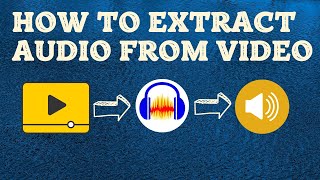

Extract Audio from Any Video in Seconds
45sThis ultra-quick method hooks viewers who want instant results without extra steps.
▶ Play Clip"The title accurately describes the tutorial content; the video delivers exactly what it promises."
This tutorial demonstrates how to extract audio from a video using Audacity, a free and open-source audio tool. The process involves installing the FFmpeg library and then simply dragging and dropping the video file into Audacity to extract the audio, which can then be exported as an MP3 file. The video also covers troubleshooting steps and explains common use cases for extracting audio, such as creating podcasts, generating transcripts, or dubbing videos.
The video shows how to extract audio from video using Audacity, a free and open-source software. It explains that Audacity is primarily an audio tool but can separate audio from video.
To extract audio from video in Audacity, the FFmpeg library must be installed. Without it, Audacity cannot open video files.
Go to Edit > Preferences > Libraries. Click 'Download' to get FFmpeg from the official Audacity website, then install it. Alternatively, use 'Locate' if already installed.
After installing FFmpeg, simply drag and drop the video file into Audacity. The audio waveform appears immediately.
Go to File > Export > Export as MP3. Name the file and save. The audio is extracted and saved as an MP3 file.
If FFmpeg is not detected, go to Preferences > Libraries and click 'Locate'. Browse to the FFmpeg folder (usually in Program Files) and select the appropriate file.
If locating FFmpeg doesn't work, uninstall and reinstall Audacity. This often resolves detection issues.
Common reasons include creating podcasts, generating transcripts, adding subtitles, and dubbing videos into other languages to grow audience.
Extracting audio from video with Audacity is straightforward once FFmpeg is installed. The process enables various content creation tasks like podcasting, transcription, and multilingual dubbing.
What software is used to extract audio from video in this tutorial?
Audacity, a free and open-source audio tool.
What library must be installed for Audacity to open video files?
FFmpeg.
1:01
How do you install FFmpeg from within Audacity?
Go to Edit > Preferences > Libraries and click 'Download'.
2:10
What is the first step to extract audio after installing FFmpeg?
Drag and drop the video file into the Audacity window.
3:42
How do you export the extracted audio as an MP3 file?
Go to File > Export > Export as MP3.
4:08
What should you do if FFmpeg is not automatically detected after installation?
Go to Preferences > Libraries and click 'Locate', then browse to the FFmpeg folder.
4:50
What is a recommended final troubleshooting step if locating FFmpeg fails?
Uninstall and reinstall Audacity.
5:57
Name three reasons to extract audio from a video mentioned in the tutorial.
Creating podcasts, generating transcripts/subtitles, and dubbing videos into other languages.
6:38
What is the difference between a transcript and subtitles?
Subtitles include timestamps indicating when each line is spoken.
7:23
What future YouTube feature does the creator look forward to?
The ability to add more than one audio track to videos for multilingual dubbing.
8:37
Simple drag-and-drop extraction
Shows the core method of extracting audio with minimal steps.
Official FFmpeg installation path
Provides a safe, non-spammy way to install the required library.
2:10Reinstall as a fix
Offers a practical troubleshooting step for persistent issues.
5:57Practical use cases for audio extraction
Explains why someone would need this skill, adding context and motivation.
6:38Future of multilingual YouTube videos
Highlights an upcoming feature that could expand audience reach.
8:37[00:00] in this video I'm going to show you how
[00:02] to extract audio from video and we are
[00:05] going to use audacity which is a free
[00:07] and open-source software and probably
[00:10] the best for manipulating audio and
[00:13] videos normally it is considered as an
[00:15] audio tool but if you want to separate
[00:17] only audio from a video you can also do
[00:20] that in audacity why you want to do that
[00:22] that I will explain at the end of this
[00:24] video because you clicked on this video
[00:26] because you want to know how to extract
[00:28] audio from video so first I explain this
[00:30] and then I will show you what could be
[00:32] the reasons why you might want to do
[00:34] that so without further Ado let's get
[00:36] started after a short
[00:38] [Music]
[00:44] break hello and welcome to my channel my
[00:47] name is Tahir and I make videos about
[00:49] various applications and software mostly
[00:52] about educational technology so I would
[00:54] highly appreciate if you hit the
[00:55] Subscribe button and also the
[00:57] notification Bell to get notified
[00:59] whenever I post a video on this channel
[01:01] I hope that you already know about
[01:03] audacity and you have installed this on
[01:06] your computer if not you can simply type
[01:08] audacity in Google and you will reach on
[01:11] this website and you can download
[01:13] Audacity now I have opened this software
[01:16] and this is my file explorer in which I
[01:19] have one video as an example and
[01:22] extracting audio from this video is very
[01:25] simple in audacity you simply drag and
[01:28] drop in this area if you have recently
[01:31] installed audacity then you will see
[01:33] this message and what this message is
[01:35] saying is that you have to add a library
[01:38] to audacity in order for you to extract
[01:41] audio from a video and that library is
[01:44] called FFM Peg and the message is saying
[01:47] that without FFM Peg audacity is unable
[01:51] to open this file and if you have
[01:53] installed that library then you will
[01:56] simply get the audio opened in this
[01:58] audacity which you can export as an MP3
[02:01] file and you are done so it's a very
[02:04] simple process you simply have to drag
[02:06] and drop your video and you will get the
[02:08] audio now let's see how you can install
[02:10] FFM Peg and we don't want to install
[02:12] from a spammy website so let us ask Odes
[02:16] from where should we install this
[02:18] library now what I need to do is I click
[02:20] on edit and at the very end we have this
[02:23] preferences I click on that and on the
[02:26] left hand side I have to click on this
[02:28] libraries and I can see this message FFM
[02:32] Peg Library not found and then there are
[02:34] two buttons locate and download so we
[02:38] should first click on this download so
[02:40] that we only go to the authentic website
[02:43] so I click on this download and it will
[02:46] open this page on this page I click on
[02:49] installing FFM Peg and now we are on
[02:52] Audacity website on this website there
[02:55] is a link lame. bueno. org and because
[02:59] this link link is on Audacity website so
[03:01] we can trust this link so I click on
[03:04] that and I reach on this page and my
[03:06] operating system is Windows so I am
[03:08] using audacity on PC so I click on this
[03:12] 64bit windows and then you save this on
[03:15] any convenient location so I'm saving
[03:18] this on my desktop and it will just take
[03:21] few seconds and now I get this file on
[03:24] my desktop I click on that accept the
[03:27] licensing terms click next and click
[03:30] install and finally finish installation
[03:33] and after the installation when I open
[03:35] my Odes and I try to put my
[03:42] video let us close this as you can see
[03:45] that I directly got the audio extracted
[03:48] from my video and if you don't see this
[03:51] and you have some problem I'm going to
[03:53] show you how you can solve that problem
[03:55] because some users they will see that
[03:58] FFM Peg is is still not found so I'm
[04:01] going to show you in a minute but in my
[04:03] case it automatically detected this and
[04:05] now what I can do is I got this audio
[04:08] from my video and I want to save this as
[04:11] an MP3 file as an audio file to do that
[04:14] I click on file and then I click on
[04:18] export and on the right hand side I can
[04:20] export as MP3 file web file WAV file or
[04:24] I can also export audio or I can also
[04:27] export audio so these are the three
[04:29] three different options so I want to
[04:31] export as an MP3 file so I click on that
[04:36] and I can change the name if I want
[04:38] otherwise it will be saved in the same
[04:39] folder with MP3 file simply click save
[04:43] and click okay and you will see this
[04:45] progress bar and within few second the
[04:48] audio file will be saved so let us see
[04:50] if you don't get this audio straight
[04:53] away and you see the same message that
[04:56] we got in the beginning of this video so
[04:58] let me open this again as you can see
[05:00] that in my case the library is there and
[05:04] there is a library version but if you
[05:06] see any error here Library could not be
[05:08] found then now you have to click on
[05:11] locate previously we clicked on download
[05:13] now we click on locate you will not see
[05:16] this message because it says that you
[05:18] want to locate again so I click yes and
[05:21] you will only see this area where you
[05:23] can browse so you click on browse the
[05:27] file will be in your program files
[05:30] directory which is normally in C
[05:33] directory and in this program files
[05:35] directory you will look for a folder FFM
[05:38] Peg for audacity so this is the folder
[05:41] you click on that and as you can see
[05:43] here that by default that the software
[05:46] is expecting this type of file and we
[05:49] have this file in this folder you click
[05:52] on that and you click on open and this
[05:55] will solve your problem I'm going to
[05:57] cancel this now what if this also does
[05:59] not solve your problem then remember one
[06:02] thing that whenever you are using any
[06:04] open- Source software and you are facing
[06:06] some errors which you should not face
[06:09] the best solution is that you reinstall
[06:12] the software so when the first time I Ed
[06:15] this Library it did not work even after
[06:18] I located properly I downloaded
[06:20] installed everything but then I
[06:22] uninstalled audacity and reinstalled and
[06:25] it worked it automatically detected my
[06:28] FFM Peg and and everything worked fine
[06:31] so this is how you can install this
[06:33] library and now you simply drag and drop
[06:35] and get the audio from a video now we
[06:38] come to the important question what are
[06:40] some of the reasons why you would like
[06:43] to extract audio from a video I have
[06:46] listed this on this screen you can pause
[06:48] the video and you can note but basically
[06:51] sometimes you only want audio not the
[06:54] video for example you want to create a
[06:56] podcast from any video because nowadays
[06:58] many YouTube they are making podcast
[07:01] from their videos as well and putting on
[07:03] various platforms to get some extra
[07:05] income sometimes you want to get the
[07:07] transcript of the video and sometimes
[07:10] you want to translate that transcript so
[07:12] you need to get the transcript first in
[07:14] your original language then you
[07:16] translate it into any other language so
[07:18] you can translate the text obtained from
[07:20] the audio and sometimes you want to get
[07:23] the subtitles so there is a difference
[07:25] between a simple transcript and the
[07:27] subtitle and the difference is that in
[07:29] subtitles you also get the time stamp
[07:32] when you speak something so why we want
[07:35] subtitles because in order to extend
[07:38] your audience for example if you are a
[07:40] YouTuber like myself I sometimes upload
[07:43] subtitles in more than one languages on
[07:46] my videos now the final and most
[07:48] important reason that I am considering
[07:50] right now about my videos is that I want
[07:53] to dub my videos in other languages to
[07:56] grow my audience and if you want to dub
[07:58] then you first have to get the subtitles
[08:00] in original language in my case it is
[08:02] English then I will translate that to
[08:06] any other language for example Hindi and
[08:08] then I will use a text to speech
[08:11] software to convert that subtitle to
[08:14] audio and then I will put that audio
[08:17] track in my video and that can be done
[08:19] in any video editing software so I will
[08:22] be making separate videos for these
[08:24] steps if you are interested in how to
[08:26] dub your videos or how to translate your
[08:29] transcript and what are the issues
[08:31] involved in that then you should
[08:33] subscribe to my channel and wait for the
[08:35] next videos we are expecting that soon
[08:37] YouTube will allow us to add more than
[08:40] one audio tracks to our videos and when
[08:43] someone from some other language will
[08:45] try to watch our video the audio of the
[08:48] video will be played in that particular
[08:50] language and that would be fantastic and
[08:53] that will help us grow our audience and
[08:55] we are looking forward to YouTube to
[08:57] allow us to add more than one audio
[09:00] tracks to our videos with this I end
[09:02] this video thanks for watching and see
[09:04] you next time
[09:08] [Music]
⚡ Saved you 0h 09m reading this? Transcribe any YouTube video for free — no signup needed.