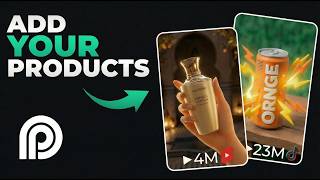

Create 4-Min Animated Ads from a Single Photo
43sReveals a groundbreaking AI tool that eliminates the need for animation skills, sparking curiosity and saving time for content creators.
▶ Play Clip"Title accurately describes the tutorial; the video delivers exactly what it promises."
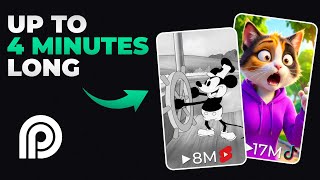
This video provides a first look at Opus Clip's new object insertion feature within Story Mode, demonstrating how to create animated adverts up to 4 minutes long using a single product photo and an audio file.
Opus Clip's new object insertion mode allows users to create animated adverts up to 4 minutes long without animation skills or multiple AI subscriptions.
Step 1: Provide a script (type or upload audio). Step 2: Upload a product image. Step 3: Choose an animation style and aspect ratio.
The creator prefers recording their own voice on a phone, uploading the audio file to Story Mode, which transcribes it to understand the script.
Use the Assets button to upload a photo of the product as an object.
Select from about 15 preset styles (e.g., claymation) or have Story Mode mimic any other animation style.
Choose aspect ratio (e.g., 16:9 horizontal) and press generate; the ad is created in 5-10 minutes.
Users can also upload images of people or characters and company logos to insert into the advert.
Story Mode can mimic any animation style beyond the presets, offering flexibility.
Opus Clip's object insertion feature simplifies animated ad creation, requiring only a product photo and audio file, with results in minutes.
What is the maximum length of animated adverts created with Opus Clip's object insertion?
Up to 4 minutes.
00:15
What are the three steps to create an advert in Story Mode?
Provide a script, upload a product image, choose an animation style and aspect ratio.
00:59
How does Story Mode understand the script when you upload an audio file?
It transcribes the audio into text.
03:30
How many preset animation styles are available in Story Mode?
About 15.
02:48
What additional types of images can be inserted besides products?
Images of people/characters and company logos.
04:59
Object Insertion Mode
Introduces a new feature that simplifies animated ad creation for non-animators.
00:15Voice Recording Method
Shows a workaround for those who dislike AI voices, using personal recordings.
01:26Fast Generation Time
Adverts are created in 5-10 minutes, demonstrating efficiency.
03:59Multiple Asset Types
Expands functionality to include people and logos, increasing versatility.
04:44Custom Animation Styles
Allows mimicking any animation style, offering creative freedom.
05:28[00:03] up the Mediterranean heat, practically bursting with sweet citrus nectar. We captured that pure, unfiltered vitality.
[00:15] Introducing Orange. Object insertion mode is here, and with it, you can create up to 4-minute-long animated adverts that show your product age now where you don't need animation skills or even subscriptions to multiple
[00:31] AIs. You just need a single photograph of your products, and story mode inside Opus Clip's new agent Opus platform will create these animated adverts automatically for you. This video is going to be a quick first look into that
[00:46] new object insertion feature, showing you how I've been easily using it to insert my own products into animated adverts like you're seeing on screen right now. Okay, so the starting point is on the story mode homepage that
[00:59] you're seeing on screen now. I'll pop a link to this page in the description to this video. And when you're on this page, there's three steps you need to take to generate your advert. And the first step is telling story mode what
[01:11] you want said in your advert. So, you can do that two ways. First, you could type in the script to your advert here, just like I've done there, and then choose a voice from one of these many preset voices that you'll find in the
[01:26] story mode voice-over library. But, I prefer the second method. I'm still not a huge fan of AI voices, so I use this method of, instead of typing in the script I want an AI voice said, I just record myself saying the script on
[01:42] my phone, upload it onto my computer, and then I upload that audio file into story mode by using this button here. So, I'm just going to press this and choose an audio file now. And once that recording of my voice is recorded there,
[01:55] that's all that's needed for story mode to know what the advert's about. You'll see more into how exactly this works in a second, but let's go into the second thing you need to do at this stage, and that is uploading an image of your
[02:08] product. To do that, you just press this assets button here. And because you're uploading a picture of your product, that's an object, you just press this button here, find the photo of your product on your computer, and use that
[02:21] to upload your product photo to story mode. So, here's my photo of my orange start. We're just going to come out of that onto the third and final thing we need to do at this stage to create our advert. It's that simple, only three
[02:35] steps. And that third step is simply choosing the animation style that you want your advert to be shown in. To do that, we just press this style button, that, we just press this style button, and you'll see here there's a ton of
[02:48] great animation styles for you to choose from for your advert. What's that, like from for your advert. What's that, like 15 styles? So, a ton of options for you. My personal favorite is this claymation one, so we're going to use claymation
[03:02] here, but feel free to try out different styles yourself and see which your favorite is. But for now, I'm going to choose claymation. And finally, you just need to choose the aspect ratio that you want your advert in. So, let's create a
[03:16] horizontal video this time. You saw vertical videos at the start. We're can use this to create a standard video in a 16:9 format, so we'll choose that this time. And then, we simply press this button. You'll see here, this
[03:30] is what I was talking about earlier when I said the audio file is all you need. The AI has understood exactly what is said in that voice recording and turned it into text, and using this this understanding, it's going to create an
[03:45] advert based on what is said in your script. That's all it needs to create the ad. And now if I press confirm, it's going to take me through to the advert creation screen in just a second. Here we go. That'll get started in just a
[03:59] second, and in roughly 5 to 10 minutes, this advert will be done and ready for us to watch. And just like magic, we've jumped 10 minutes into the future. That quick preview of this. Let's check this out. Close your eyes.
[04:13] Feel the golden afternoon sun baking the terraced hills of Sicily. Picture heavy, vibrant oranges soaking up the Mediterranean heat, practically bursting with sweet citrus nectar.
[04:30] We captured that pure, unfiltered vitality. You've seen this in the intro anyway. You get the picture. But just as easy as that, as simply as uploading an audio file, an image of your products, and
[04:44] choosing a style, you get long-length animated ads with your products inserted into it. You can do this up to 4 minutes in length each time. And you can do even more with this feature. If we click back into this assets area here, along with
[04:59] uploading images of your products, you can also upload images of people, characters that you want inserted into your advert, too, and even any company logos that you want shown throughout the ad. I've been making little clips of
[05:14] myself. I'll show you a few screenshots of those on screen now, and it's surprisingly good how accurate this object and person and logo insertion feature is. So, give the new object insertion feature inside story mode a
[05:28] try and let us know your thoughts to it in the comments below. It's a brand new Also, added bonus, if you don't want to use any of those animation style presets that I showed you earlier, those 15 styles, you can even have story mode
[05:42] mimic any other animation style you can find. I'll show you how to do that in that sounds interesting to you. I hope able to insert yourself and your products into these animations with
[05:55] story mode, uh and I'll see you on the next one. Bye.
⚡ Saved you 0h 05m reading this? Transcribe any YouTube video for free — no signup needed.