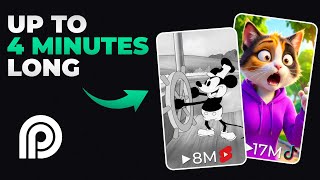

Create 4-Min Animations from a Single Prompt
42sShows a revolutionary tool that creates long animations automatically, promising high engagement from creators and tech enthusiasts.
▶ Play Clip"Title accurately describes the feature; video delivers a clear tutorial on making long animations with Story Mode."
Opus Clip's new Story Mode feature allows users to create up to 4-minute animations from a single prompt or audio clip without animation skills. This first look explains the two-step process: describing the desired animation and selecting a style, with options for preset or custom styles.
Story Mode in Opus Clip's Agent Opus platform enables creating animations up to 4 minutes long from a single prompt, no animation skills needed.
Step 1: Tell Story Mode what animation you want by typing a script or uploading an audio file. Step 2: Choose an animation style from presets or create a custom style.
You can input a script directly or upload an audio file of your voice. The platform also supports voice cloning for narration.
Preset styles include 2D and 3D options. You can also create custom styles by uploading an image, and the AI extracts the artistic style.
The generated animations can be used for YouTube Shorts or other content. The creator demonstrates using Story Mode to promote the Opus Clip iOS app.
Story Mode simplifies animation creation for storytellers and video makers, offering a quick way to produce visually enhanced content without technical skills.
What is the maximum duration of animations created with Opus Clip's Story Mode?
Up to 4 minutes.
00:03
What are the two ways to tell Story Mode what animation you want?
Typing a script or uploading an audio file.
01:25
How can you create a custom animation style in Story Mode?
Upload an image, and the AI extracts the artistic style to create a custom style.
04:21
What aspect ratio does the creator recommend for YouTube Shorts?
9:16.
01:51
What is the insider tip for better voice quality in Story Mode?
Upload your actual voice audio file instead of using the built-in voice cloning.
02:05
Story Mode Enables Easy Animation
Shows that non-animators can create professional animations with a single prompt.
00:03Voice Upload for Better Results
Practical tip to improve audio quality by uploading your own voice.
02:05Custom Style from Image
Demonstrates AI's ability to replicate artistic styles from a single image.
04:21Real-World Use Case
Shows practical application for promoting a product via YouTube Shorts.
05:39[00:03] Mchaveli says fear wins every time. Love is fickle. It fades when >> story mode is here and with it you can create animations just like this up to 4 minutes long from just a single prompt. You don't need to have animation skills
[00:19] or subscriptions to a ton of different AIs. These animations are made automatically for you using story mode, which is a new feature that's right inside Opus Clips single agent Opus platform. So, this video is going to be
[00:33] a first look into how to use story mode, how you can use it to create animations in any of the styles you're seeing on screen right now. I've been using it myself for a few days already, and I've been getting awesome results that I'm
[00:45] already using on my channel. So, I'm excited to run you through the new tool. So, there's two steps involved in getting story mode to give you the animation that you want. And the first step is telling story mode what
[00:58] animation you want. So, start by having a think about what type of animations you want story mode to make for you. I've been using it to make animations to use as YouTube shorts. You'll see an example on screen now that I've made to
[01:11] promote the release of the new Opus Clip app. So once you know what animation you want made, it's as easy as telling story mode on this screen here. I'll put a link to this screen in the description to this video. You just use this screen
[01:25] to tell story mode what to make. So in my example, the YouTube Shaw promoting the new Opus Clip mobile app. I can simply come here, paste the script in for that YouTube short, and story mode will create that animation about the new
[01:39] Opus clip mobile app for me from this script. Once you've written your script into story mode, you can choose the aspect ratio of the animation that you want made here. So, I've been choosing 9 by6 because I want a YouTube short. And
[01:51] you can even choose the voice that your script is spoken in. So, Opus Clip has a ton of default voices built into Agent Opus. And I've previously gone as far as cloning my voice up here. So, I can just choose my voice clone to read out that
[02:05] script on top of the animation that story mode creates for me. And I've got a little insider tip for you here. As good as the voice cloning is inside Agent Opus, it's pretty decent. I found that uploading my actual voice into the
[02:18] platform just gets me results I'm more happy with. And it's also a way of telling story mode what animation you what made without having to type in the script. You can just instruct it with an audio clip. So, I've just been clicking
[02:31] this, choosing an audio file of me talking from my computer that I want to uploading it. You can see it's been uploaded here. And now I don't have to type out a script. Story mode will just create the animation based on that audio
[02:44] file. So two ways of telling story mode what you want. You can either write out the script of what you want or upload an audio file for your animation to be what animation you want made. The next step is just choosing the style that you
[02:59] want your animation to be in. If we scroll down again to those styles that I showed you earlier, these are just a little glimpse of the available styles that you can use in story mode. You'll see we've got some 3D styles here with
[03:11] this frog. Uh some 2D styles here with this drawing and another 3D. So, a great mixture of different animation styles, whe it's 2D, 3D, different color schemes. This is just a little preview of what you can do in story mode. You
[03:24] also have these styles up here that you can hover over and choose from for your new animation. And applying an animation style to the animation you just told simple. You've got two options. You can either choose from one of the templates
[03:38] that I've just shown you or you can even create your own style from scratch in just a few steps. I'll show you how to do both. So, to choose one of the preset styles that is on display up here. These are just already available for you to
[03:51] story mode. You just hover over the one you want to use, give it a click, and it will show up here as your selected style. And if you wanted to actually change to a different style, you just click on the one that you want to swap
[04:04] swapped out. So I'll take a second now to generate my animation in this 2D line looks like in a little second when this finishes. And while that 2D line show you now how to create your own style, too. So to create your own custom
[04:21] animation, it's as simple as just heading up here and pressing add style. And the easiest way I found to do this is just uploading an image example of mode, we'll be able to just create that whole style for you based on that one
[04:35] image. It's pretty impressive once you see it in action. So, I'll show you this now. So, here's an image I've just uploaded. You might recognize the figure there. This is an image of Steamboat Willie, which I've checked is officially
[04:47] out of copyright. I can't get in trouble for using this style. It's public there, after just a few seconds of loading the image, the AI has gone away loading the image, the AI has gone away and understood the artistic style that's
[05:00] used inside this image, which basically now shows me that story mode is ready to turn this into a style that I can use for my shorts. So, I just now have to press apply down here. And you'll see that my custom style is now there, ready
[05:12] for me to use for this animation. So, super simple. Whether you're choosing one of the preset styles or creating your own, it just takes a few seconds to get that style up here added on the lefth hand side as the style you want to
[05:25] use for your animation. Let's just set this off so that we have another example in this new style. It's as easy as that. Let's take a look at a couple of seconds see exactly what you get from just doing those two steps. This is massive for
[05:39] creators on the go. Opus Clip officially launched an iOS app. Previously, you were stuck to your desktop if you wanted to turn your long form videos into shorts. But now, the new This is massive for creators on the go. Opus Clip
[05:52] officially launched an iOS app. Previously, you were stuck to your desktop if you wanted to turn your long form videos into shorts. That is crazy to me from just following those two steps, telling story mode what you want
[06:05] by either typing in the script or uploading your audio and then choosing your style and you get something like this. In my opinion, this technology is going to empower storytellers who were never quite good at creating visuals or
[06:18] just video makers like me who need some extra animations to make their videos just more visually enhanced. Keep an eye out for story mode in Asian Opus. We'll put a link to Asian Opus in the description to this video. And also let
[06:31] us know how you're using story mode once you get access to it. If you found any prompts or any workflows that work really well for you, let us know in the comments below. It's been great bringing this first look into story mode to you.
[06:45] this first look into story mode to you. I'll see you soon. Peace out.
⚡ Saved you 0h 06m reading this? Transcribe any YouTube video for free — no signup needed.